When customers request refunds, you have a choice: return the money to their original payment method, or credit their store wallet. A WooCommerce refund to store credit keeps revenue in your ecosystem, provides instant resolution for customers, and encourages future purchases.
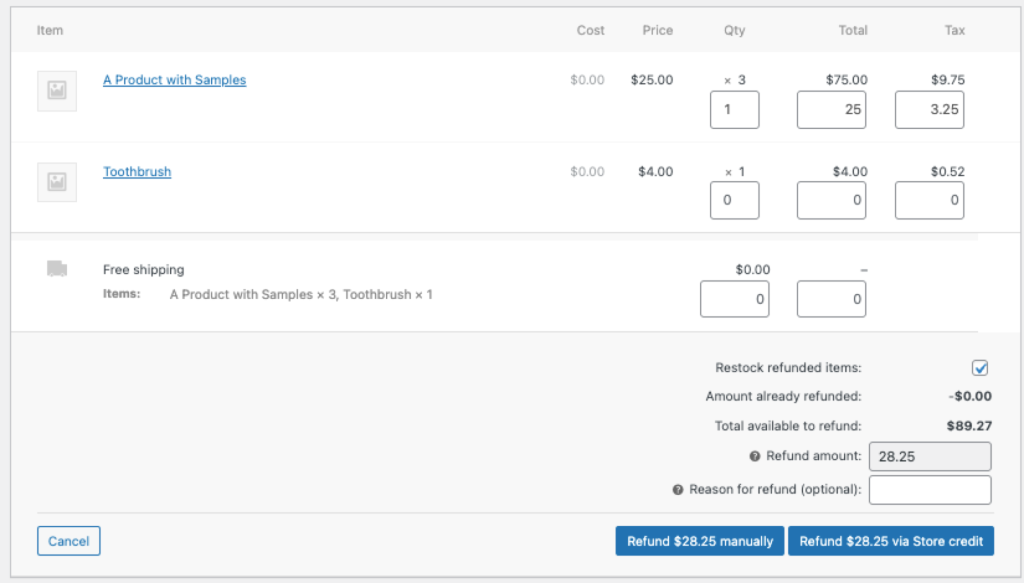
This guide covers when and how to refund to store credit, what happens behind the scenes, and best practices for refund handling.
Why Refund to Store Credit
Traditional refunds return money to the customer’s bank account or card. This has downsides:
- Processing delays (3-10 business days for many payment methods)
- You lose the revenue entirely
- Customer may not return
- Refund fees on some payment processors
Refunding to store credit offers advantages:
- Instant availability—customer can use credit immediately
- Revenue stays in your ecosystem
- Encourages the customer to shop again
- No payment processor refund fees
- Simpler accounting in some cases
Of course, customers may prefer their money back directly. Use store credit refunds thoughtfully—as an option, not a mandate.
How It Works
For Orders Paid with Store Credit
When a customer pays with store credit (via the Account Funds gateway), the refund automatically goes back to their wallet. This is the only option because there’s no external payment method to refund to.
The process:
- Open the order in WooCommerce
- Click “Refund”
- Enter the refund amount and reason
- Click “Refund via Store Credit” (the gateway name)
- Credit is instantly added to the customer’s wallet
For Orders Paid with Other Methods
When a customer paid with a card, PayPal, or another gateway, you have two options at refund time:
Option 1: Refund to original method
Click the standard “Refund $X via [Gateway Name]” button. Money returns to the customer’s original payment method.
Option 2: Refund to store credit
WooCommerce’s refund interface offers manual refund options. You can:
- Process a manual refund (not through the gateway)
- Manually credit the customer’s wallet
For a streamlined store credit refund on non-store-credit orders:
- Edit the order
- Click “Refund”
- Enter the amount
- Select “Refund manually” (this doesn’t send money back to the gateway)
- Navigate to the customer’s user profile or Store Credit → Transactions
- Add a manual credit for the refund amount with a note referencing the order
Alternatively, some workflows use the “Refund manually” option and rely on the order note to track that a store credit was issued, with a separate manual adjustment to the wallet.
Automatic Reversal on Cancellation
When an order is cancelled (not refunded), the system handles store credit automatically:
- If the customer used store credit to pay, it’s returned to their wallet
- Any cashback awarded for the order is voided (removed from wallet)
- Order notes document what happened
This prevents situations where customers keep both the refund and the cashback they earned.
What Gets Recorded
Every store credit refund creates audit trail entries in multiple places.
Wallet Transaction
A credit transaction appears in the customer’s wallet with:
- Amount refunded
- Event type: “Order Refunded”
- Reference to the refund ID
- Optional note (the refund reason)
- Timestamp
Customers can see this in My Account → Store Credit.
Order Notes
The order receives a note like:
Refunded $25.00 via Store Credit.
Or for gateway refunds:
Granted $25.00 in store credit to the customer after refunding order items.
Order Meta
The order stores metadata tracking:
_funds_refunded: Total amount refunded to store credit- Used to prevent double-refunding
Partial Refunds
You can refund partially to store credit. If a $100 order needs a $30 refund:
- Process the $30 refund
- Credit $30 to the customer’s wallet
- The order shows as partially refunded
The remaining $70 stays as a completed sale.
Partial Payment Orders
When a customer used store credit for part of an order and another payment method for the rest, refunds require care:
Example: $100 order paid with $40 store credit + $60 credit card.
If fully refunding:
- $40 returns to store credit wallet
- $60 refunds to credit card
If partially refunding $30, you decide the split. The system tracks store credit used (_funds_used) and refunded (_funds_refunded) separately.
Handling Deposit Product Refunds
When refunding orders containing store credit deposit products, the system reverses the deposit:
- Customer bought a $50 deposit product, received $50 credit
- You refund the order
- System debits $50 from the customer’s wallet
- You refund $50 to the original payment method
Watch for negative balances: If the customer already spent some of the deposited credit, debiting the full amount could make their balance negative. Review the customer’s current balance before processing deposit refunds.
Cashback Reversal
When refunding orders that earned cashback rewards, the awarded credit is automatically voided:
- Customer placed a $100 order, earned $5 cashback
- You refund the order
- System voids the $5 cashback (debits from wallet)
- Order note records the reversal
This prevents customers from keeping earned cashback on refunded orders.
Partial Refund Cashback Handling
Partial refunds may partially void cashback, depending on what was refunded:
- If specific products are refunded, cashback for those products is voided
- Order-level cashback may be recalculated based on the new total
- The exact behavior depends on your cashback configuration
Customer Communication
Setting Expectations
Communicate your refund policy clearly:
- Do you offer store credit as the primary refund method?
- Is original payment method refund available on request?
- Are there situations where only store credit is offered (e.g., sale items)?
Add this to your refund policy page and order confirmation emails.
Notifying Customers
When processing a store credit refund:
- Send a personal email or message explaining the credit
- Reference the order and amount
- Explain how to use the credit (checkout, My Account page)
- Note any expiration if applicable
WooCommerce’s default refund notifications may not specifically mention store credit, so supplementing with a personal message improves clarity.
Best Practices
When to Offer Store Credit Refunds
Good candidates for store credit refunds:
- Customer wants to exchange but exact replacement isn’t available
- Minor issues where customer wants compensation but keeps the item
- Returns on sale/clearance items
- Frequent customers who will use the credit soon
When to refund to original method:
- Customer explicitly requests it
- Large amounts that represent significant customer funds
- One-time customers unlikely to return
- Legal requirements in your jurisdiction
Offering Incentives
Some stores offer a small bonus for choosing store credit over cash refund:
- “Accept store credit and receive 10% extra”
- Customer due $50 refund → offered $55 in store credit
This compensates for the inconvenience while keeping revenue in your ecosystem.
Expiration Considerations
If your store credit expires, consider:
- Setting longer expiration for refund credits vs. earned rewards
- Clearly communicating expiration when issuing refund credits
- Sending reminder emails before credits expire
Record Keeping
Maintain clear records:
- Always include a refund reason that references the original issue
- Use order notes to document why store credit was chosen over cash
- Keep refund request communications linked to orders
Subscriptions and Recurring Orders
Refunding subscription renewal orders follows the same process, but consider:
- Refunding a renewal doesn’t cancel the subscription
- The customer’s subscription continues unless explicitly cancelled
- Store credit from a refund could be used for the next renewal automatically (if using Account Funds as subscription payment method)
For subscription-related refunds, often the right action is adjusting the subscription itself (extending, pausing, or cancelling) rather than just refunding past payments.
Troubleshooting
Refund Didn’t Credit Wallet
If a store credit refund didn’t add to the customer’s balance:
- Check if the refund was processed as “manual” vs. gateway refund
- Review order notes—was the refund completed?
- Check Store Credit → Transactions for the customer
- Verify the customer has an account (guest orders can’t receive store credit)
For guest orders, you’ll need to create an account for the customer first, or process a traditional refund.
Cashback Wasn’t Voided
If cashback remained after refunding the earning order:
- Check if the refund was processed through the proper WooCommerce flow
- Manual refunds outside WooCommerce won’t trigger the reversal hooks
- Manually debit the cashback amount if needed
Related Guides
- Getting Started with Account Funds
- Partial Payments — Combining store credit with other payment methods
- Cashback Rewards — Automatic credit on purchases
- Store Credit Products — Selling credit directly