


Every Amazon S3 Storage setting lives on one tab, WooCommerce » Settings » S3 storage, which the WooCommerce » S3 storage menu item also opens. This page defines each setting in the order it appears. For the steps to set up a store, see Get started with Amazon S3 Storage.


The tab shows the Connection and Debug sections at first. Automatic offloading, Shortcode offloading and Product downloads appear once the plugin connects to your provider. Some settings also depend on the provider you pick, as noted under each one. Opening the tab re-checks the connection and refreshes the bucket lists.
Connection
Cloud service provider
Where your files are stored: Amazon S3 (the default), Cloudflare R2, or User defined (experimental) for Backblaze B2, Wasabi and DigitalOcean Spaces. The experimental option hides Credentials location, the key fields and Endpoint, because a code snippet supplies them; see Connect other S3-compatible providers.
Credentials location
Where your access keys are kept:
- Save credentials to database (encrypted), the default: you paste the keys below, and the plugin stores them encrypted. This needs the PHP OpenSSL extension, and the encryption is tied to your site’s WordPress security keys (salts), so changing those means pasting the keys again.
- Manually add constants to your WordPress configuration file (unencrypted): the key fields disappear, and the plugin reads the keys from
wp-config.php. The text under the setting names the two constants for the provider you chose:AMAZON_S3_ACCESS_KEY_IDandAMAZON_S3_ACCESS_KEY_SECRETfor Amazon S3, orCLOUDFLARE_R2_ACCESS_KEY_IDandCLOUDFLARE_R2_SECRET_ACCESS_KEYfor Cloudflare R2.
Access key ID
The access key ID from your provider: an IAM user’s access key for Amazon S3, or an R2 API token’s Access Key ID for Cloudflare R2. Shown when Credentials location is the database option. A saved key ID shows as plain text, so you can check which key is in use; it’s still stored encrypted, and Secret access key stays hidden.
Secret access key
The secret that belongs to the access key ID. Shown with Access key ID.
Endpoint
Only shown for Cloudflare R2: your account’s S3 API address, such as https://<account-id>.r2.cloudflarestorage.com, without a bucket name. If you paste a URL that includes the bucket, the plugin keeps only the base address when you save. See Connect Cloudflare R2.
Automatic offloading
Files offloaded here are served to customers with access to the download, under WooCommerce’s usual limits. If the plugin can’t reach your provider, or a file isn’t in the bucket, customers get the local copy.
Enable
Uploads each product’s downloadable files to your bucket in the background when you save the product in the product editor. On by default for new installs. Turning it off hides S3 bucket, and downloads come from your server again. See How automatic offloading works.
S3 bucket
The bucket automatic offloading uploads to. The list shows the buckets your access keys can see; reload the page if you just created one. Choose a bucket and save, even if it already shows, so the choice is stored.
With Amazon S3, the list starts with Create a new bucket…. Choosing it shows two more fields: the new bucket’s name, and its region. When you save, the plugin creates the bucket and selects it. Bucket names must be unique across all of AWS and 3 to 63 characters long; use lowercase letters, numbers, hyphens and periods (periods don’t work with Transfer Acceleration). Creating a bucket needs the s3:CreateBucket permission (see Set up Amazon S3 for your store). With Cloudflare R2 and the experimental providers, create buckets with your provider first.
Shortcode offloading
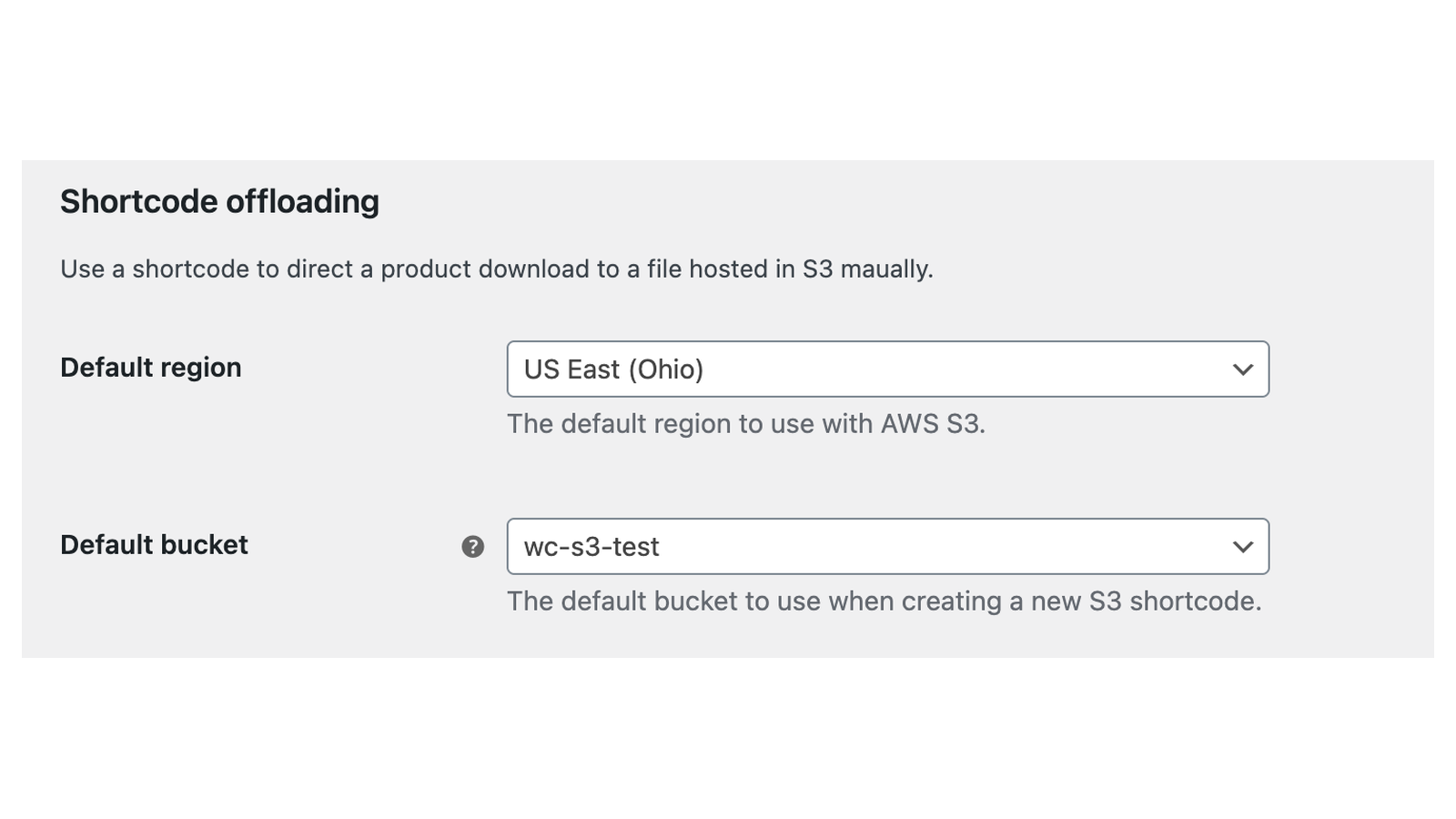
These two settings fill in what an [amazon_s3] shortcode leaves out. See Link files with the S3 shortcode.
Default region
The AWS region shortcodes use when they don’t name one and no Default bucket is set. It also supplies the region list for Create a new bucket…. Default US East (N. Virginia) – us-east-1. Hidden for Cloudflare R2, which doesn’t use regions.
The list has these regions. Automatic offloading can’t use a bucket in a region that isn’t listed.
- North America: US East (N. Virginia)
us-east-1, US East (Ohio)us-east-2, US West (N. California)us-west-1, US West (Oregon)us-west-2, Canada (Central)ca-central-1, Canada West (Calgary)ca-west-1, Mexico (Central)mx-central-1 - South America: South America (São Paulo)
sa-east-1 - Europe: Ireland
eu-west-1, Londoneu-west-2, Pariseu-west-3, Frankfurteu-central-1, Stockholmeu-north-1, Milaneu-south-1, Spaineu-south-2, Zuricheu-central-2 - Middle East: Bahrain
me-south-1, UAEme-central-1, Israel (Tel Aviv)il-central-1 - Africa: Cape Town
af-south-1 - Asia Pacific: Mumbai
ap-south-1, Hyderabadap-south-2, Singaporeap-southeast-1, Sydneyap-southeast-2, Jakartaap-southeast-3, Melbourneap-southeast-4, Malaysiaap-southeast-5, Thailandap-southeast-7, Tokyoap-northeast-1, Seoulap-northeast-2, Osakaap-northeast-3, Hong Kongap-east-1, Taipeiap-east-2 - China: Beijing
cn-north-1, Ningxiacn-northwest-1 - AWS GovCloud (US): US-West
us-gov-west-1, US-Eastus-gov-east-1
Default bucket
The bucket shortcodes use when they don’t name one, and the placeholder in the shortcode generator’s Bucket name field. It can differ from S3 bucket, so offloaded files and shortcode files can live in different buckets. When set, shortcodes without a region use this bucket’s region.
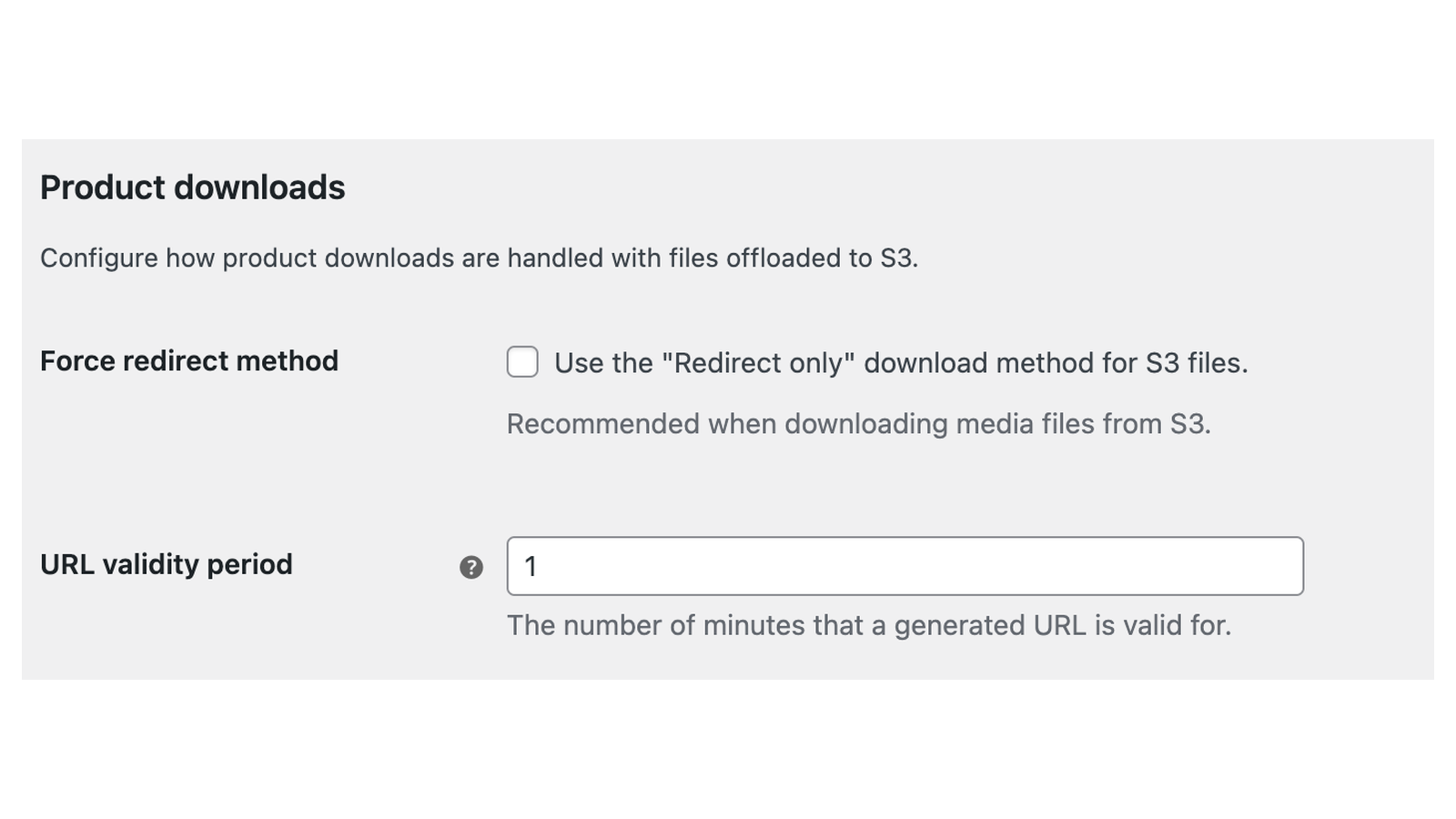
Product downloads
Transfer Acceleration
Only shown for Amazon S3. Routes uploads and downloads through Amazon’s edge locations. Off by default. Enable Transfer Acceleration on the bucket in the AWS console too, or uploads and downloads fail. See Use Transfer Acceleration.
Force redirect method
Sends customers straight to the signed link for files served from your bucket (WooCommerce’s Redirect only download method), so the download doesn’t pass through your server. It works the same for Amazon S3, Cloudflare R2 and the experimental providers. On by default, and recommended. It doesn’t change how files on your server download: those keep WooCommerce’s File download method under WooCommerce » Settings » Products » Downloadable products.
Redirect only is safe here: the customer sees the signed link, but it expires after the URL validity period.
Download behavior
How browsers treat downloaded files:
- No override (S3 default), the default: the browser decides, using any Content-Disposition metadata stored on the file. Browsers may play audio or open PDFs instead of saving them.
- Force download: browsers save every file, named after its object name.
To set the downloaded file name yourself, add Content-Disposition metadata (for example attachment; filename="My Album.zip") to the file in your provider’s console and keep No override (S3 default). A shortcode’s content_disposition attribute overrides this setting for one file.
URL validity period
How many minutes a signed download link works, from 1 to 10080 (seven days). Default 15; leaving it empty also uses 15. The plugin reuses a link until it expires, so a customer who clicks again within the period gets the same link. Shorter periods make shared links useless sooner; WooCommerce’s own download limits and expiry still apply on top.
Debug
Debug mode
Logs each connection, upload and download step under WooCommerce » Status » Logs, for troubleshooting. Off by default. While it’s on, every admin page shows "Debug mode is enabled. Please remember to disable this feature to prevent excessive amounts of logging data." Turn it off when you’re done.