


Before Amazon S3 Storage can offload your downloads, it needs a bucket and a set of access keys allowed to use it. This page walks through both in the AWS console: a private bucket, an IAM user with only the permissions the plugin uses, and the keys you paste into WooCommerce.
You need an AWS account and permission to create IAM users and policies in it. Don’t use your AWS root account’s keys for the plugin.
When you’d use this
- You’re setting up Amazon S3 Storage with Amazon S3 for the first time.
- The plugin shows "these credentials do not have permission to list buckets", or downloads fail with
AccessDenied. - You want to use more than one bucket, for example one for automatic offloading and others you link with shortcodes.
How to use it
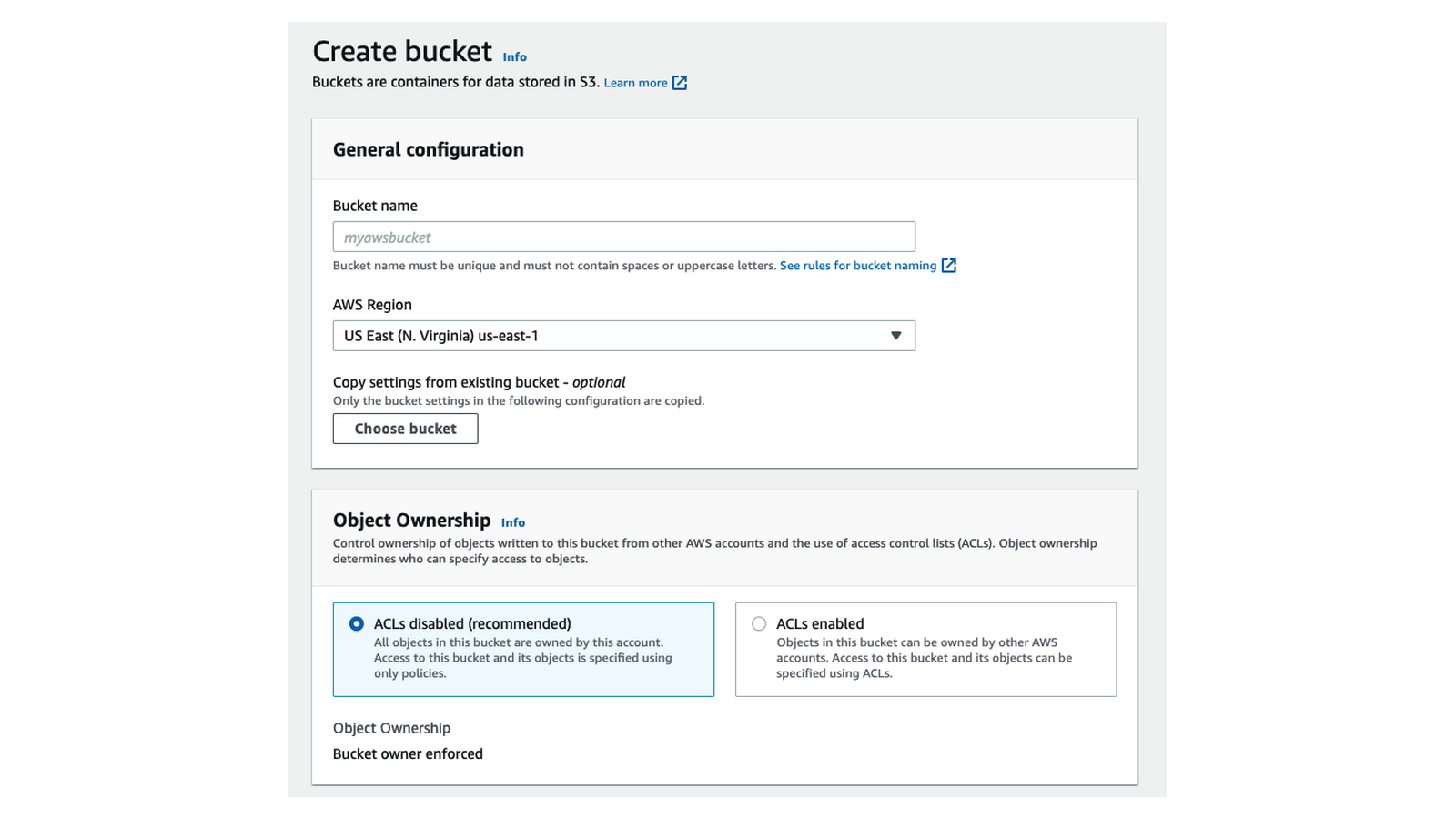
1. Create the bucket
You can skip this step and create the bucket from WooCommerce instead (S3 bucket » Create a new bucket…), as long as your IAM user can create buckets (see step 2).
- Sign in to the AWS console and open S3.
- Click Create bucket.
- Choose an AWS Region close to most of your customers. Pick a region that the plugin’s Default region setting lists (see the list); the plugin can’t use buckets in regions missing from that list.
- Enter a Bucket name. Names must be unique across all of AWS, 3 to 63 characters long, and use lowercase letters, numbers and hyphens. Avoid periods: they don’t work with Transfer Acceleration.
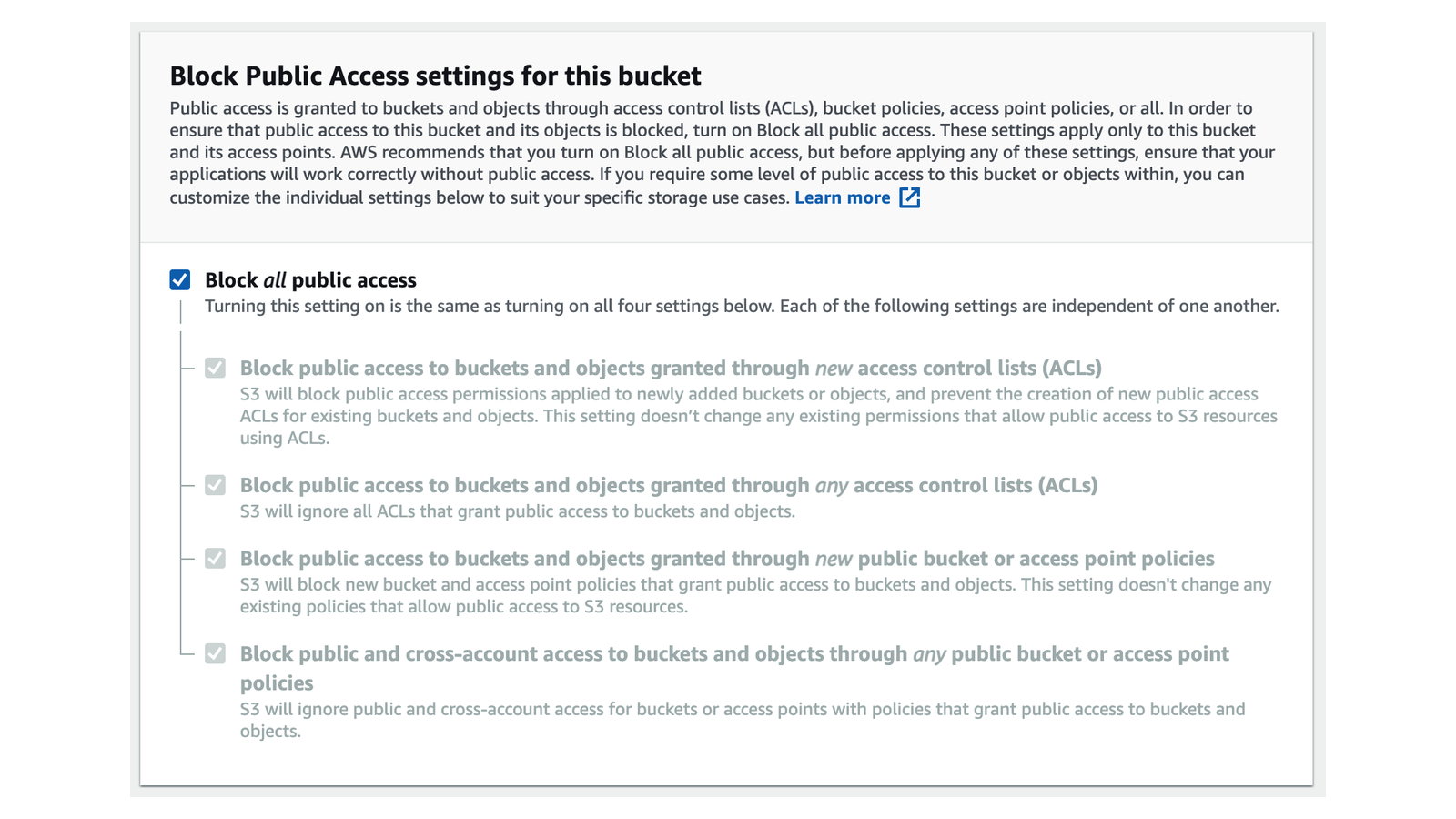
- Leave Block all public access turned on, and keep the other defaults.
- Click Create bucket.
2. Create a permissions policy
The plugin only lists your buckets, looks up their regions, uploads files, checks that files exist and signs download links. This policy allows exactly that for one bucket. Replace your-bucket-name with your bucket’s name.
- In the AWS console, open IAM » Policies and click Create policy.
- Switch the editor to JSON and paste:
{
  "Version": "2012-10-17",
  "Statement": [
    {
      "Sid": "ListAllBuckets",
      "Effect": "Allow",
      "Action": "s3:ListAllMyBuckets",
      "Resource": "*"
    },
    {
      "Sid": "UseTheBucket",
      "Effect": "Allow",
      "Action": ["s3:GetBucketLocation", "s3:ListBucket"],
      "Resource": "arn:aws:s3:::your-bucket-name"
    },
    {
      "Sid": "UseTheFiles",
      "Effect": "Allow",
      "Action": ["s3:PutObject", "s3:GetObject"],
      "Resource": "arn:aws:s3:::your-bucket-name/*"
    }
  ]
}- Click Next, name the policy (for example,
woocommerce-s3-storage) and click Create policy.
What each permission is for:
| Permission | Why the plugin needs it |
|---|---|
s3:ListAllMyBuckets | Testing the connection and filling the bucket dropdowns. Without it, the plugin can’t connect at all. |
s3:GetBucketLocation | Finding which region each bucket is in, so uploads and links use the right one. |
s3:ListBucket | Lets Amazon S3 report a missing file as NoSuchKey instead of AccessDenied, so download errors point at the right cause. |
s3:PutObject | Uploading your downloadable files. Skip it if you only link files with shortcodes. |
s3:GetObject | Checking that a file exists and letting the signed download links work. |
To link files in more buckets with shortcodes, add each bucket’s ARN to the second statement and arn:aws:s3:::other-bucket/* to the third. To create buckets from WooCommerce, add a statement allowing s3:CreateBucket on arn:aws:s3:::*.
3. Create the IAM user and access keys
- Open IAM » Users and click Create user. Name it something you’ll recognize, such as
woocommerce-store. It doesn’t need console access. - On the permissions step, choose Attach policies directly, find the policy from step 2, and select it. Create the user.
- Open the user, go to Security credentials, and click Create access key.
- When asked for a use case, choose Application running outside AWS, then create the key.
- Copy the Access key and Secret access key. AWS shows the secret only once; if you lose it, create a new key.
4. Connect the plugin
Go to WooCommerce » S3 storage, set Cloud service provider to Amazon S3, paste the two keys into Access key ID and Secret access key, and click Save changes. Once it says "Connected to Amazon S3.", choose your bucket under S3 bucket and continue with Get started with Amazon S3 Storage.
To keep the keys out of the database, set Credentials location to Manually add constants to your WordPress configuration file (unencrypted) and add these lines to wp-config.php, above the line that says to stop editing:
define( 'AMAZON_S3_ACCESS_KEY_ID', 'your-access-key-id' );
define( 'AMAZON_S3_ACCESS_KEY_SECRET', 'your-secret-access-key' );
Bucket permissions, policies and CORS
- Keep the bucket and its files private. Customers download through signed links that your IAM user’s
s3:GetObjectpermission vouches for, so files don’t need public read access. Making files public would let anyone with a file’s address download it, without a purchase. - No bucket policy is needed. The IAM policy on the user is enough. If your organization adds a bucket policy that denies access, make sure it doesn’t block this IAM user.
- No CORS rule is needed. Uploads run from your server, and downloads are ordinary browser downloads that follow a redirect, so your store’s pages never call the bucket from the browser.
- Files you upload yourself stay private too. If you add files to the bucket in the AWS console or with another tool and link them with a shortcode, keep the default private permissions.
Use Transfer Acceleration
Amazon S3 Transfer Acceleration routes uploads and downloads through Amazon’s edge locations, which can speed up transfers for customers far from your bucket’s region. AWS charges extra for it.
- In the AWS console, open your bucket’s Properties, find Transfer acceleration, and enable it.
- In WooCommerce, tick Transfer Acceleration under Product downloads and save.
Turn it on in both places. If it’s on in WooCommerce but not on the bucket, uploads and downloads fail.
Common issues
"these credentials do not have permission to list buckets"
The full message is "A connection to Amazon S3 could not be initialized: these credentials do not have permission to list buckets. Update their permissions and try again." The user’s policy is missing s3:ListAllMyBuckets on "Resource": "*". Add it, then reload the settings page.
Downloads show an XML page with AccessDenied
The user can list buckets but can’t read the file. Check that the policy grants s3:GetObject on arn:aws:s3:::your-bucket-name/* (with the /*), and that the bucket name in the policy matches. A message saying the request has expired means the link was opened after the URL validity period.
The bucket I created doesn’t appear in the dropdown
The plugin remembers your bucket list. Reload the S3 storage settings page to refresh it.
For other messages, see Troubleshoot Amazon S3 Storage.