


Lightspeed POS for WooCommerce connects your WooCommerce store to Lightspeed Retail, so you manage products, prices and stock once, in Lightspeed, and your online store follows. Products and stock come in from Lightspeed and stay up to date, stock is checked against Lightspeed when shoppers add to cart and check out, and you can send WooCommerce orders back to Lightspeed as sales.
One plugin supports two different Lightspeed products, Lightspeed Retail R-Series and Lightspeed Retail X-Series (formerly Vend). Their screens, settings and sync work differently, so after the shared steps on this page you follow the pages for your series only. The plugin doesn’t work with Lightspeed eCom or Lightspeed Restaurant.
When you’d use this
- Sell in a store with Lightspeed and online with WooCommerce, from one catalog.
- Keep online stock in step with in-store sales, so you don’t oversell.
- Record online orders in Lightspeed alongside your in-store sales.
- Bring your Lightspeed catalog into a new WooCommerce store without re-entering it.
Requirements
- WordPress 6.3 or later, WooCommerce 9.9 or later, and PHP 7.4 or later with the OpenSSL extension (needed to set up the plugin and for X-Series), which it uses to store your Lightspeed credentials.
- WP-Cron and loopback requests working on your site. Syncing runs in the background through WooCommerce’s Action Scheduler, and the plugin shows a notice if either is unavailable.
- Compatible with WooCommerce’s cart and checkout blocks and High-Performance Order Storage.
- WooCommerce stock management turned on (WooCommerce » Settings » Products » Inventory » Enable stock management).
- An active Lightspeed Retail account:
- X-Series needs Lightspeed API access. On Lightspeed’s current plans, that comes with the Plus plan; some older plans include it.
- R-Series needs a Lightspeed employee login with inventory privileges to authorize the connection.
Install and activate
How you install and get updates depends on where you bought the plugin:
- Bought on kestrelwp.com: download the plugin from your kestrelwp.com account and install it. Then go to Settings » Lightspeed POS for WooCommerce activation, enter your License key and activate it to receive updates. See using sites against your activation limit for how activations count.
- Bought on WooCommerce.com: install the plugin from your WooCommerce.com account. Updates come through your WooCommerce.com connection, with no license key to enter.
For upload, FTP and update steps, follow how to install and update WooCommerce extensions. Once the plugin is active, a Lightspeed menu appears in your WordPress admin.
Set up Lightspeed POS
1. Find out which series you have
Log in to Lightspeed. Your account shows either Retail (R-Series) or Retail POS (X-Series). You pick the series once when you connect, and changing it later means disconnecting, so check first.
2. Turn on stock management
Go to WooCommerce » Settings » Products » Inventory, turn on Enable stock management and save. Stock only syncs for products that manage stock.
3. Connect to Lightspeed
Go to Lightspeed » Connection, choose your series under Retail POS series, and click Connect to Lightspeed X-Series or Connect to Lightspeed R-Series. Lightspeed asks you to log in and approve the connection, then sends you back to this screen.
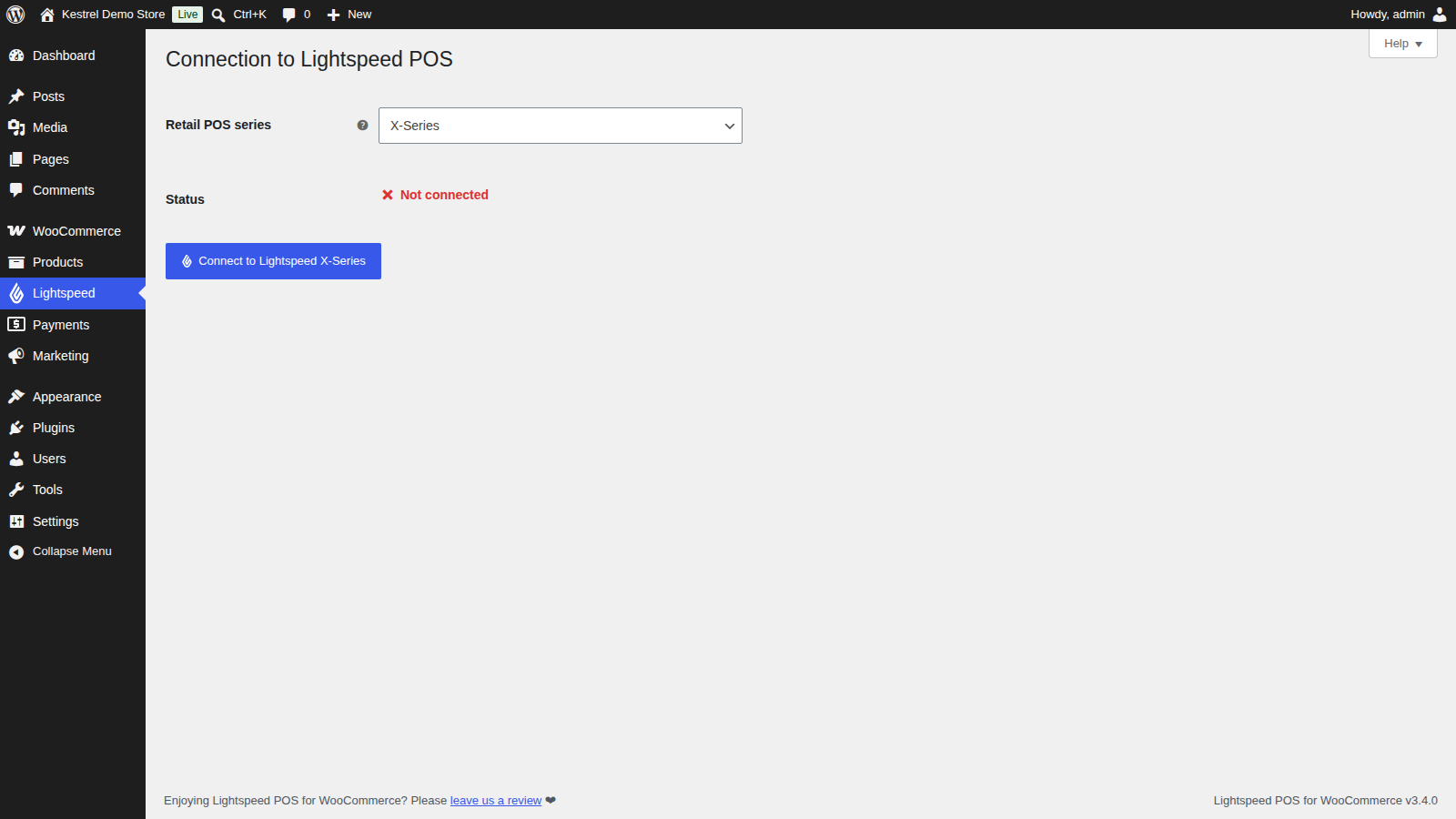
4. Finish setup for your series
The rest of the setup is different for each series:
- X-Series: choose an outlet register, import your products and check the sync. Follow Set up Lightspeed X-Series.
- R-Series: choose your inventory store, load and import your products, and check the sync. Follow Set up Lightspeed R-Series.
Each setup page ends with a test you can see: change a product’s stock in Lightspeed and watch it update in WooCommerce.
How syncing works
Lightspeed is the source of truth for your catalog and stock. The plugin brings Lightspeed changes into WooCommerce on a schedule you set, and a stock value you type in WooCommerce is overwritten by the next update from Lightspeed. Manage stock in Lightspeed, and avoid other plugins that write stock to synced products.
Three things keep online stock accurate between scheduled updates:
- When a shopper adds a synced product to the cart, the plugin asks Lightspeed for its current stock first, and WooCommerce blocks the add if it’s out of stock.
- On the classic checkout, the plugin checks the cart against Lightspeed again before the order is placed. The checkout block relies on the add to cart check and the scheduled updates.
- When a WooCommerce order reduces stock, the new stock goes back to Lightspeed.
Orders only go one way. WooCommerce orders can be sent to Lightspeed as sales, but sales made in Lightspeed are never brought into WooCommerce. Order sync is off until you turn it on.
The Lightspeed menu
What you see under Lightspeed depends on your series:
| Screen | X-Series | R-Series |
|---|---|---|
| Connection | Connect, reconnect or disconnect | Connect, reconnect or disconnect |
| Settings | Lightspeed X-Series settings | Lightspeed R-Series settings |
| Sync | Import and export products and customers, and see activity | Not shown |
| Product Importer | Not shown | Load Lightspeed products and import them |
Common issues
The settings for my series are missing
Only the series you connected shows its screens. Check Lightspeed » Connection: if the wrong series is selected, click Disconnect, choose the right one under Retail POS series, and connect again. Retail POS series can’t be changed while you’re connected ("To change this setting, please disconnect first.").
"The OpenSSL PHP extension is not available on this site."
The plugin needs OpenSSL to finish setup and for X-Series. Ask your host to enable the OpenSSL extension for PHP.
"WP Cron appears to be disabled on this site."
Background syncing relies on WP-Cron. Remove DISABLE_WP_CRON from wp-config.php, or keep it and have your host run a real cron job that calls wp-cron.php every minute or so. If you already have that cron job, you can dismiss the notice.
"Loopback requests are not supported on this site."
Imports and exports run as background requests your site sends to itself. Ask your host to allow loopback requests, or check whether a security plugin or firewall is blocking them.
"This plugin requires WooCommerce version 9.9 or higher."
Update WooCommerce. The plugin doesn’t load on older versions.
I need help with something else
Each series has its own troubleshooting page: Troubleshoot Lightspeed X-Series and Troubleshoot Lightspeed R-Series. When you contact support, include your plugin version (shown on Plugins), your series, and what you see in the logs under WooCommerce » Status » Logs.