


Progressive Discounts gives customers a bigger discount as their cart grows: for example 5% off 2 items and 10% off 5 or more, or a fixed amount off once the subtotal passes a set value. You set up the tiers once, and the discount applies itself in the cart and at checkout. An optional banner tells shoppers about the promotion.

One promotion can be active at a time. It’s a tiered cart discount only: it doesn’t do buy-one-get-one, free gifts or bundles, and it can’t target product attributes such as size or color.
When you’d use this
- Encourage bigger orders with "buy more, save more" tiers.
- Reward bigger spends with a fixed amount off above set subtotals.
- Run a Black Friday promotion that starts and stops on its own.
- Limit the deal to one category, such as "10% off 3 or more T-shirts".
Requirements
- WordPress 6.3 or later, WooCommerce 8.2 or later, and PHP 7.4 or later.
- Compatible with WooCommerce’s cart and checkout blocks and High-Performance Order Storage.
- WooCommerce coupons must be turned on.
- Store administrators and shop managers can manage promotions.
Install and activate
- Bought on kestrelwp.com: install the plugin by following how to install and update WooCommerce extensions.
- Bought on WooCommerce.com: install the plugin from your WooCommerce.com account. Updates come through your WooCommerce.com connection, with no license key to enter.
Set up your first promotion
1. Turn on coupons
Go to WooCommerce » Settings » General, tick Enable the use of coupon codes and click Save changes. Until coupons are on, the plugin shows "This extension requires the WooCommerce coupons to be enabled to work." and no discount applies.
2. Name the promotion and choose how it works
Go to WooCommerce » Progressive Discounts and click Add discount (or Create a progressive discount the first time). Enter a Reference discount name for yourself and a Public discount name for customers.
Then choose the discount type (percentages or fixed amounts) and what triggers it (the number of units in the cart, or the cart subtotal). You can’t change either later, so pick carefully. Click Next: Discount configuration.

3. Add the discount steps
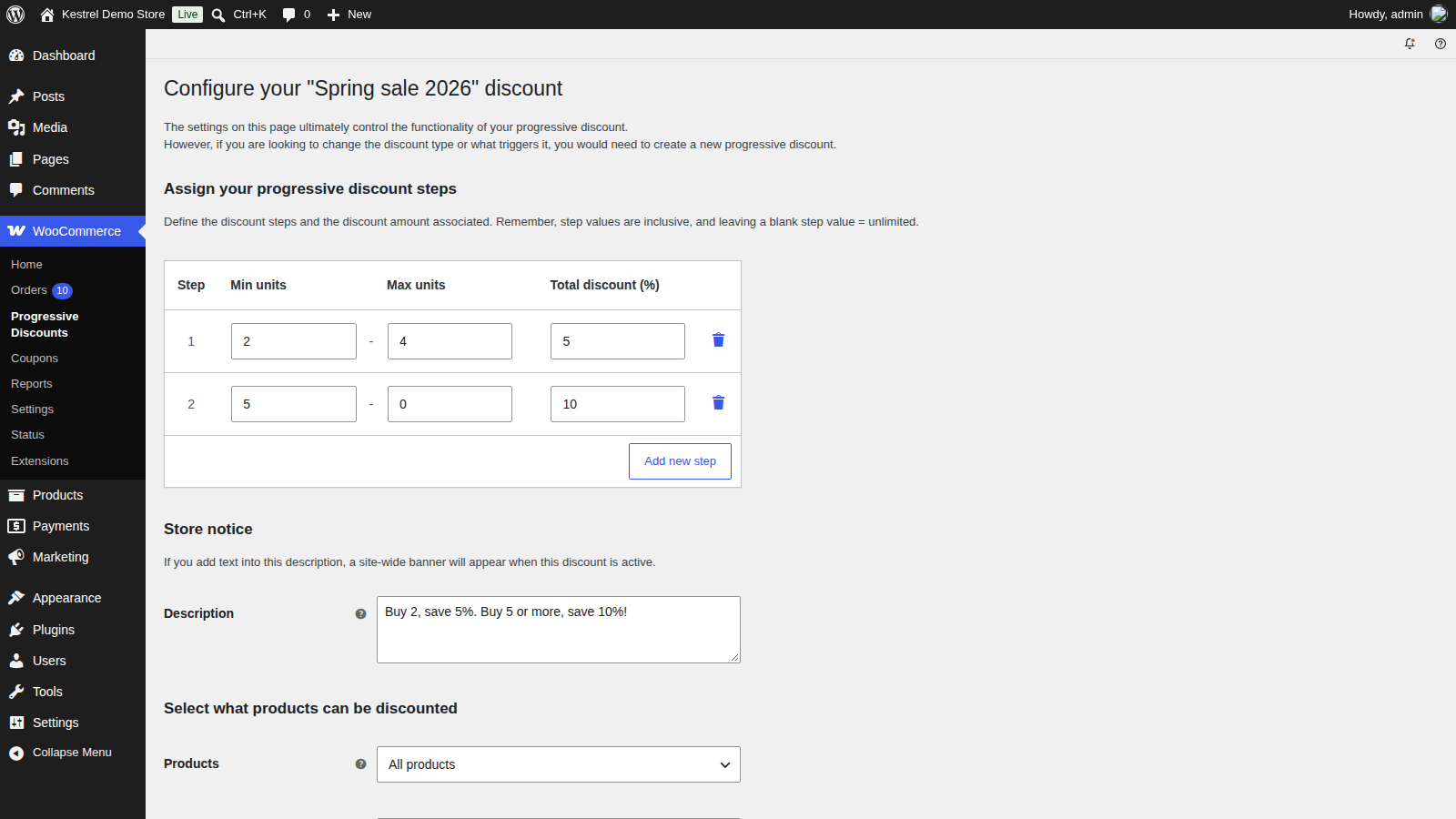
Fill in the first step’s minimum, maximum and discount. Click Add new step for each larger tier. For example, with units and percentages:
| Step | Min units | Max units | Total discount (%) |
|---|---|---|---|
| 1 | 2 | 4 | 5 |
| 2 | 5 | 10 |
Two to four items get 5% off, and five or more get 10% off. Leave the last step’s maximum empty so it has no upper limit.
4. Choose which products count
Leave Products at All products and Product categories at All product categories for a storewide promotion. To limit it, see Product restrictions.
5. Choose when it runs
Leave If the promotion is active at The discount is always available, or pick the datetime range option and set Available from and Available until.
6. Save and activate
Click Save and activate. If another promotion was active, it’s paused, because only one can run at a time.
7. Check it
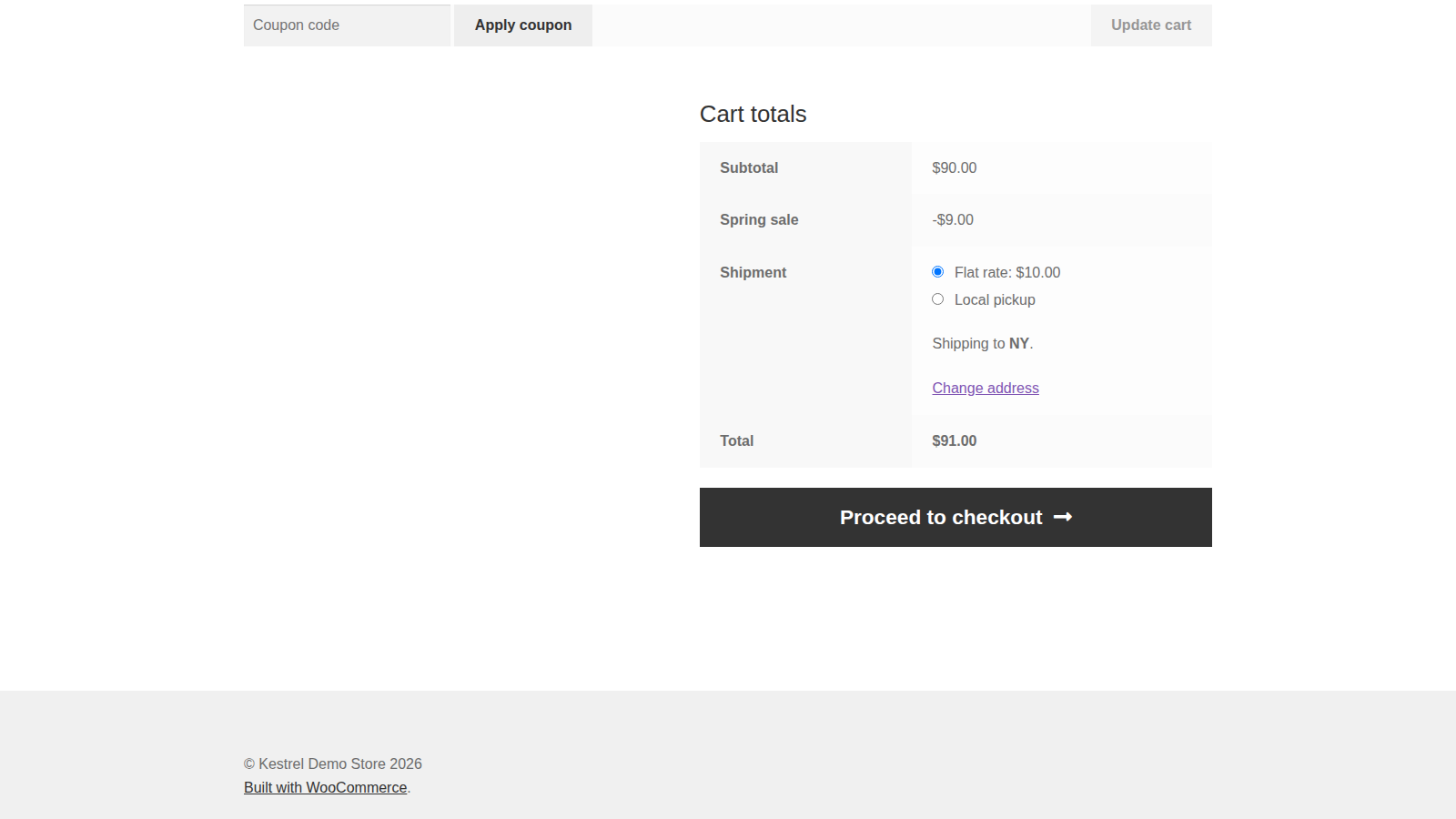
In a private browser window, add products until the cart reaches your first step. The cart and checkout totals show a discount row with your public discount name. On the classic cart, a notice also confirms it, for example "Spring sale: You got a 5% discount."
How the discount is calculated
- Only covered products count. The trigger adds up the quantity, or the subtotal before tax and other coupons, of the products the promotion covers. Products left out by your product restrictions or Exclude sale items don’t count toward a step and aren’t discounted.
- The cart gets the step its total falls in. Steps include their minimum and maximum. A cart below the first step’s minimum, or between two steps, gets no discount.
- Percentages come off each covered product. A fixed amount comes off the covered products once per cart, not once per product.
- It updates as the cart changes. When a customer adds or removes items, the discount moves to the matching step. If the cart drops below the first step, the discount is removed, and the classic cart shows "The Spring sale discount is no longer available." (with your public discount name).
- Dates use your site’s timezone. A scheduled promotion stops applying once its end time passes, the next time the customer’s cart loads.
How it works with coupons
With Enable coupon compatibility off, a customer who applies a coupon loses the progressive discount, and gets it back if they remove the coupon. The progressive discount never removes a customer’s coupon.
With it on, customers can use both. A coupon set to Individual use only still removes the progressive discount.
Promotion settings
The form has two stages. Stage 1 holds the names, the discount type and the trigger. When you click Next: Discount configuration, stage 2 opens with the steps and everything else. Later edits show both names and the stage 2 settings, but not the type or trigger.
Reference discount name
Your name for the promotion, shown in the promotions list. Customers don’t see it. Required.
Public discount name
The name customers see in the cart, at checkout and in cart notices. Required. On orders, the discount appears as a coupon line.
What type of discount are you looking to create
Percentile amounts (the default), such as 5%, 10%, 15%, or Fixed amounts. Can’t be changed after stage 1.
What will trigger the discount
The number of units in the cart (the default) or The cart subtotal. Can’t be changed after stage 1.
Discount steps
Each row is a step. The column names follow your trigger and type. Steps can’t be reordered, so enter them from smallest to largest, and Add new step adds one at the end.
Min units or Min subtotal
Where the step starts, inclusive. Required, and it must be higher than the previous step’s maximum. Units are whole numbers.
Max units or Max subtotal
Where the step ends, inclusive. Required on every step except the last, where empty means no upper limit.
Total discount
The discount for the step: a whole-number percentage, or an amount in your store currency. Required.
Store notice
Description
Text for a banner across the top of every page of your store while the promotion is active, for example "Spend $50, get 5% off. Spend $100, get 10% off!" Leave it empty for no banner. The banner can’t be dismissed, and its look depends on your theme.
The banner shows whenever the promotion’s status is active, including before Available from and after Available until. For a scheduled promotion, add the text when it starts and clear it when it ends.
Product restrictions
Products
All products (the default), All products, except… (then pick them in Exclude products) or Only specific products (then pick them in Include products). Choosing either of the last two hides Product categories.
Product categories
Shown when Products is All products. Choose All product categories (the default), All product categories, except… or Only specific product categories, then pick the categories. A category includes the products in its subcategories. The list shows the top two category levels, and only categories that have products. With a category choice, Include products and Exclude products also appear, to add or remove individual products.
Include products
The products the promotion covers. Shown with Only specific products, or with a category choice to add products outside those categories.
Exclude products
Products the promotion never covers. Shown with All products, except…, or with a category choice.
Exclude sale items
Tick it so products on sale aren’t discounted and don’t count toward a step. Off by default.
Availability
If the promotion is active
The discount is always available (the default), or The discount is only available in a specific datetime range. This sets when an active promotion applies; it doesn’t activate or pause it.
Available from
The date and time the promotion starts applying, in your site’s timezone.
Available until
The date and time it stops applying. It must be later than Available from.
Coupons
Enable coupon compatibility
Tick Allow customers to apply coupons in combination with this progressive discount to let customers use coupons alongside it. Off by default, so a coupon replaces the progressive discount (see How it works with coupons).
Manage promotions
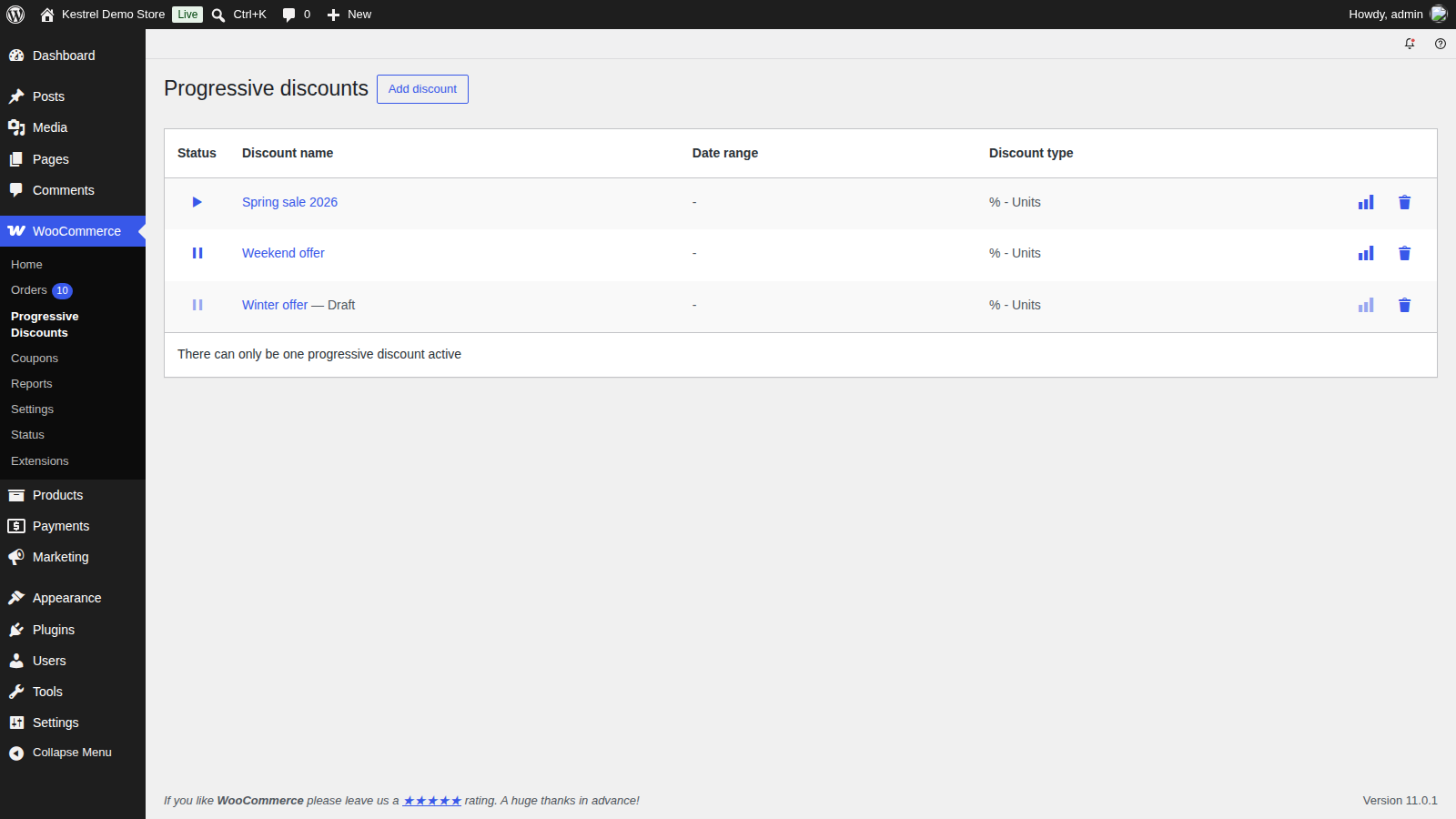
WooCommerce » Progressive Discounts lists every promotion with its Status, Discount name, Date range and Discount type (% or your currency symbol, then Units or Total sum).
- Status: the icon shows whether a promotion is active (play) or paused (pause). Click it to switch. Activating one pauses any other active promotion.
- Draft: a promotion marked "— Draft" ("The setup is incomplete") was saved at stage 1 without steps. Open it, add steps and save it.
- Edit: click the name. The save buttons follow the status: Save and activate or Save and keep it paused for a paused promotion, Save and keep it active or Save and pause for an active one.
- Delete: click the trash icon. Deleting is permanent. Past orders keep their discount.
Promotion stats
Click the chart icon on a promotion to open its stats. The Totals: row sums every order that used the promotion, except failed, refunded and cancelled orders. It shows:
- Nº Orders: how many orders used it.
- Order discounts: how much it discounted, including tax.
- Gross sales: those orders’ totals, including shipping and taxes.
- Net sales: the same totals, excluding shipping and taxes.
Partial refunds aren’t taken off. Use the Totals: row for the promotion’s results. The rows above it group orders by the amount each was discounted, not by step.

What customers see
- A banner at the top of every page, with your store notice text, while the promotion is active.
- In the cart and at checkout, a discount row named after the promotion, which updates as the cart changes.
- Cart notices on the classic cart when a step is reached or lost.
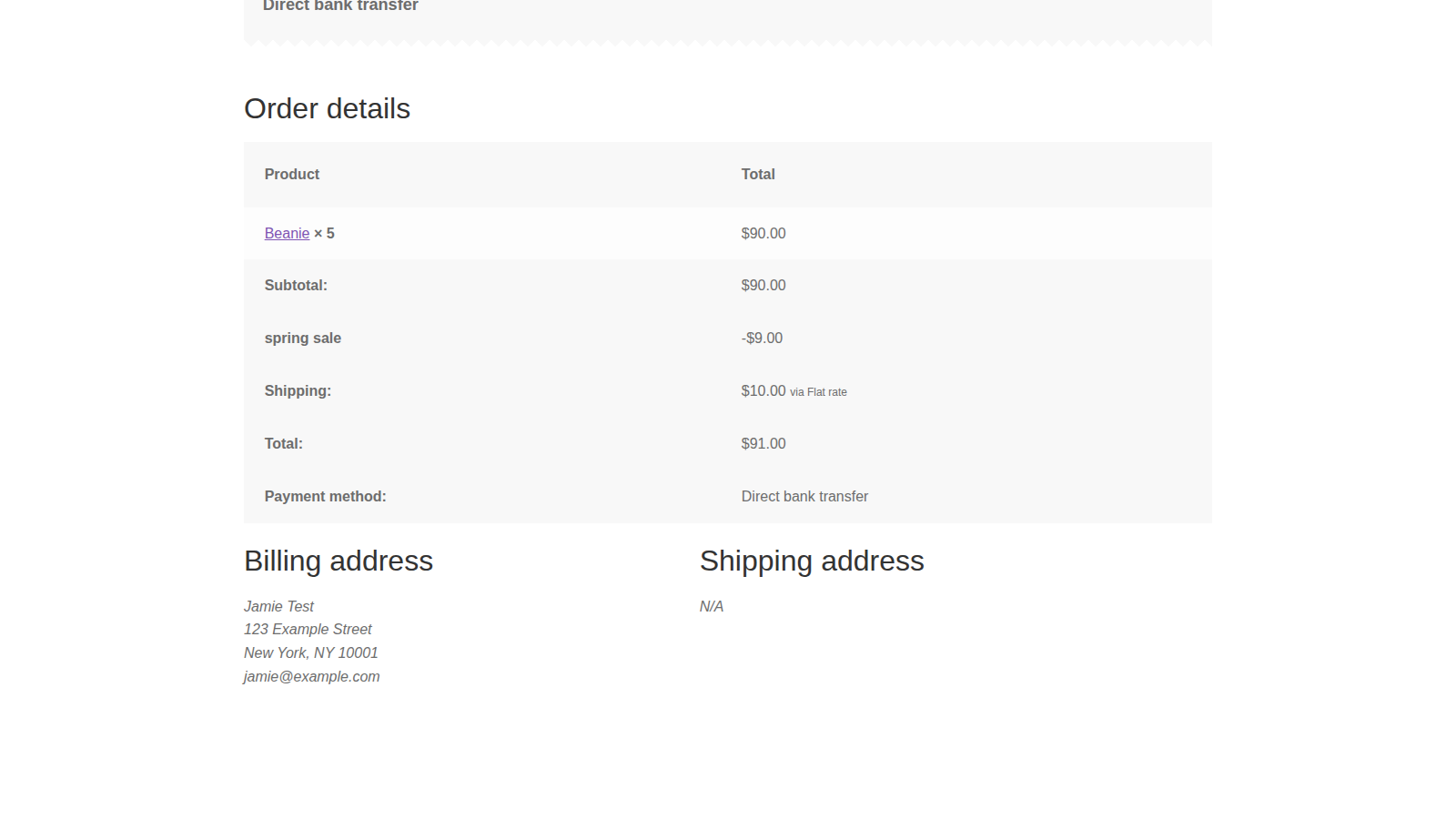
- On the order, a row for the discount in the order totals: on the order received page, in emails, in My Account and on the order screen in your admin. It’s listed apart from any coupon discount.
Common issues
"This extension requires the WooCommerce coupons to be enabled to work."
Go to WooCommerce » Settings » General, tick Enable the use of coupon codes and save. The discount can’t apply while coupons are off.
The discount doesn’t apply
Check these in order:
- The promotion’s status is active in WooCommerce » Progressive Discounts, not paused or "— Draft".
- If you set dates, the promotion has started (Available from) and hasn’t ended (Available until), in your site’s timezone.
- The cart reaches the first step’s minimum, counting only the products the promotion covers. Products on sale don’t count with Exclude sale items on.
- The customer hasn’t applied a coupon while Enable coupon compatibility is off, or a coupon set to Individual use only.
- Coupons are turned on in WooCommerce » Settings » General.
The banner shows but no discount applies
The banner shows whenever the promotion is active, even outside its dates, and even when the cart hasn’t reached a step. Clear the Description outside the promotion’s dates, or pause the promotion.
The discount disappears when a customer applies a coupon
Enable coupon compatibility is off, so the coupon replaces the progressive discount, and the classic cart says "The Spring sale discount is no longer available." (with your public discount name). Turn compatibility on to allow both.
A scheduled promotion starts or ends at the wrong time
Dates follow your site’s timezone. Check it in Settings » General » Timezone.
I can’t change the discount type or trigger
They’re fixed when the promotion is created. Create a new promotion with the type and trigger you want, then delete or pause the old one.
The stats rows don’t match my steps
The rows group orders by the amount each was discounted, not by step. Use the Totals: row.
Keep learning
- How to install and update WooCommerce extensions (installing, updating and fixing upload errors)
- Changing text in a plugin (rewording the cart notices)
- How to add custom CSS to your site (styling the store notice banner)