


Time based rentals are booked by the slot within a single date, rather than by whole days. You set the hours you operate and how long a slot lasts, and customers choose a date, a start time and a duration. Because a booking only takes up part of the day, the same item can go to several customers on one date: a bike rented 09:00 to 12:00 can go out again at 12:00.
When you’d use this
- Rent bikes, kayaks, boats or tools by the hour.
- Hire out event equipment for a morning or an afternoon.
- Rent a space or a vehicle in half-day blocks.
- Hand the same unit to several customers on one day.
For rentals that last more than one day with set collection and return times, use a day based product with in-person pick up and return instead.
Before you start
- Time based rentals need the modern handlers (check your mode). In legacy mode a time based product can’t be added to the cart.
- The product needs a WooCommerce Regular price, even if every slot has its own price, or WooCommerce won’t show its booking form. On a variable product, each variation needs one. The product editor warns you when it’s missing.
- Rental bundles can’t be time based, and a time based product can’t be added to a bundle or use in-person pick up and return.
Set up a time based product
1. Choose Time based
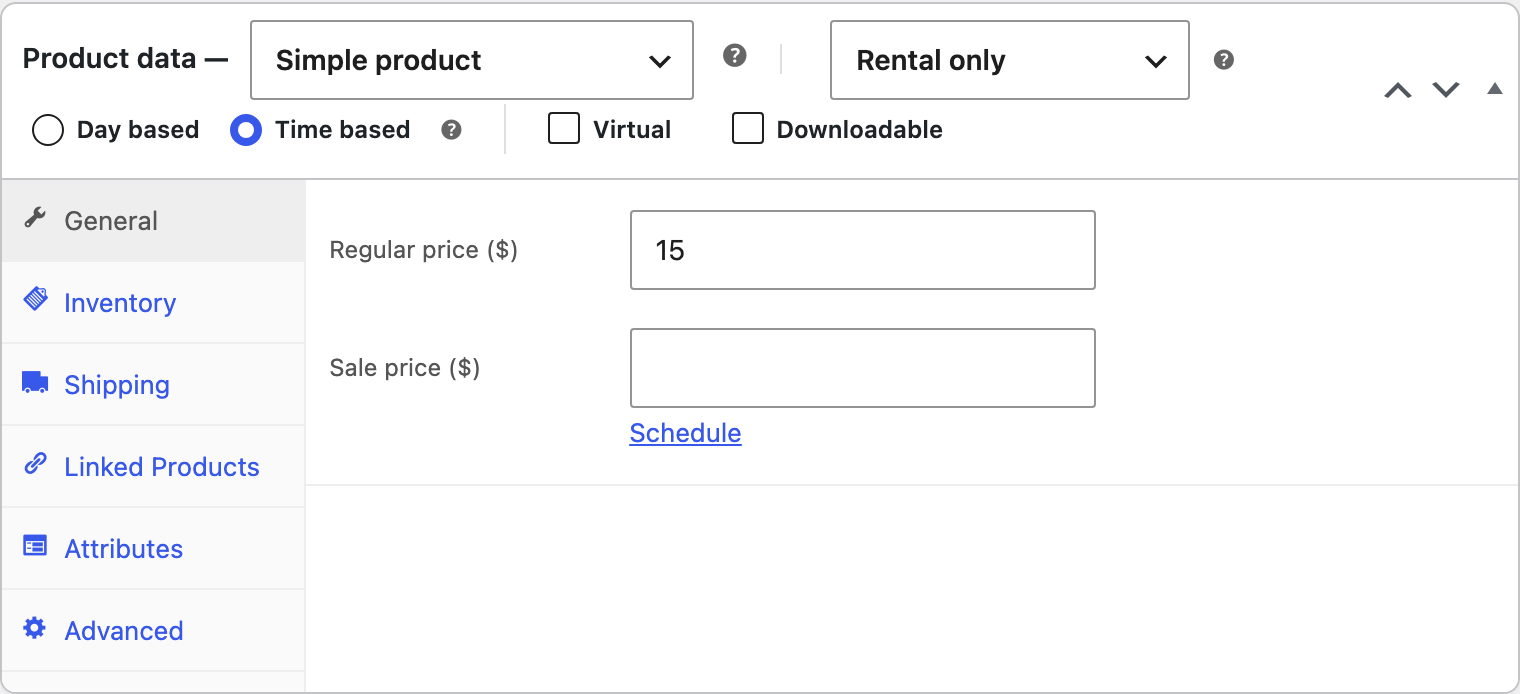
Edit the product, choose Rental only or Rental or purchase in the Rental product select (see choose a rental product type), then choose Time based in the row below them, before Virtual and Downloadable.
The day based options, such as the pricing type, tiers, total overrides, minimum and maximum days and the start and return days thresholds, are hidden. Their values are kept, so switching back to Day based restores them.
2. Set your operating windows
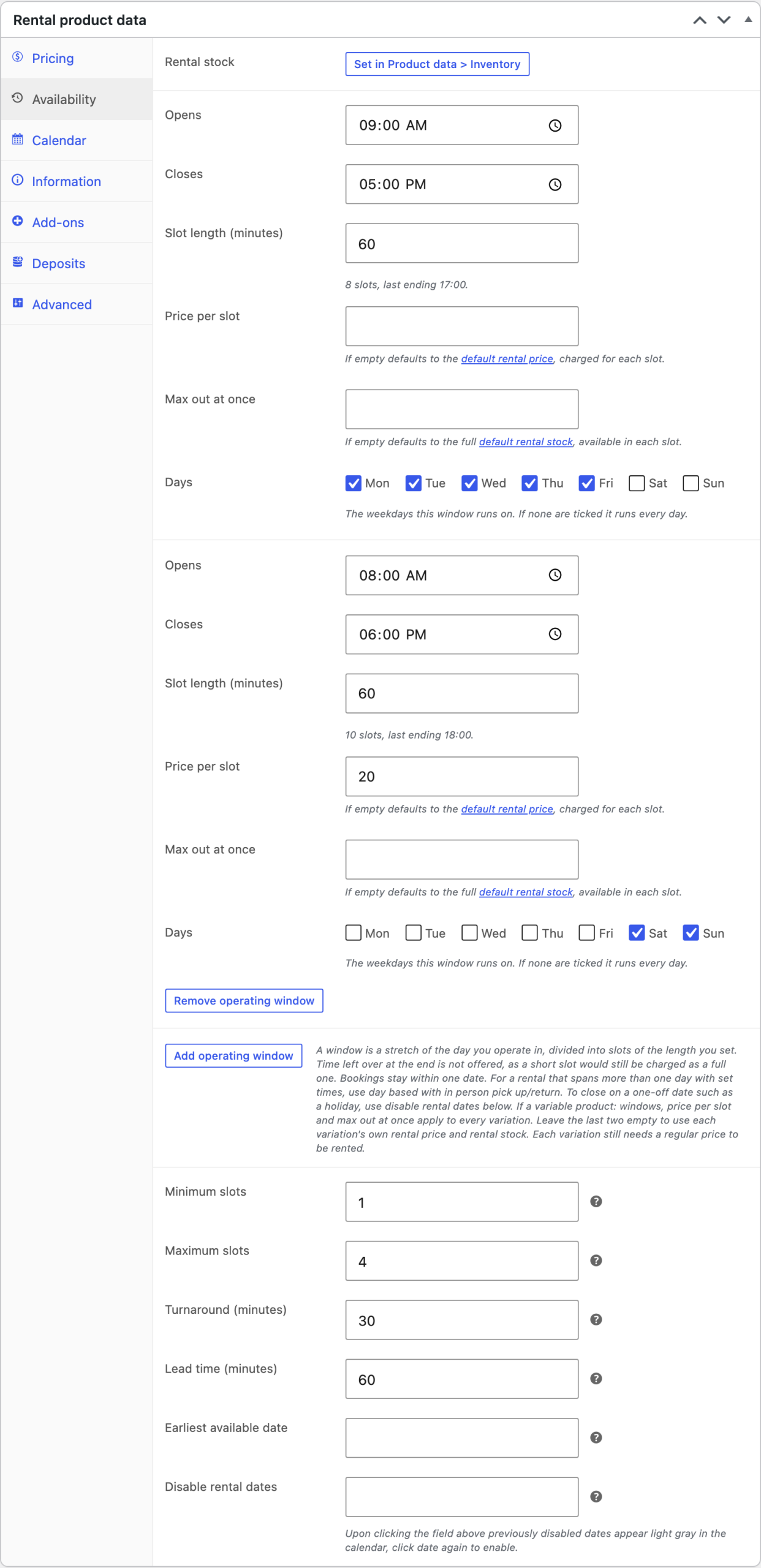
On the Availability tab of Rental product data, each operating window is a stretch of the day you operate in, cut into slots. A new product starts with one window. For each window, set:
- Opens and Closes: the window’s hours, 09:00 to 17:00 by default. A window can’t run past midnight; add a second window for the hours after it.
- Slot length (minutes): 60 by default, in steps of 5. The preview below it shows how many slots the window makes and when the last one ends. Time left at the end that can’t fill a whole slot isn’t offered.
- Price per slot: the price of each slot in this window. Leave it empty to charge the product’s rental price for each slot.
- Max out at once: how many units can be out in each slot of this window. Leave it empty to use all your rental stock. Use it when you put out fewer units at some times, such as two kayaks in the morning when you own five.
- Days: the weekdays the window runs on. With none ticked, it runs every day.
Click Add operating window for more windows, such as a different price for the afternoon or weekend-only hours. Windows that overlap on a day they both run, or that are shorter than their own slot, are named in a notice after you save.
To close on a one-off date, such as a holiday, use Disable rental dates further down the tab, or the store-wide disabled dates.
3. Set the booking limits
Below the windows:
- Minimum slots: the fewest slots a booking can be. Empty means 1.
- Maximum slots: the most slots a booking can be. 0 (the default) means no limit.
- Turnaround (minutes): how long a unit is held back after it’s returned, before the next customer can collect it, for cleaning or checks. 0 (the default) means it can go straight back out.
- Lead time (minutes): how far ahead of its start time a booking must be made. 0 (the default) allows booking right up to the moment a slot starts. Start times that have already passed are never offered.
4. Set the price and stock
Set the Regular price (or the Rental price for a Rental or purchase product) and Rental stock (in and out) as for any rental product; see set the rental price and rental stock. Then click Update.
How customers book
On the product page, the customer:
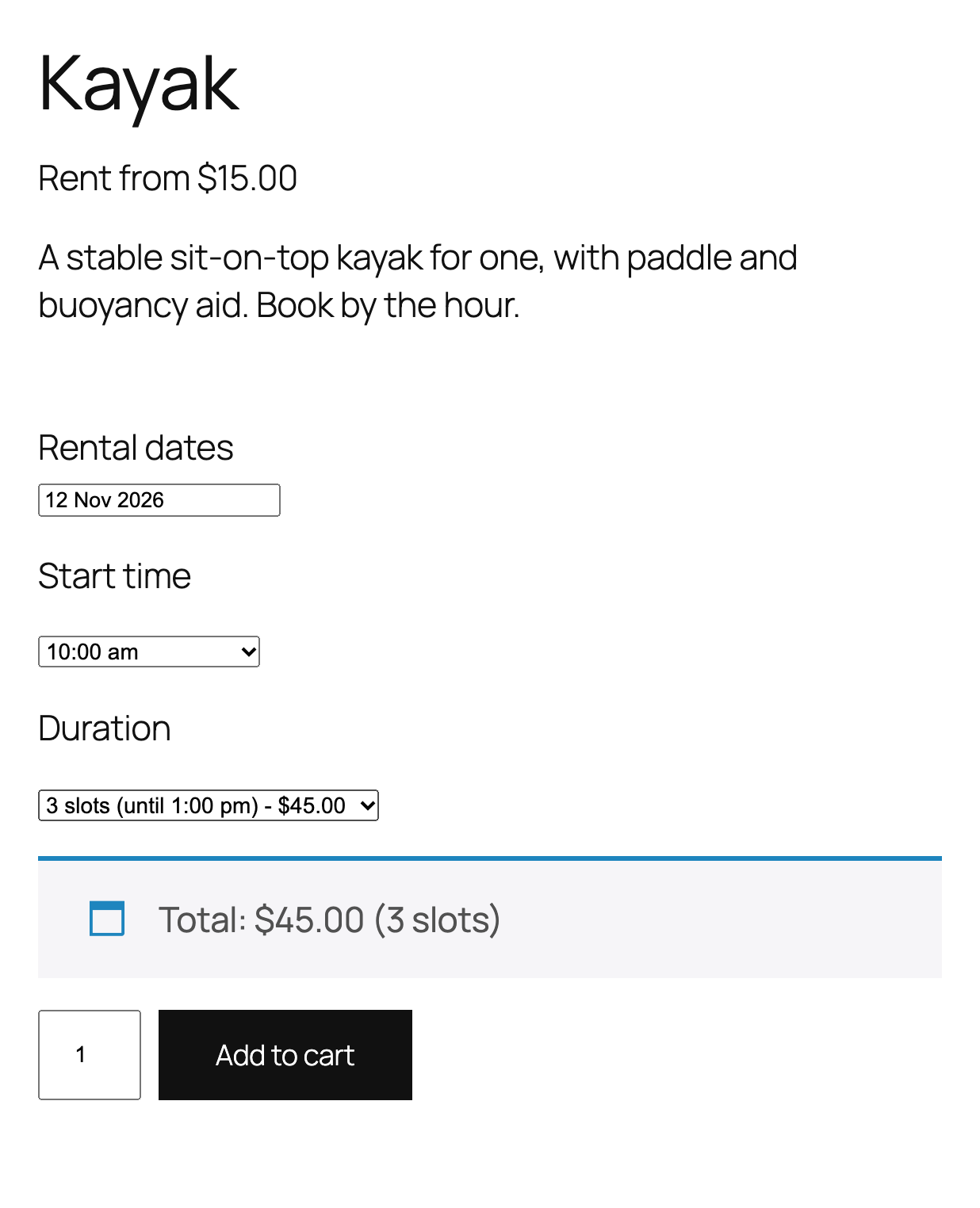
- Picks a single date in the Rental dates calendar.
- Chooses a Start time. Only start times with enough units free for the whole booking can be chosen.
- Chooses a Duration, listed by number of slots with the end time and price, such as "3 slots (until 1:00 pm) – $45.00".
- Adds the rental to the cart.
The cart, checkout, order and emails show the Start time and End time. If a date has no start times left, the form says "No times are available on this date." You can change this wording, and the other time based labels, under Rentals » Settings » Labels.
The availability checker works with dates only. It shows a time based product as available on a date that has at least one start time with room for the quantity chosen.
Pricing
A booking costs the price per slot of each slot it covers, times the quantity. With a $5 slot price, 3 one-hour slots cost $15. Shop pages show "Rent from" with the cheapest slot price times the minimum slots, which is the cheapest booking a customer can make.
Pricing adjustments apply to time based rentals too, and custom pricing code runs after them. Security deposits work as for any rental product. With WooCommerce Product Add-Ons, turn on Multiply add-ons total by number of slots booked on the Add-ons tab to charge flat fee and quantity-based add-ons for each slot.
Variable products
The time based choice, the operating windows, the slot limits, turnaround and lead time are set on the parent product and apply to every variation. Leave Price per slot and Max out at once empty to use each variation’s own rental price and rental stock. A filled-in price per slot applies to every variation.
Manage time based rentals
- Order screen: add and edit time based rentals with the same Start time and Duration lists customers see; see manage rental orders.
- Rentals » Calendar and the calendar feed show them at their booked times.
- Rentals » Inventory counts the most units out at the same moment on a date, so two bookings sharing one unit at different times count as one; see inventory.
- Rentals » Tools: clone time based settings with the Time based option, and Run debug to find time based products that can’t be booked.
Common issues
No start times show on a date
Check that a window runs on that weekday, that the date isn’t disabled, that the lead time hasn’t ruled out the remaining slots today, and that the slots aren’t fully booked or capped by Max out at once. Minimum slots higher than Maximum slots leaves nothing to book.
The product page shows no booking form
Set a Regular price on the product, or on each variation. Also check your store isn’t in legacy mode.
"This product cannot be rented online at the moment. Please contact us."
The store is in legacy mode, which doesn’t support time based rentals. Switch the product to Day based, or turn legacy mode off under Rentals » Settings » Advanced.
The last part of my opening hours isn’t offered
The window doesn’t divide evenly by the slot length, and a short slot would still be charged as a full one. Change the slot length or the closing time; the preview under Slot length (minutes) shows the result.
Legacy mode can’t be turned on
Legacy mode doesn’t support time based rentals. Switch every time based product to day based first.
Keep learning
- Set up a rental product (every rental option)
- Set up rental pricing (including pricing adjustments)
- How rental availability works
- Manage rental orders