


Rental Products’ store-wide settings are under Rentals » Settings, in six tabs: Rental form, Availability checker, Catalog, Orders, Labels and Advanced. The defaults below are what a new install starts with. Click Save changes on each tab; you’ll see "Your settings have been saved."
Options for individual products are on each product’s Rental product data box; see set up a rental product. Store-wide disabled dates and the calendar feed are on the Rentals » Calendar screen; see rentals dashboard, calendar and inventory. Pricing adjustments are on Rentals » Pricing; see pricing adjustments.
Rental form
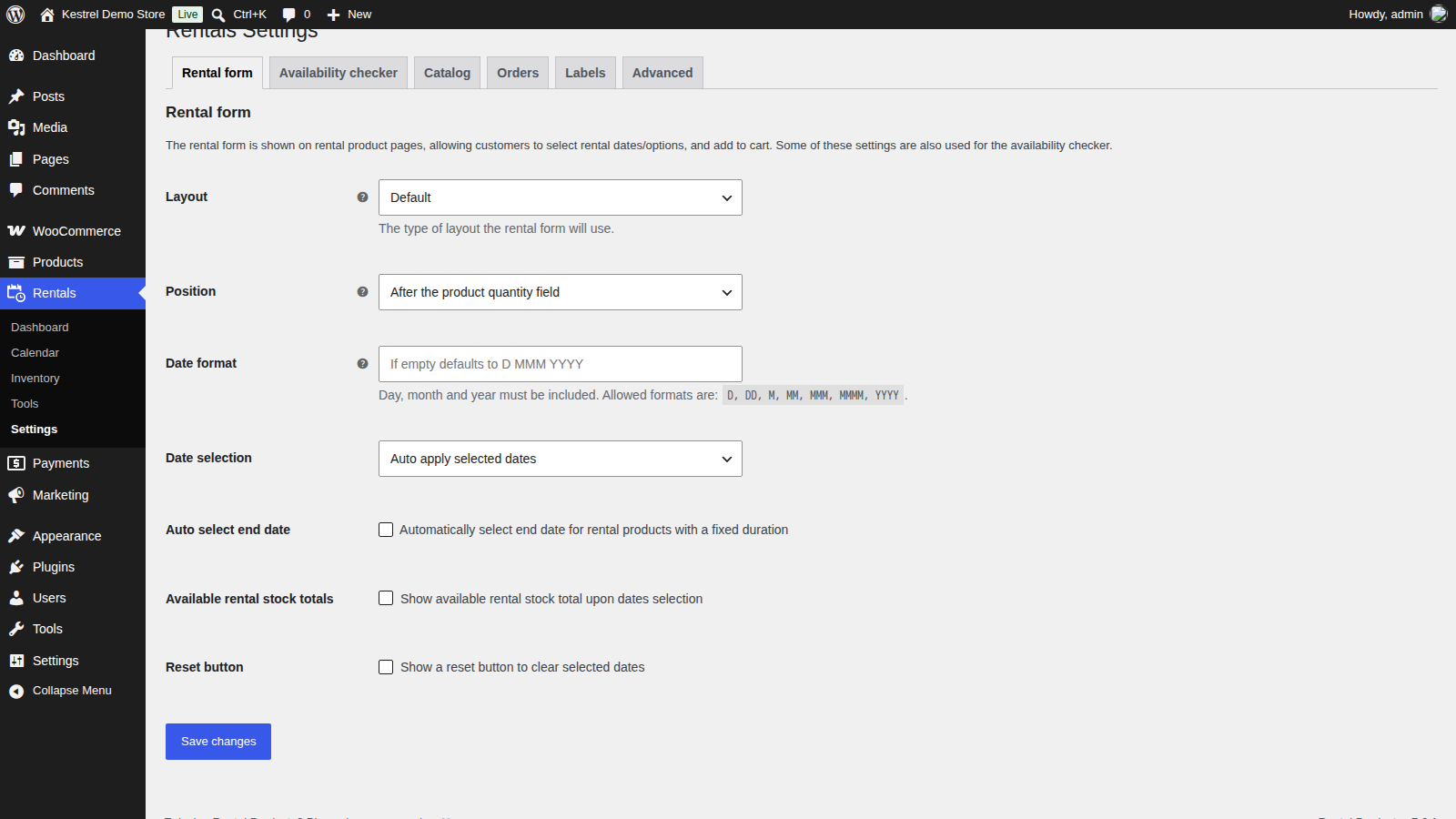
Rentals » Settings » Rental form. The rental form is the date picker and totals on rental product pages. Date format, Date selection and Reset button also apply to the availability checker.
- Layout: how the rental form is styled:
- Default (the default): follows your theme’s styling.
- Theme compatibility: keeps most of your theme’s styling, but stacks the fields and keeps their sizes consistent. Try it if the form doesn’t look right in your theme.
- Light, Light boxed, Dark and Dark boxed: like Theme compatibility, with extra styling.
- Position: Before the product quantity field or After the product quantity field. New installs use After the product quantity field. Developers can fine-tune the position; see the developer reference.
- Date format: how selected dates are shown in the rental form. Day, month and year must all be included, using
D,DD,M,MM,MMM,MMMMandYYYY. Empty (the default) meansD MMM YYYY, such as 7 Oct 2026. - Date selection: Auto apply selected dates (the default) applies dates as soon as they’re picked. Use apply/cancel buttons adds buttons the customer clicks to apply them.
- Auto select end date: off by default. When on, picking a start date also selects the end date, on products that can only be rented for one length (minimum and maximum days the same, without pricing period multiples).
- Available rental stock totals: off by default. Shows how many units are available once dates are selected.
- Reset button: off by default. Adds a button to clear the selected dates.
Availability checker
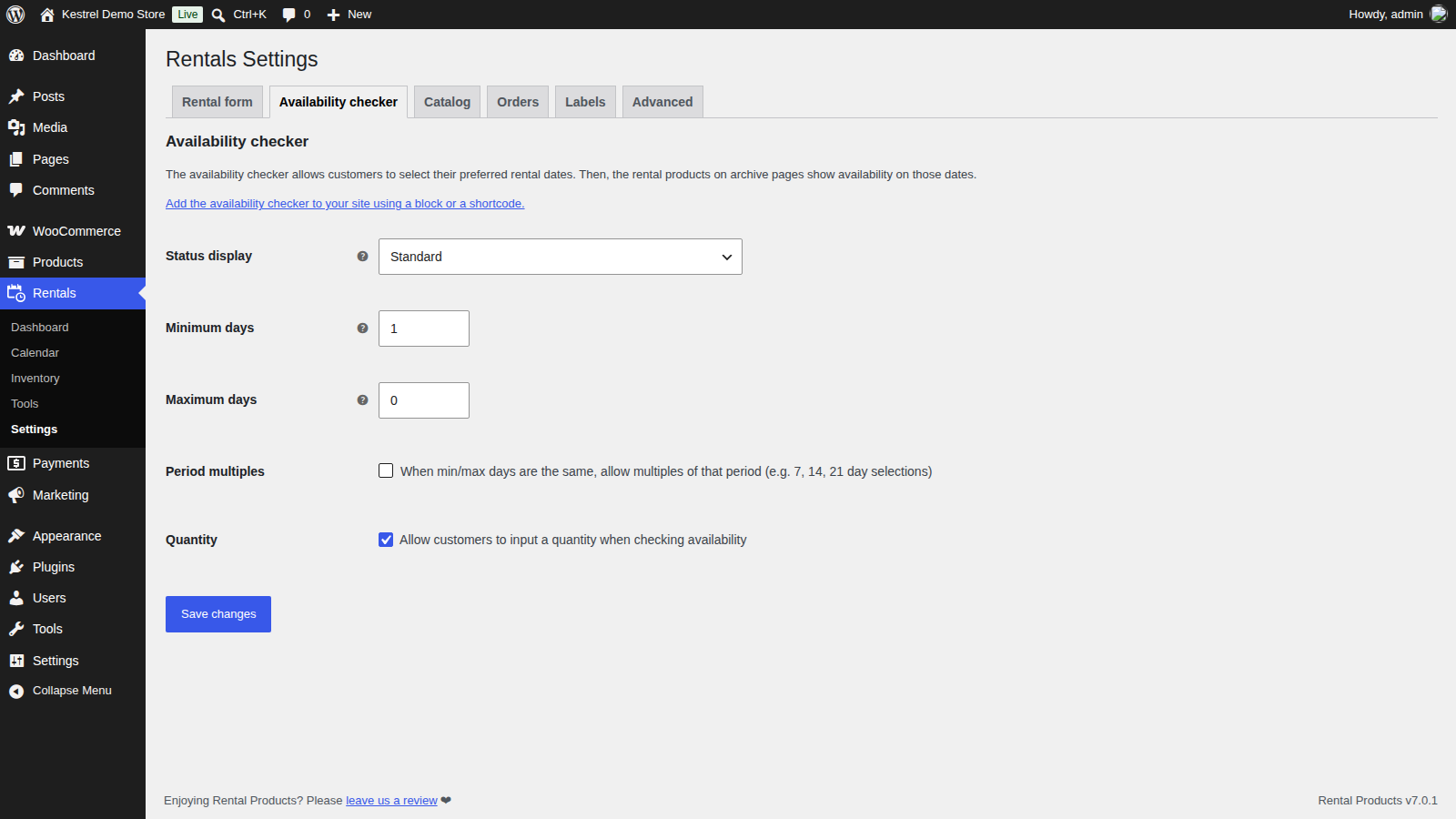
Rentals » Settings » Availability checker. How customers use the checker, and what its status shows on each product type, is in rental form and availability checker. More checker options are under Advanced: availability checker.
- Status display: Standard (the default) shows whether each product is available, plus the dates and quantity selected. Minimal shows only whether it’s available.
- Minimum days: the shortest range customers can enter in the checker. Default 1. Set both minimum and maximum days to 1 for a single date.
- Maximum days: the longest range customers can enter. 0 (the default) means no maximum.
- Period multiples: off by default. When minimum and maximum days are the same, lets customers choose multiples of that length, such as 7, 14 or 21 days.
- Quantity: on by default. Lets customers enter a quantity. When off, the quantity field is hidden and the checker uses a quantity of 1.
Rental product toggle
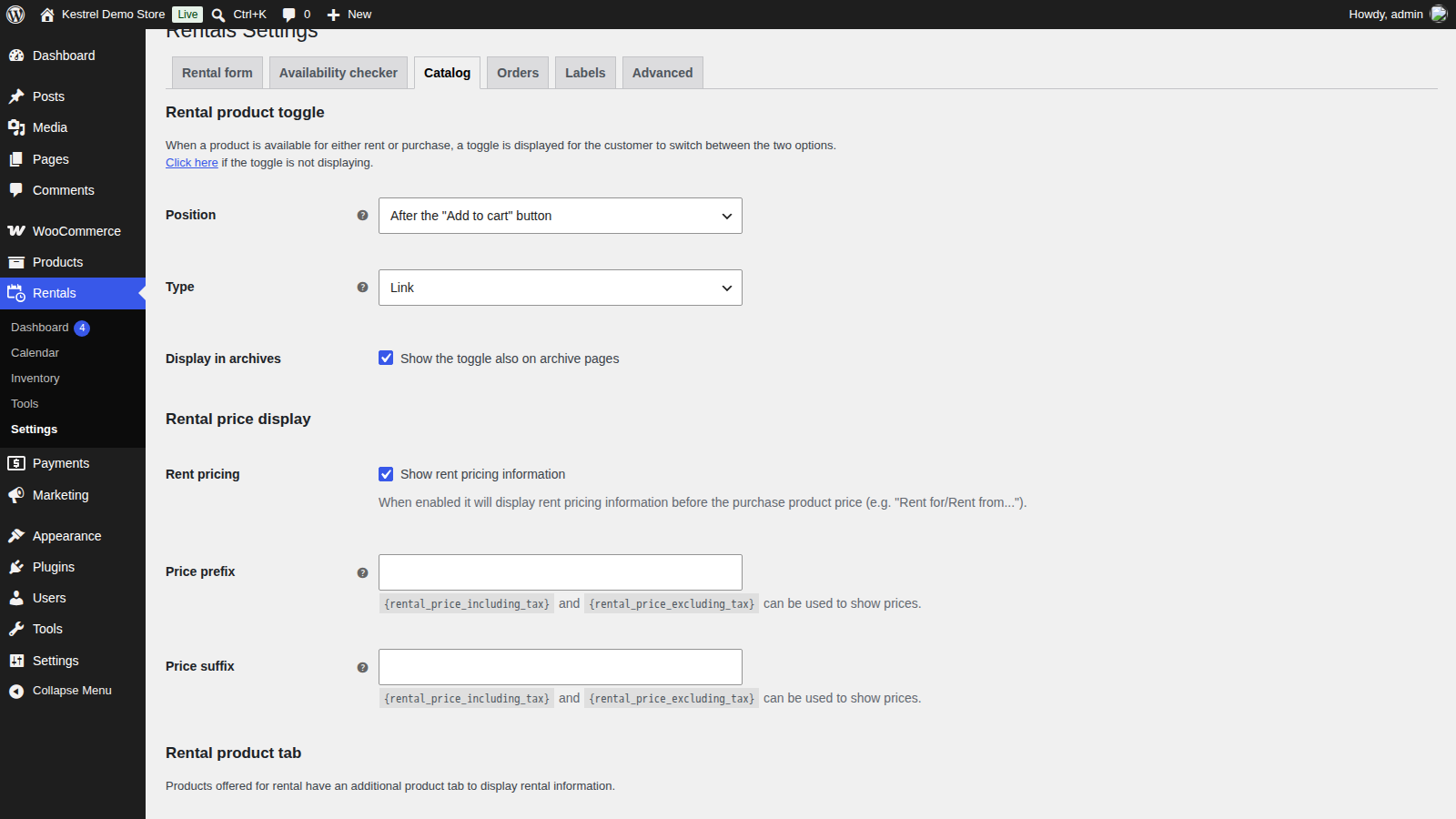
Rentals » Settings » Catalog, first section. The toggle lets customers switch a Rental or purchase product page between its rental and purchase options. It only appears on Rental or purchase products. If it doesn’t show on your theme or page builder, see rental or purchase toggle.
- Position: After the "Add to cart" button (the default) or After the product price.
- Type: Link (the default) or Button. The button uses your theme’s button styling.
- Display in archives: on by default. Shows the toggle on shop and category pages too.
Rental price display
Rentals » Settings » Catalog, second section. How rental prices are shown on shop and product pages; see how the price is displayed.
- Rent pricing: on by default. Adds "Rent for" or "Rent from" before the rental price. Change the words on the Labels tab.
- Price prefix: text before the rental price, empty by default. Use
{rental_price_including_tax}or{rental_price_excluding_tax}to show a price. - Price suffix: text after the rental price, empty by default. The same price placeholders work here.
Rental product tab
Rentals » Settings » Catalog, third section. Rental products get an extra tab on the product page with rental information. It appears when there’s information to show, from here or from a product’s own Information tab, and on Rental or purchase products only in the rental view.
- Title: the tab’s title. Default "Rental information".
- Heading: on by default. Repeats the title as a heading inside the tab.
- Contents: rental information shown on every rental product, empty by default. HTML is allowed. A product’s own rental information is added after it.
In person pick up and return defaults
Rentals » Settings » Catalog, last section. The defaults for products with in-person pick up and return whose own options are set to Use default from rental settings or left empty. How each option works, including the time rule, is in in-person pick up and return.
- Time restrictions: Restricted (the default) or Unrestricted. With Restricted, return times must come before pick up times for rentals longer than a day, and after them for single-day rentals, or in-person pick up and return isn’t offered.
- Return date: Same day (rent to date) (the default) or Next day (rent to date + 1 day).
- Pick up times/fees (multiple day rentals): used with Same day returns. Times and fees in
HHMM:feeformat separated by|, such as1300:5.00|1500:0.00. The first is selected by default. Empty on new installs, like all six times and fees fields. - Pick up times/fees (single day rentals): used with Same day returns, for one-day rentals.
- Return times/fees (multiple day rentals): used with Same day returns.
- Return times/fees (single day rentals): used with Same day returns, for one-day rentals.
- Pick up times/fees: used with Next day returns.
- Return times/fees: used with Next day returns.
Orders

Rentals » Settings » Orders. How order statuses hold and release rental stock is in how rental availability works.
- Immediate rental stock replenishment: on for new installs. Makes a rental marked as returned available again straight away, even if it came back early. When off, a returned unit stays unavailable until its end date plus return days threshold. Stores that upgraded from much older versions may have it off.
- Cancel rentals in failed orders: off by default. When on, setting an order to Failed cancels all its rentals and frees their stock, and customers can’t pay for the failed order from their account. When off, a failed order keeps holding its rental stock, so the customer can still pay for it. The label uses your store’s name for the Failed status.
- Return rentals in completed orders: on by default. Marks all rentals in an order as returned when the order is set to Completed. Turn it off if something completes orders before the items come back, such as a shipping integration that completes orders on dispatch, and mark rentals returned by hand. Return reminder emails only go to Processing orders either way. If Deposits & Partial Payments for WooCommerce sets fully paid orders to Completed while this is on, Rental Products shows an admin error; change one of the two settings.
Labels
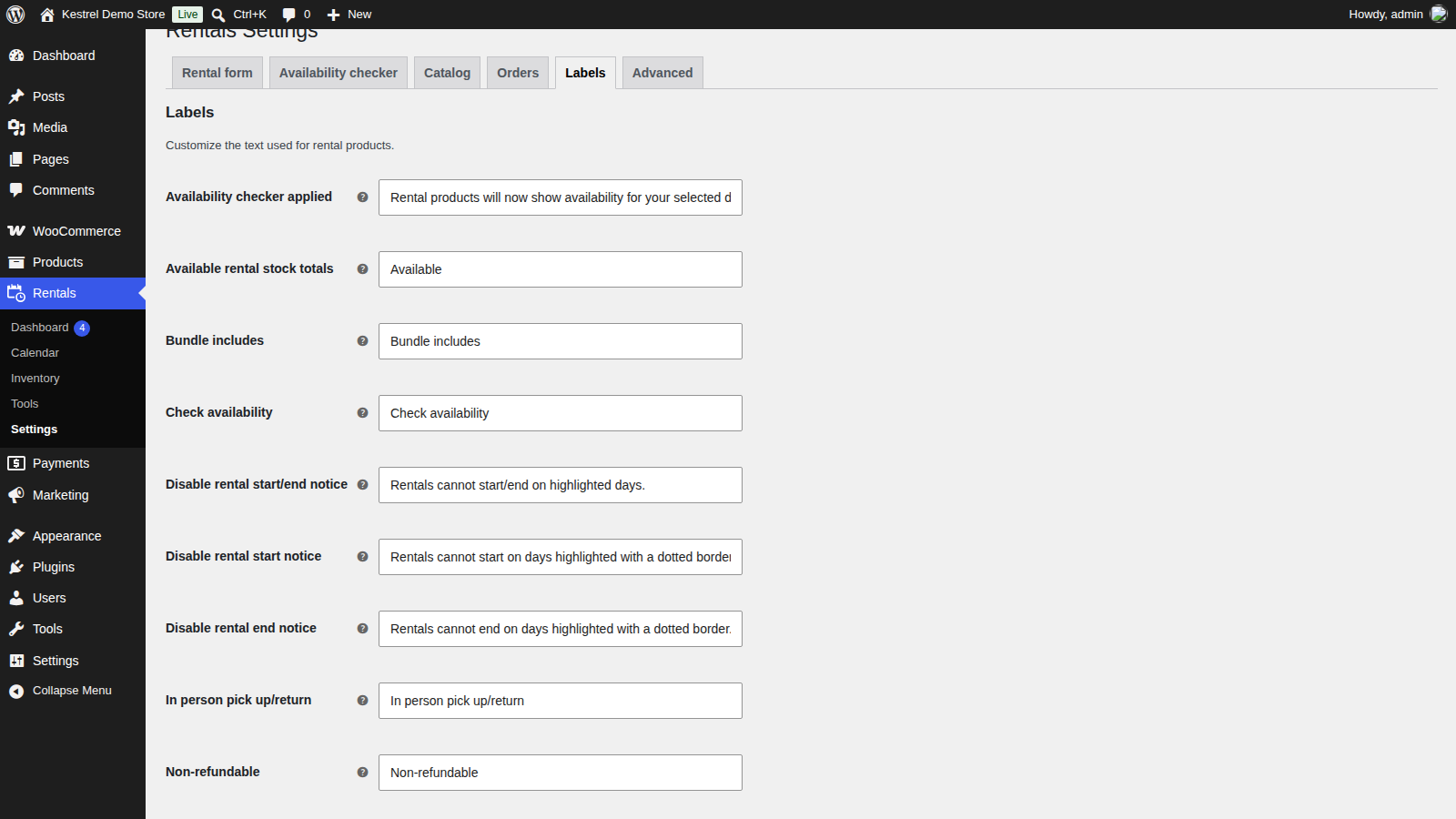
Rentals » Settings » Labels: "Customize the text used for rental products." Each label below shows its default text. To change other text, or to translate the plugin, see translation.
- Availability checker applied: "Rental products will now show availability for your selected dates."
- Available rental stock totals: "Available".
- Bundle includes: "Bundle includes".
- Check availability: "Check availability".
- Choose a duration: "Choose a duration", the placeholder of a time based rental’s duration list.
- Choose a start time: "Choose a start time", the placeholder of a time based rental’s start time list.
- Disable rental start/end notice: "Rentals cannot start/end on highlighted days."
- Disable rental start notice: "Rentals cannot start on days highlighted with a dotted border."
- Disable rental end notice: "Rentals cannot end on days highlighted with a dotted border."
- Duration: "Duration", for a time based rental.
- End time: "End time", shown with a time based rental in the cart, checkout and orders.
- In person pick up/return: "In person pick up/return".
- No times available: "No times are available on this date.", shown when a time based rental has no start times left on the date chosen.
- Non-refundable: "Non-refundable", used on non-refundable security deposits.
- Part of bundle: "Part of bundle".
- Pick up date: "Pick up date".
- Pick up time: "Pick up time".
- Refundable: "Refundable", used on refundable security deposits.
- Rent for: "Rent for".
- Rent from: "Rent from".
- Rent to: "Rent to".
- Rental available: "Rental available".
- Rental cancelled: "Rental cancelled".
- Rental dates: "Rental dates".
- Rental period: "Rental period".
- Rental return within: "Rental return within".
- Rental returned: "Rental returned".
- Rental unavailable: "Rental unavailable".
- Reset dates: "Reset dates".
- Return date: "Return date".
- Return time: "Return time".
- Security deposit: "Security deposit", the start of each deposit fee line’s name.
- Select a date first: "Select a date first", shown in a time based rental’s start time list until a date is chosen.
- Select a start time first: "Select a start time first", shown in the duration list until a start time is chosen.
- Select dates: "Select dates", also used for the button on shop pages.
- Start time: "Start time", shown with a time based rental in the cart, checkout and orders.
- View purchase options: "View purchase options".
- View rental options: "View rental options".
Advanced: rental form
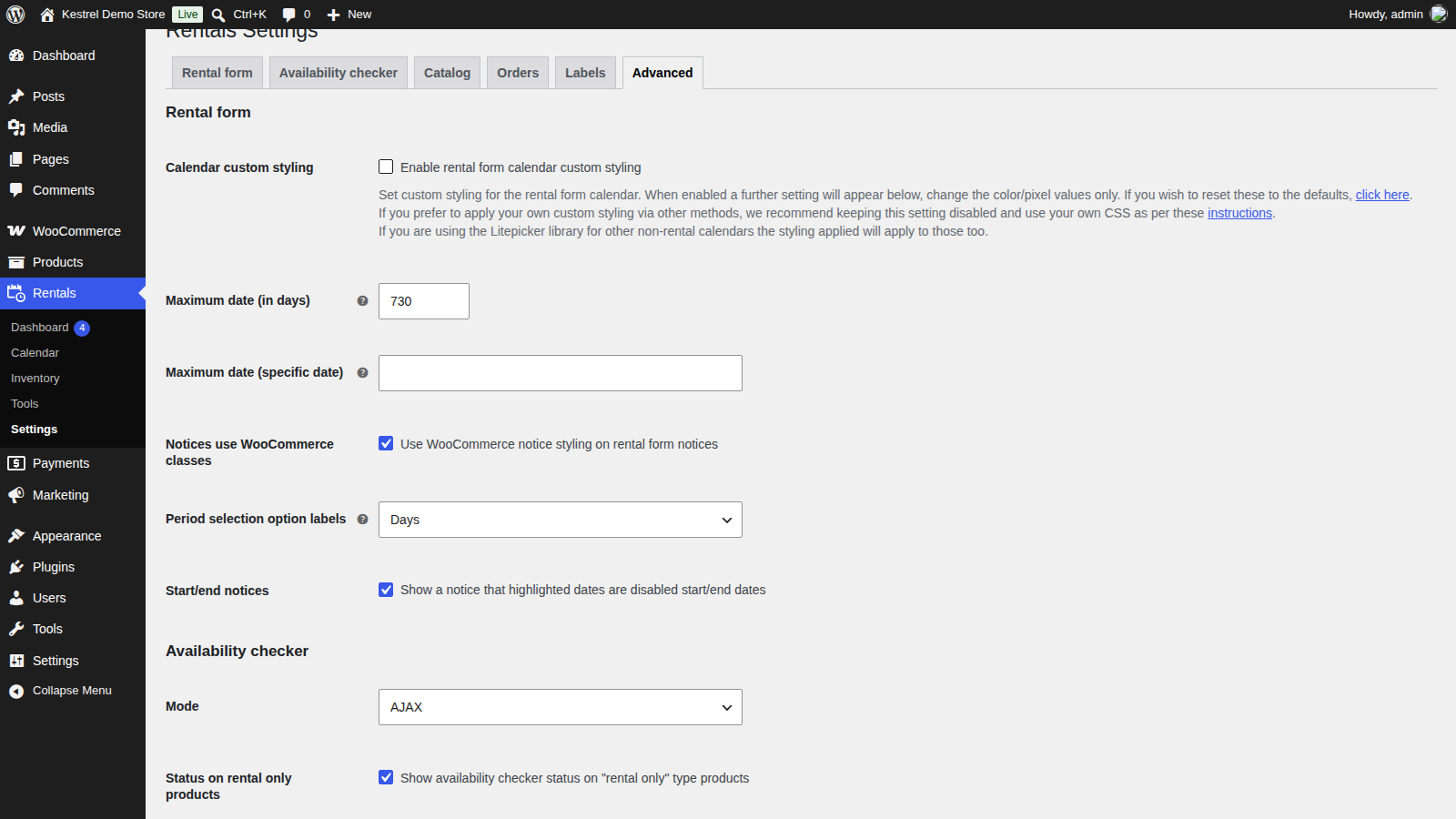
Rentals » Settings » Advanced, first section.
- Calendar custom styling: off by default. Turns on custom colors and sizes for the rental form calendar, which also affect the availability checker and other date pickers on your site that use the same calendar library. Using the default styling is recommended.
- Calendar custom styling code: shown while Calendar custom styling is on. The calendar’s style values: change the colors and pixel sizes only. To restore the defaults, click the "click here" link in the Calendar custom styling tooltip.
- Maximum date (in days): how many days ahead the rental form allows dates, from 1 to 7300. Empty means 730. Also used by the availability checker.
- Maximum date (specific date): the last date the rental form allows, empty by default. When set, it overrides Maximum date (in days).
- Notices use WooCommerce classes: on by default. Styles rental form notices like WooCommerce notices. Turn it off to style them with your own CSS, or to rule out a theme that restyles WooCommerce notices.
- Period selection option labels: Days (the default) or Weeks. With Weeks, period selection choices are shown in weeks where they divide evenly: 1, 7 and 14 days show as 1 day, 1 week and 2 weeks.
- Start/end notices: on by default. Explains under the calendar that highlighted dates can’t be used as start or end dates, on products that disable rental start or end dates or days.
Advanced: availability checker
Rentals » Settings » Advanced, second section.
- Mode: AJAX (the default for new installs) loads the checker and its statuses after the page loads, which works with page caching. Standard loads them with the page. Stores that upgraded from older versions may still use Standard; switch to AJAX on any site with page caching. Dates are filled in on product pages the same way in both modes.
- Status on rental only products: on by default. Shows the checker’s status on Rental only and Rental bundle products.
- Status on rental or purchase products: off by default. Shows the status on Rental or purchase products too. Leaving it off is recommended, because their shop listing shows the purchase price and add to cart button, which customers could take as the rental’s.
- Apply dates redirect: empty by default. An address on your site, such as your shop page, to send customers to after they apply dates in the checker. Addresses on other sites can’t be used.
Advanced: catalog
Rentals » Settings » Advanced, third section.
- Advanced pricing: Off (the default) or On. The default for products whose Advanced pricing option is set to Use default from rental settings. It only matters with custom pricing code; see seasonal and date-based pricing. The same setting is also on Rentals » Pricing.
- Rental price display override prefix/suffix: on by default. Keeps the Price prefix and Price suffix on products that use a Price display override.
- Return days display: on by default, with the checkbox Show return days. Shows customers how many days they have to return an item, in the rental form, cart, checkout and emails. Turned off, the return days threshold still blocks availability, but customers don’t see it, so you can tell them a shorter return period and keep the extra days for servicing: for example, a threshold of 6 with your own message asking for returns within 3 days. Return days are never shown when the threshold is 0 or the product uses in-person pick up and return.
Advanced: orders
Rentals » Settings » Advanced, fourth section.
- Checkout draft restrictions: on by default, with the checkbox Restrict checkout drafts. With WooCommerce’s cart and checkout blocks, unfinished checkouts create draft orders, which never reserve rental stock. This setting hides drafts in the orders list and stops orders being changed to or from Draft. Leave it on: moving a draft to a status that holds stock can double-book items already reserved by newer orders.
- Product updated restrictions: legacy mode only. On by default. When a product changes after a customer adds it to their cart, the cart shows ‘Sorry, "…" has recently been updated and pricing/availability may have changed. Please remove the product from your cart and add again.’ and checkout is blocked until it’s removed. Keep it on unless something you use updates products when they’re added to the cart. The modern handlers reprice the cart from the current product instead, so they don’t show this setting.
- Same rental dates required: off by default. When on, every rental in the cart must have the same dates: "Sorry, when ordering multiple rental products they must all have the same rental dates."
Advanced: handler mode
Rentals » Settings » Advanced. Shown only on stores that upgraded from a version before 7.0. New installs always use the modern handlers and don’t see it. What the two modes change is explained in modern and legacy handlers.
- Legacy mode: the checkbox Use legacy rental form and cart handlers, on for stores that upgraded. Turn it off to use the modern handlers. Switching in either direction empties every customer’s cart, so choose a quiet time.
Legacy mode doesn’t support time based rentals or pricing adjustments. While any product is time based or any adjustment is on, the checkbox can’t be ticked, and a notice under it says how many and what to change first: switch those products to day based, and turn the adjustments off on Rentals » Pricing. Turning legacy mode off is always possible. In legacy mode, Rentals » Pricing is hidden and adjustments don’t apply, but they’re kept for when you turn it off again.
Advanced: performance and debugging
Rentals » Settings » Advanced, last section.
- Archive rentals: a number of days, 0 (off) by default. Rentals marked as returned, on orders created more than that many days ago, are moved to an archive once a day, which can speed up the dashboard and calendar. The field shows the size of the active and archive tables. See archive old rentals.
- Performance optimization: shown only on stores that had it turned off before upgrading from an older version; everywhere else it’s always on. Loads rental data in faster ways, such as loading the calendar’s events as you move between dates.
- Advanced configuration: empty by default. Only fill this in when Rental Products support asks you to, to diagnose an issue or for a specific server setup.
Keep learning
- Set up a rental product (options for each product)
- Rental form and availability checker
- Rentals dashboard, calendar and inventory (disabled dates and the calendar feed)
- Troubleshoot Rental Products