


The Rentals menu in your WordPress admin gives you an overview of your rental business: a dashboard of current and flagged rentals, a calendar of everything going out and coming back, a stock inventory by date, and tools for checking your rental products. This page covers each screen.
When you’d use this
- See what’s out today, and which rentals are overdue.
- Plan pick ups, deliveries and returns on a calendar.
- Share the rentals calendar with your team in Google Calendar, Outlook or Apple Calendar.
- Close dates for every product, such as holidays.
- Check how many units are free on a date.
- Find and fix rental products with conflicting options.
Dashboard
Rentals » Dashboard opens with today’s figures, each with a tooltip explaining it: Current rentals, Rental orders today, Rental orders last 7 days, Rental orders last 30 days and Rental products, plus Pricing adjustments applying today when your store has pricing adjustments. The Rental products and pricing adjustments figures link to the products list and Rentals » Pricing, and a notice names an adjustment that’s changing prices today. Current rentals counts rentals whose dates haven’t passed and that haven’t been marked returned or canceled; it doesn’t count quantities. The Dashboard menu item shows the same count. Click Refresh summary to update the figures.

Latest rental orders
The 50 most recent orders with rentals, leaving out orders where every rental was canceled, with links to all rental orders and all orders. View order opens the order in a new tab.
Flagged rental orders
Rental orders that may need action: rentals not marked returned once their due date has passed. The due date is the rental’s end date plus its return days threshold, shown in red. Canceled and archived rentals never appear.
Print and export
Both lists can be searched, printed and exported to CSV with the buttons above them.
Rentals Summary dashboard widget
The WordPress dashboard (Dashboard » Home) shows a Rentals Summary widget with the same figures and links to each Rentals screen, for users who can manage WooCommerce.
Calendar
Rentals » Calendar shows every rental on a calendar, with a row per rental and a row for each expected return. Click a row to open its order in a new tab, or hover over it to see its full title.

Detailed and simple mode
Choose the mode at the top of the calendar:
- Detailed (the default): a row per rental item, spanning its dates, titled with the quantity, product, order number, customer and order status, such as "2 x Tent #45 / Order #123 Jane Doe (Processing)". In-person rentals show their pick up and return times.
- Simple: a row per order, without product names or times.
The mode is a store-wide setting, so changing it changes the calendar for every admin and changes the calendar feed too.
Views, filters and color keys
- Switch between month (the default), week and day calendars and a list.
- The color key shows each row’s state. In detailed mode: Current, Future, Returned and Not returned (due and not yet back). In simple mode: whether the order is completed. Hover over a key for its meaning.
- Filter by Color key or Order status. The status list includes Trash, because trashed orders still hold stock.
- Search by product, order or customer.
- Toggle rentals, Toggle returns expected and Toggle rows limit show or hide rentals, expected returns, and the limit of 10 rows per day.
- Refresh calendar reloads it, keeping your filters, search and view.
- Time based rentals show at their booked times.
A rental with a return days threshold of 0 has no separate return row in detailed mode, except in-person rentals, which always show their return.
Archived rentals
Rentals moved to the archive (see archive old rentals) are hidden from the calendar. Click Include archived rentals to show them, and Exclude archived rentals to hide them again. The button reads No archived rentals when there are none.
Disabled dates
Rentals » Calendar » Disabled dates sets dates for every rental product, on top of the dates each product disables on its Availability tab.

Field type
How you enter disabled dates, here and on products: Date picker (the default), where you click dates in a calendar and click again to remove them, or Textarea, where you type dates in YYYY-MM-DD format separated by commas, such as 2026-12-25,2026-12-26.
Disable rental dates
Dates no rental can include, for every product, including time based rentals. Use it for holidays and other closures. They add to any dates set on each product.
Disable rental start/end dates
Dates no rental can start or end on, for every day based product. A rental can still run through them. Time based rentals ignore this setting.
Cloning replaces each product’s own Disable rental dates, so check products that had dates of their own afterwards. Back up your site before you clone.
Share the rentals calendar
Your delivery driver checks one app, the warehouse uses another, and you’re fielding "what’s going out today?" calls. The calendar feed sends your rentals to Google Calendar, Outlook or Apple Calendar, so everyone can see them without WooCommerce access.

Turn on the feed
- Go to Rentals » Calendar » Feed.
- Tick Generate a calendar feed and save.
- Back on the Calendar tab, click Calendar feed to see your feed URL ("In your calendar application, subscribe to this feed URL:"). The URL also shows in the setting’s tooltip.
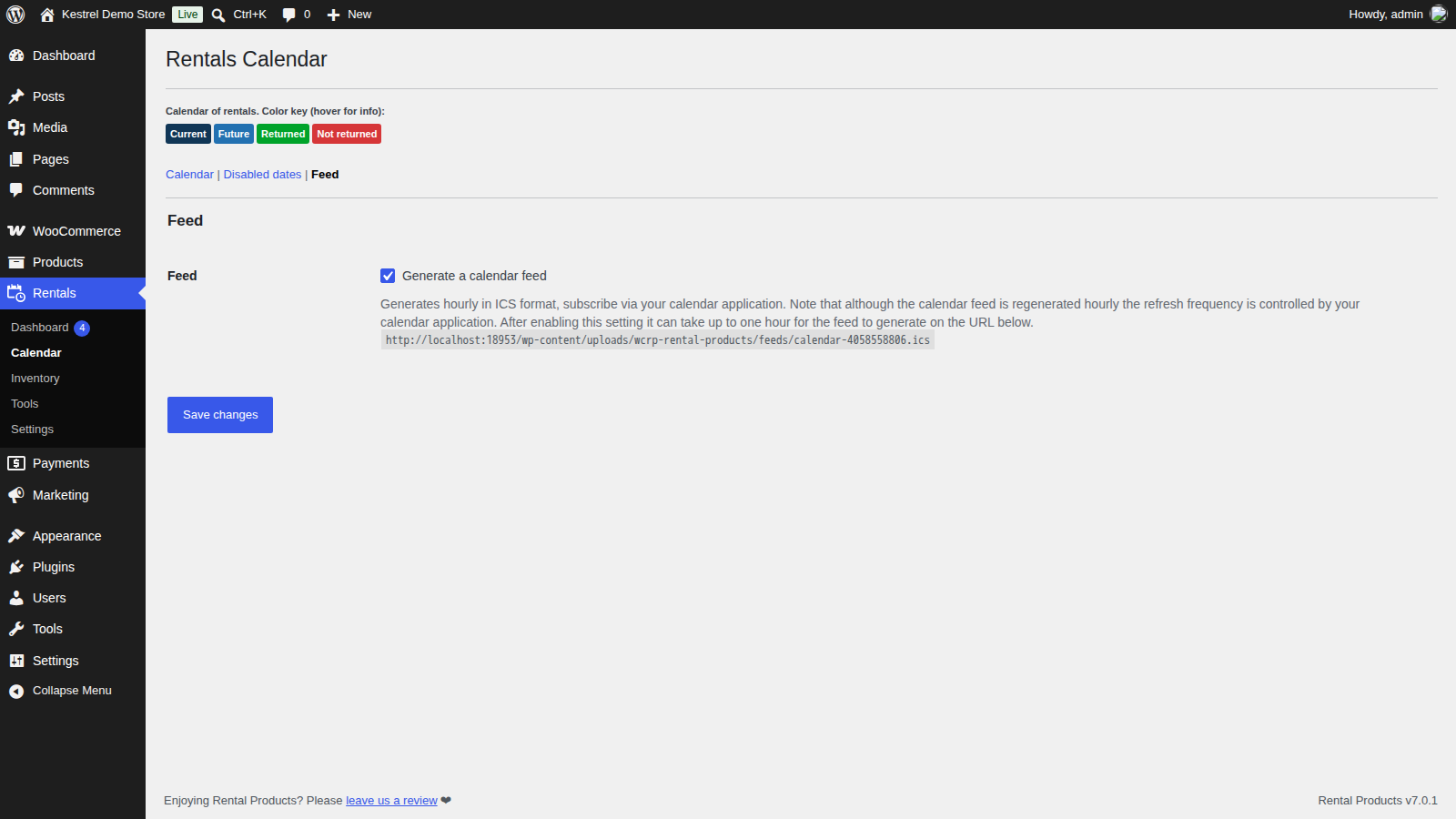
The feed file is written every hour. Until the first run after you turn it on, the URL returns a 404 error; that’s normal. Turning the feed off deletes the file.
Subscribe in your calendar app
In your calendar app, add a calendar by URL (Google Calendar calls it From URL, Outlook Subscribe from web, Apple Calendar New Calendar Subscription) and paste the feed URL. How often the app checks for changes is up to the app, often every few hours, so new rentals may take a while to appear.
What the feed includes
The feed follows the calendar’s mode. In detailed mode, each event shows the quantity and product, the order number and status, with a separate event for each expected return. In simple mode, events show the order number and status. Customer names are always left out.
The feed is one-way: changing an event in your calendar app doesn’t change the rental. There’s one feed, covering every rental on your Rentals calendar, with no per-product feeds.
Inventory
Rentals » Inventory lists the rental stock of every published rental product: Product (a link that opens it in a new tab), ID, Parent ID, SKU, Rental stock total, Rental stock in, Rental stock out and Rental stock out orders.

Date view
The default. Shows estimated stock for the date you choose with Set date (today or later). It assumes every rental comes back on time: a rental counts as in once its dates and return days threshold have passed, whether or not it’s marked returned.
Live view
Shows stock right now. Rentals count as out until they’re marked returned or canceled, including a time based rental whose slot has already ended.
Time based rentals in the inventory
A time based rental takes a unit for part of a date, so date view counts the most units out at the same moment on that date. Two bookings sharing one unit at different times count as 1 out, not 2. The tooltips on the Rental stock in and Rental stock out columns explain the count in each view.
Bundles, search and export
Bundles are left out until you click Include bundles. Search, print and export the list with the buttons above it, and click Refresh inventory to reload it without losing your search or filters. With performance optimization on (the default), the inventory loads a page at a time and printing or exporting covers only the rows shown, so choose to show all rows first.
Negative totals and differences from the storefront
A negative total means the product’s rental stock was lowered below what was already booked. It corrects itself as those rentals come back.
The inventory can differ from what customers see when booking, because customer availability also counts the return days thresholds of earlier rentals and the Immediate rental stock replenishment setting. See how rental availability works.
Tools
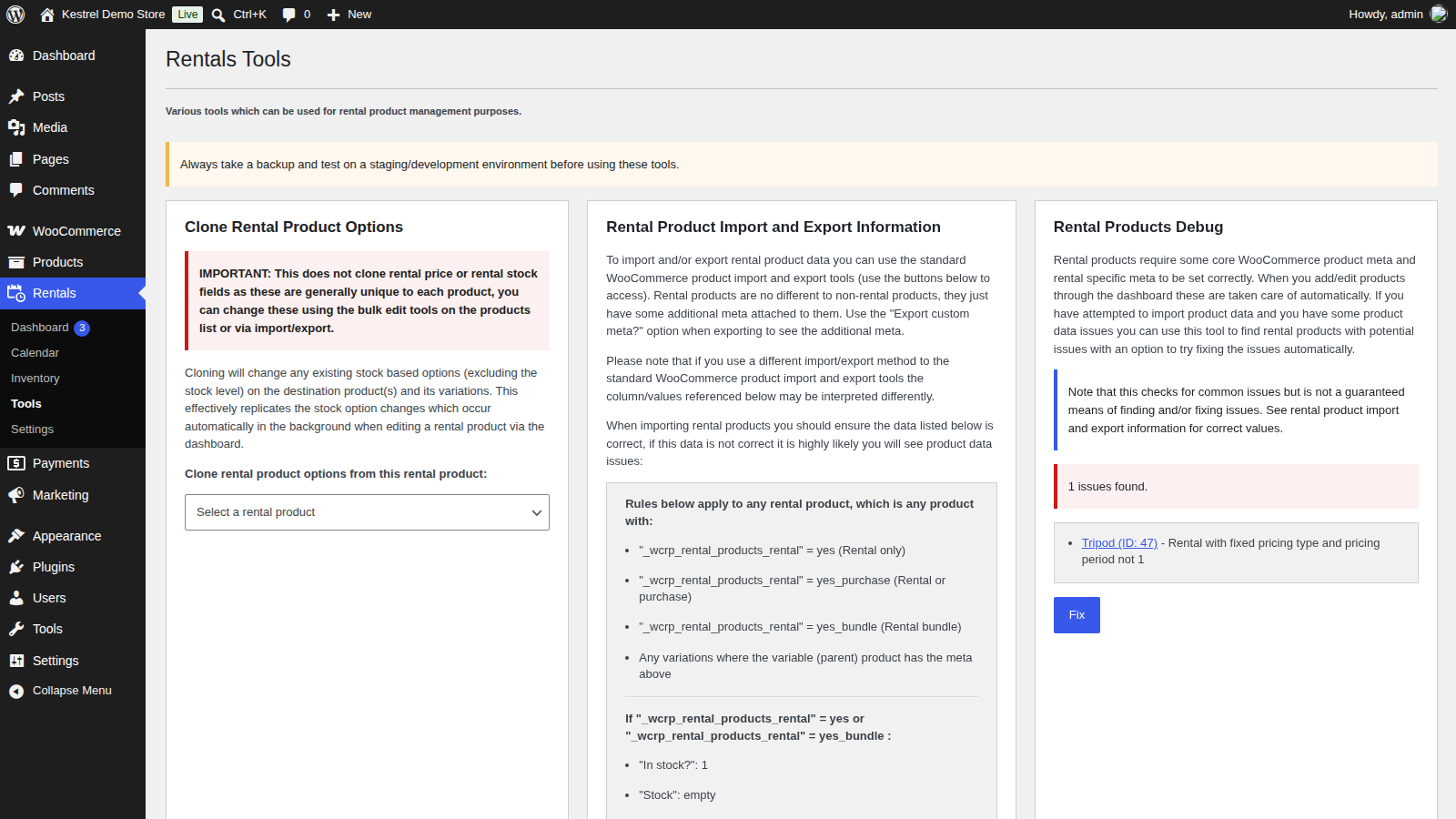
Rentals » Tools holds three tools. Always back up your site, and test on a staging site, before using them.
- Clone Rental Product Options copies rental options from one product to others. See copy rental options to other products.
- Rental Product Import and Export Information explains what an import must get right, with buttons for WooCommerce’s product importer and exporter. See import and export rental products.
- Rental Products Debug finds rental products with options that conflict.
Run debug
Click Run debug under Rental Products Debug. It checks every rental product, in any status, for common configuration problems, such as:
- a rental type on a product type that doesn’t support it, or Rental bundle on a variable product,
- Fixed pricing with a pricing period other than 1, or with multiples or additional periods % turned on,
- Period or Period selection pricing whose minimum or maximum days don’t match the pricing period,
- pricing tiers or additional periods % on a type that doesn’t use them,
- in-person pick up and return with a return days threshold other than 0,
- Rental only or Rental bundle products, or their variations, with the wrong WooCommerce stock options,
- Rental or purchase products, or variations, with no rental price,
- time based rentals that can’t be booked: no operating windows, an unusable window, Minimum slots higher than Maximum slots, or in-person pick up and return turned on,
- rental bundles set to time based, or containing a time based rental.
The result says "No issues found." or lists the products and variations with problems, with the number of issues found. Click Fix and confirm to apply the listed corrections; "Fix completed." confirms it. Debug checks common issues but can’t guarantee it finds or fixes everything, so check the products afterwards.
Archive old rentals
On a store with many past rentals, the dashboard and calendar can get slow. Archive rentals under Rentals » Settings » Advanced » Performance & debugging moves rentals that were marked returned, on orders created more than the number of days you set, out of the active rentals table. It runs once a day. Set it to 0 (the default) to stop archiving.
Archived rentals no longer count towards availability and are hidden from the calendar unless you click Include archived rentals; their orders still appear on the dashboard. The setting shows the size of the active and archive tables. Try it on a staging site first.
Common issues
The calendar feed URL returns a 404 error
The feed is written hourly by WordPress’s scheduled tasks (WP-Cron). Wait up to an hour after turning it on. If it still returns 404, check that WP-Cron runs on your site.
The calendar feed is out of date
Your calendar app decides how often it checks the feed. Most check every few hours; some let you change it.
The calendar or dashboard is slow
Turn on Archive rentals, use simple calendar mode, or filter the calendar. Try changes on a staging site first.
The calendar shows rentals from trashed orders
Trashed orders still hold stock, so they stay on the calendar. Permanently delete them to free their dates.
The inventory shows negative stock
Rental stock was lowered below existing bookings. It corrects as those rentals come back.
Store-wide disabled dates can still be booked
Update Rental Products to the latest version: earlier 7.0 versions didn’t apply Disable rental dates with the modern handlers. If you set the dates on each product as a workaround, you can leave them or clear them.
A product’s options look wrong
Run Rental Products Debug from Rentals » Tools (see run debug).