


Orders with rentals are WooCommerce orders with a few extra tools: you can add a rental to an order, change its dates, mark it returned or cancel it, and each action keeps your rental stock accurate. This page covers the order screen, returns, refunds and the return reminder email.
Some tools depend on your store’s handler mode. Stores that first installed Rental Products at version 7.0 or later use the modern handlers; stores that upgraded may still be in legacy mode (check which mode you’re in).
When you’d use this
- A customer wants different dates, a longer rental or another quantity.
- You take a booking by phone and need to add the rental to an order.
- A rental comes back early, or a customer cancels.
- You need to refund a deposit or part of a rental.
- You want to take units out of stock for repairs.
Rental orders in WooCommerce
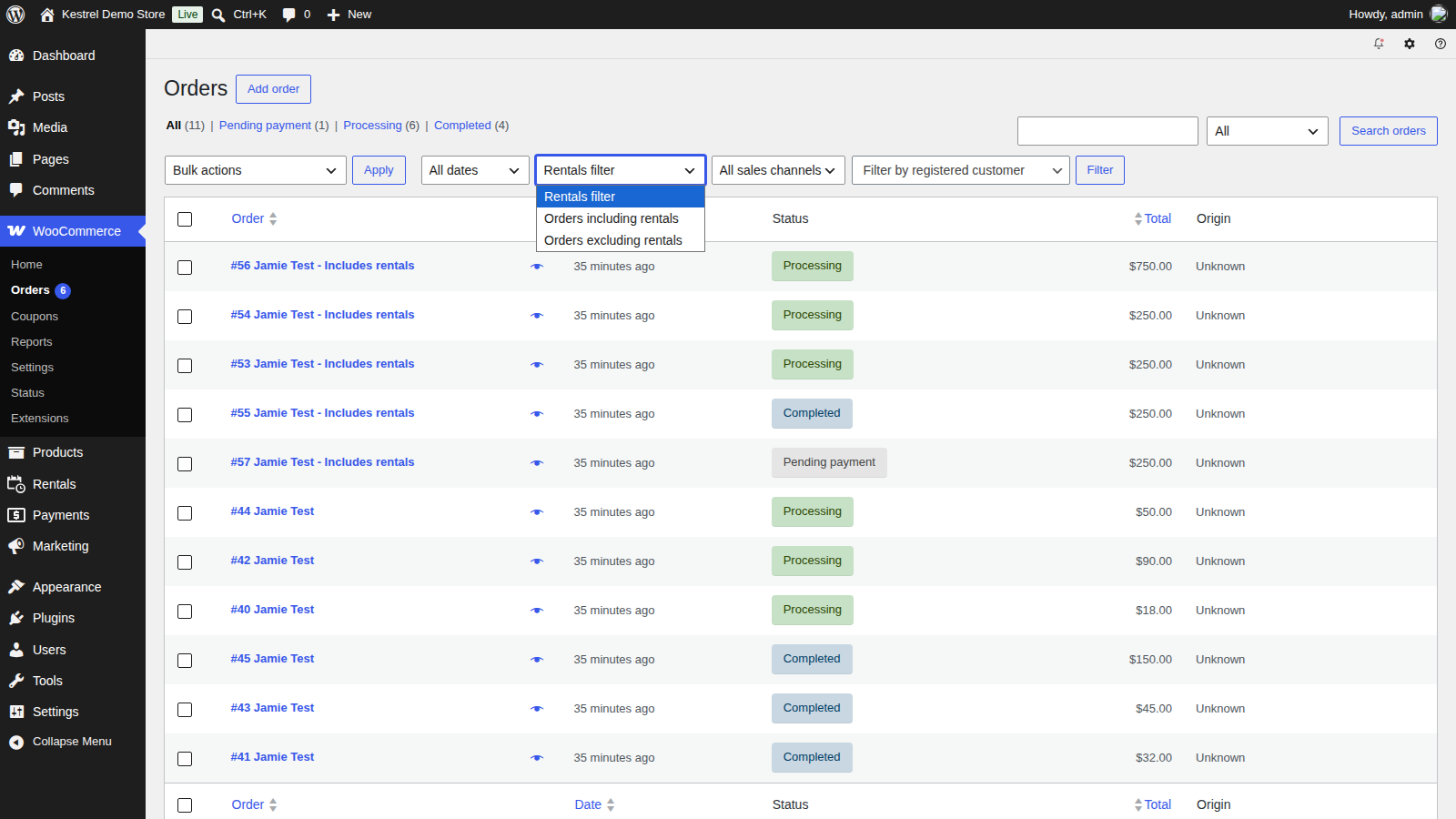
In WooCommerce » Orders, orders with rentals show "Includes rentals" after the customer’s name. To list only those orders, or only orders without rentals, choose Orders including rentals or Orders excluding rentals in the Rentals filter dropdown above the list.
When you add or edit an order, a Managing rental orders box explains how your store’s settings treat rentals: which order statuses hold and release rental stock, whether completing the order marks its rentals returned, which buttons to use, and how security deposits are refunded. What it says follows your settings. If you don’t see it, turn it on in Screen Options at the top of the page.
The rental details on each line, such as the dates, are read-only. Change them with the tools below rather than editing the line, so the stock reservation changes with them.
Rentals » Dashboard also lists your latest and flagged rental orders; see rentals dashboard, calendar and inventory.
Add a rental to an order
Modern handlers: Add rental product
- Create the order first, and save it as Pending payment. Rentals can’t be added to an order that hasn’t been created yet: the button shows "The order must be created before rental products can be added. Create an empty order as pending, then add the rentals and change the order status as required."
- In the order items, click Add item(s), then Add rental product.
- Choose the Rental product and, for a variable product, the Variation. Type part of the product’s name to search; only published rental products appear.
- Set the Quantity.
- For a period selection product, choose one of its periods in Rental period. Once a start date is selected, changing the period moves the end date to match.
- Select the Rental dates. The calendar shows two months side by side and only lets you pick a length the product can be booked for. Dates and days of the week the product has disabled can’t be selected. For a time based rental, pick one date, then a Start time and a Duration, as customers do.
- For a product with in-person pick up and return, choose the Pick up time and Return time. A time with a fee shows the fee next to it, and the fee is included in the line total.
- Click Add to order.
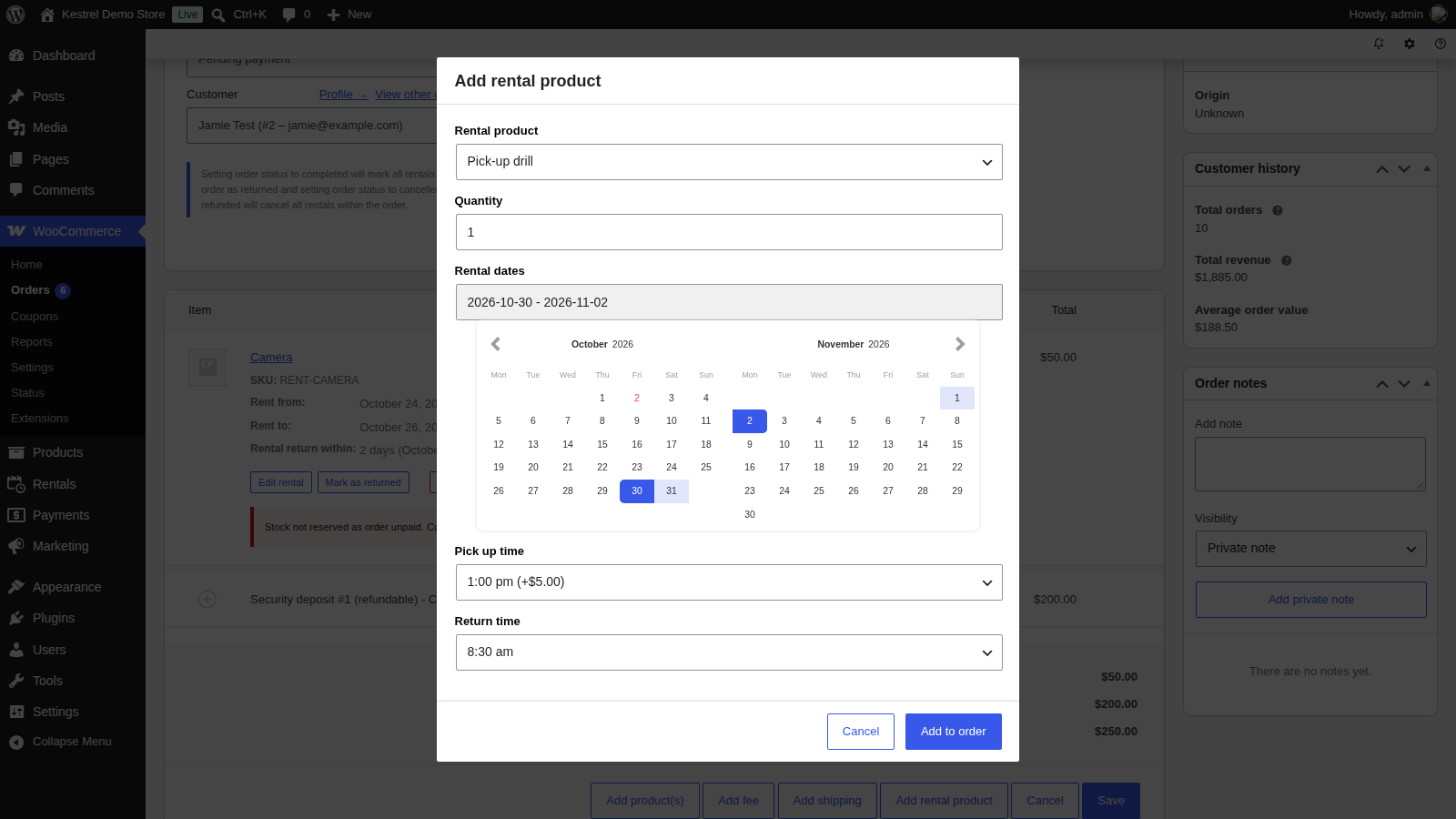
The rental is priced the same way as on the product page, including any pricing adjustment for the order’s customer (not your own account), its security deposit is added, the order totals are recalculated, and stock is reserved for the dates while the order is in a status that holds stock. To add a rental bundle, choose the bundle; its products are added with it.
Product Add-Ons fields can’t be chosen in this dialog, and it says so: "This product has add-ons, which cannot be chosen here. Add-ons are only available when ordering from the product page." Order those rentals from the product page instead.
See security deposits on the order screen for how its deposit line is added.
Legacy mode: Add rental product(s)
In legacy mode, click Add item(s), then Add rental product(s). A window opens where you go to the rental product, choose the dates in its rental form and add it to the order. Availability is checked before it’s added. Close the window when you’re finished, then click Recalculate.
WooCommerce’s own Add product(s) button doesn’t add a rental: on a rental or purchase product it adds the purchase side, without rental dates.
Change rental dates or quantity
With Edit rental
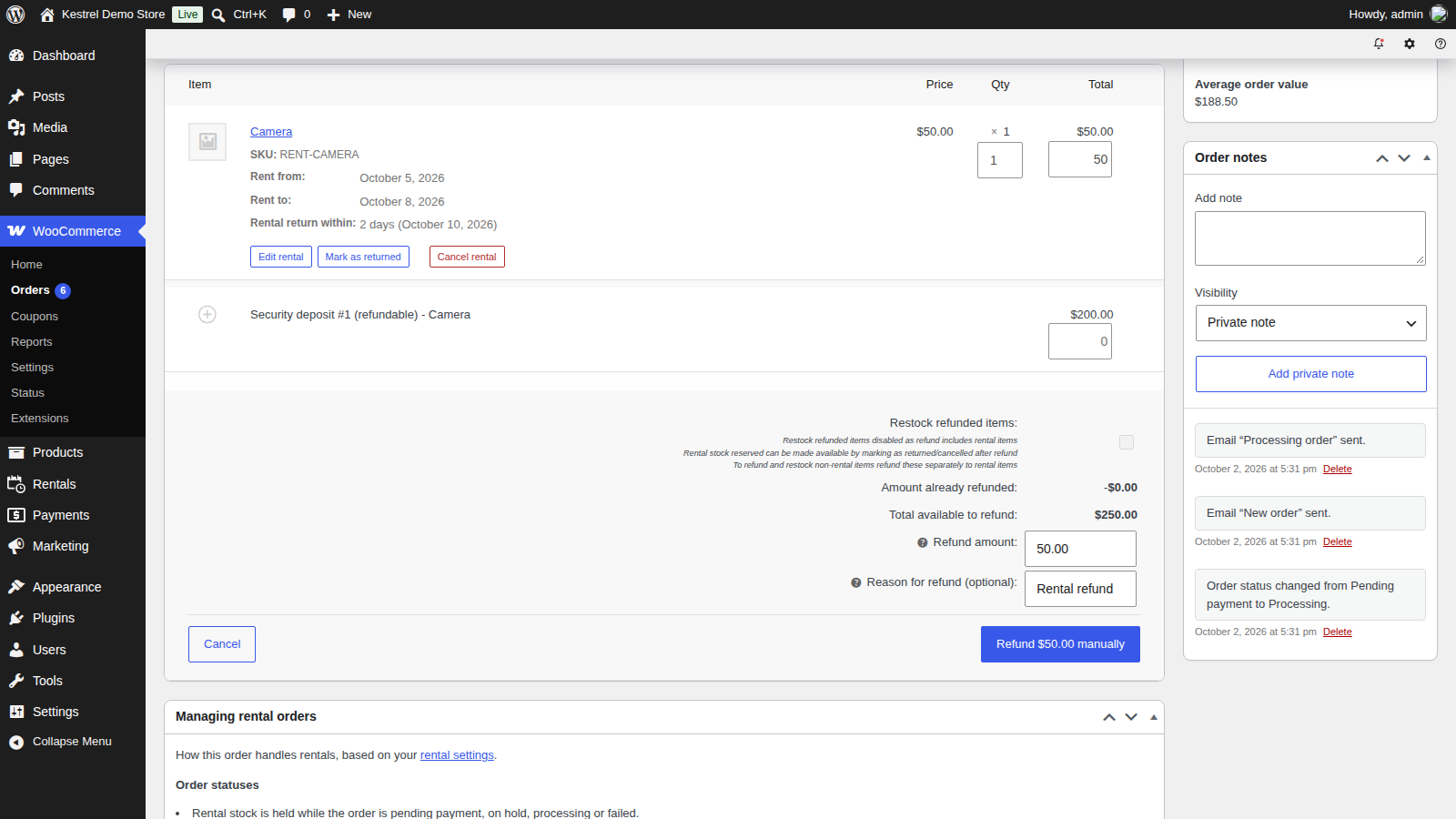
With the modern handlers, each rental line that hasn’t been returned or canceled has Edit rental, Mark as returned and Cancel rental buttons.
- Open the order in WooCommerce » Orders and find the rental line.
- Click Edit rental. The Edit rental product dialog opens on the rental’s current dates, quantity, rental period, pick up and return times, or start time and duration.
- Change what needs changing. For a period selection product, choosing a different Rental period moves the end date to match.
- Click Update order.
- If the new price differs from what the customer paid, collect the difference or issue a partial refund the usual WooCommerce way, and let the customer know their new dates.

When you update the order:
- The rental’s current reservation is released, so it isn’t counted against itself.
- The new dates and quantity are checked against availability and the product’s rental rules. For a variation, those are the rules set on its product.
- The line is repriced against the product’s pricing and your pricing adjustments as they are now, and the order totals are recalculated. A price you entered by hand on that line is replaced by the recalculated one, and an adjustment that has since changed or been removed changes the price. Just opening the order changes nothing.
- The rental’s security deposit line is updated for the new quantity.
- Stock is reserved for the new dates. If the dates changed, an order note records them: "Rental dates changed: …. Was …, now …."
Changing the rental doesn’t charge or refund the customer. Payments stay in your hands. For a rental bundle, edit the bundle’s line in the Edit rental bundle dialog; its products follow the bundle’s new dates and quantity.
What if the new dates aren’t available?
If the item is booked on the new dates, or the dates break one of the product’s rules such as a disabled date or the minimum number of days, the dialog says so and nothing is changed. Check Rentals » Calendar or Rentals » Inventory for what’s free, then offer the customer other dates or a similar product.
Book outside the product’s rules
Two rules can be overridden from the order screen, because an admin sometimes needs to: a start date earlier than the product’s booking window (including dates in the past), and more units than are available. The dialog lists what the change goes against under "This goes against the rental rules for this product:", and only saves once you tick Apply these changes anyway. Other rules, such as disabled dates, the earliest available date and the minimum and maximum days, still apply.
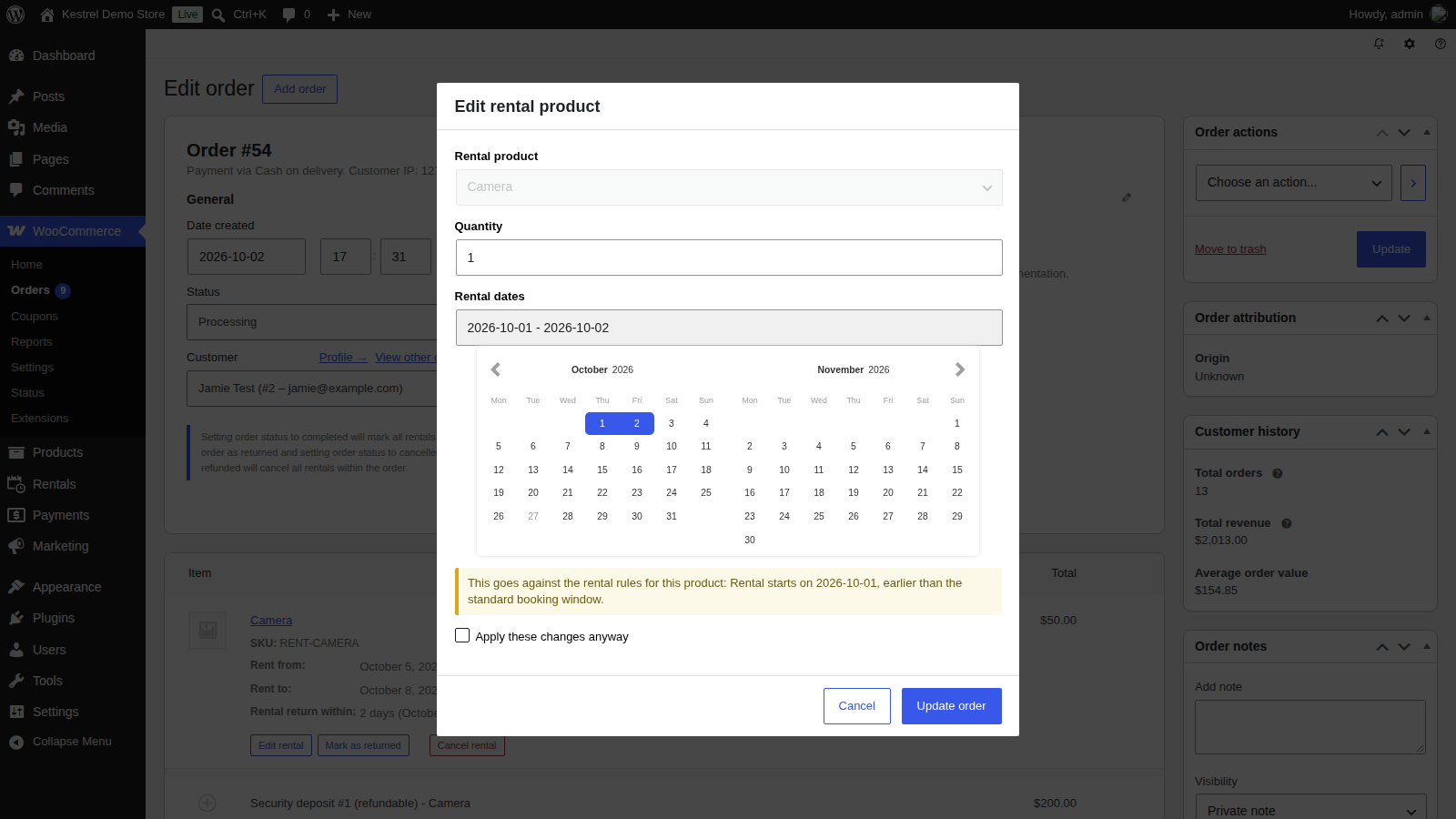
Booking more units than you have means two rentals may need the same item, so only override availability when you know you can cover it.
What Edit rental can’t change
- The product. To swap to a different product, click Cancel rental on the line, then click Add item(s) and Add rental product to add the new one.
- One item inside a rental bundle. Edit the bundle line instead. Bundled item lines have no Edit rental button.
- Returned or canceled rentals. These lines have no Edit rental button.
Legacy mode: cancel and rebook
In legacy mode there’s no Edit rental button. The rental dates are tied to stock reservations, so changing them means canceling the original rental and adding the product again with the new dates.
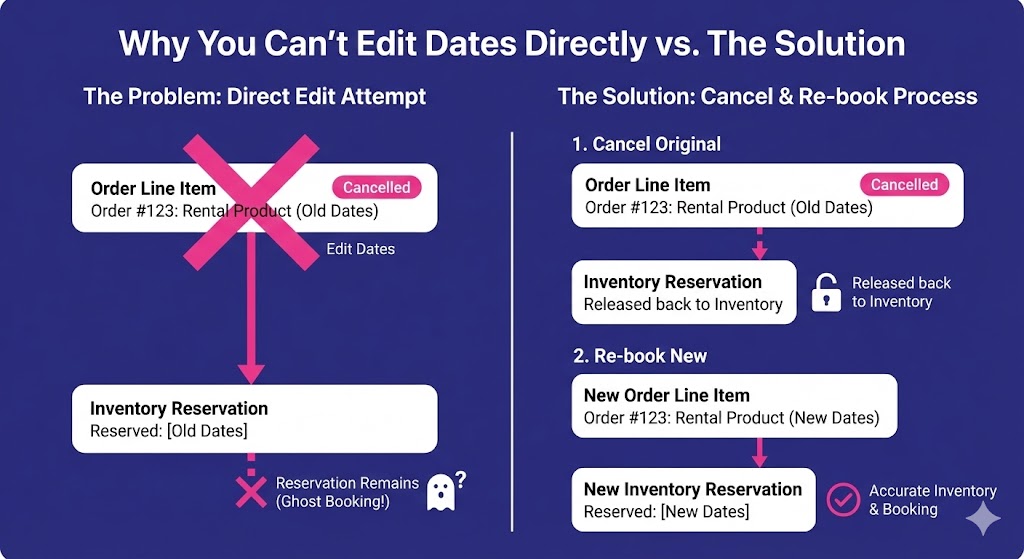
- Cancel the existing rental. Click Cancel rental on the rental line. This marks the rental as canceled and releases its dates and quantities. The order itself stays as it is. (Legacy lines also have a Change rental button, which explains these steps.)
- Set the order to an editable status. WooCommerce only lets you add items to an order in an editable status. If the order is Processing or Completed, change it to Pending payment or On hold first.
- Add the product again with the new dates. Click Add item(s), then Add rental product(s), choose the new dates in the product’s rental form and add it to the order. Close the window when you’re finished.
- Recalculate and adjust payment. Click Recalculate. Canceling a rental doesn’t change the totals or refund anything, so remove or refund the canceled line as your policy requires, and collect or refund any difference.
- Save the order and tell the customer. Set the order back to its previous status if you changed it, and add an order note to the customer confirming their new dates.

Always cancel before you add the rental again. If you add the same product without canceling first, both rentals hold stock.
Security deposits on the order screen
With the modern handlers, the order screen handles security deposits as checkout does:
- Adding a rental that has a deposit adds its deposit line, named as at checkout, such as "Security deposit #1 (refundable) – Camera". A rental bundle adds the bundle’s deposit.
- Editing a rental or a bundle updates its existing deposit line for the new quantity, rather than adding another. If the product no longer has a deposit, the line is removed. A deposit that has already been refunded isn’t changed.
This also works on orders placed before Rental Products 7.1. If an older order has more than one identical deposit line for the same product, the plugin can’t tell which belongs to the rental and leaves them as they are: delete the duplicates, then click Recalculate and save the order.
Mark rentals as returned
When a rental comes back, click Mark as returned on its line and confirm "Mark this rental as returned?". The order gets a note: "Rental marked as returned: …".
With Immediate rental stock replenishment on (the default), a returned unit is free to rent again straight away, even if it came back early. With it off, the unit stays booked until its end date plus the return days threshold. See Immediate rental stock replenishment.
Completing an order marks all its rentals returned, while Return rentals in completed orders is on (the default). If something sets orders to Completed before the items come back, such as a shipping integration that completes orders on dispatch, turn that setting off and mark rentals returned by hand. The return reminder email only goes to Processing orders either way.
Cancel a rental
Click Cancel rental on the line and confirm: "Cancel this rental? This frees the reserved dates and removes the rental details from the line item." The order gets a note, "Rental cancelled: …", and the line stays on the order, so refund it if needed. A canceled rental can’t be restored; add it again if you need it back.
Setting the whole order to Cancelled or Refunded cancels every rental in it, and so does Failed when Cancel rentals in failed orders is on. Changing the order’s status back afterwards doesn’t rebook them: add the rentals again. Which statuses hold and release stock is covered in how rental availability works.
Refunds and deposits
Refunds work the usual WooCommerce way. A few things are different for rentals:
- Restock refunded items is unticked and disabled when a refund includes rental items, with the note "Restock refunded items disabled as refund includes rental items". To refund and restock non-rental items, refund them separately.
- A refund doesn’t free the rental’s dates. After refunding a rental that won’t go ahead, click Cancel rental on it. Mark as returned also frees the stock, while Immediate rental stock replenishment is on.
- Security deposits are never refunded automatically. Refund the deposit’s fee line yourself once the rental is back and you’re satisfied with it. See refund a deposit.
The customer pays the full order total, including deposits, at checkout; card refunds carry your payment provider’s usual fees. Rental Products doesn’t place payment holds; see payment is taken in full at checkout.
Block stock for repairs or maintenance
To take units out of availability for a while, such as during repairs, book them on an internal order:
- Go to WooCommerce » Orders » Add New, set a billing name you’ll recognize, such as "Internal rental block", and create the order as Pending payment.
- Add the rental product with the dates and the quantity to block (Add item(s) » Add rental product, or Add rental product(s) in legacy mode).
- Leave the order in Pending payment. No payment is needed: a pending order holds its rental stock.
To make the units available again, click Mark as returned or Cancel rental on the line, or permanently delete the order. Moving it to the trash isn’t enough, because a trashed order keeps its stock until it’s deleted. If your store uses the reserve stock only when orders are paid code, a pending order reserves nothing, so this method doesn’t work.
Rental return reminder email
Rental Products adds an optional customer email that reminds customers their rentals are due back. It’s off by default. Go to WooCommerce » Settings » Emails, open Rental return reminder and turn it on.

- Subject defaults to "Your {site_title} order has rentals due for return soon", and Email heading to "Rental return reminder". Additional content and Email type work as in other WooCommerce emails.
- Send once (on by default) sends one reminder per order. Turn it off to send a reminder for each different return date in the order.
- Days before (default 1) is how many days before the return date the reminder goes. The return date is the rental’s end date plus its return days threshold.
The reminder goes to the order’s billing email, and the order gets a private note that it was sent. Reminders are sent once a day, at 00:30 in your store’s timezone, by WordPress’s scheduled tasks (WP-Cron), and only for:
- orders in Processing, because those are paid but not yet complete,
- rentals that haven’t been marked returned or cancelled,
- the exact day that’s Days before ahead of the return date. If the scheduled task doesn’t run that day, that reminder is skipped.
The email uses its own templates, which you can copy to your theme and customize from the email’s settings screen like other WooCommerce emails.
What customers can and can’t change
Customers can’t change, extend or cancel a booked rental themselves; they contact you and you use the tools above. In My Account, orders with rentals show the rental details, and "Order again" is hidden. If Cancel rentals in failed orders is on, customers can’t pay for a failed order with rentals, since its rentals were canceled.
Common issues
The rental button shows "The order must be created before rental products can be added"
The order hasn’t been saved yet. Create it as Pending payment, then add the rentals.
A paid order lost its rental dates
The order was set to Cancelled, Refunded, or Failed with Cancel rentals in failed orders on, which cancels its rentals for good, even if a later payment succeeds. Add the rentals again. To keep rentals on card payments that fail and are retried, turn off Cancel rentals in failed orders.
Rentals are marked returned as soon as the order ships
Something sets the order to Completed on dispatch, and Return rentals in completed orders is on. Turn that setting off, or stop the integration completing rental orders.
The dates are still blocked after a refund
A refund doesn’t free stock. Click Cancel rental on the line.
The deposit is missing or doubled after using the order screen
Update Rental Products to the latest version, then see security deposits on the order screen for fixing older orders.
Return reminders aren’t sending
Check that the email is enabled, the order is Processing, the rental isn’t marked returned, the date matches Days before ahead of the end date plus the return days threshold, Send once hasn’t already sent one, and WP-Cron runs on your site.
Keep learning
- How rental availability works (which statuses hold stock)
- Rentals dashboard, calendar and inventory
- Security deposits
- Processing refunds in WooCommerce