


Rental Products lets customers rent physical items from your WooCommerce store: equipment, party supplies, costumes, tools and anything else that goes out and comes back. Customers choose their dates, or a date and a time, on the product page, the plugin prices the rental and reserves stock for that time, and you manage returns, deposits and a rentals calendar in your WordPress admin.
Each rental product is either day based or time based. Day based rentals are booked in whole calendar days, so Monday to Thursday is a four-day rental. Time based rentals are booked by the hour or part of a day, within one date, so the same item can go to several customers on one day. Rental Products isn’t built for appointments with staff, classes, or overnight stays priced per night or per person.
When you’d use this
- Rent out equipment by the day or the week, shipped or picked up in person.
- Rent items by the hour or part day, such as bikes, boats or event equipment.
- Charge seasonal rates or give trade customers a discount with pricing adjustments.
- Sell and rent the same product from one listing.
- Rent kits of several products as one bundle.
- Take a security deposit with each rental.
- See what’s going out and coming back on a rentals calendar.
Requirements
- WordPress 6.3 or later, WooCommerce 9.9 or later, and PHP 7.4 or later with the JSON extension. If your site doesn’t meet these, Rental Products shows an admin notice saying what’s missing and deactivates itself.
- Compatible with WooCommerce’s cart and checkout blocks and High-Performance Order Storage.
- Optional: WooCommerce Product Add-Ons, for extra fields and fees on rental products, and Deposits & Partial Payments for WooCommerce by Acowebs, for taking part of the payment later.
Install and activate
How you get updates depends on where you bought Rental Products:
- Bought on kestrelwp.com: download the plugin from the Licensed downloads tab of your kestrelwp.com account and install it. Then go to Settings » Rental Products activation and activate the key from your License keys tab to receive updates. See using sites against your activation limit for how activations count.
- Bought on WooCommerce.com: install the plugin from your WooCommerce.com account. Updates come through your WooCommerce.com connection, with no license key to enter.
For upload, FTP and update steps, follow how to install and update WooCommerce extensions.
Modern and legacy handlers
Rental Products has two sets of handlers for the rental form, cart checks, pricing and the order screen’s rental tools. Which set your store runs decides a few things you’ll see:
- Modern handlers run on every store that first installed Rental Products at version 7.0 or later. These stores never see a setting to change it.
- Legacy mode keeps the earlier handlers, as a transition aid for stores that upgraded from a version before 7.0. Upgraded stores start in legacy mode and show this notice until it’s dismissed: "The plugin is running in legacy mode, a transition aid for stores that upgraded from a version earlier than 7.0."
On an upgraded store, switch modes under Rentals » Settings » Advanced » Handler mode with the Legacy mode setting (details). Switching in either direction empties every customer’s cart, so choose a quiet time.
Most of Rental Products works the same in both modes. Where something differs, these docs say which mode it applies to. The differences you’re most likely to notice are on the order screen (only modern handlers can change a rental’s dates in place) and in the wording of add to cart errors. Time based rentals, pricing adjustments and Rentals » Pricing need the modern handlers, and legacy mode can’t be turned on while any product is time based or any adjustment is on.
Check which mode your store runs
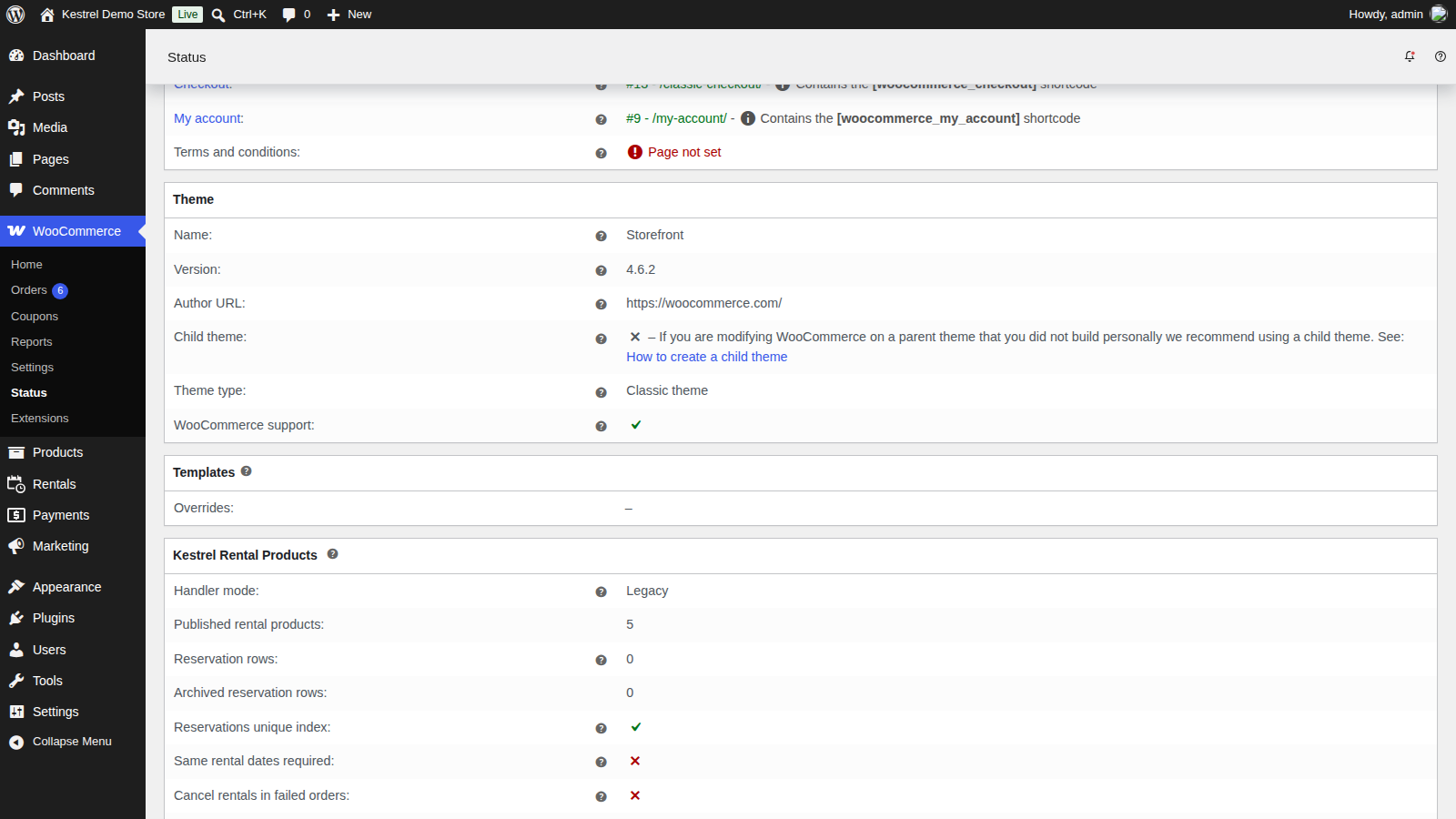
Go to WooCommerce » Status and find the Rental Products section. Its Handler mode row shows one of:
- Modern (new install): modern handlers, and the store has never run legacy mode.
- Modern (upgraded): modern handlers on a store that upgraded and switched legacy mode off.
- Legacy: legacy mode is on.
Set up Rental Products
1. Review the store-wide settings
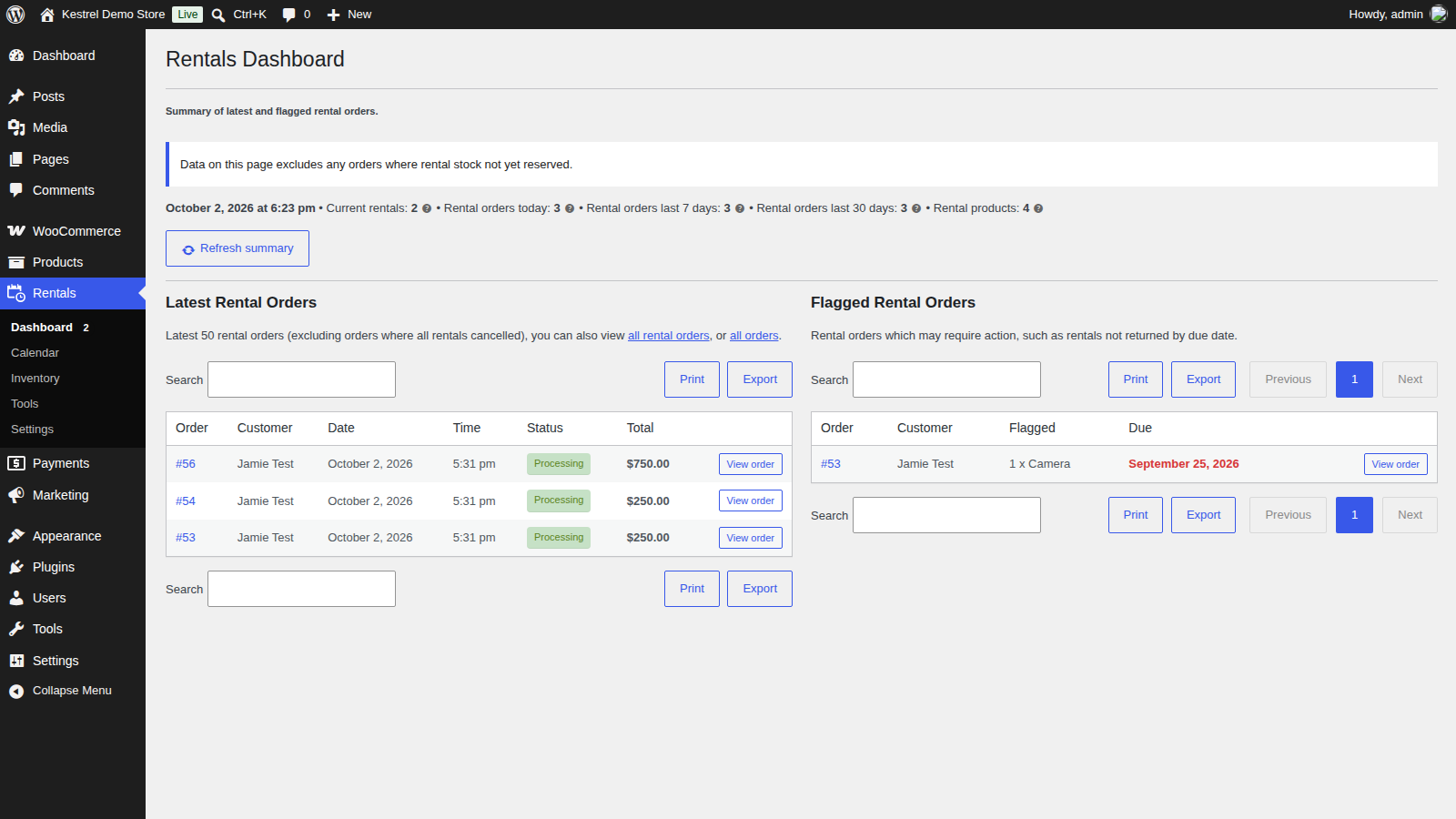
Rental Products adds a Rentals menu to your WordPress admin with Dashboard, Calendar, Inventory, Tools and Settings. The defaults in Rentals » Settings work for most stores, so you can start without changing them and come back later. The settings reference explains each one.
2. Create a rental product
Go to Products » Add New and create a simple or variable product. Beside Product type, set Rental product to Rental only and confirm the prompt. The choice saves straight away, and a Rental product data box appears below the product data.
For the other rental types (rental or purchase, and bundles), see set up a rental product.
3. Set the rental price and stock
For a Rental only product, the Regular price on the General tab is the rental price. By default it’s a price per day: a $50 price makes a three-day rental $150.
Under Inventory, set Rental stock (in and out) to the number of units you own. Leave it empty for unlimited units. To charge by the week, offer fixed packages or add discounts for longer rentals, see set up rental pricing.
4. Check the booking rules
Open the Availability tab in Rental product data. Two settings decide which dates customers can pick, and both default to 3 days when left empty:
- Start days threshold is the lead time in days. At 3, a customer visiting on a Monday can start a rental on Thursday at the earliest. Set it to 0 to allow rentals that start today.
- Return days threshold keeps each unit unavailable for that many days after a rental ends, for return shipping or cleaning.
The other booking rules are in set up a rental product.
5. Add the availability checker (optional)
The availability checker lets customers enter their dates once and see which rental products are available as they browse. Add the Availability Checker block to a page or sidebar. See rental form and availability checker.
6. Place a test rental order
Open the product in a private browser window, choose dates in the rental form, add it to the cart and check out. Then check:
- WooCommerce » Orders shows "Includes rentals" next to the customer’s name.
- The order’s line item shows the rental dates.
- Rentals » Calendar shows the rental on its dates.
When you’re done, click Cancel rental on the order’s rental line to free the dates. Moving the test order to the trash doesn’t free them: a trashed order keeps its rental stock until it’s permanently deleted.
Bring over existing bookings
If you already have bookings from another system, the simplest start is to leave them there and lower each product’s rental stock until those rentals have come back. Importing past bookings as orders is possible, but it needs development work on WooCommerce order imports and rental order data. Contact support to talk through the options before you try it.
What customers see
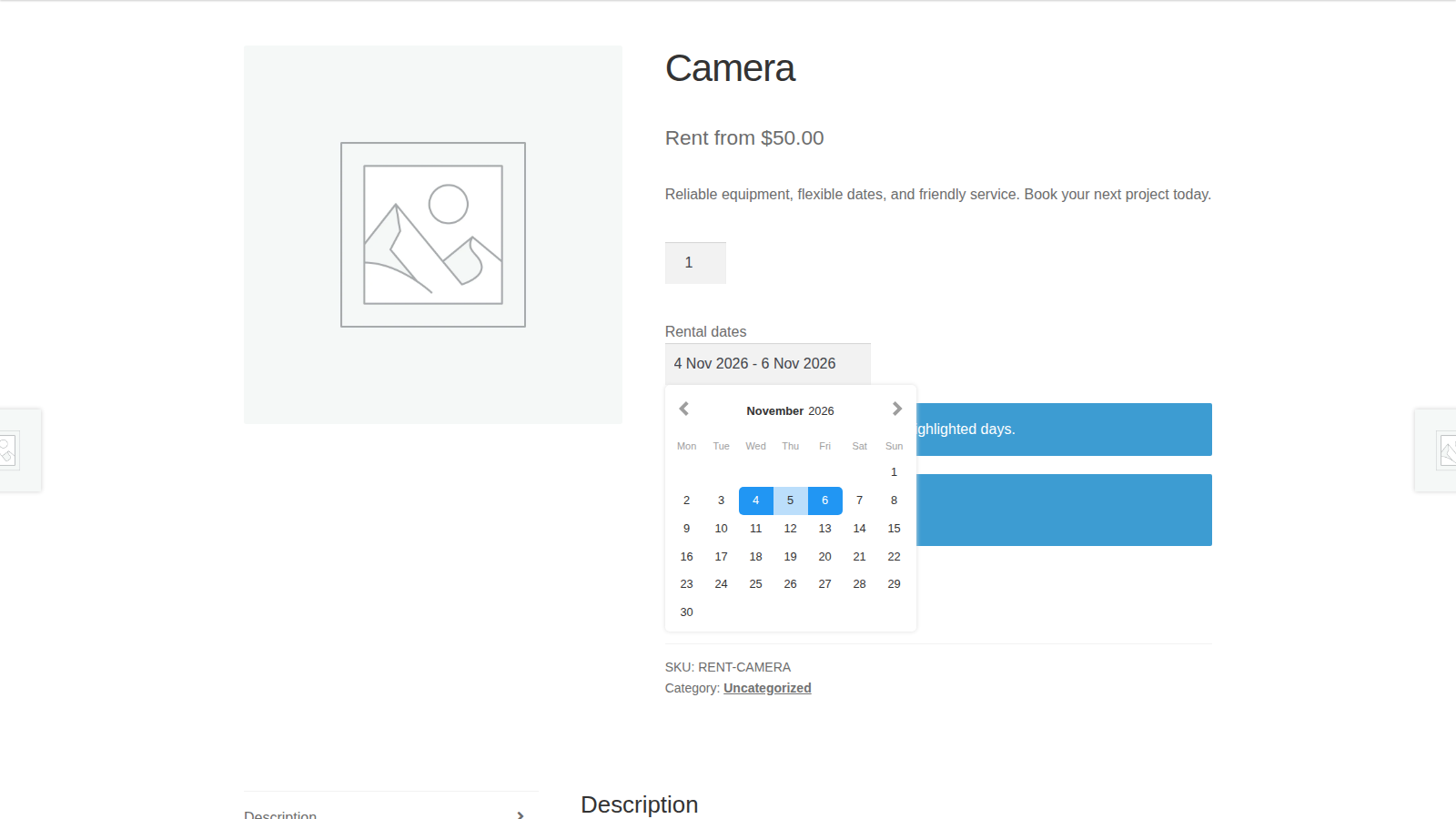
Rental products show a rental price ("Rent for" or "Rent from") on shop pages and a calendar on the product page for choosing dates. The rental dates, return information and any deposit appear in the cart, checkout, order emails and the customer’s account. See rental form and availability checker.
Common issues
The calendar doesn’t open on the product page
This is usually a JavaScript error or an optimization setting that delays jQuery. See troubleshoot Rental Products.
Today and the next few days can’t be selected
That’s the Start days threshold, 3 days when left empty. Set it to 0 on the product’s Availability tab to allow same-day rentals, or 1 to make tomorrow the earliest start.
Dates show as unavailable although units are free
Check the product’s booking rules and the orders holding stock on those dates. How rental availability works lists every cause.
Customers’ carts were emptied
Someone switched Legacy mode on or off under Rentals » Settings » Advanced. Switching modes empties every customer’s cart.
Keep learning
- Set up a rental product (every rental product option)
- Set up rental pricing (weekly rates, packages and discounts)
- How rental availability works (what holds and frees rental stock)
- Manage rental orders (changing dates, returns and refunds)