


Any simple or variable WooCommerce product can be rented. You choose a rental type beside the product type, and whether it’s rented by the day or by time slot, set the rental price and stock in WooCommerce’s own product data, and configure pricing, booking rules, deposits and more in the Rental product data box. This page is the reference for every option on a rental product.
When you’d use this
- Create your first rental products, or turn existing products into rentals.
- Choose between renting by whole days or by time slot within a day.
- Control lead times, turnaround time between rentals, minimum and maximum lengths and blocked dates.
- Offer in-person pick up and return times, with optional fees.
- Copy the same rental options to many products at once.
Choose a rental product type
Edit the product and use the Rental product select beside Product type. It appears on simple and variable products only. Other product types, such as grouped products, can’t be rentals themselves, but a grouped product can contain rental products.
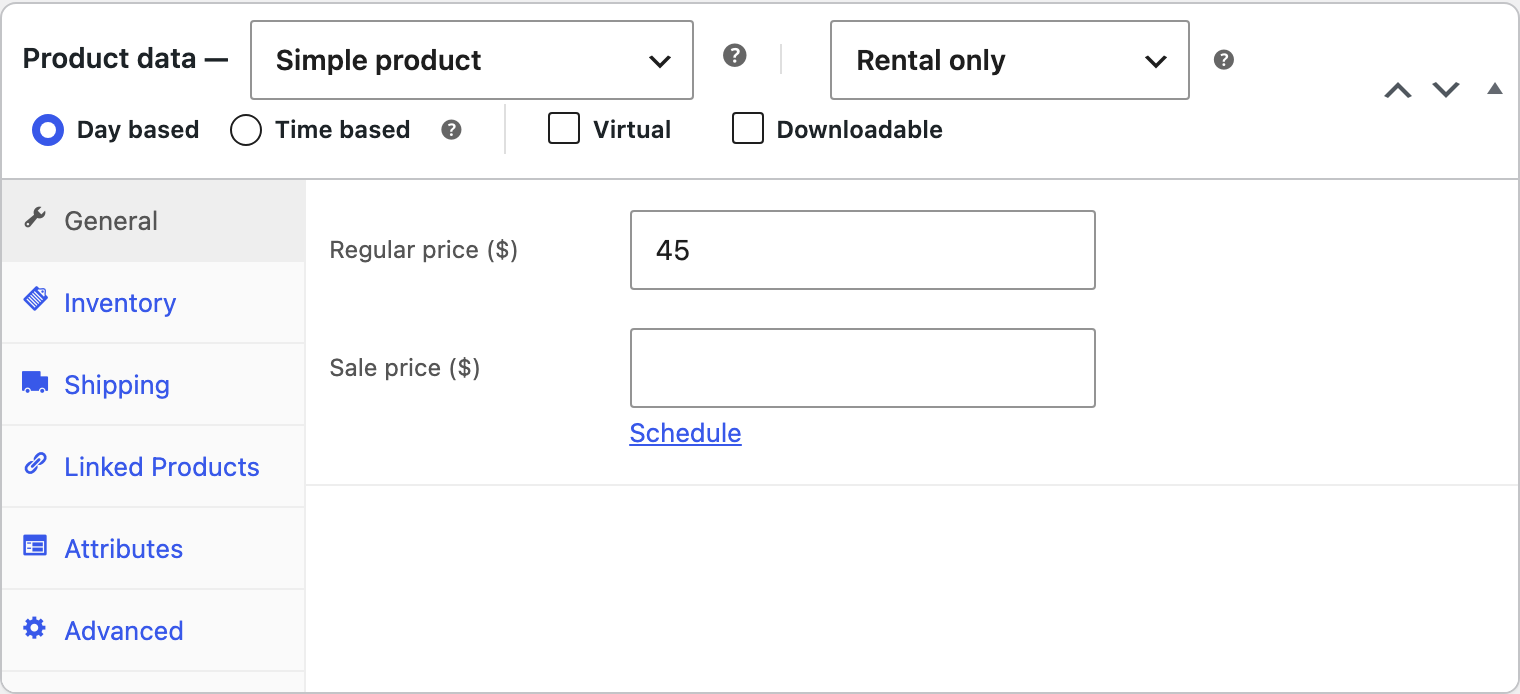
Changing the rental type asks you to confirm ("Are you sure? On change the selected option and product/variation stock options will be amended and saved.") and saves the choice straight away, before you click Update. The Rental product data box appears for every type except Not for rental.
Not for rental
The default. The product sells as a normal WooCommerce product.
Rental only
The product can only be rented. Its Regular price is the rental price, and WooCommerce’s Manage stock, Stock status and backorder options are hidden: the product always shows as in stock, and its units are tracked with Rental stock (in and out) instead. On shop pages, its add to cart button becomes a button to select dates on the product page.
Rental or purchase
One listing that customers can rent or buy, with a toggle on the product page to switch between the two. The purchase side uses the normal WooCommerce price and stock. The rental side has its own Rental price and rental stock, plus optional tax and shipping overrides on the Advanced tab. When you choose this type, a reminder asks you to set the rental price and stock.
A customer can’t rent and buy the same product in one order.
Rental bundle
A package of other rental products rented together, such as a camera, a lens and a tripod. Available on simple products only, and always day based. Choosing it adds a Bundle tab; see create rental bundles.
Day based or time based
Beside the Rental product select, choose how the product is rented. Hover over the help icon for a summary.
- Day based (the default, and what every product made before Rental Products 7.1 uses): customers choose a start and end date, and each rental takes up its units for every date it covers. This page describes day based products.
- Time based: customers choose a date, a start time and a duration, and the same units can be rented to several customers on one date. You set your opening hours and slot length on the Availability tab instead of the day based options. See time based rentals.
The choice is made on the parent product, so a variable product is entirely one or the other. Time based isn’t available for rental bundles, can’t be combined with in-person pick up and return, and needs the modern handlers (check your mode). Switching a product back to day based restores its day based options as they were.
Set the rental price and rental stock
These two fields live in WooCommerce’s own Product data box rather than in Rental product data. The Pricing and Availability tabs have buttons that jump to them.
Rental price
Shown on the General tab of Rental or purchase simple products, labeled with your store’s currency symbol. It’s the base price of the rental side; how it’s applied depends on the Pricing type. For Rental only and Rental bundle products there’s no separate field: use the Regular price. On variable products, set the price on each variation.
Rental stock (in and out)
On the Inventory tab. The total number of units you own for rental, which doesn’t change as rentals go out and come back: Rental Products works out each date’s availability from this total. Leave it empty for unlimited units.
On variable products, set it on each variation. A variable product’s own rental stock is always left empty, so a variation without its own rental stock has unlimited units.
Rental product data
The box below Product data has these tabs: Pricing, Availability, Bundle (bundles only), Calendar, Information, Add-ons, Deposits and Advanced. Hover over a field’s help icon in the admin for a short description.
When a product is included in a bundle, each tab shows a notice that the bundle’s own options are used when it’s rented as part of the bundle, while this product’s rental stock still counts.
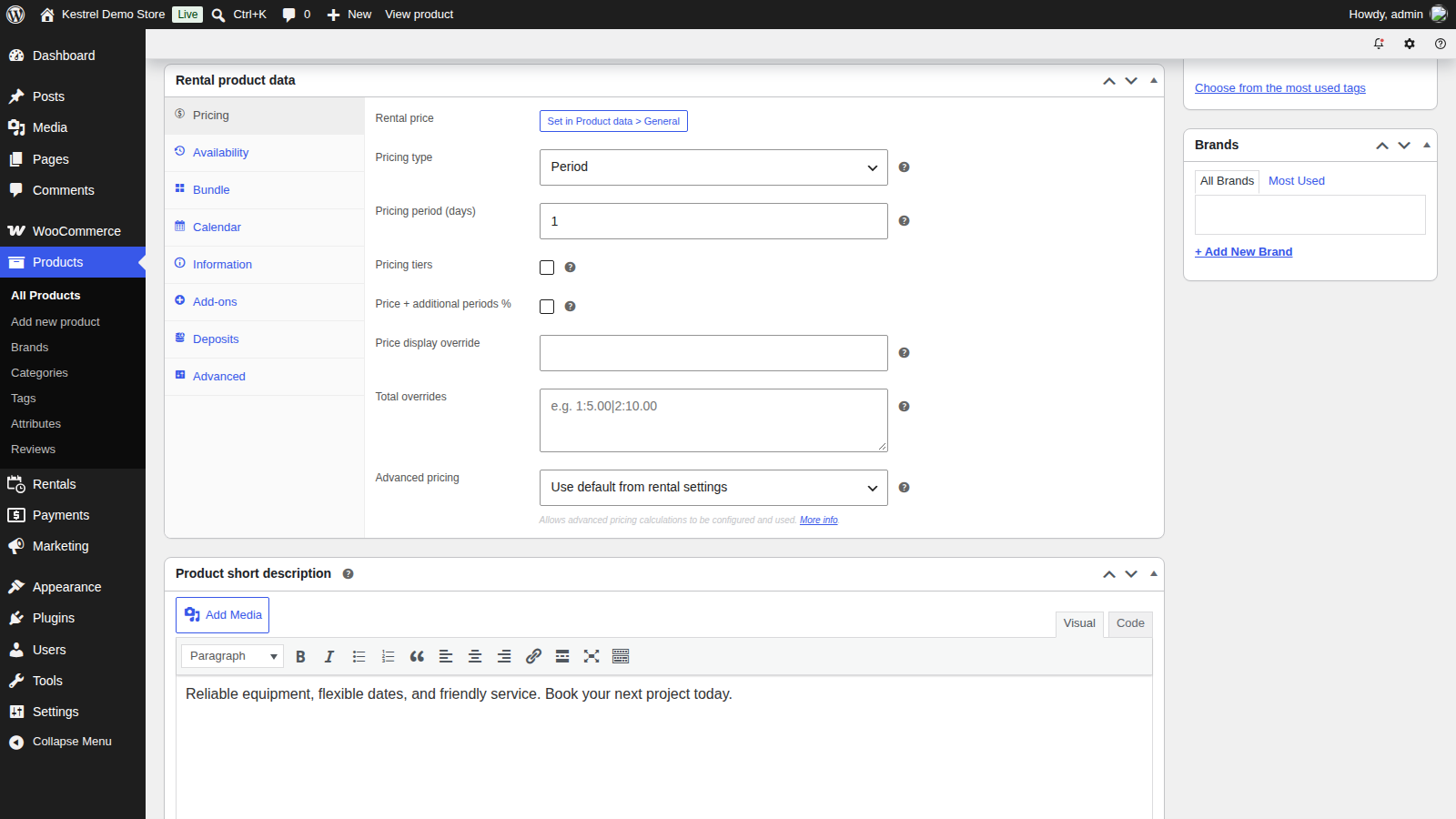
Pricing tab
How these fields combine into a price, with examples, is in set up rental pricing.
Pricing type
- Period (the default): the price covers a set number of days.
- Period selection: customers choose one of several durations, each with its own price.
- Fixed: the same price whatever the rental length.
Pricing period (days)
How many days the price covers. Empty means 1. Hidden for Fixed, which always uses 1.
Pricing period multiples
Lets customers book multiples of the pricing period (for a 7-day period: 7, 14, 21 days and so on), and multiplies the price by the number of periods. Shown only for Period with a pricing period over 1 day.
Pricing period multiples minimum
The fewest periods a customer can book. 0 (the default) means no minimum. Shown when Pricing period multiples is on.
Pricing period multiples maximum
The most periods a customer can book. 0 (the default) means no maximum. Shown when Pricing period multiples is on.
Pricing period additional selections
The durations offered with Period selection, on top of the pricing period itself, as days:price pairs separated by |. For example, 3:60.00|7:120.00 adds a 3-day rental for $60 and a 7-day rental for $120. Use your store’s decimal separator. Shown only for Period selection, and can be set per variation using the same day counts.
Pricing tiers
Raises or lowers the price by a percentage once a rental is longer than a number of days. Turn it on, then click Add pricing tier and enter Days greater than and Percent (negative for a discount). The highest tier that matches applies; tiers don’t add up. Shown for Fixed, and for Period with a 1-day pricing period or with Pricing period multiples on. Not available for Period selection.
Price + additional periods %
Charges each period after the first at a percentage of the price instead of the full price, set in Price + additional period % (for example, 10). With a 1-day pricing period, each extra day counts as a period. Shown for Period with a 1-day pricing period or with Pricing period multiples on.
Price display override
Replaces the rental price shown near the product title and on shop pages with your own text. It changes the display only, never what’s charged. Your store’s price prefix and suffix are still added, unless you turn that off with Rental price display override prefix/suffix.
Total overrides
Sets the total for rentals of an exact number of days, as days:total pairs separated by |. For example, 7:500.00 makes every 7-day rental $500. It applies whichever dates are chosen. Available for Period and Fixed only, and can be set per variation. The price shown near the product title isn’t affected, so pair it with a Price display override.
Pricing adjustments
Tick Exclude this product to always rent the product at its own price, ignoring the store-wide adjustments on Rentals » Pricing. On a variable product it covers every variation. Shown only with the modern handlers. See pricing adjustments.
Advanced pricing
Use default from rental settings (the default), Off or On. When on, the rental total, after any pricing adjustment, is passed to custom code that can change it, for example per night. It does nothing without that code, and turning it on also stops customers changing the item’s quantity in the cart. The store default is off; see Advanced pricing in the settings, and the developer reference for the code.
Availability tab
These options decide which dates customers can book. How they combine with existing orders is explained in how rental availability works. A time based product shows its operating windows and slot options here instead of most of the options below; see time based rentals.
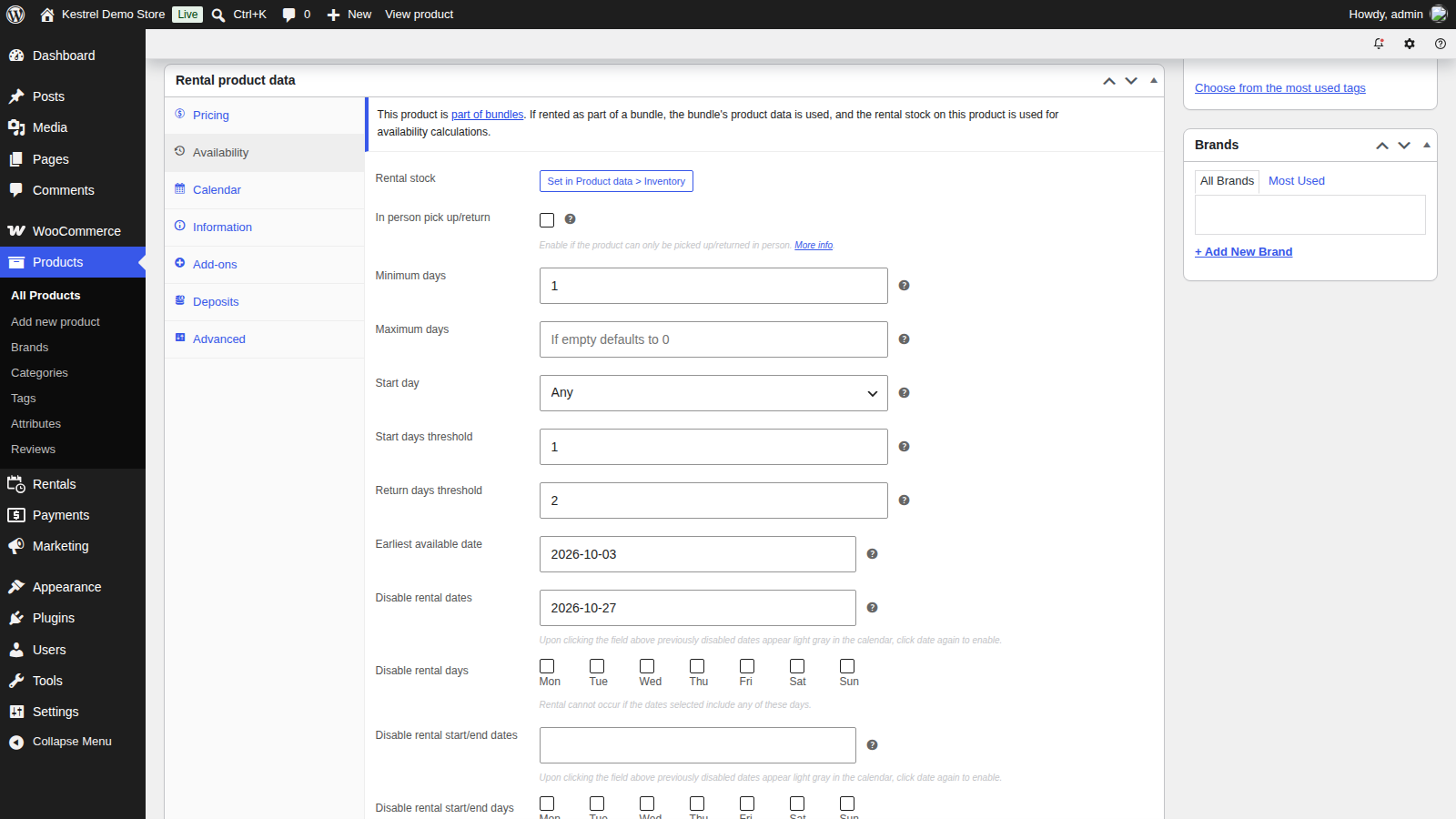
Minimum days
The shortest rental a customer can book. Empty means 1. For Period with a pricing period over 1 day, and for Period selection, this is set for you to match the pricing period and hidden.
Maximum days
The longest rental a customer can book. 0 (the default) means no limit. Hidden and set for you in the same cases as Minimum days.
Start day
Makes every rental start on one day of the week, or Any (the default). Take care combining it with disabled dates or days, which can leave no start date available.
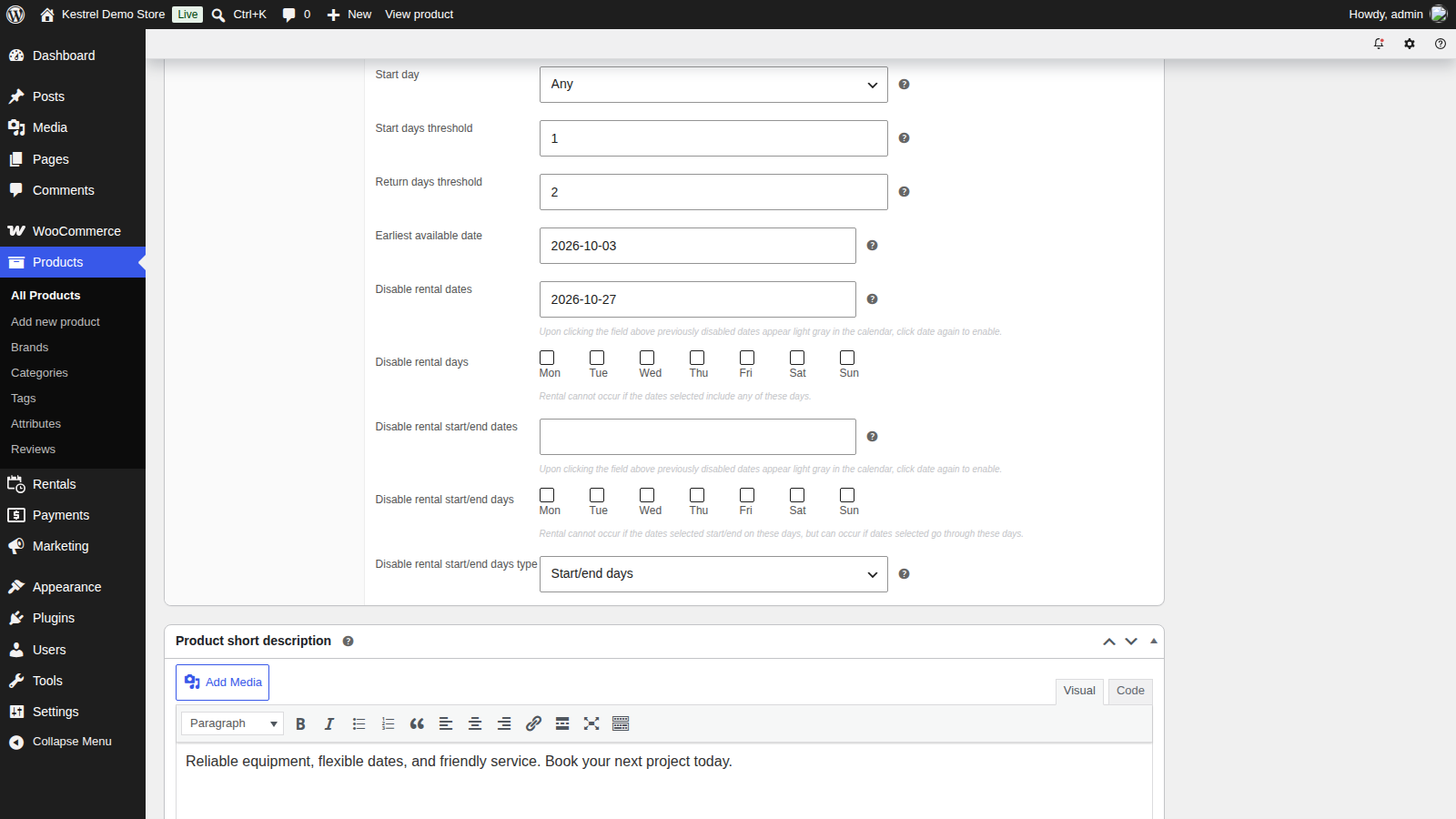
Start days threshold
The lead time in days before a rental can start. Empty means 3: a customer visiting on a Monday can start a rental on Thursday at the earliest. 0 allows rentals that start today. With a Start day, the first matching day on or after the threshold is offered.
Return days threshold
How many days after the rental’s end date the unit stays unavailable, to allow for return shipping, cleaning or repairs. Empty means 3. These days block the unit from other rentals. Customers see the return period unless you turn off Return days display, which lets you add an internal buffer: with Show return days off, set a threshold of 6 and tell customers they have 3 days to return the item.
In-person pick up and return sets this to 0 and hides it.
Earliest available date
Customers can’t start a rental before this date. If a Start day is set, the first matching day on or after it is offered.
How it combines with the Start days threshold depends on the handler mode:
- Modern handlers: both apply, and the later date wins.
- Legacy mode: while the date is in the future, it replaces the start days threshold.
Disable rental dates
Specific dates no rental can include, picked in a calendar or typed as YYYY-MM-DD dates separated by commas, depending on the Field type under Rentals » Calendar » Disabled dates.
Disable rental days
Days of the week no rental can include.
Disable rental start/end dates
Specific dates a rental can’t start or end on. Entered like Disable rental dates. A rental can still run through them.
Disable rental start/end days
Days of the week a rental can’t start or end on.
Disable rental start/end days type
Whether Disable rental start/end days applies to Start/end days (the default), Start days only or End days only.
In-person pick up and return
For rentals collected from and returned to you in person, customers pick a pick up time and a return time on the product page, and each time can carry a fee. Turning this on means the product is always handed over in person. To offer shipping or in-person collection as a choice, leave it off and offer collection through your shipping or checkout options instead.
Fees use the product’s tax status and class, and they’re charged for each item rented. With the modern handlers the rental form’s total includes them.
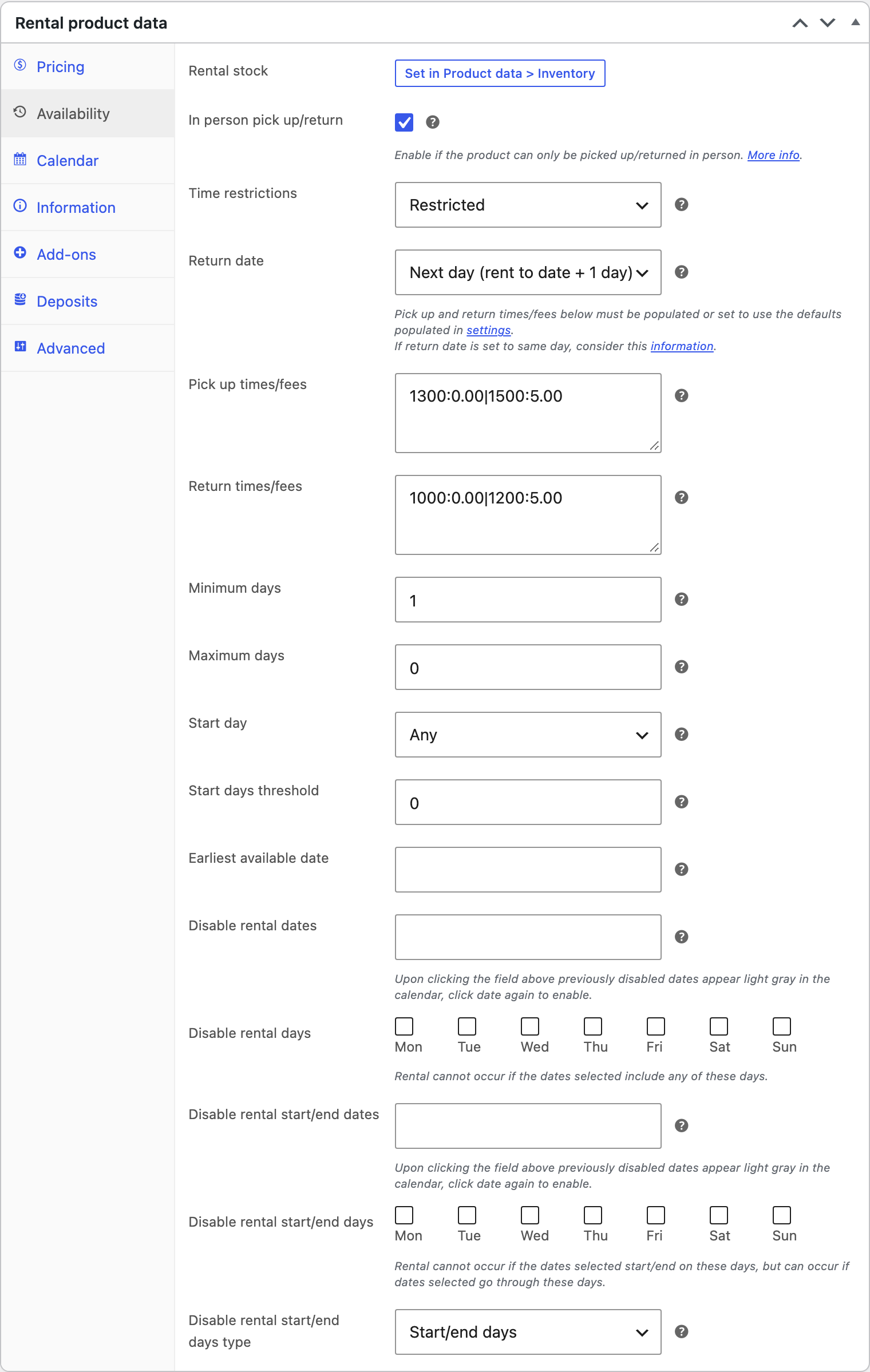

In person pick up/return
Turns in-person pick up and return on for the product. The options below appear, and Return days threshold is set to 0. Not available on time based products.
Time restrictions
Use default from rental settings (the default), Restricted or Unrestricted. The store default is Restricted.
With Restricted, the times must leave a gap for each handover, or in-person pick up and return isn’t offered on the product page:
- Rentals of more than one day (and every Next day return): every return time must be at or before every pick up time, so a unit coming back is in before the next one goes out. For example, returns at 09:00 and pick ups at 13:00.
- Single-day rentals: every return time must be at or after every pick up time.
Unrestricted accepts any times. Use it only if you have enough units that overlapping handovers don’t matter.
Return date
Use default from rental settings (the default), Same day (rent to date) or Next day (rent to date + 1 day). The store default is Same day. This decides which times and fees fields below are used, and only those fields are shown.
Pick up and return times and fees
Each field lists times as HHMM:fee pairs separated by |, using your store’s decimal separator. For example, 0900:0.00|1300:5.00 offers 09:00 free and 13:00 for $5. The first entry is selected by default.
- With Same day returns: Pick up times/fees (multiple day rentals), Return times/fees (multiple day rentals), Pick up times/fees (single day rentals) and Return times/fees (single day rentals). Fill in the single-day and multiple-day fields for the rental lengths the product allows.
- With Next day returns: Pick up times/fees and Return times/fees.
Empty fields use the defaults under Rentals » Settings » Catalog, which are empty on a new install, and each field says when it’s using them. If both are empty, in-person pick up and return isn’t offered. With Restricted time restrictions, the times are checked against each other when you save, and a notice names any times that conflict.
Bundle tab
Shown only for Rental bundle products.
Bundled rentals
The products in the bundle. Search for published Rental only or Rental or purchase products, or individual variations of them, and add the same one several times to include more than one. Bundles and variable parent products can’t be added. See create rental bundles.
Calendar tab
Months
How many months the product page calendar shows at once. Empty means 1. Phones and tablets may show fewer.
Columns
How many columns the calendar’s months are laid out in, from 1 to 4. Empty means 1. Phones and tablets may show fewer.
Inline
Shows the calendar open on the page, so customers can pick dates without first clicking the date field.
Information tab
Rental information
Text added to the rental information tab on the product page, after the store-wide text set in Rentals » Settings » Catalog. HTML is allowed.
Add-ons tab
These options appear when WooCommerce Product Add-Ons is active. Add the add-on fields themselves in the product’s Add-ons tab under Product data.
Multiply add-ons total by number of days selected
Multiplies flat fee and quantity-based add-ons by the number of rental days. Percentage-based add-ons are calculated on the rental total and aren’t multiplied. Day based products only.
Multiply add-ons total by number of slots booked
The time based equivalent, off by default: multiplies flat fee and quantity-based add-ons by the number of slots booked, so a four slot booking charges them four times. Leave it off to charge them once per booking. Percentage-based add-ons aren’t affected.
Disable add-ons for rental part of rental or purchase products
Hides the product’s add-ons on the rental side of a Rental or purchase product.
Disable add-ons for purchase part of rental or purchase products
Hides the product’s add-ons on the purchase side of a Rental or purchase product.
Don’t combine either of these with global add-ons (set up in Product Add-Ons for many products) that require a selection: the hidden required add-on stops that side being added to the cart. Add-ons set on the product itself aren’t affected.
Deposits tab
How deposits are charged, taxed and refunded is in security deposits. If Deposits & Partial Payments for WooCommerce is active, the tab suggests setting deposits in that plugin instead.
Security deposit amount
The deposit charged at checkout with each rental of this product. Empty means no deposit. Can be set per variation.
Security deposit calculation
Quantity (the default) multiplies the amount by the quantity rented. Fixed charges the same amount whatever the quantity.
Security deposit tax status
Taxable (the default) or None.
Security deposit tax class
The tax class used when the deposit is taxable, from your store’s tax classes. Empty means Standard.
Security deposit non-refundable
Labels the deposit as non-refundable in the cart, checkout and order.
Advanced tab
These options apply to the rental side of Rental or purchase products. They show on every rental product but have no effect on other types.
Rental or purchase – rental tax override
Uses a different tax status and class for the rental side than for the purchase side.
Rental or purchase – rental tax override status
Taxable (the default), Shipping only or None. Used when the tax override is on.
Rental or purchase – rental tax override class
The rental side’s tax class. Used when the tax override is on.
Rental or purchase – rental shipping override
Uses a different shipping class for the rental side than for the purchase side.
Rental or purchase – rental shipping override class
The rental side’s shipping class, or No shipping class. Used when the shipping override is on.
Variable products
The rental type, pricing type and every other rental option are set once on the variable product and apply to all its variations. Each variation has its own:
- Rental price (for Rental or purchase products; for Rental only, use the variation’s regular price)
- Pricing period additional selections (for Period selection, with the same day counts as the parent)
- Total overrides (for Period and Fixed)
- Security deposit amount
- Rental stock (in and out)
Leave a variation’s field empty to use the parent’s value. The exception is rental stock: the parent has none, so set it on every variation that has limited units.
To set these on many variations at once, use Variations » Bulk actions: Set rental price, Set rental stock, Set rental pricing period additional selections, Set rental total overrides and Set rental security deposit amount.
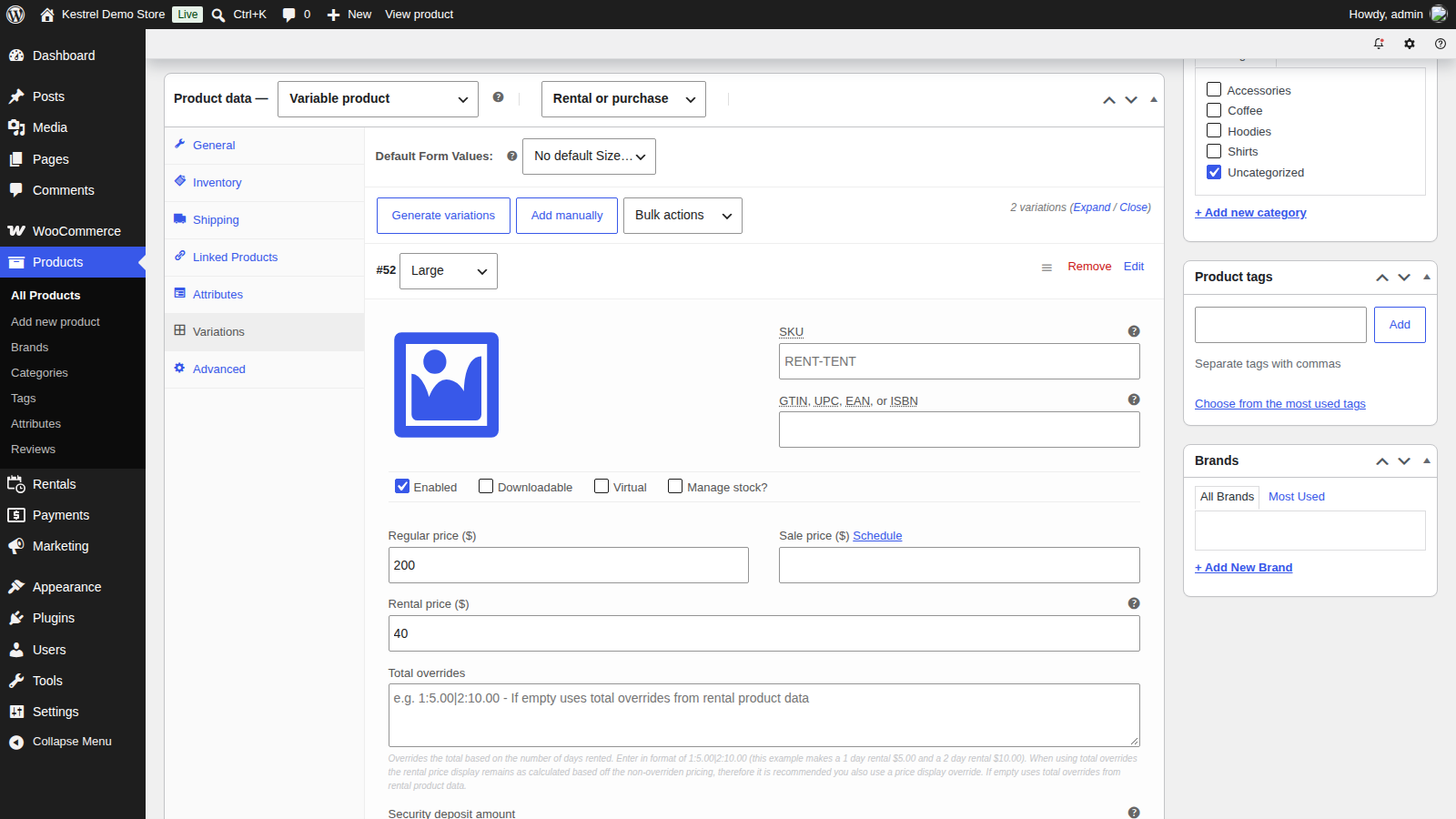

Find rental products in the products list
Products » All Products shows each rental product’s rental price and rental stock. Use the Filter by rentals dropdown to list Rental only, Rental or purchase, Rental bundle or All rentals products. The products list’s bulk edit can set Rental price and Rental stock on simple products.
Copy rental options to other products
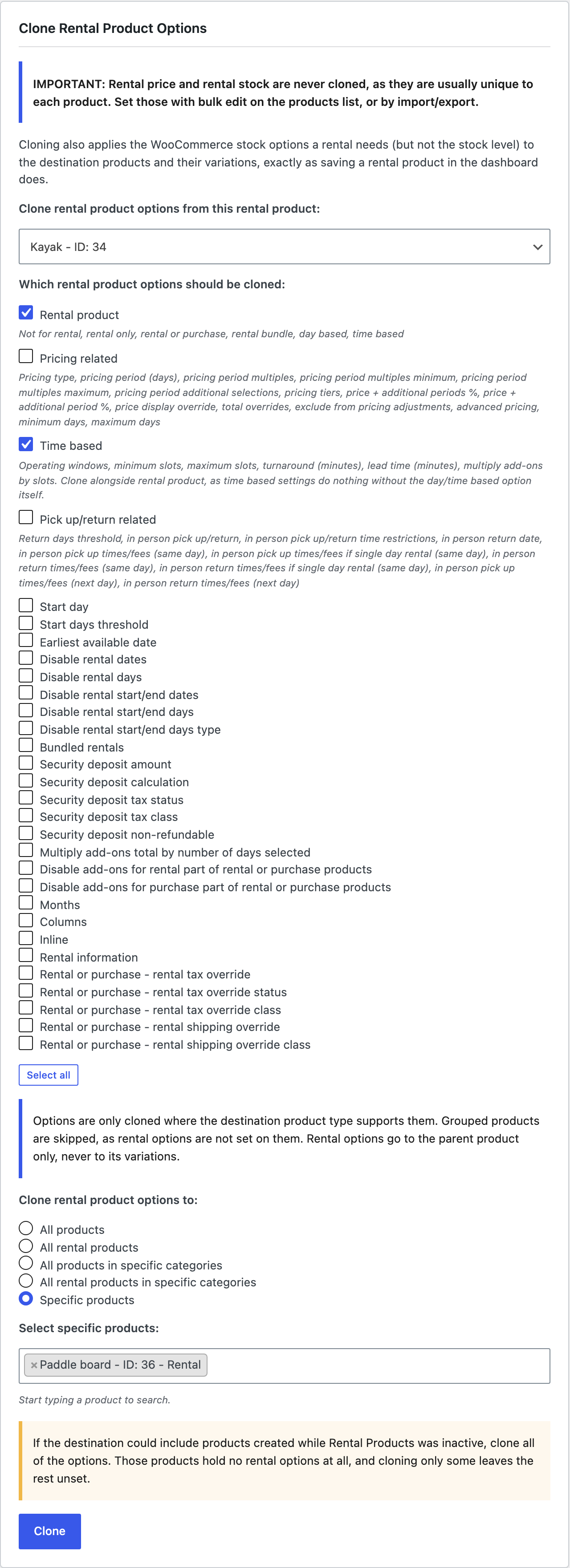
Rentals » Tools » Clone Rental Product Options copies a rental product’s options to other products. Back up your site first, and try it on a staging site if you can.
- Under Clone rental product options from this rental product, choose the source product.
- Tick which options to copy, or click Select all. Pricing related also copies Minimum days and Maximum days, and the pricing adjustments exclusion. Time based copies the operating windows, slot options, turnaround, lead time and the slots add-on option; tick Rental product with it, since Rental product carries the day based or time based choice.
- Under Clone rental product options to, choose All products (selected by default), All rental products, All products in specific categories, All rental products in specific categories or Specific products.
- Click Clone and confirm.
Cloning never copies the rental price or rental stock, since those are usually different for each product: use bulk edit or an import for them. It applies to simple and variable products only, never sets Rental bundle on a variable product, and includes drafts. It also resets WooCommerce stock options on the destination products, as changing the rental type does.
Import and export rental products
Rental products are standard WooCommerce products with extra product data, so use WooCommerce’s product CSV importer and exporter. Rentals » Tools links to both and lists the values an import must get right, or rental products may behave unexpectedly:
- Rental only and Rental bundle products and their variations: in stock, no stock quantity, and no backorders.
- Variable products can be Rental only or Rental or purchase, never Rental bundle.
- Variations can only carry the five variation-level rental fields listed above.
- Fixed pricing: pricing period 1, with Pricing period multiples and Price + additional periods % off.
- Period pricing with a 1-day period: Pricing period multiples off.
- Period pricing with a longer period: minimum and maximum days equal to the pricing period, and with multiples off, Pricing tiers and Price + additional periods % off too.
- Period selection: multiples, tiers and additional periods % off, with minimum and maximum days equal to the pricing period.
- In-person pick up and return: Return days threshold 0.
- Time based: set on the parent product only, never on a Rental bundle, and not with in-person pick up and return. Day based pricing options are ignored on a time based product, so they can stay in the import.
After an import, run Rental Products Debug on the same screen to find and fix products that break these rules (see run debug).
Common issues
A rental option disappeared
Many options only show for certain pricing types, and some are set for you: Fixed pricing hides Pricing period (days); Period with a longer pricing period, and Period selection, set and hide Minimum days and Maximum days; and in-person pick up and return hides Return days threshold. Each field above says when it shows.
Time based is greyed out
The product is a Rental bundle, which is always day based.
The Rental product select is missing
It only appears on simple and variable products. Check the Product type.
A variable product shows unlimited availability
Its variations have no Rental stock (in and out) of their own. Set it on each variation, or use Variations » Bulk actions » Set rental stock.
In-person pick up and return isn’t offered on the product page
The times are missing or break the Time restrictions rule. Check that the fields for the product’s return date and rental lengths are filled in (or that the store defaults are), and that return times come before pick up times for rentals longer than a day.
"There was an AJAX error when attempting to save the rental product option"
The rental type couldn’t save on its own. Don’t change anything else, and save the product with Update.
Keep learning
- Set up rental pricing (how the pricing fields combine)
- Security deposits
- Create rental bundles
- How rental availability works
- Time based rentals