


Sales Report Email sends you a summary of your store’s sales by email: daily, weekly or monthly, to one or more addresses. Each report lists new sign ups, orders, items sold, the sales total and your top sellers for the period, so you can keep an eye on the store without logging in.
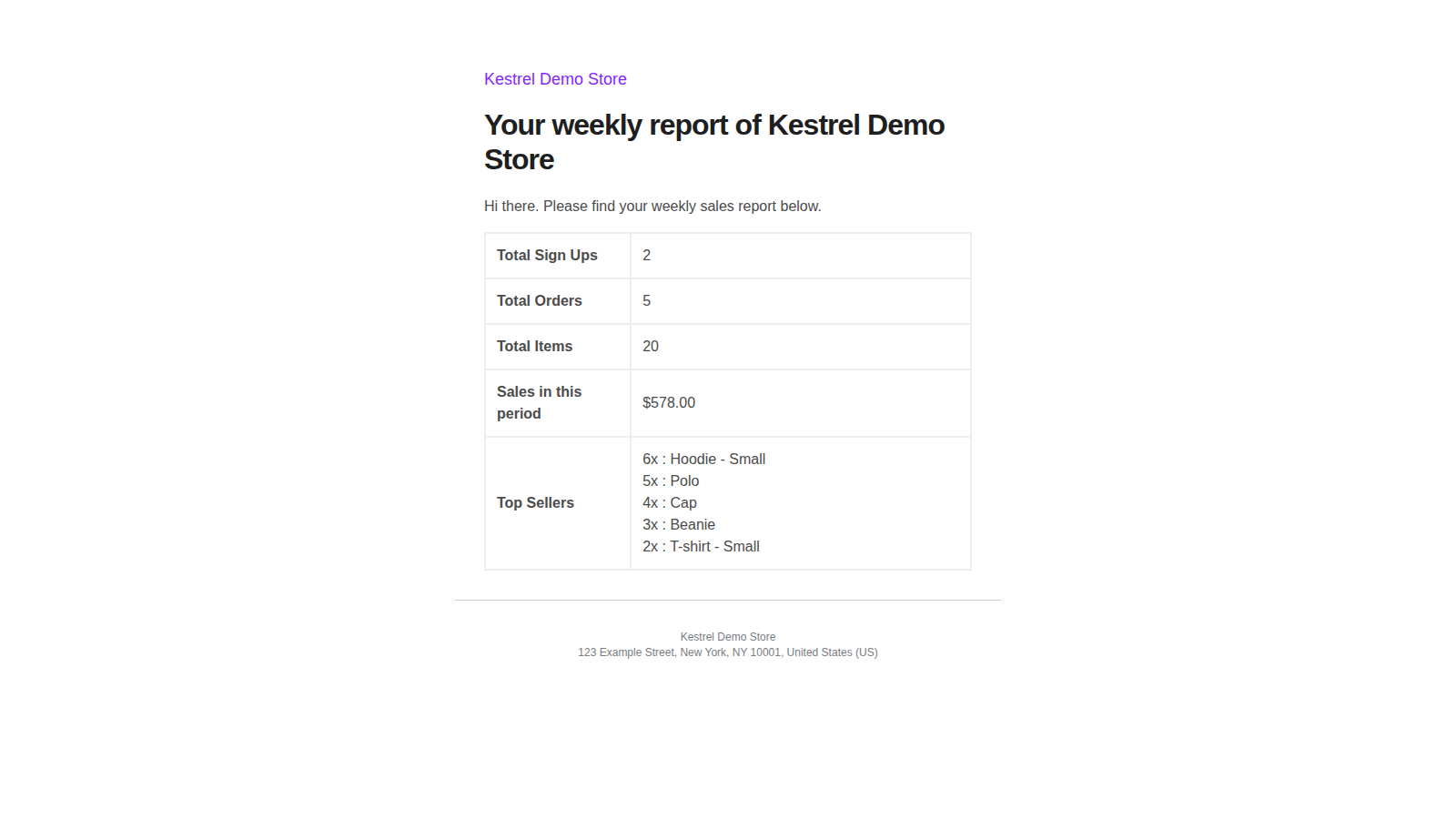
It’s a fixed report sent as a WooCommerce email. You can’t choose which rows it includes, set a custom date range, or get more than one schedule at a time, and refunds aren’t deducted from the totals. For deeper reporting, use Analytics in your WooCommerce admin.
When you’d use this
- Get yesterday’s numbers in your inbox every morning.
- Send a weekly summary to a business partner or bookkeeper who doesn’t log in to the store.
- Keep a monthly record of sales by email.
Requirements
- WordPress 6.3 or later, WooCommerce 4.0 or later, and PHP 7.4 or later.
- Compatible with WooCommerce’s cart and checkout blocks and High-Performance Order Storage.
- WordPress’s scheduled tasks (WP-Cron) running on your site, and a site that can send email.
Install and activate
- Bought on kestrelwp.com: install the plugin by following how to install and update WooCommerce extensions.
- Bought on WooCommerce.com: install the plugin from your WooCommerce.com account. Updates come through your WooCommerce.com connection, with no license key to enter.
Set up Sales Report Email
1. Open the report settings
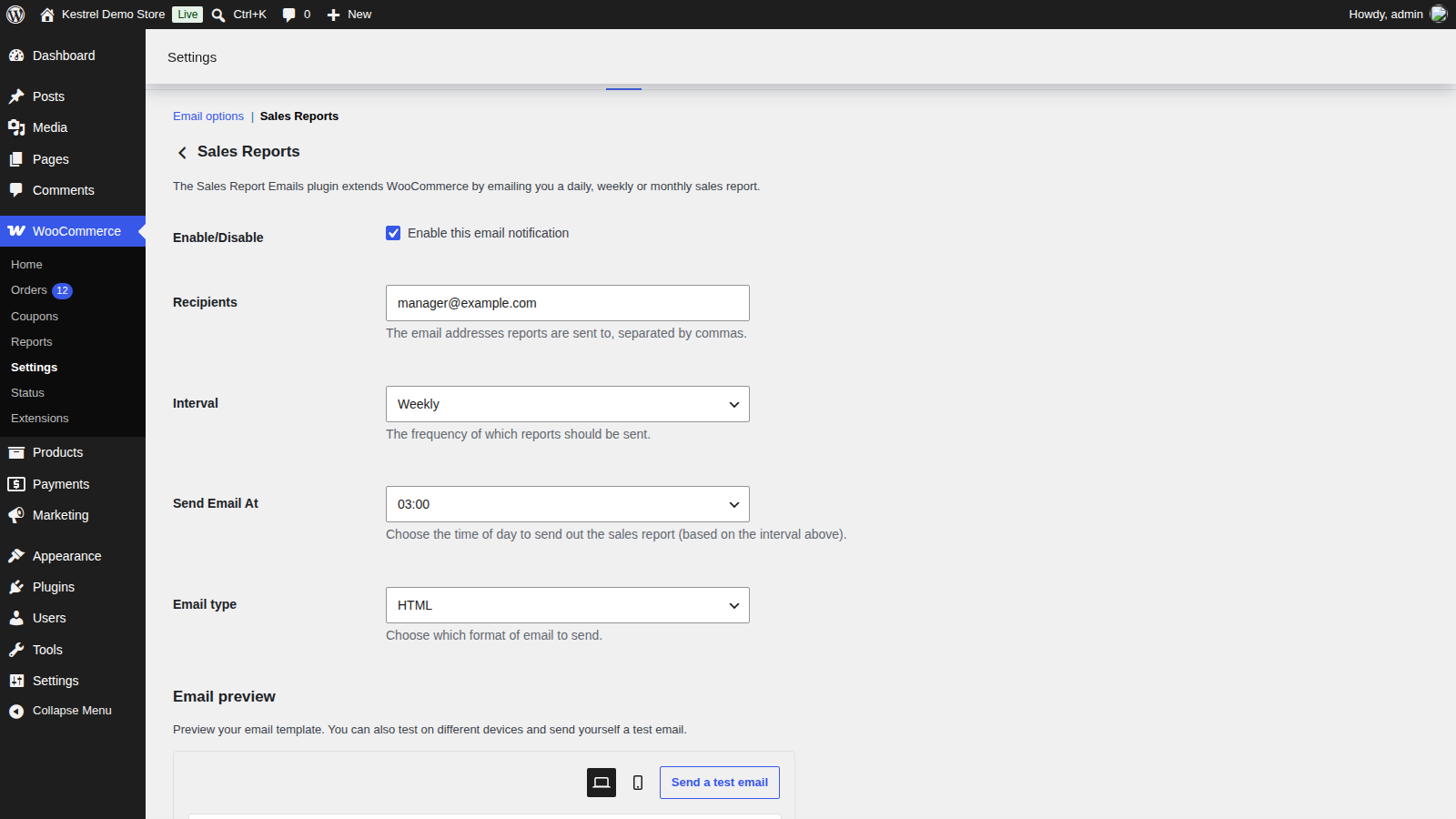
Go to WooCommerce » Settings » Emails and open Sales Reports, from the link at the top of the screen or with Manage next to it in the list of emails. The Settings link under the plugin’s name on the Plugins screen opens the same page.
2. Add recipients and a schedule
Enter at least one address in Recipients; nothing is sent while it’s empty. Choose an Interval and a time in Send Email At, then click Save changes.
3. Check it
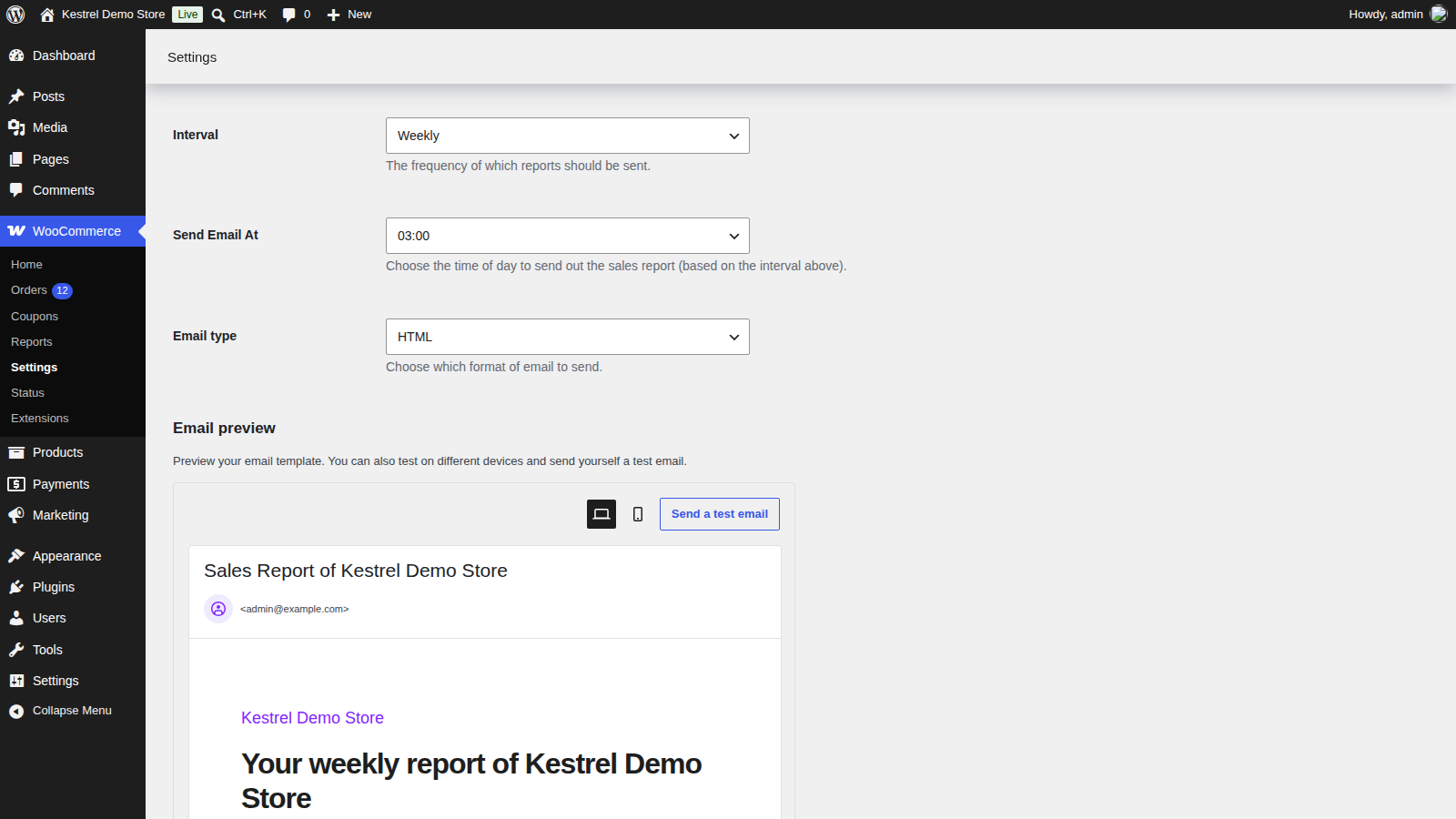
On recent WooCommerce versions, the Email preview below the settings shows the report with your store’s numbers for the period you chose, and Send a test email sends a copy to an address you enter. The first report goes out at your send time, usually from the next day (see When reports are sent).
Settings
All on WooCommerce » Settings » Emails » Sales Reports. The report uses your store’s WooCommerce email design, so the header image, colors and footer text set under WooCommerce » Settings » Emails apply to it too.
Enable/Disable
Sends the report while Enable this email notification is ticked. On by default.
Recipients
The addresses that receive the report, separated by commas. Empty by default, and nothing is sent until you add one.
Interval
Daily, Weekly or Monthly. See When reports are sent for the day each one goes out and the period it covers.
Send Email At
The time of day the report goes out, in 15-minute steps, using your store’s timezone (Settings » General » Timezone). 03:00 by default.
Email type
HTML (the default), Plain text or Multipart (both versions in one email, so the recipient’s email app picks).
When reports are sent
Every day at your send time, Sales Report Email checks whether a report is due:
- Daily sends every day, covering the previous day.
- Weekly sends on Mondays, covering the previous Monday to Sunday.
- Monthly sends on the 1st, covering the previous calendar month.
Each period ends at 23:59:59 the day before the report goes out, in your store’s timezone, so the day of sending is never included.
When you save the settings, the check is scheduled for your send time, usually starting the next day. Depending on how far your timezone is from UTC and when you save, the first check can also run the same day or a day later. A weekly or monthly report then waits for the next Monday or 1st.
The check runs every 24 hours from then on. When the clocks change for daylight saving time, it moves an hour against your local time until you save the settings again.
The check is a WordPress scheduled task named wc_sre_send. WordPress runs scheduled tasks when someone visits your site, so on a quiet site the report can arrive later than the time you set. Saving the settings, or deactivating and reactivating the plugin, schedules it again.
What the report includes
The email opens with "Hi there. Please find your weekly sales report below." (or daily, or monthly), followed by these rows:
- Total Sign Ups: user accounts created in the period, except administrators and shop managers. Guest checkouts aren’t counted.
- Total Orders: orders created in the period with the status Processing, On hold or Completed. Pending payment, failed, cancelled and refunded orders aren’t counted.
- Total Items: the total quantity of products in those orders.
- Sales in this period: the total of those orders, including shipping, fees and tax. Partial refunds aren’t deducted, and a fully refunded order has the Refunded status, so it drops out.
- Top Sellers: up to 12 products by quantity sold, as "3x : Product name". Each variation is listed separately. The row shows "n/a" when nothing sold.
- Active Subscribers: shown only when WooCommerce Subscriptions is active, including Constellation’s built-in recurring billing. It’s the number of active subscriptions when the report runs, not for the period, and a customer with two subscriptions counts twice.
The subject is "Sales Report of [your site title]" and the heading is "Your weekly report of [your site title]". Neither has a setting; to reword them, translate the plugin’s text (see changing text in a plugin).
Common issues
No report arrives
Check these in order:
- Enable this email notification is ticked and Recipients has an address.
- A report is due: weekly reports go out on Mondays and monthly reports on the 1st.
- Enough time has passed since you saved the settings (see When reports are sent).
- WordPress’s scheduled tasks are running. A plugin such as WP Crontrol shows when
wc_sre_sendruns next. If it’s missing, save the Sales Reports settings to schedule it again. - The email isn’t in your spam folder, and your site can send email. Other WooCommerce emails failing too points to your host’s mail setup; an SMTP plugin usually fixes it.
The report arrives at the wrong time
Check your timezone under Settings » General » Timezone, then save the Sales Reports settings to reschedule the report. Save them again after the clocks change for daylight saving time, because the report keeps a 24-hour rhythm and drifts by an hour.
The totals don’t match WooCommerce Analytics
The report counts orders by the date they were created, with the Processing, On hold and Completed statuses, and adds up full order totals including shipping and tax without deducting partial refunds. Analytics uses its own statuses, dates and refund handling, so the numbers often differ.
The report shows zeros
The report covers only the orders and accounts on the site that sends it, for the previous period. A staging copy of your store, or a period with no qualifying orders, reports zeros.
Top sellers run together in a plain text report
In Plain text emails, the top sellers appear on one line without breaks. Choose HTML or Multipart in Email type for one product per line.
The Active Subscribers row is missing
It appears only while WooCommerce Subscriptions, or Constellation’s built-in recurring billing, is active. There’s no setting to show or hide it.
Keep learning
- How to install and update WooCommerce extensions (installing, updating and fixing upload errors)
- Changing text in a plugin (rewording the report’s subject, heading and labels)