


After a sale, you manage licenses from three places: the API Manager » Licenses list, the order’s Licensing and License activations boxes, and the customer’s user profile. From there you can give a customer more activations, extend a license, free up an activation, or replace or disable their key.
When you’d use this
- A customer has used all their activations and needs one freed up or added.
- You want to extend a license as a goodwill gesture.
- A key was shared publicly and needs replacing.
- An order’s licenses are missing and need rebuilding.
- An order was placed under the wrong customer account, and its licenses need to move.
- You need to issue a license outside checkout. See Grant a license key manually with API Manager.
- You’re refunding an order that includes a licensing subscription.
Find a license
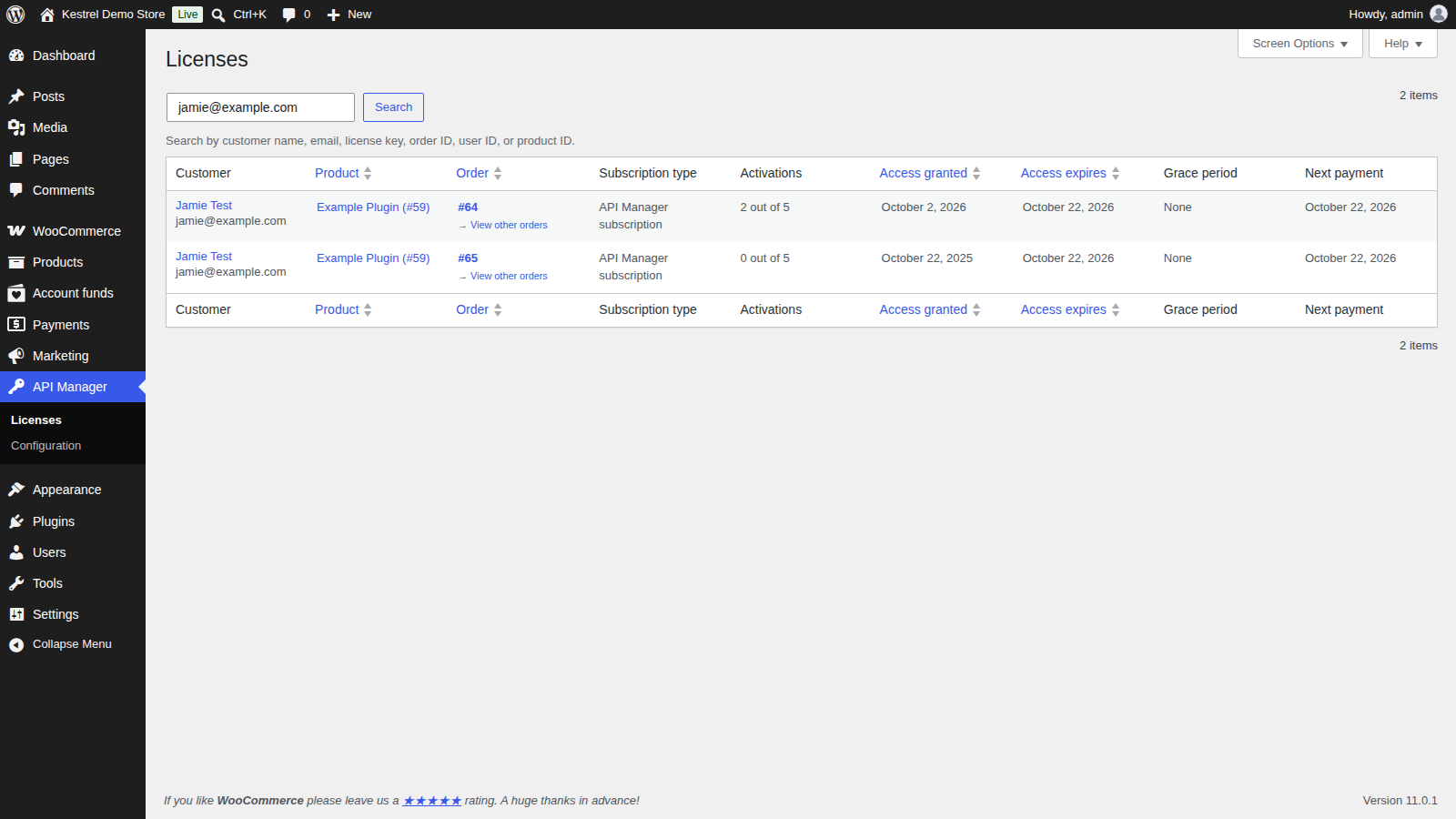
Go to API Manager » Licenses. Each row is one licensing product on one order, with Customer, Product, Order, Subscription type, Activations, Access granted, Access expires, Grace period and Next payment. Search by customer name, email, license key, order ID, user ID or product ID. View other orders under an order number lists that customer’s other orders.
Click the order number to manage the license.
On WooCommerce » Orders, the Licensing column shows a key icon for orders with activations, and the Has active license filter narrows the list to orders with an active license.
Manage a license on the order
The order screen has two boxes for orders with licensing products. Since API Manager 3.8.0 the customer’s user license key appears at the top of the Licensing box, labeled User license key, instead of in a separate box. It’s the same key on every one of the customer’s orders with a licensing product, and it’s hidden when Enabled types is set to Product license keys.

Licensing
One row per licensing product, headed with its product ID, title, activations used, current version and expiry. Each row shows the Product license key (unless you only use user license keys), Activation limit total, Current version, Resource title, Product ID and Expiration. Current version is read-only here; it comes from the product’s Licensing tab. Expiration shows a date, Never for a license with no time limit, When cancelled for a subscription license with no end date, or Expired once the date has passed. The calendar button next to it appears only for a license that ends on a date and isn’t tied to a subscription.
- Add activations: raise Activation limit total and click Update. You can’t set it below the current total.
- Extend a license: for a license that expires through API Manager, pick a later date in Expiration and click Update. Subscription licenses follow the subscription instead, so change the subscription’s dates.
License activations
Each activation with API Key Used (which kind of key activated it), Product ID, Version, Time and Object (the site or device it was activated on), plus Instance if Display instance IDs is on. Click Delete to remove an activation and free its slot. The customer’s software then shows as not activated until they activate again.
Customers can also delete their own activations from My Account » License keys.
Subscription orders
Licenses for subscription products are shown on the subscription’s parent order only. On a renewal order, the Licensing box can show a See Parent Order link instead. If an order has no license records, the box says "No licensing resources for this order." When a license has expired, its activations aren’t listed and the License activations box says "No activations yet."
Rebuild an order’s licenses
If an order’s licenses are missing or wrong, choose Regenerate licensing resources from the order actions and click Update. The action shows for Completed orders (and Processing orders when WooCommerce grants download access after payment) that contain a licensing product. The action has been available since API Manager 3.7.5, and the order needs a registered customer, because a license belongs to a customer account. The order gets a note saying how many licenses it now has ("Licensing resources regenerated via order action. The order has N licensing resources."). If it fails, the note starts "Failed to regenerate licensing resources" and gives the error. On an order with no customer account, the note says "Licensing resources were not regenerated because the order has no customer account."
Move an order’s licenses to another customer
Change Customer on the order and click Update, then choose Regenerate licensing resources and click Update again. The order’s licenses move to the new customer’s account, and the new customer’s user license key now activates them (API Manager creates one if they don’t have one yet). Sites activated with the previous customer’s user license key are deactivated, so the new customer activates them again with their own key. Sites activated with the license’s product license key keep working.
To rebuild missing licenses across the store, use Licensing resources repair (below).
What order changes do to licenses
- Status changes: licenses exist while the order is Completed, or Processing when WooCommerce’s Grant access to downloadable products after payment setting is on. Moving the order to any other status removes its licenses and activations. Moving it back recreates the licenses, but customers need to activate again.
- Refunds: after a partial or full refund, API Manager updates the order’s licenses for the items left on it. When the order has an active, on hold or pending cancellation WooCommerce Subscriptions subscription with a licensing product, the refund form offers Cancel licensing subscription so you can cancel it in the same step. An order note records the cancellation.
- Trashing or deleting the order removes its licenses and activations.
- Changing the order’s customer: regenerate the order’s licenses afterwards to move them. See Move an order’s licenses to another customer.
Manage a customer’s user license key
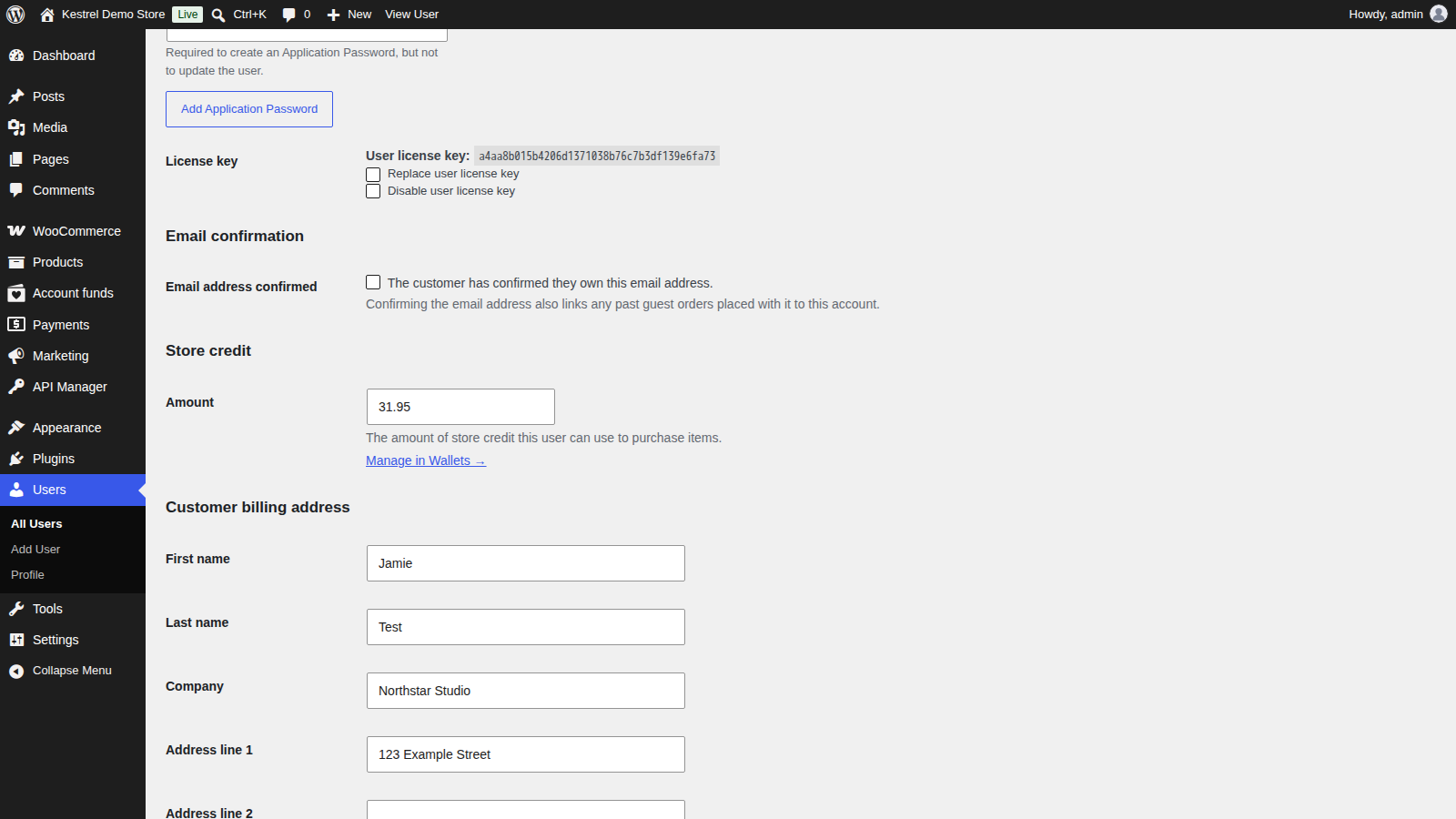
Edit the customer under Users and find License key:
- Generate user license key appears when the customer has none yet.
- Replace user license key gives them a new key. All their activations are deleted, including activations made with product license keys, so they activate again with the new key.
- Disable user license key stops every key the customer has from working, and their License keys and Licensed downloads pages say "This account has been disabled." Untick it to turn the key back on.
To see exactly what a customer sees, a plugin such as User Switching lets you log in as them without their password.
Status tools
Under WooCommerce » Status » Tools:
- Licensing resources repair (Regenerate resources) builds licenses that should exist but are missing, from orders with licensing products whose license hasn’t expired. It also removes the extra licenses that API Manager 3.8.0 and 3.8.1 issued for renewals of WooCommerce Subscriptions plan products, unless a site is activated with one; see A renewal gave a customer a second license that never expires. It doesn’t change other licenses.
- Licensing resources cleanup (Cleanup resources) deletes expired licenses and licenses whose order or subscription items no longer exist, with their activations. The same cleanup runs weekly when Schedule event is on.
- Import WooCommerce Software Add-On data (Import extension data) appears for migrating from Software Add-On. See Software Add-On plugin.
Common issues
I can’t lower the activation limit on an order
Activation limit total on the order only goes up. To lower limits, change the product’s Activation limit, which follows the Activation limit changes setting.
Activations disappeared after an order status change
Any status other than Completed (or Processing with download access after payment) removes the order’s licenses and activations. Return the order to Completed, then ask the customer to activate again.
The Regenerate licensing resources action is missing
The order isn’t Completed (or Processing with download access after payment), or it has no licensing products.
Can I create a license by hand?
Yes, from an order. See Grant a license key manually with API Manager.