


API Manager’s settings are under API Manager » Configuration, on four tabs: Licensing, Downloads, Debug and Integrations. Each tab has its own Save changes button. The defaults below are what a new store starts with.
Product-level options, such as the activation limit and license length, are on each product’s Licensing tab instead. See Set up licensing products in API Manager.
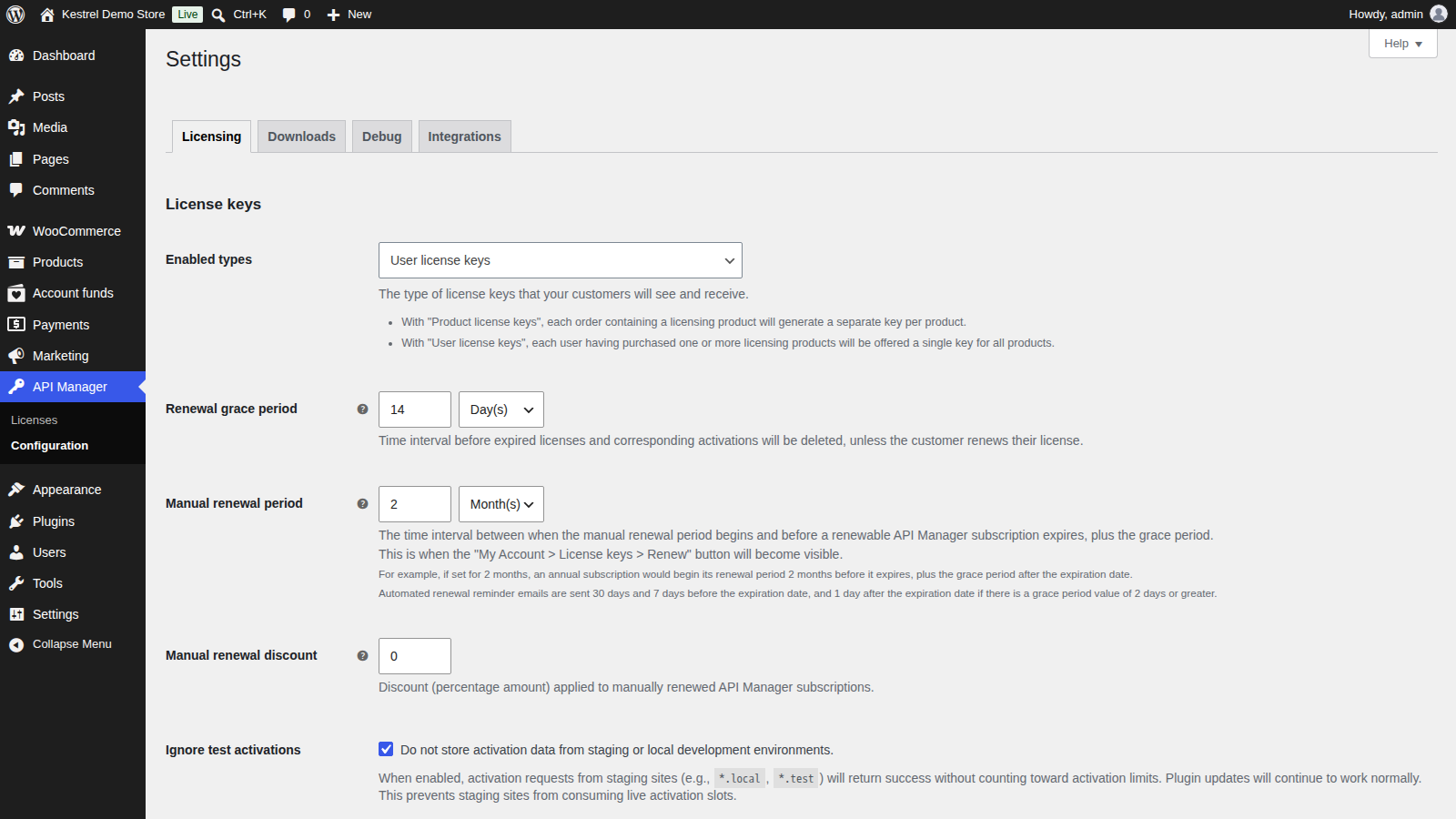
License keys
The first section of the Licensing tab.
Enabled types
Which license keys customers see and can use:
- User license keys (the default): one key per customer that activates every licensing product they’ve bought.
- Product license keys: a separate key for each licensing product on each order.
- Both (not recommended): customers see both kinds, which tends to cause confusion about which key to use.
User license keys are simpler for customers, especially with subscriptions, because the key stays the same when they buy more products or switch plans.
Renewal grace period
How long an expired license stays renewable before API Manager deletes it and its activations. It’s 14 days on a new store. See How API Manager license expiration and renewal work.
Manual renewal period
How long before a license expires (plus the grace period) the Renew button appears in My Account » License keys. It’s 2 months on a new store. Applies only to licenses that expire through API Manager, not to WooCommerce Subscriptions or Constellation licenses.
Manual renewal discount
A percentage discount applied when a customer renews a license that expires through API Manager. Leave it at 0 for no discount. Renewal emails and the Renew button mention the discount when one is set.
Ignore test activations
On by default. Activations from staging and local development sites (addresses such as *.local or *.test, and common hosts’ staging domains) succeed without being stored or counted against the activation limit. Updates still work on those sites. The check uses the site address your software sends with the activation, which the PHP library always sends.
Activation limit changes
What happens to existing licenses when you change a product’s Activation limit:
- Apply to all existing orders (default): every existing license changes to the new limit, up or down.
- Apply to new orders only: existing customers keep their current limit.
- Apply increases only, never decreases: existing licenses go up when you raise the limit, but never down. Lowering a limit can remove activations customers already use.
Display instance IDs
Shows each activation’s instance ID: Do not display (default), Display in admin only (on the order’s License activations box) or Display in both admin and customer accounts. Useful when you support customers who activate several copies on similar sites.
Licensing resources cleanup
Schedule event
Runs a weekly cleanup that deletes expired licenses, their activations and expired grace periods. On by default on a new store. The tooltip shows when it runs next. You can also run it by hand with Licensing resources cleanup under WooCommerce » Status » Tools.
Log event
Writes a log entry each time the cleanup runs, under WooCommerce » Status » Logs. Off by default.
Licensing server
Send resource data
Adds extra license data to API responses. Your software doesn’t need it, and it can slow responses down. Off by default.
Amazon S3
The first section of the Downloads tab, used for files hosted in Amazon S3. Deliver downloads and software updates with API Manager walks through the AWS side.
AWS access key ID
The access key ID of the AWS user that reads your bucket. Hidden when WC_AM_AWS3_ACCESS_KEY_ID is defined in wp-config.php.
AWS secret access key
That user’s secret access key, encrypted before it’s saved. Hidden when WC_AM_AWS3_SECRET_ACCESS_KEY is defined in wp-config.php, and the section then says "Values defined in the wp-config.php file."
Amazon S3 region
The region your bucket is in. Default us-east-1.
Download links
URL expire time
How many days a download link stays valid, from 1 to 7. It’s 7 on a new store. It applies to links on My Account » Licensed downloads and to the update links your software receives, for files on your server and in Amazon S3.
Save to Dropbox app key
A Dropbox app key that adds a Save to Dropbox button to each download on My Account » Licensed downloads. Leave it empty to hide the button.
Debug
The Debug tab turns on logs for requests to your licensing server. Each writes to WooCommerce’s logs, and the setting shows the log’s size with a View Log link. Turn them off when you’ve finished troubleshooting, because busy stores write large logs. Postman is useful for sending test requests.
Server request log
Logs every request your software sends, in wc-am-api-request-log.
Server error log
Logs requests that return an error, with the details, in wc-am-api-error-log. Turn this on first when an activation or update fails.
Server response log
Logs the responses your store sends back, in wc-am-api-response-log.
WordPress plugin tabs
The first section of the Integrations tab chooses which tabs appear on the WordPress plugin information screen (the View details screen your customers see before updating). The tab content comes from each product’s Documents pages. A changelog is always included and required.
Description
Adds the Description tab. Off by default.
Installation
Adds the Installation tab. Off by default.
FAQ
Adds the FAQ tab. Off by default.
Screenshots
Adds the Screenshots tab. Off by default.
Other notes
Adds the Other notes tab. Off by default.
Add tabs to product pages
Adds the licensing product’s documents as tabs on its product page in your store, following the tab choices above. Off by default. See Show update details in WordPress and on your product page.
Migrations
Software Add-On plugin
Tick Migrate to have API Manager answer requests meant for WooCommerce Software Add-On, so software that still uses it keeps working. It also unlocks Import WooCommerce Software Add-On data under WooCommerce » Status » Tools, which imports that plugin’s license keys and activations once. Before importing, tick Licensing on each product that should be a licensing product and set its activation limit and expiration. After the import, you can remove Software Add-On.
Settings outside API Manager
- Guest checkout: API Manager requires an account at checkout whenever the cart holds a licensing product, on the classic checkout and the checkout block. Guest checkout under WooCommerce » Settings » Accounts & Privacy can stay on for other orders; just allow account creation during checkout.
- Processing orders: licenses are created on Completed orders, and on Processing orders too when Grant access to downloadable products after payment is on under WooCommerce » Settings » Products » Downloadable products.
- Emails: the Expiring subscription email is under WooCommerce » Settings » Emails, where you can edit its subject and heading.
Common issues
I can’t find the API Manager tab in WooCommerce settings
API Manager has its own menu: go to API Manager » Configuration.
Settings for Amazon S3 keys are missing
The keys are defined in wp-config.php, so the fields are hidden. Edit them there.
Changing the grace period didn’t change already expired licenses
API Manager records a license’s grace period once it has expired, so a new value applies to licenses that expire after the change.