


API Manager turns your WooCommerce store into a licensing and update server for the software you sell: WordPress plugins and themes, WooCommerce extensions, apps and other software. When a customer buys a licensing product, they get a license key with an activation limit and an optional expiry date, and your software checks that key against your store to activate, confirm its status and download updates.
API Manager is for software sellers. Your own software talks to your store through the PHP library for plugins and themes or through the licensing API, so plan to add one of them to each product you license.
When you’d use this
- Sell a WordPress plugin or theme with a license key that limits how many sites it runs on.
- Deliver updates to customers’ sites straight from your store, from a local file, Amazon S3 or another URL.
- Sell one-time licenses that expire after a set number of days, with renewal reminders and an optional renewal discount.
- Sell licenses on a subscription with WooCommerce Subscriptions or Constellation, so the license follows the subscription.
- Check a license from an app, a SaaS service or any other software that can send an HTTPS request.
Requirements
- WordPress 6.3 or later, WooCommerce 9.9 or later, and PHP 7.4 or later.
- Compatible with WooCommerce’s cart and checkout blocks and High-Performance Order Storage.
- Run your store on HTTPS with a valid certificate. The PHP library checks the certificate from customers’ live sites, so an expired or self-signed certificate makes activations and updates fail.
- Optional: WooCommerce Subscriptions 5.0 or later, or Constellation, for subscription licenses. See How API Manager license expiration and renewal work.
- Store administrators and shop managers can manage licenses and settings.
Install and activate
How you get updates depends on where you bought API Manager:
- Bought on kestrelwp.com: install the plugin, then activate your license key under Settings » API Manager for WooCommerce activation to receive updates. See using sites against your activation limit for how activations count.
- Bought on WooCommerce.com: install the plugin from your WooCommerce.com account. Updates come through your WooCommerce.com connection, with no license key to enter.
For upload, FTP and update steps, follow how to install and update WooCommerce extensions.
Your store is the server your customers’ software checks in with, so treat API Manager updates with care: back up first, try major updates on a staging copy, and check that activations and update checks still work afterwards. Update WordPress and WooCommerce before API Manager: if either is older than API Manager requires, API Manager deactivates itself, and your store stops answering activation and update requests until you update them and activate API Manager again.
How licenses work
A licensing product is a WooCommerce product with the Licensing option turned on. When an order for it is Completed, API Manager creates a license for each licensing product on the order. If WooCommerce’s Grant access to downloadable products after payment setting is on (under WooCommerce » Settings » Products » Downloadable products), licenses are also created while the order is Processing.
Each license records the product, the order, how many activations it allows and when it expires. Customers activate it with a license key:
- A user license key is one key per customer that activates every licensing product they’ve bought. This is the default.
- A product license key is a separate key for each licensing product on each order.
You choose which keys customers see with Enabled types in API Manager settings.
If an order moves to any other status, such as Cancelled, Refunded, On hold or a custom status, API Manager removes its licenses and their activations. Moving the order back to Completed recreates the licenses, but not the activations, so customers activate their sites again.
Set up API Manager
1. Check how customers get an account
Licenses belong to a customer account, so a guest order can’t receive one. API Manager requires an account at checkout whenever the cart holds a licensing product, on both the classic checkout and the checkout block, so you can leave guest checkout on for the rest of your store.
Under WooCommerce » Settings » Accounts & Privacy, allow customers to create an account during checkout, so new customers can register as they buy. While guest checkout is on, API Manager shows a reminder notice in your admin that you can dismiss.
2. Create a licensing product
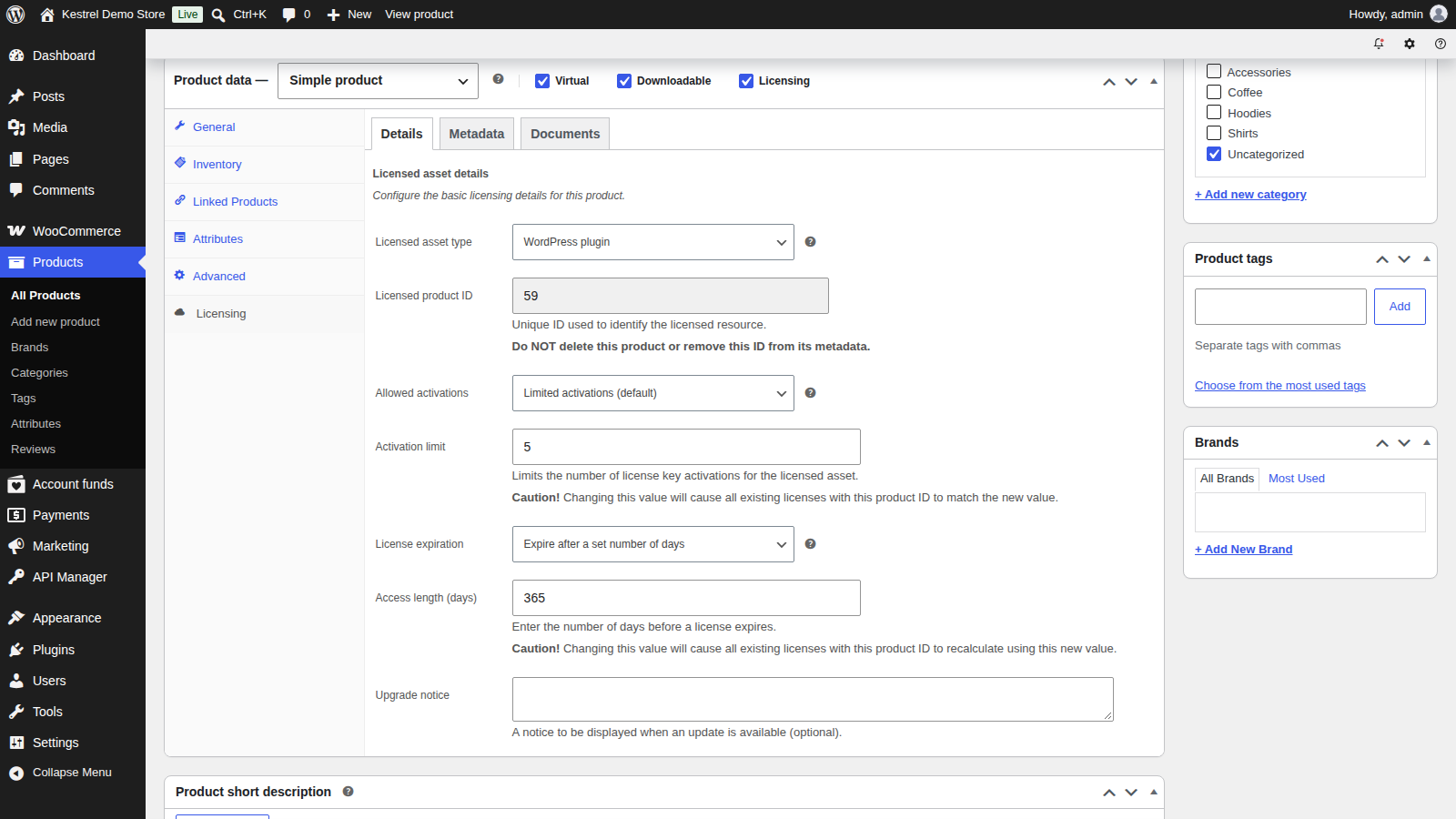
Create or edit a simple or variable product (or a simple or variable subscription), tick Licensing next to the product type, and open the new Licensing tab. Choose the Licensed asset type, set Allowed activations and the Activation limit, and decide on License expiration. If you deliver files or updates, tick Downloadable and add your file.
Once you save a product with Licensing ticked, it stays a licensing product. Set up licensing products in API Manager explains every field, variable products and free licenses.
3. Note the product ID
The Licensed product ID on the Licensing tab is the number your software sends with every request. Hard-code it in your software where you can, so customers only need to enter their license key.
4. Review the settings
Go to API Manager » Configuration. The defaults suit most stores; check Enabled types on the Licensing tab and URL expire time on the Downloads tab. See API Manager settings.
5. Place a test order and activate it
Buy the product as a customer (a 100 percent coupon works), then mark the order Completed. Check that:
- The order’s Licensing box shows the product with its activation limit.
- The customer’s My Account » License keys page shows the key and product ID.
- The order email includes a License information table.
Then activate the key from your software, or send an activate request with Postman, and check that the activation appears in the order’s License activations box. The licensing API reference has example requests.
Where to find things
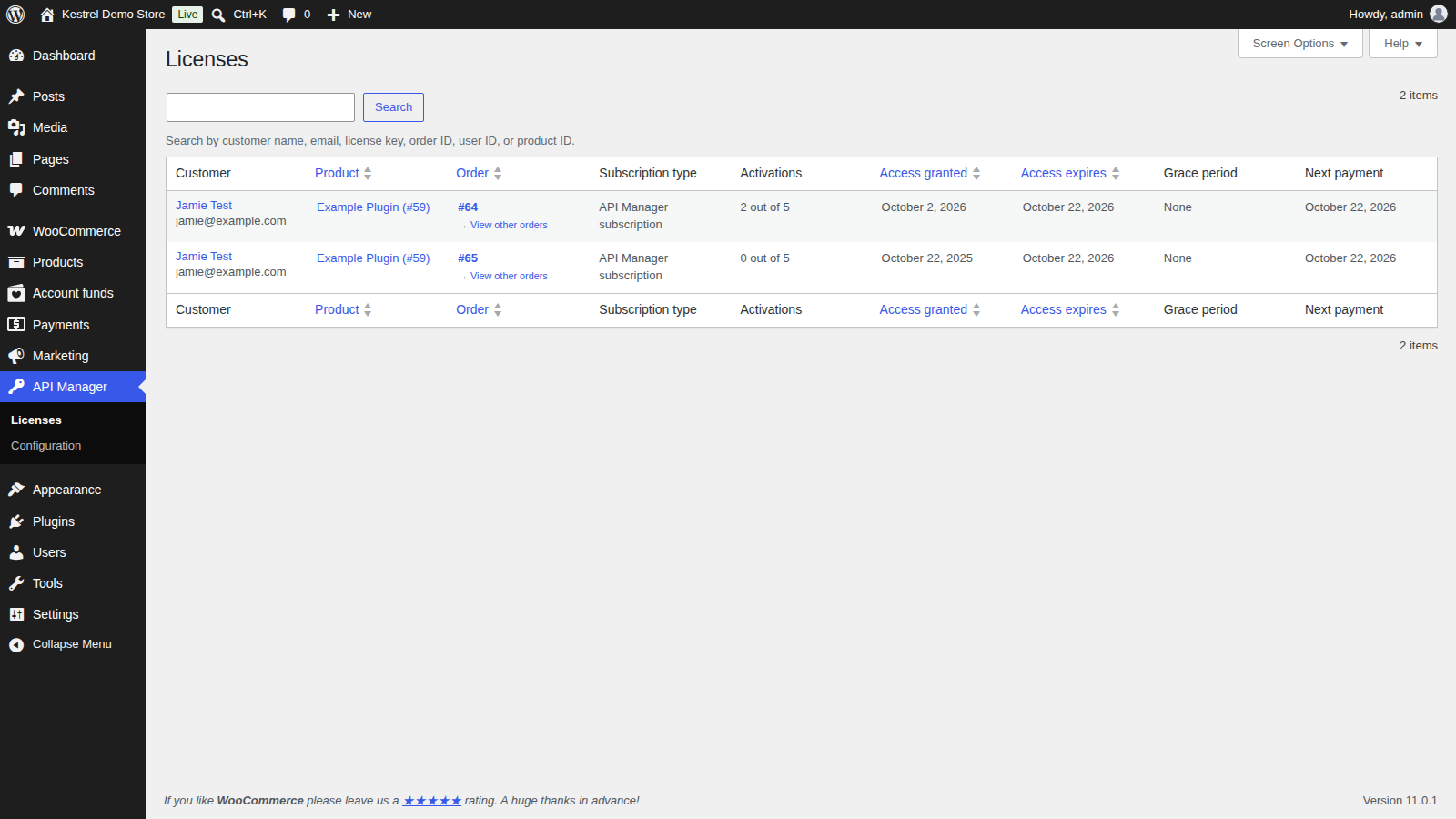
- API Manager » Licenses lists every license, with search by customer name, email, license key, order ID, user ID or product ID. See Manage API Manager licenses and activations.
- API Manager » Configuration holds the settings.
- Each order with a licensing product has Licensing and License activations boxes.
- Customers find their keys and downloads under My Account » License keys and My Account » Licensed downloads. See What API Manager customers see in My Account.
Move from WooCommerce Software Add-On
API Manager can answer requests sent to WooCommerce Software Add-On and import its license keys and activations, so customers keep working while you update your software. Turn on Software Add-On plugin under API Manager » Configuration » Integrations, then run Import WooCommerce Software Add-On data under WooCommerce » Status » Tools. The import runs once. See API Manager settings.
For other license managers, contact support to talk through what to export and import.
Common issues
A customer bought a licensing product but has no license
Check the order status first: licenses exist only while the order is Completed, or Processing with Grant access to downloadable products after payment on. Then check that the order belongs to a customer account rather than a guest. Troubleshoot API Manager covers the rest.
The License keys and Licensed downloads pages show a 404
Go to Settings » Permalinks and click Save Changes to refresh WordPress’s rewrite rules.
A warning says guest checkout is enabled
The notice reads "WooCommerce guest checkout is enabled, but your store sells licensing products that require a customer account to receive API keys." It’s a reminder, not an error: API Manager already requires an account for carts with licensing products. Dismiss it, or turn guest checkout off if you only sell licensing products.