


API Manager delivers your software from the first downloadable file on a licensing product. Customers download it from My Account » Licensed downloads, and your software receives the same file when it asks your store for an update. The file can live on your server, in Amazon S3 or at another URL, and each download link is a secure link that expires after the number of days you set.
When you’d use this
- Ship plugin or theme updates that customers install from their WordPress dashboard.
- Keep large files off your web server by serving them from Amazon S3.
- Let customers save a download straight to Dropbox.
- Show changelog, installation and FAQ tabs on your product page from the same content WordPress shows in its update screen.
How it works
- You add a file to the licensing product under Downloadable files. API Manager uses only the first file in the list, so keep the current release there.
- When a customer opens My Account » Licensed downloads, or their software sends an
updaterequest with a valid license key, API Manager creates a new secure link to that file. - The link stops working after the URL expire time: 7 days on a new store, and anywhere from 1 to 7 days. A download that has started finishes even if the link expires part way through.
Because links expire, API Manager doesn’t put download links in order emails. It also removes WooCommerce’s standard download links for licensing products from emails and My Account » Downloads, so customers always get a fresh link from Licensed downloads.
Choose where the file lives
On your server
Upload the zip with Choose file under Downloadable files. WordPress plugins and themes must be delivered as a zip. To release an update, replace the file (or add the new one at the top of the list), update the version on the Licensing tab, and save.
In Amazon S3
Paste the S3 object’s URL as the file URL. API Manager recognizes any URL on amazonaws.com and signs a temporary link with your AWS keys, so the bucket can stay private. Set up the keys once, as described below.
This is separate from the Amazon S3 Storage for WooCommerce extension, which moves WooCommerce downloads to S3. If you use that extension, see Get started with Amazon S3 Storage.
At another URL
Any other URL is treated as a remote file: customers and their software are sent to it when the secure link is used. Make sure the URL itself isn’t public if the file shouldn’t be.
Set up Amazon S3 for API Manager
1. Create a read-only AWS user
In the AWS IAM console, create a user for your store with access keys, and don’t give it access to anything except reading your bucket. Save its access key ID and secret access key.
2. Allow the user to read the bucket
In your bucket’s permissions, add a bucket policy that allows that user s3:GetObject on arn:aws:s3:::your-bucket-name/*. Keep the bucket’s public access blocked.
3. Add the keys to your store
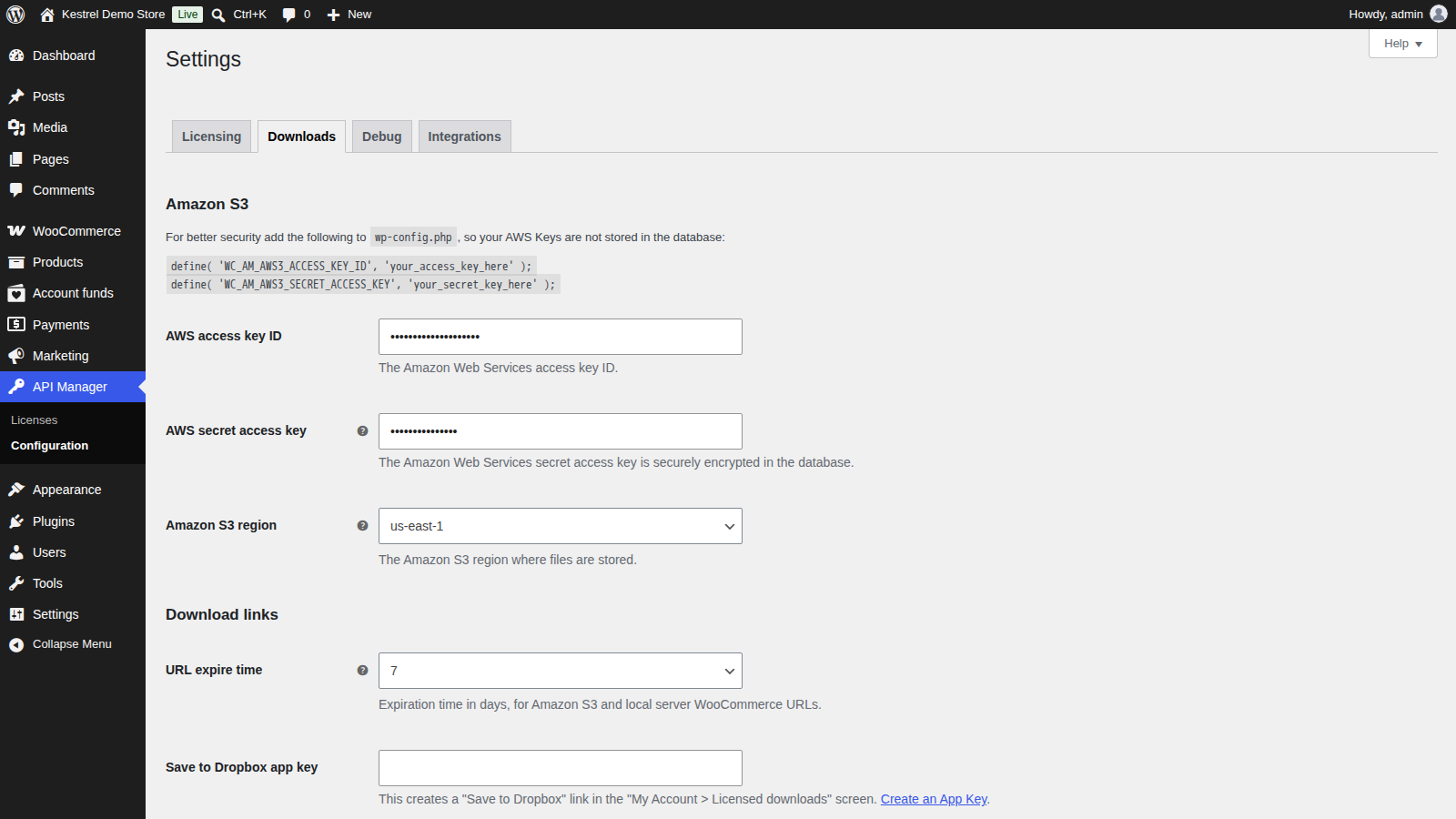
The most secure place is your wp-config.php file, so the keys aren’t stored in the database:
define( 'WC_AM_AWS3_ACCESS_KEY_ID', 'your_access_key_here' );
define( 'WC_AM_AWS3_SECRET_ACCESS_KEY', 'your_secret_key_here' );
Or enter them as AWS access key ID and AWS secret access key under API Manager » Configuration » Downloads. The secret key is encrypted with your site’s WordPress security keys, so if you change those keys later, enter the secret key again.
4. Choose the region
Set Amazon S3 region to your bucket’s region. It’s us-east-1 by default, and a link signed for the wrong region doesn’t download.
5. Test a download
Paste the object URL into the product’s Downloadable files, save, and download the file from My Account » Licensed downloads as a customer.
To publish a new release, upload it to the same bucket with the same file name, replacing the old object. Then raise Version on the product’s Licensing tab and save, so customers’ sites are offered the update.
Let customers save to Dropbox
Under API Manager » Configuration » Downloads, the Create an App Key link next to Save to Dropbox app key opens Dropbox’s app console. Create an app, allow your store’s domain for its Drop-ins, and paste its app key into Save to Dropbox app key. A Save to Dropbox button then appears next to each download on My Account » Licensed downloads.
Show update details in WordPress and on your product page
When an update is available, WordPress on your customer’s site shows its standard update notice. View details opens a plugin information screen built from the product’s Metadata and Documents: version, compatibility, changelog and any tabs you turn on under WordPress plugin tabs.
Turn on Add tabs to product pages to add the same content to your store’s product page as tabs: Details (the latest release notes), Changelog and Documentation when they have content, plus Installation, FAQ, Screenshots and Other notes when you’ve turned those on. Your theme must show WooCommerce product tabs.
Common issues
The download says "Access expired."
The link is older than the URL expire time. Open My Account » Licensed downloads again for a new link.
The download says "No file defined"
The product has no downloadable file, or the first file’s URL is empty. Check Downloadable files on the licensing product, put the current release first, and save. If it still fails, remove the file, save, add it again and save once more.
The download says "Invalid download link." or "Authentication failed."
The link was changed or copied incompletely, or it was created for another customer. Download again from My Account » Licensed downloads while logged in as the customer.
Amazon S3 downloads fail with an AWS error
Check that the keys belong to a user allowed s3:GetObject on the bucket, that Amazon S3 region matches the bucket, and that the URL in the product still points at an existing object. If you changed your WordPress security keys, enter the secret access key again, or define it in wp-config.php.
Customers don’t see a download link in their order email
That’s expected: download links expire, so customers download from My Account » Licensed downloads. The order email links there.