


API Manager adds two pages to your customers’ My Account area, right after Orders: License keys, where they find their keys, activations and renewals, and Licensed downloads, where they download your software. Their order emails and order pages point to both.
When you’d use this
- Tell customers where to find their license key or download.
- Help a customer free up an activation themselves.
- Check what a customer sees when they report a problem.
License keys
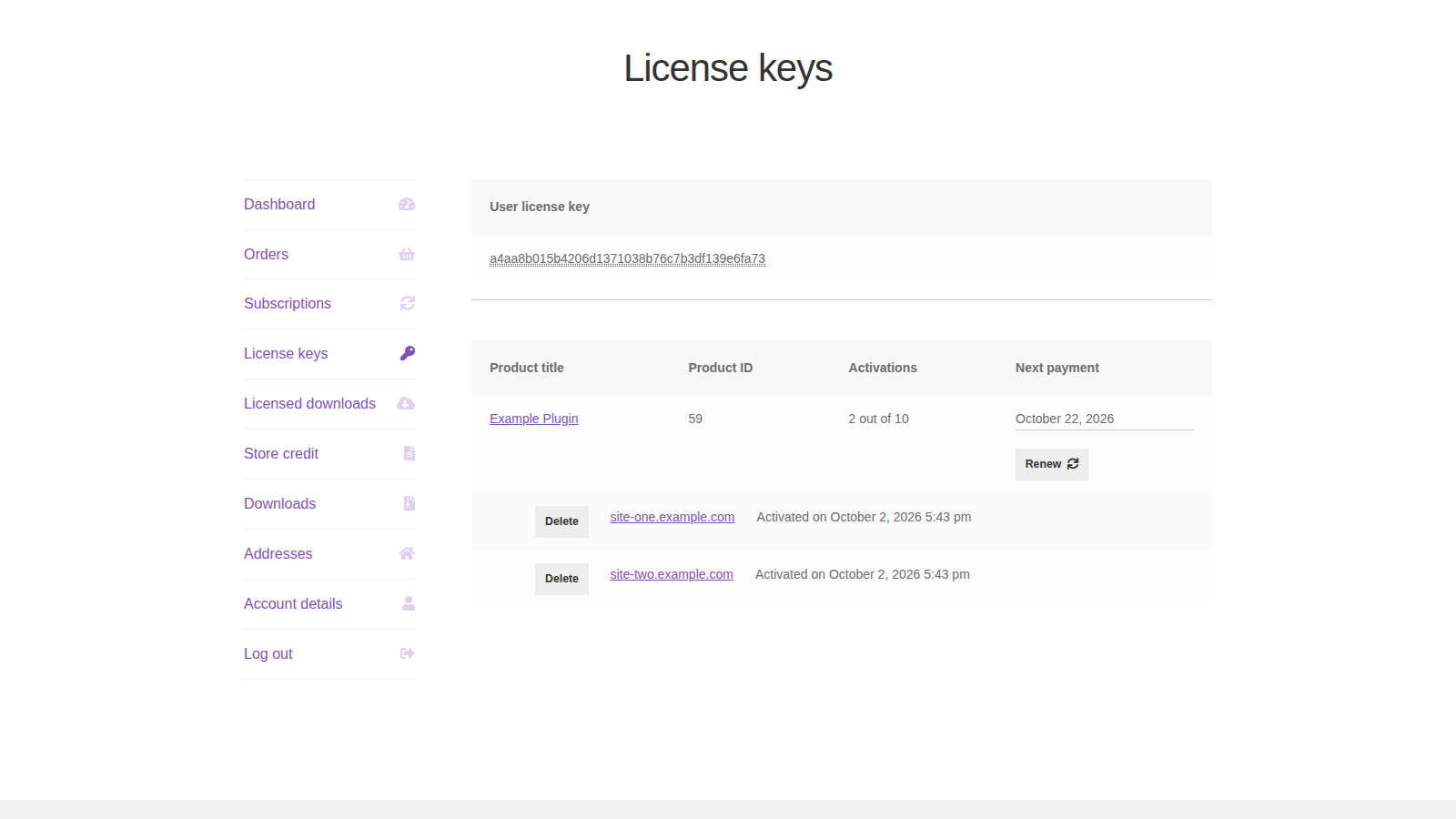
The keys
What customers see at the top depends on Enabled types in API Manager settings:
- With User license keys, a User license key box shows the one key that activates all their products.
- With Product license keys, a note explains that each product license key activates a single product from a single order, and the table below shows a key for each.
- With Both, they see both.
The table
Each licensing product they’ve bought gets a row:
- Product title, linked to the order.
- Product ID, the number their software may ask for.
- Product license key, when product license keys are enabled.
- Activations, such as "2 out of 5".
- Next payment, the expiry or next renewal date: a date, "Pending cancellation on" a date, "Renewable until:" a date during the grace period, "Lifetime subscription" for a license that never expires, or "Expired".
For subscription licenses, a button links to the subscription. For licenses that expire after a set number of days, a Renew button appears in the renewal window, with the renewal discount if you set one. See How API Manager license expiration and renewal work.
Activations
Below each product, every activation is listed with the site or device it was activated on and the date. Delete removes an activation, so the customer can use that slot on another site. If you turned on Display in both admin and customer accounts under Display instance IDs, each activation also shows its instance ID.
If you disable a customer’s key, both pages say "This account has been disabled."
Licensed downloads

Each downloadable licensing product the customer can use gets a row with Product title, Version, Release date, Documentation (links to the product’s Changelog and Documentation pages, when set) and Download. With a Save to Dropbox app key set, a Save to Dropbox button sits next to each download.
Each Download link is created when the page loads and expires after the URL expire time, 7 days on a new store. Customers who come back later reload the page for a fresh link. Deliver downloads and software updates with API Manager explains where files come from.
WooCommerce’s own Downloads page and order emails don’t list licensing products, so customers aren’t sent to links that expire.
Order emails and order pages
Order emails for orders with licenses include a License information table: each product with its product ID, activations and expiry, the product license keys or user license key (whichever Enabled types allows), and a Click here to login and download your file(s) link to Licensed downloads. Subscription renewal orders don’t repeat it.
When a customer views an order in My Account, a Related licenses section links to License keys and Licensed downloads.
Common issues
License keys or Licensed downloads shows a 404
Go to Settings » Permalinks and click Save Changes to refresh WordPress’s rewrite rules.
A customer sees "No licensing products available yet."
The customer has no active licenses: the order isn’t Completed yet (or Processing with download access after payment), the order was placed as a guest, or the license has expired or been removed. Check the order’s Licensing box. See Troubleshoot API Manager.
The Download column says "Disabled"
The product has no downloadable file. Add one to the licensing product.
A customer can’t find their product license key
Product license keys only show when Enabled types includes them. With User license keys, the customer uses their user license key for every product.