


A licensing product is any simple or variable product, or simple or variable subscription, with the Licensing option turned on. Its Licensing tab sets how many times a license activates, whether it expires, and the details your software shows customers when an update is available.
Grouped and external products can’t be licensing products. Once you save a product with Licensing ticked, the option can’t be unticked, and a licensing product that has been ordered can’t be permanently deleted, because customers’ activations depend on its product ID.
When you’d use this
- Sell a plugin, theme, extension or app with a site or device limit.
- Offer license tiers, such as 1, 5 or 25 sites, as variations of one product.
- Sell a license that expires after a year, or one that never expires.
- Show version, changelog and compatibility details in the WordPress update screen of your customers’ sites.
- Give away free licenses to registered customers.
How to use it
1. Turn on Licensing
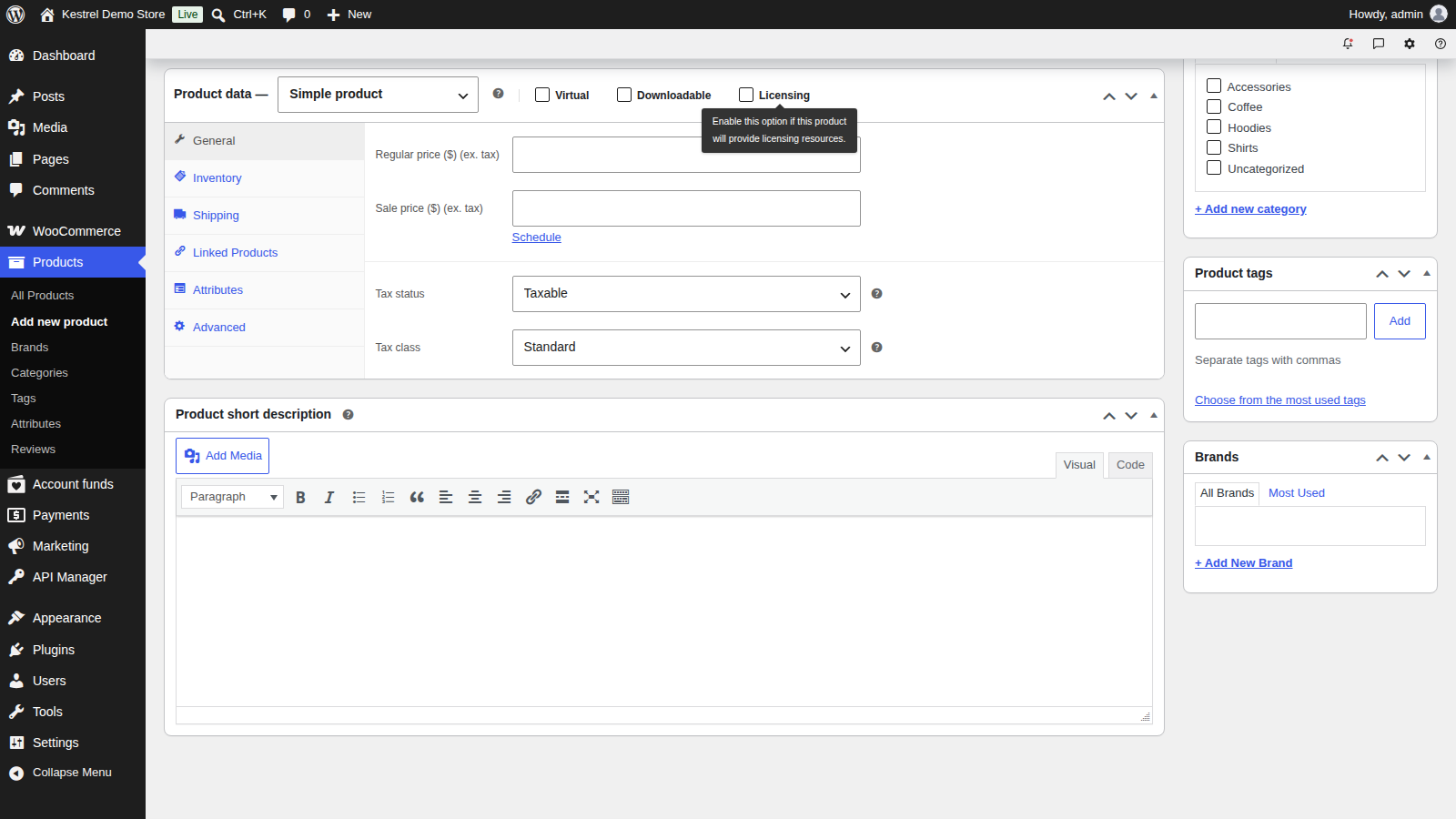
Edit the product, choose its product type, then tick Licensing next to the product type. A message reminds you that the option is permanent once saved. If customers have already bought the product, API Manager creates licenses for their past orders in the background after you save.
2. Add the file you deliver
If you deliver a download or updates, tick Downloadable and add your file under Downloadable files. API Manager uses the first file in the list. For WordPress plugins and themes, this must be a zip. Deliver downloads and software updates with API Manager covers local files, Amazon S3 and remote URLs.
3. Fill in the Licensing tab
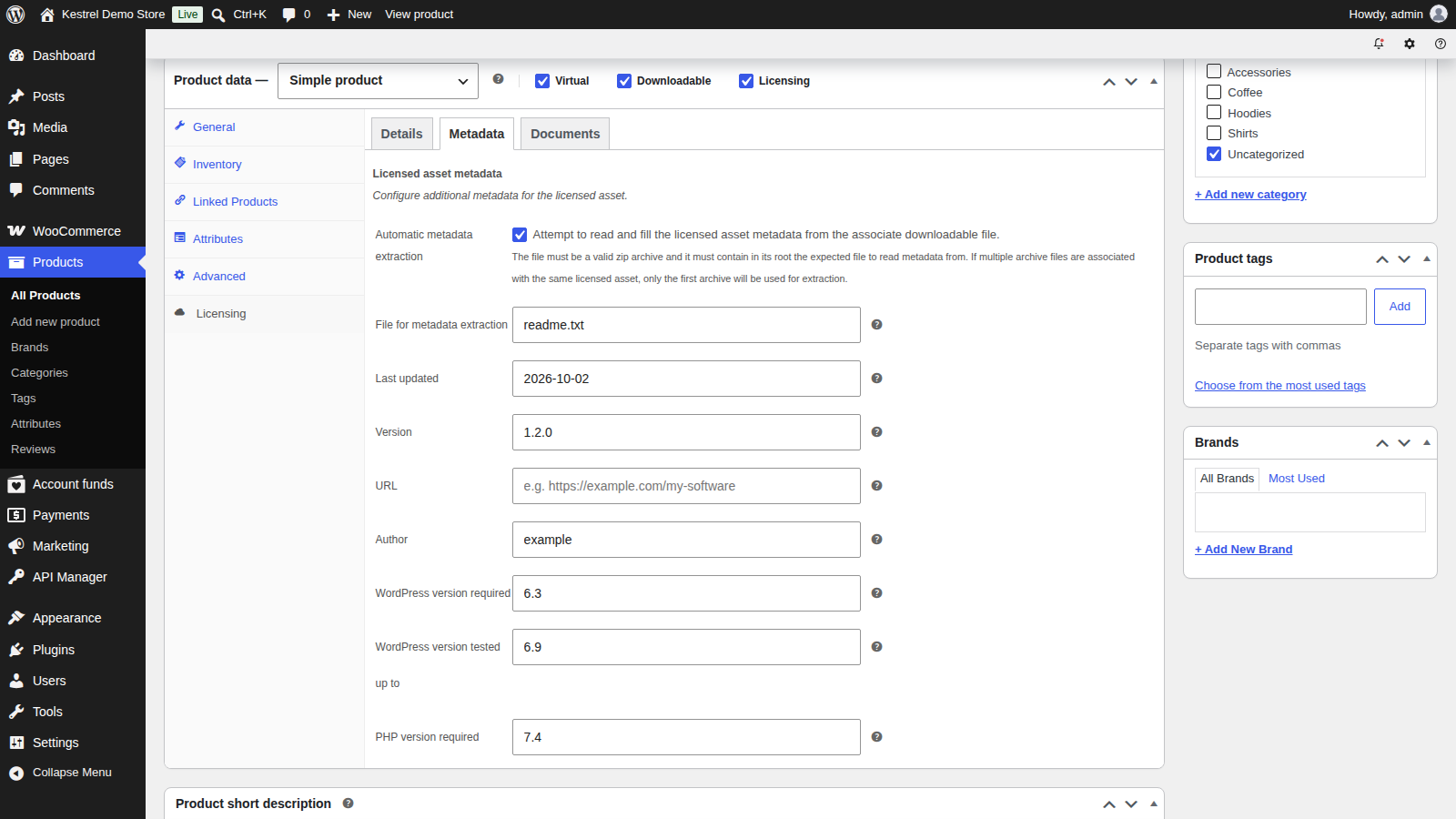
Open the Licensing tab. It has three sections: Details, Metadata and Documents. The fields are described below.
4. Save and check the product ID
Click Update. The Licensed product ID your software sends is now set. The products list shows a key icon in its Licensing column, and Filter by licensing above the list narrows it to licensing products.
Details
- Licensed asset type: what you’re licensing: WordPress plugin, WordPress theme, WooCommerce extension, WooCommerce theme or Software. The type decides which Metadata and Documents fields appear. Software has none, because those fields feed WordPress’s plugin and theme update screens.
- Licensed product ID: the read-only ID that identifies this product to your software. Every request your software sends includes it, so don’t delete the product or remove the ID.
- Allowed activations: Limited activations (the default) uses the Activation limit below. Unlimited activations hides the limit and allows a very large number of activations (100,000 by default).
- Activation limit: how many sites or devices one license can activate. Left blank, it’s 1. If you change it after customers have bought the product, the Activation limit changes setting decides whether existing licenses change too; the description under the field says which applies. See Activation limit changes.
- License expiration: Never expire (the default) or Expire after a set number of days. Subscription products don’t show this field, because the subscription decides when the license ends.
- Access length (days): appears with Expire after a set number of days. Enter the license length, such as 365 for a year. Changing it recalculates the expiry of every existing license for this product. How API Manager license expiration and renewal work explains renewals and reminders.
- Upgrade notice: optional text shown in WordPress when an update is available, such as a note about a breaking change.
Metadata
These fields appear for the WordPress and WooCommerce asset types. Your software receives them with update and information requests, and WordPress shows them in its update and View details screens.
- Automatic metadata extraction: appears when the product is downloadable. API Manager reads the metadata from your zip when you save, so you don’t type it twice. The file it reads must be at the root of the zip or one folder down.
- File for metadata extraction: the file to read,
readme.txtby default. You can name another file at the root of the zip or one folder down instead, such as your plugin’s main PHP file. - Version, Last updated, URL and Author: the current version, its release date (
YYYY-MM-DD), your software’s homepage (the product page is used when empty) and the author name. - WordPress version required, WordPress version tested up to and PHP version required: the compatibility details WordPress shows customers before they update.
- WooCommerce version required and WooCommerce version tested up to: shown for the WooCommerce extension and WooCommerce theme types.
Documents
Pages on your site that hold the asset’s documentation. Pick each with the page search.
- Automatic changelog extraction: appears when the product is downloadable. API Manager replaces the Changelog page’s content with the
changelog.txtfile from the root of your zip or one folder down when you save. - Use the product gallery for screenshots: uses the product’s gallery images as screenshots instead of a Screenshots page.
- Documentation, Description, Changelog, Installation, FAQ, Screenshots and Other Notes: the pages behind each tab of the WordPress plugin information screen and, if you turn it on, the tabs on your product page. A changelog is required for WordPress plugins. Choose which tabs show under WordPress plugin tabs.
When API Manager reads your zip
Automatic metadata and changelog extraction need:
- The product to be Downloadable, with a .zip file as the first downloadable file.
- The file stored in your WordPress uploads folder, or given as a file path on your server. Files served from Amazon S3 or another remote URL aren’t read.
readme.txt(or the file you named) andchangelog.txtorchangelog.mdat the root of the zip or one folder down.
API Manager reads these headers:
| Field | Header read from the file |
|---|---|
| Version | Stable tag (or Version if there is no Stable tag) |
| Author | Contributors |
| URL | Plugin URI |
| WordPress version required | Requires at least |
| WordPress version tested up to | Tested up to |
| PHP version required | Requires PHP |
| WooCommerce version required | WC requires at least |
| WooCommerce version tested up to | WC tested up to |
| Last updated | The date API Manager read the zip |
If you name another file and some headers are missing from it, API Manager reads the missing ones from readme.txt when the zip has one. Fields the file doesn’t provide keep what you typed. The changelog is read from changelog.txt, or changelog.md if there is no .txt file.
The file is read again every time you click Update on the product in the admin. Since API Manager 3.8.1 it’s also read again whenever the downloadable files of a simple product, or of a variation that overrides the parent’s licensing options, change through the WooCommerce REST API, WP-CLI or a product import. A release script that uploads a new zip and updates the product’s downloads over the REST API therefore refreshes the version and changelog without a visit to the admin.
While extraction is on, values read from the file replace what is in the fields each time it’s read. A save that doesn’t touch the downloadable files, such as renaming the product over the REST API, leaves the stored values alone. If your release process overwrites the zip at the same path without changing the product, include the product’s downloads in the update request, or click Update in the admin, so the file is read again.
Variable products
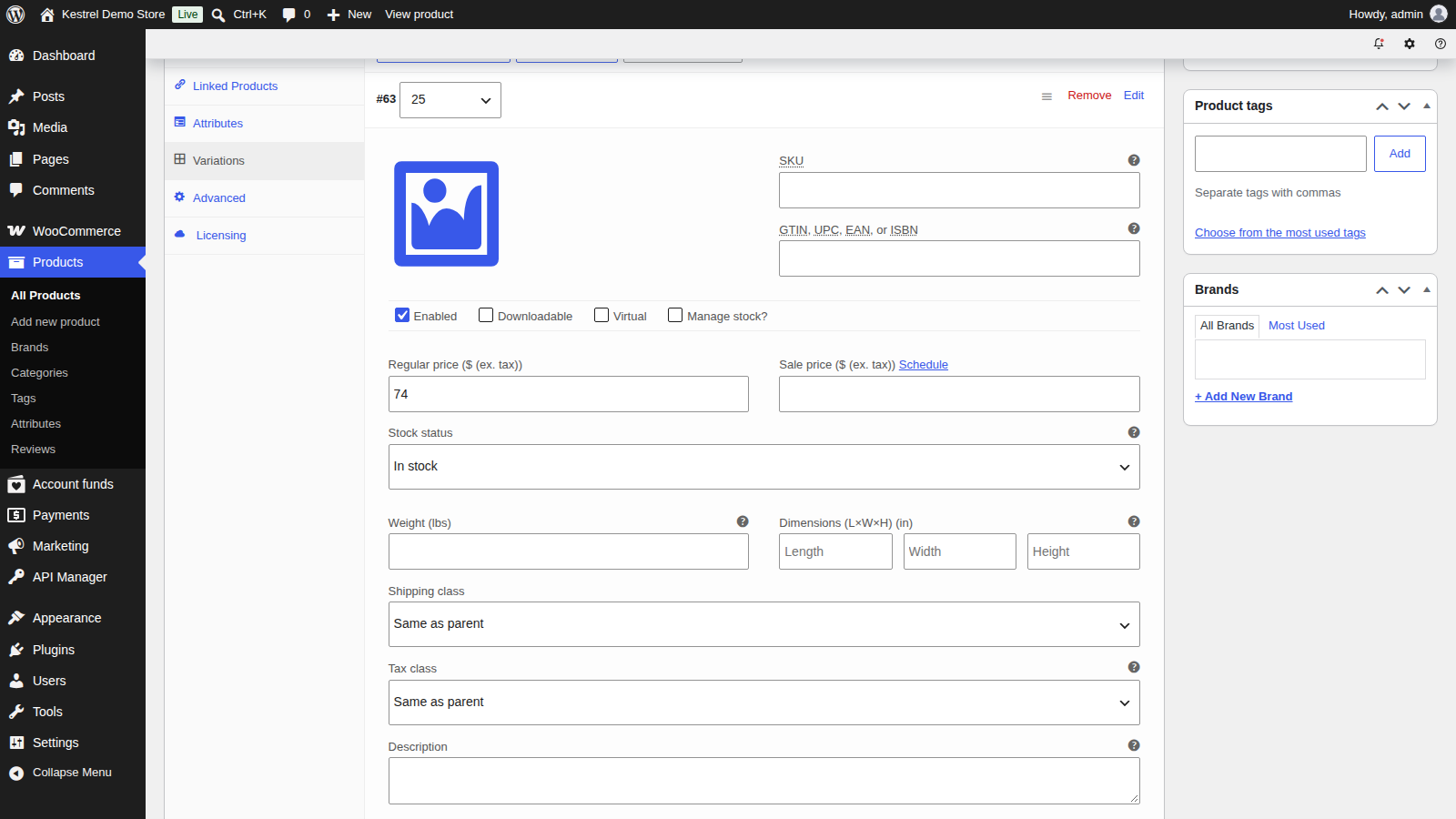
Use a variable product (or variable subscription) to sell license tiers. Add an attribute such as "Sites" with values like 1, 5 and 25, create a variation for each, and tick Licensing on the parent product.
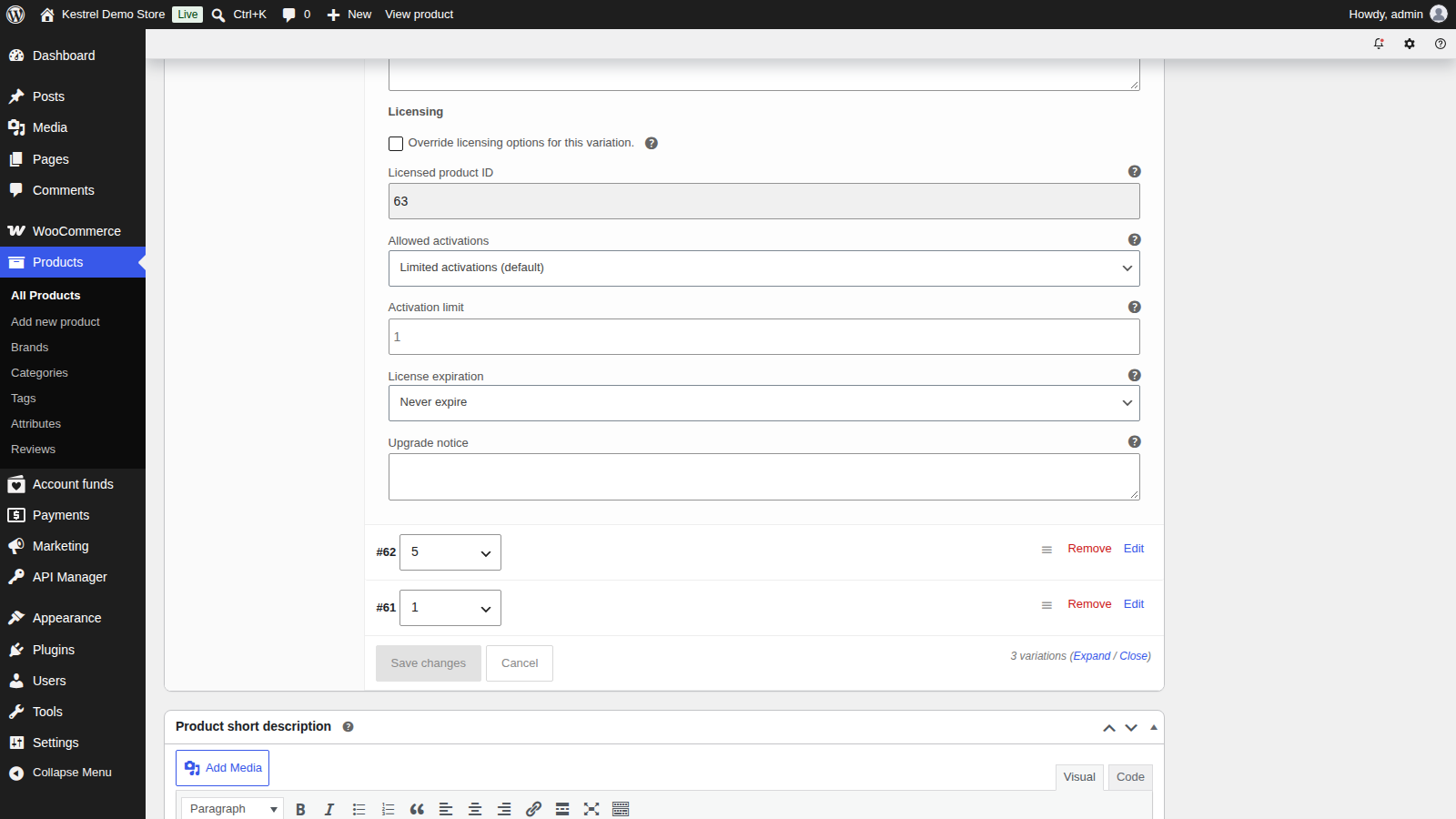
- Set Allowed activations, Activation limit and License expiration on each variation. Each variation has its own product ID.
- The parent’s Metadata and Documents apply to every variation. To give one variation its own, tick Override licensing options for this variation. in that variation.
- Removing a licensing variation moves it to the trash instead of deleting it.
Set a default under Default Form Values on the Variations tab if you want one tier preselected on your product page.
Free licenses
Set the price to 0 to give licenses away. The customer still checks out with an account, and the license is created when the order is Completed.
Common issues
The Licensing option is missing
Licensing only shows for simple, variable and subscription products. Change the product type, or use separate products instead of a grouped product.
I can’t untick Licensing
That’s by design: once saved, a licensing product stays one, so existing activations keep working.
A licensing product can’t be deleted
A licensing product that has been ordered can’t be permanently deleted, and trashed products aren’t emptied automatically. Leave it in the trash or set it to private. Restoring it from the trash brings it back unchanged.
The metadata fields are missing
Licensed asset type is set to Software, which has no metadata or documents. Choose the WordPress or WooCommerce type that matches your product.
Metadata wasn’t filled in from my zip
Check that the product is downloadable, the zip is the first file, and the file named in File for metadata extraction sits at the root of the zip or one folder down. Then save the product again.