


Give Products lets you give products to a customer for free from your WordPress admin. You pick the customer and the products, and the plugin creates a normal WooCommerce order with a zero total, reduces stock, grants downloads and emails the customer. Use it for prizes, samples, replacements or anything else you want recorded as an order without charging for it.
The customer needs an account on your store first. Customers can’t use Give Products to send gifts to each other; it’s an admin tool only.
When you’d use this
- Send a replacement or a free item after a support issue, with a proper order to ship from.
- Give a prize, sample or review copy and keep a record of it.
- Grant a downloadable product to someone without a checkout or a 100% coupon.
Requirements
- WordPress 6.3 or later, WooCommerce 8.0 or later, and PHP 7.4 or later.
- Compatible with High-Performance Order Storage and WooCommerce’s cart and checkout blocks. Giving products happens in the admin, so it doesn’t depend on your checkout.
Install and activate
- Bought on kestrelwp.com: install the plugin by following how to install and update WooCommerce extensions.
- Bought on WooCommerce.com: install the plugin from your WooCommerce.com account. Updates come through your WooCommerce.com connection, with no license key to enter.
Give Products has no settings screen. Once it’s active, the Give Products page is ready to use.
Give products to a customer
1. Make sure the customer has an account
Give Products only finds existing WordPress users. If the person doesn’t have an account yet, add one under Users » Add New with the Customer role (shop managers can’t add users, so ask an administrator).
The Given order email goes to the billing email saved on the customer’s account, not their account email. For a new account, edit the user and fill in Customer billing address, including Email address. Fill in Customer shipping address too if you’re sending a physical product.
2. Open Give Products
Go to Products » Give Products. The page is shown to users who can edit other users, such as administrators and shop managers.
3. Pick the customer and products
- Under Select a user, type the customer’s name, email address or user ID and choose them.
- Under Select products, type a product name, SKU or ID and choose it. Add as many products as you like. For a variable product, choose the variation, such as the blue shirt in size medium, rather than the parent product.
- Click Give product(s).
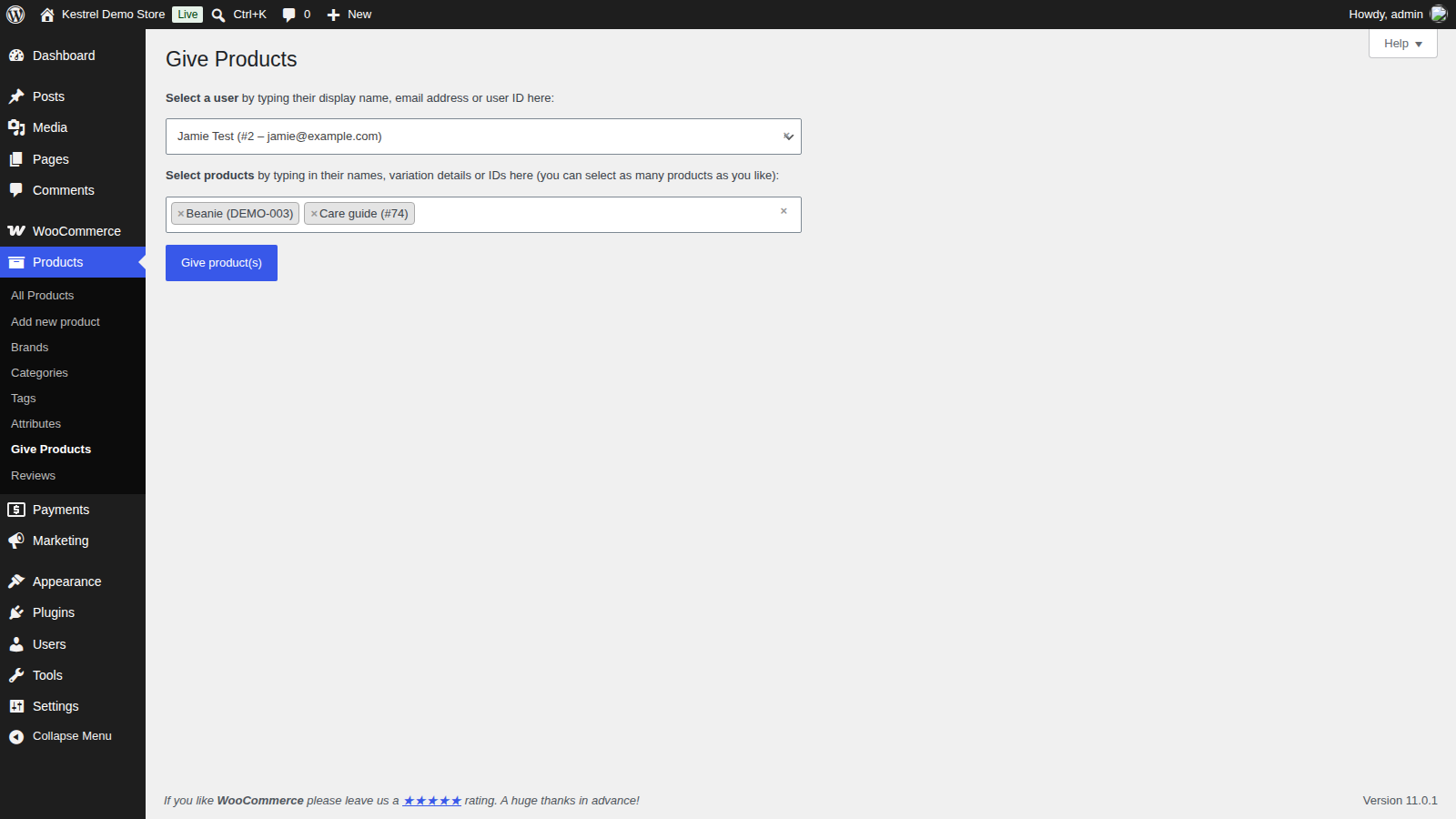
A notice confirms the gift with a link to the new order.
4. Check the order
Open the order from the notice. Each product is on its own line at quantity 1, and the order total is zero. Check that the shipping address is there before you ship.
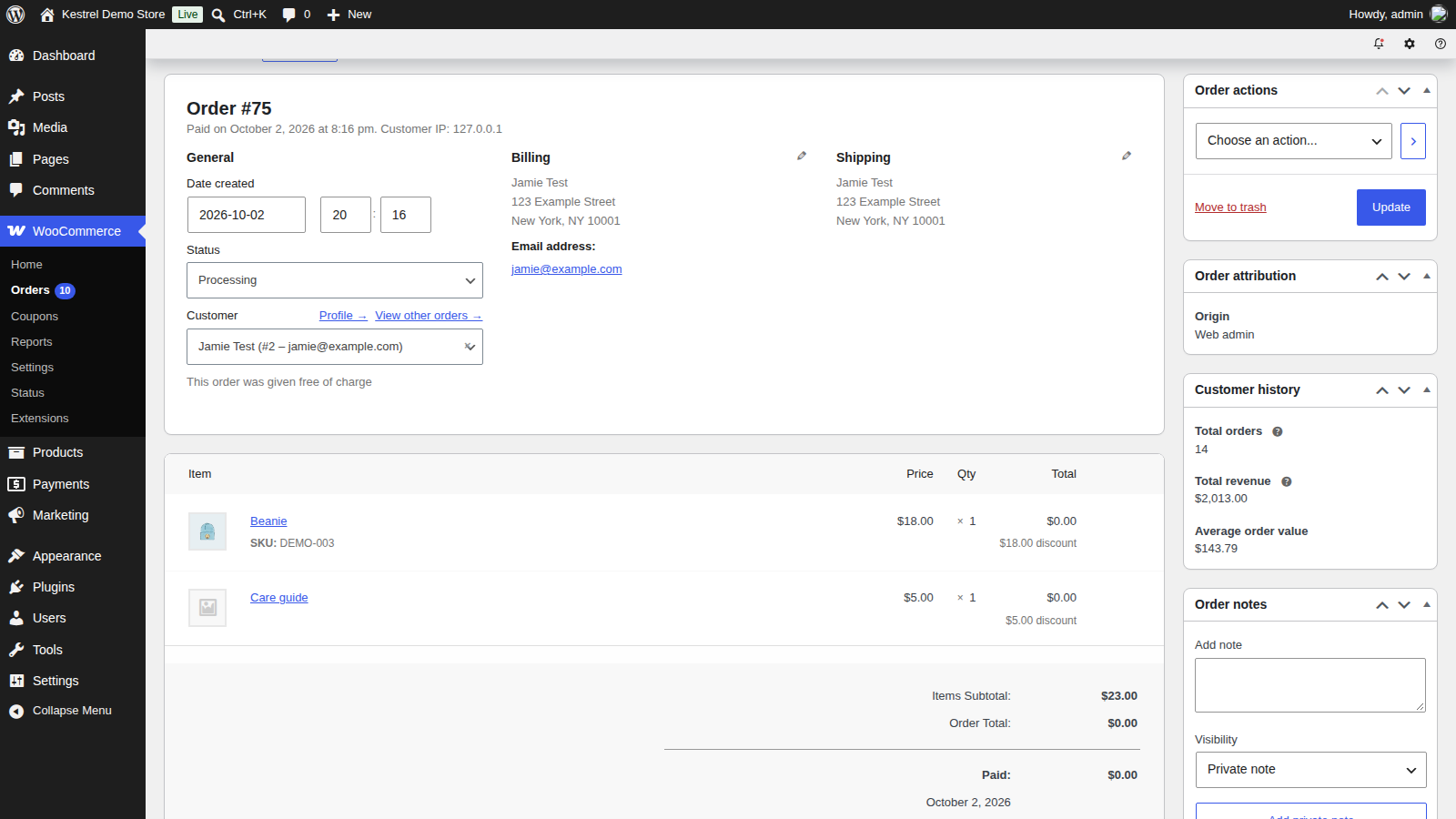
The given order
The order is a normal WooCommerce order for that customer. It appears in your orders list and the customer’s order history, and you ship or cancel it like any other order.
- Addresses: the billing and shipping details are copied from the customer’s account. If the customer has no saved shipping address, fill it in on the order before you ship a physical product.
- Status: Completed when nothing in the order needs shipping, such as a virtual or downloadable product, and Processing when something does, so you can fulfill it.
- Totals: the order total is zero, with no payment method, shipping line or tax.
- Stock: stock is reduced for products that manage stock. Give Products doesn’t check stock first, so giving a product that’s out of stock takes its stock below zero.
- Downloads: download permissions for downloadable products are granted straight away.
- Notes: the order gets a private note, "This order was gifted.", and the order details show "This order was given free of charge".
Given order email
Give Products adds a Given order email, sent to the order’s billing email address when the order is created. Find it under WooCommerce » Settings » Emails » Given order.
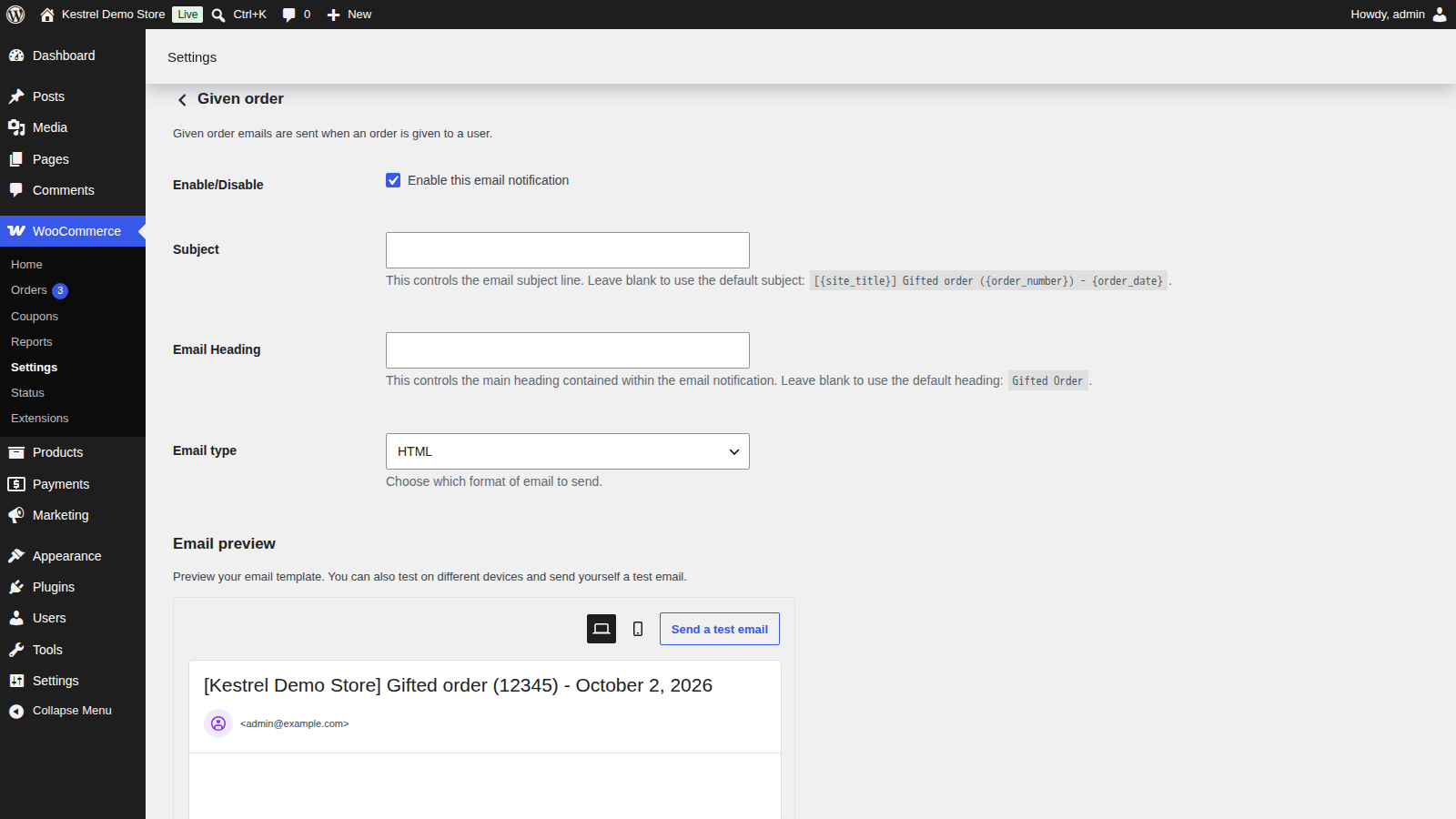
Enable/Disable
Sends the email. On by default.
Subject
The subject line. Leave it empty to use "[{site_title}] Gifted order ({order_number}) – {order_date}".
Email Heading
The heading at the top of the email. Leave it empty to use "Gifted Order".
Email type
The format of the email. Keep it set to HTML, the default. Plain text sends an empty email, and Multipart sends an empty plain text version alongside the HTML one.
What customers see
- Email: the Given order email opens with "You’ve been gifted this order:" followed by the order’s products.
- My Account: when the customer views the order under My account » Orders, it says "The products in this order were given to you by" followed by your site’s name. Downloadable products appear under Downloads as with any order.
Common issues
The customer I want isn’t in the list
The person doesn’t have an account on your store. Create one under Users » Add New with the Customer role (shop managers can’t add users, so ask an administrator), then search again.
"Make sure you select both a user to receive the gift and a product to give."
The form was submitted without a customer or without any products. Choose both and click Give product(s) again.
The customer didn’t get the Given order email
Check three things:
- The customer’s user profile has an Email address under Customer billing address. Without one, the email isn’t sent. The account email doesn’t count.
- WooCommerce » Settings » Emails » Given order is enabled.
- Email type is set to HTML.
If all three are right, check that your store sends other WooCommerce emails, since the Given order email goes out the same way.
The shipping address on the order is empty
The customer has no shipping address saved in their account. Add it on the order before you ship.
A product’s stock went below zero
Give Products doesn’t check stock before creating the order. Correct the product’s stock in its Inventory settings.
I can’t find the Give Products menu
It’s under Products, not WooCommerce. If it’s missing there, your user role can’t edit other users; ask an administrator.
FAQ
Can I choose the quantity?
No. Every product is added at quantity 1, and you can pick each product only once per gift. WooCommerce doesn’t let you change the items on a Processing or Completed order, so to give more than one, give the product again; each gift is a separate order.
Can I add a personal message to the gift?
There’s no message field. You can add a note to the customer from the order screen after the order is created.
Can I undo a gift?
There’s no undo button. Change the order’s status to Cancelled, as you would for any other order.
Can I give products to several customers at once?
No. Each submission creates one order for one customer.
Do gifts show up in my sales reports?
The order appears in your reports like any other order, but every line in it has a zero total, so gifts don’t add to your revenue.
Can I link to the form with the customer and products already chosen?
Yes. Add user_id (the customer’s user ID) and products (product or variation IDs, separated by commas) to the Give Products page address, such as /wp-admin/edit.php?post_type=product&page=give_products&user_id=12&products=34,56. The form opens with them filled in, and nothing is given until you click Give product(s). This is handy for a saved reply or a link in your support tool.
Keep learning
- How to install and update WooCommerce extensions (installing, updating and fixing upload errors)
- Changing text in a plugin (editing the email and My Account wording)