


Kestrel AI drafts product descriptions, short descriptions and order notes for you inside the WooCommerce admin. You open a chat panel next to the field you’re writing, send a prompt to OpenAI, and add the response you like to the field. It uses your own OpenAI API key, so OpenAI bills the usage to your OpenAI account.
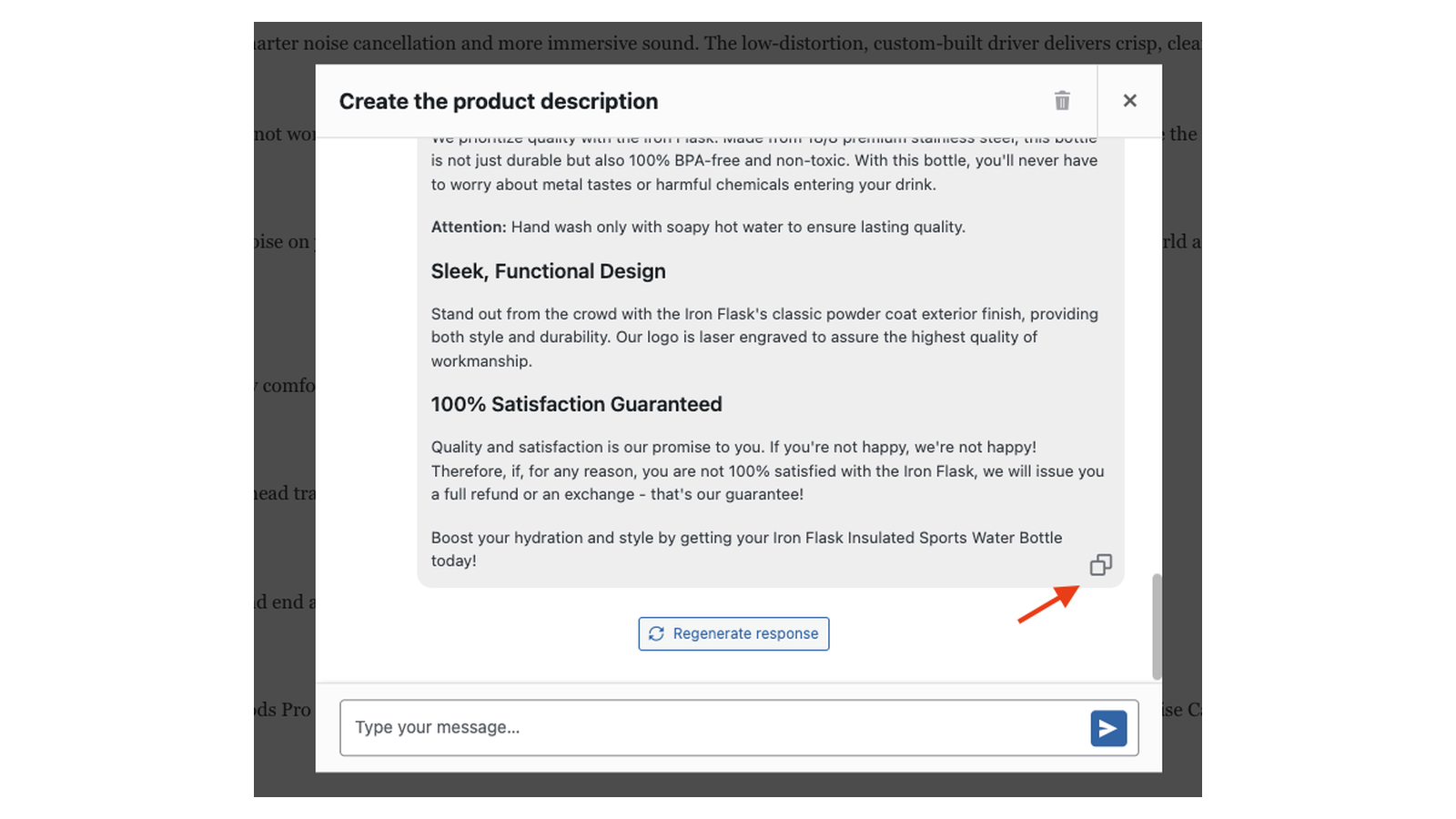
Kestrel AI only writes text. It never changes a product or an order on its own: a response goes into the field only when you pick it, and you still save the product or add the note yourself.
When you’d use this
- Turn a few rough notes about a product into a full description.
- Summarize a long description into a short description.
- Draft an order note from the order’s products, status and addresses.
Requirements
- WordPress 6.3 or later, WooCommerce 8.2 or later, and PHP 7.4 or later.
- An OpenAI account with an API key that can use the
gpt-3.5-turboorgpt-4model. - Your server needs to reach
api.openai.com. - The assistant works in WooCommerce’s classic product editor. WooCommerce’s block-based product editor isn’t supported.
- Compatible with High-Performance Order Storage.
- Users who can manage WooCommerce, such as administrators and shop managers, can use it.
Install and activate
- Bought on kestrelwp.com: install the plugin by following how to install and update WooCommerce extensions.
- Bought on WooCommerce.com: install the plugin from your WooCommerce.com account. Updates come through your WooCommerce.com connection, with no license key to enter.
Set up Kestrel AI
1. Create an OpenAI API key
Sign in to your OpenAI account and create a secret API key. OpenAI shows the key only once, so copy it straight away. Requests are billed to the OpenAI account the key belongs to.
2. Add your API key
Go to WooCommerce » Settings » Integration » Open AI, or click Settings under Kestrel AI in your Plugins list. Paste the key into API key and click Save changes.
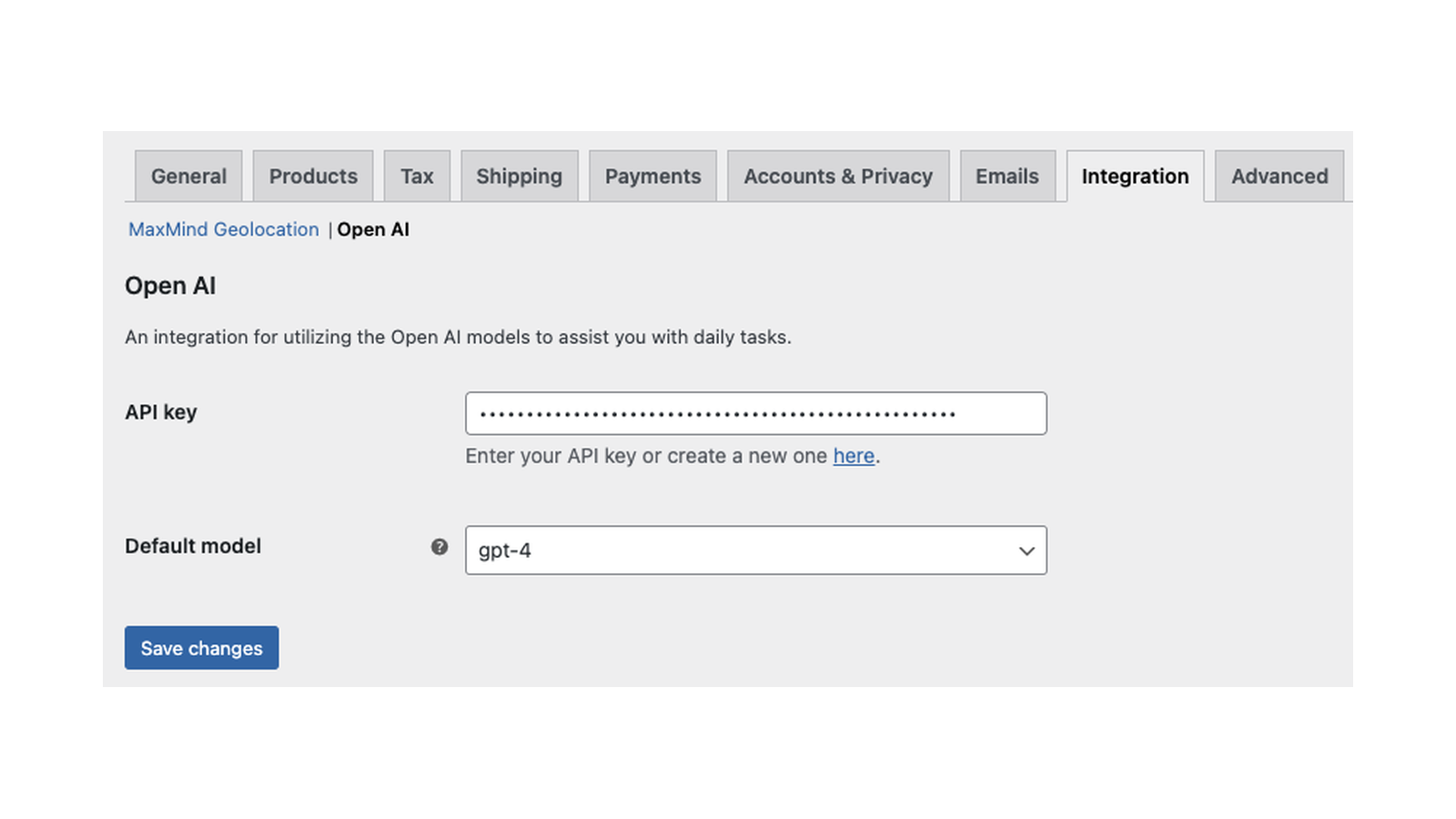
Kestrel AI checks the key with OpenAI as you save. If OpenAI accepts it, the Default model setting appears.
3. Choose the default model
Pick the model in Default model and click Save changes.
4. Draft your first description
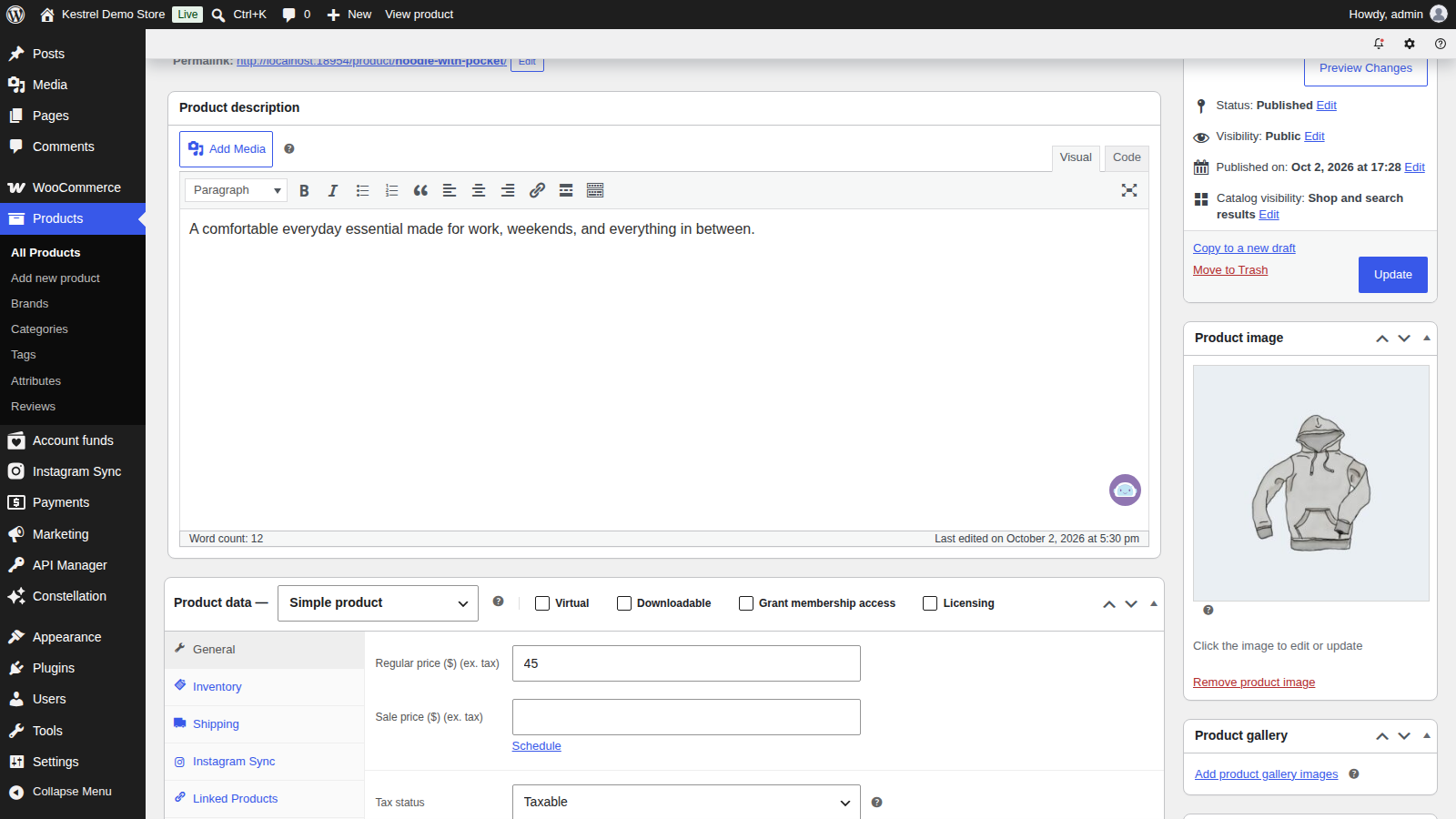
Open a product that already has a description, and click the Kestrel AI icon in the bottom-right corner of the Product description box. Click the send button to use the default prompt, then pick a response to add it to the description. Click Update to save the product.
Open AI settings
Go to WooCommerce » Settings » Integration » Open AI.
API key
Your OpenAI secret key. The field is masked. Saving a new key checks it with OpenAI and reloads the list of models your account can use.
Default model
The model every request uses: gpt-3.5-turbo or gpt-4. Only those two models are offered, and only if your OpenAI account can use them; other models on your account aren’t listed. This setting appears once a working API key is saved.
Draft text with Kestrel AI
Each field below has its own Kestrel AI icon. Clicking it opens a chat panel with a default prompt already filled in. Edit the prompt or send it as it is.
Product description
On the product edit screen, click the icon in the Product description box. The default prompt asks for an attractive, detailed product description, formatted with HTML, based on {product_description}.
Short description
Click the icon in the Product short description box. The default prompt asks for a two to three line summary of {product_description}.
Order note
On the order edit screen, click the icon on the Add note field in the Order notes box. The default prompt asks for a two to three line note using the order’s billing and shipping details, shipping method, products and status. When you pick a response, it’s added to the note field. Choose Private note or Note to customer and click Add as usual.
Prompt placeholders
Type { in the chat to list the placeholders for that field. Kestrel AI replaces each one with the real value when it sends the prompt.
| Field | Placeholders |
|---|---|
| Product description and short description | {product_description} |
| Order note | {products}, {order_status}, {billing_address}, {shipping_address}, {shipping_method} |
{product_description} is the product’s saved description as plain text, without HTML or shortcodes. Edits you haven’t saved yet aren’t included, so click Save Draft or Update before you send the prompt.
{billing_address} and {shipping_address} hold the customer’s name and address. {shipping_address} is empty when the order has no shipping address, and {shipping_method} shows "N/A" when there’s no shipping method.
Work with responses
Each response appears in the panel, and you can keep chatting to refine it. The whole conversation is sent with each new message, so OpenAI sees what you asked before.
Select response
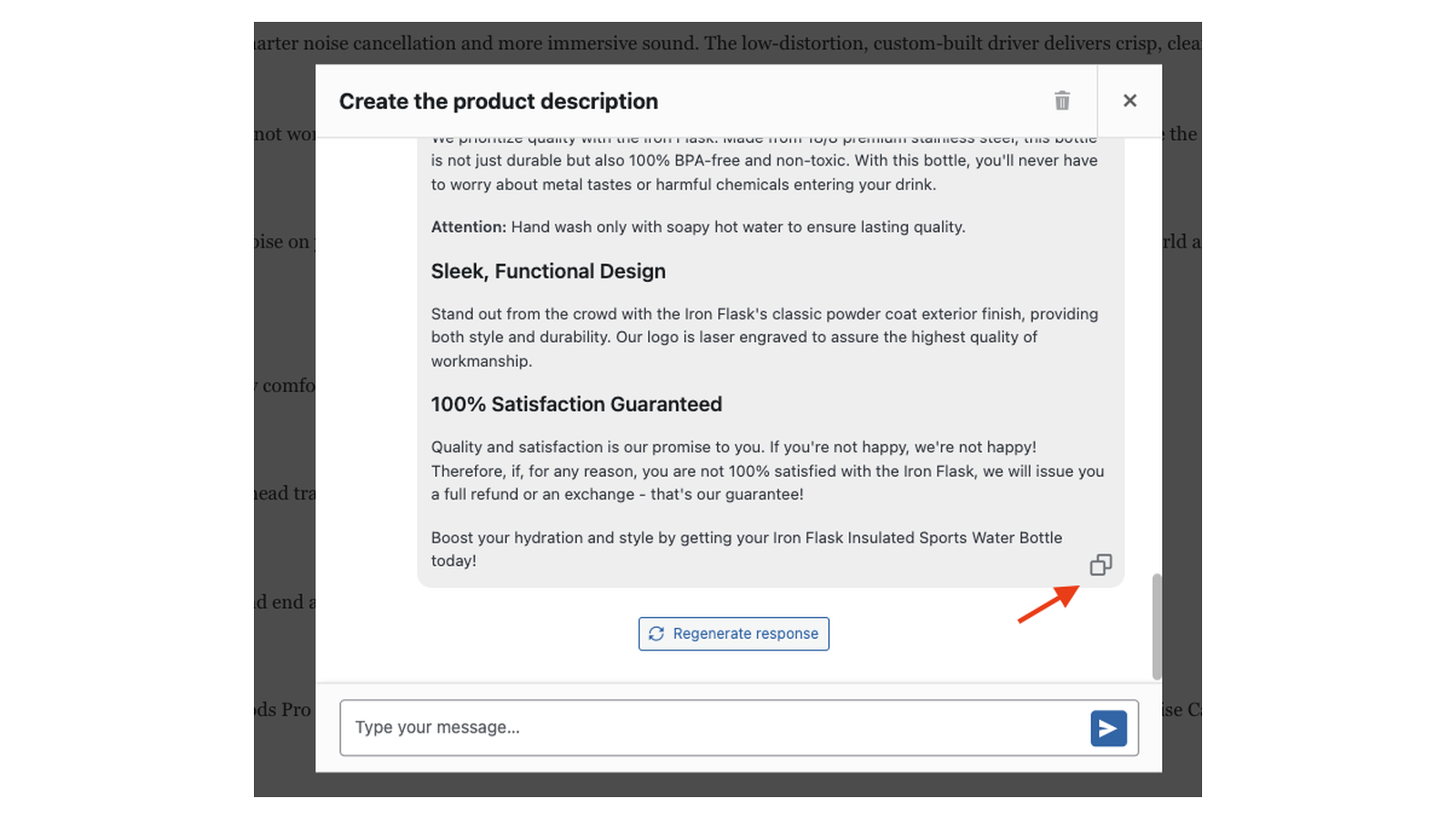
Click a response, or its Select response icon, to use it. You can pick any response in the conversation, not just the latest. Kestrel AI asks you to confirm with Apply response: click Accept to add the response to the end of the field. It doesn’t replace what’s already there, so delete any text you no longer need.
Regenerate response
Asks OpenAI for a new version of the latest response, using the same prompt.
Delete conversation
Conversations are saved with the product or order, so reopening the panel picks up where you left off. Click the trash icon and confirm with Delete to clear the conversation and start again from the default prompt.
What’s sent to OpenAI and stored
- Sent to OpenAI: your prompt with its placeholders filled in, plus the conversation so far. For order notes that can include the customer’s name, billing and shipping addresses, the products and the order status. Requests go from your server to OpenAI using your API key, and OpenAI’s own terms apply to that data.
- Stored on your site: your API key and model choice, and each conversation, saved with its product or order.
- When you delete the plugin: your API key is removed. If your site’s
wp-config.phpsetsWC_REMOVE_ALL_DATAtotrue, its other settings are removed too. Saved conversations stay with your products and orders; delete them in the panel first if you don’t want to keep them.
Common issues
"Invalid API key."
OpenAI didn’t accept the key when you saved it. Copy the key again from your OpenAI account, with no spaces before or after it, and check that the key hasn’t been revoked. If the key is right, check that your server can reach api.openai.com.
The Default model setting doesn’t appear
Kestrel AI shows Default model only when your OpenAI account can use gpt-3.5-turbo or gpt-4. Check in your OpenAI account that the key can use one of those models, then click Save changes on the Open AI settings again to reload the list.
"Sorry, the AI service couldn’t complete this request. Please try again or shorten the source content."
OpenAI couldn’t complete the request. Work through these in order:
- Try again in a minute, in case OpenAI was busy or your account hit its rate limit.
- Shorten the prompt or the source text, such as a very long product description.
- Click the trash icon to delete the conversation and start a fresh one, since every message resends the whole conversation.
- Check that your OpenAI account has credit or billing set up.
"You don’t have enough permissions to perform this action."
Your user role can’t manage WooCommerce, or the page was open so long that its security check expired. Reload the page and try again, or ask an administrator to use Kestrel AI.
The Kestrel AI icon doesn’t show on the product screen
You’re using WooCommerce’s block-based product editor. Kestrel AI only adds its icon to the classic product editor.
The response ignores my latest changes to the description
{product_description} uses the saved description. Save the product, then send the prompt again.
FAQ
Do I need my own OpenAI account?
Yes. Kestrel AI connects with your OpenAI API key, and OpenAI bills the usage to your account. The plugin price doesn’t include any OpenAI usage.
Which AI providers and models can I use?
OpenAI only, with gpt-3.5-turbo or gpt-4.
Can other staff see my conversations?
Yes. A conversation is saved with its product or order, so anyone who can use Kestrel AI and opens the same panel sees it.
Keep learning
- How to install and update WooCommerce extensions (installing, updating and fixing upload errors)
- Changing text in a plugin (changing the default prompts and other wording)