


Price and Stock Import updates the stock, regular price and sale price of your existing products and variations from a spreadsheet. You export a CSV, change the numbers in any spreadsheet app, preview the changes, and import the file back.

It only changes those three values. It doesn’t create products or change titles, descriptions, SKUs or any other field, and it has no scheduled imports.
When you’d use this
- Reprice your catalog, or part of it, from a supplier’s price list.
- Update stock counts after a stocktake.
- Start or end a sale across many products at once.
- Hand price and stock updates to someone who’s comfortable in a spreadsheet but not in the product editor.
Requirements
- WordPress 6.3 or later, WooCommerce 8.5 or later, and PHP 7.4 or later.
- Compatible with WooCommerce’s cart and checkout blocks and High-Performance Order Storage. The plugin adds nothing to your storefront.
- Store administrators and shop managers can use it.
- The Query Monitor plugin must be turned off while you use the tool (see Common issues).
Install and activate
How you get updates depends on where you bought Price and Stock Import:
- Bought on kestrelwp.com: download the plugin from the Licensed downloads tab of your kestrelwp.com account and install it. Then, as an administrator, go to Settings » Price and Stock Import activation and activate the license key from your License keys tab to receive updates. See using sites against your activation limit for how activations count.
- Bought on WooCommerce.com: install the plugin from your WooCommerce.com account. Updates come through your WooCommerce.com connection, with no license key to enter.
For upload, FTP and update steps, follow how to install and update WooCommerce extensions.
Update prices and stock
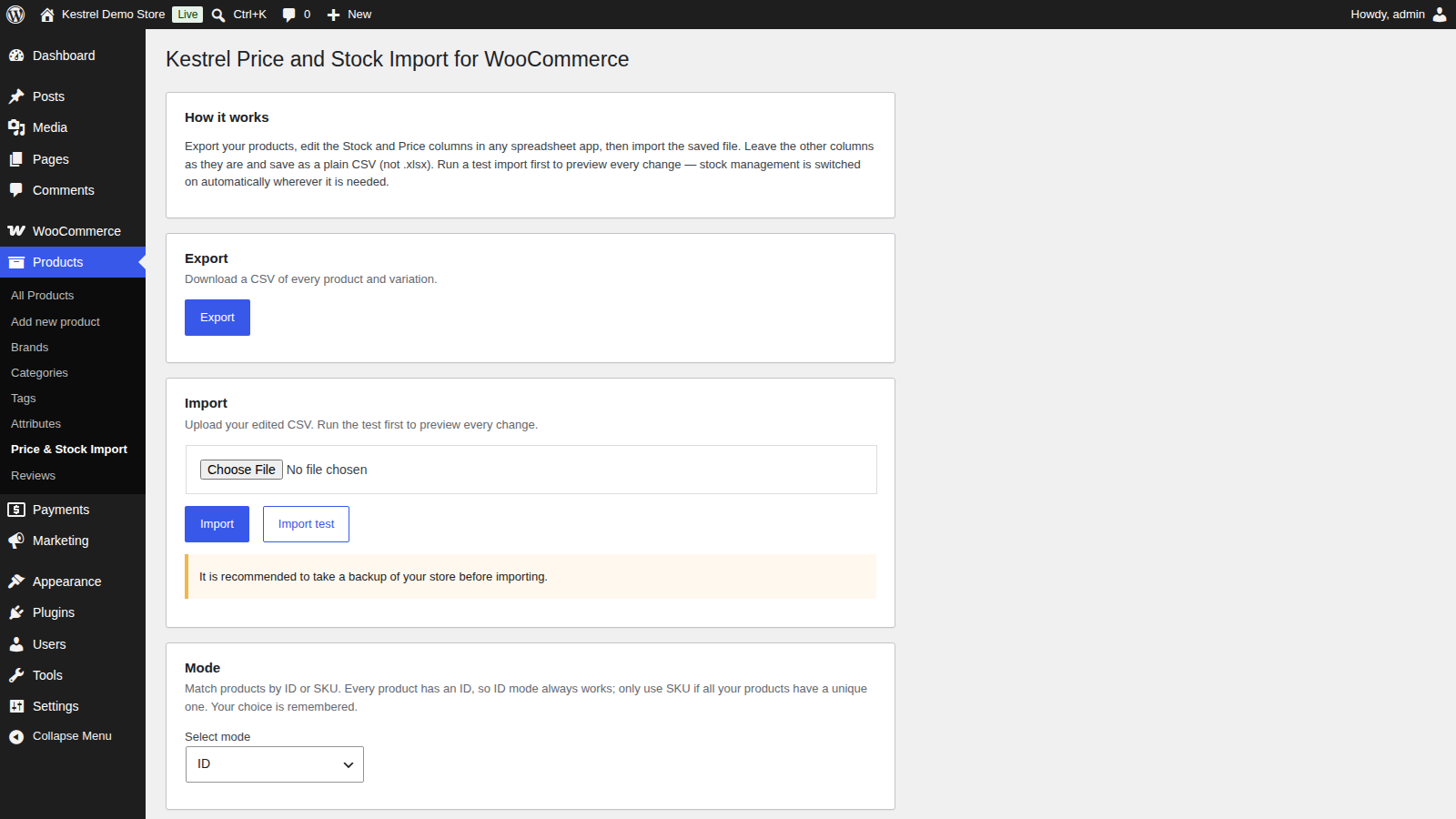
Go to Products » Price & Stock Import. The screen has four cards: How it works, Export, Import and Mode.
1. Choose how products are matched
In the Mode card, Select mode is ID unless you’ve changed it. Leave it on ID unless every product and variation in your store has its own unique SKU and you’d rather work with SKUs, in which case pick SKU (Not recommended). The choice saves as soon as you change it.
Keep the same mode from export to import: the first column of the file holds whatever the mode was when you exported.
2. Export your products
In the Export card, click Export. Your browser downloads a file named like price_stock_2026_10_01_143000.csv (the time is in UTC), with one row per product and variation. See What’s in the export for which products it includes.
3. Edit the file
Open the file in your spreadsheet app and change the Stock, Price regular and Price sale cells you want to update. Then:
- Keep the columns in their original order, and keep the heading row as the first row.
- Delete the rows you haven’t changed if you like. A smaller file imports faster.
- Save it as a plain CSV, not as an Excel (.xlsx) workbook.
How each column is imported explains what an empty cell does in each column.

4. Run an import test
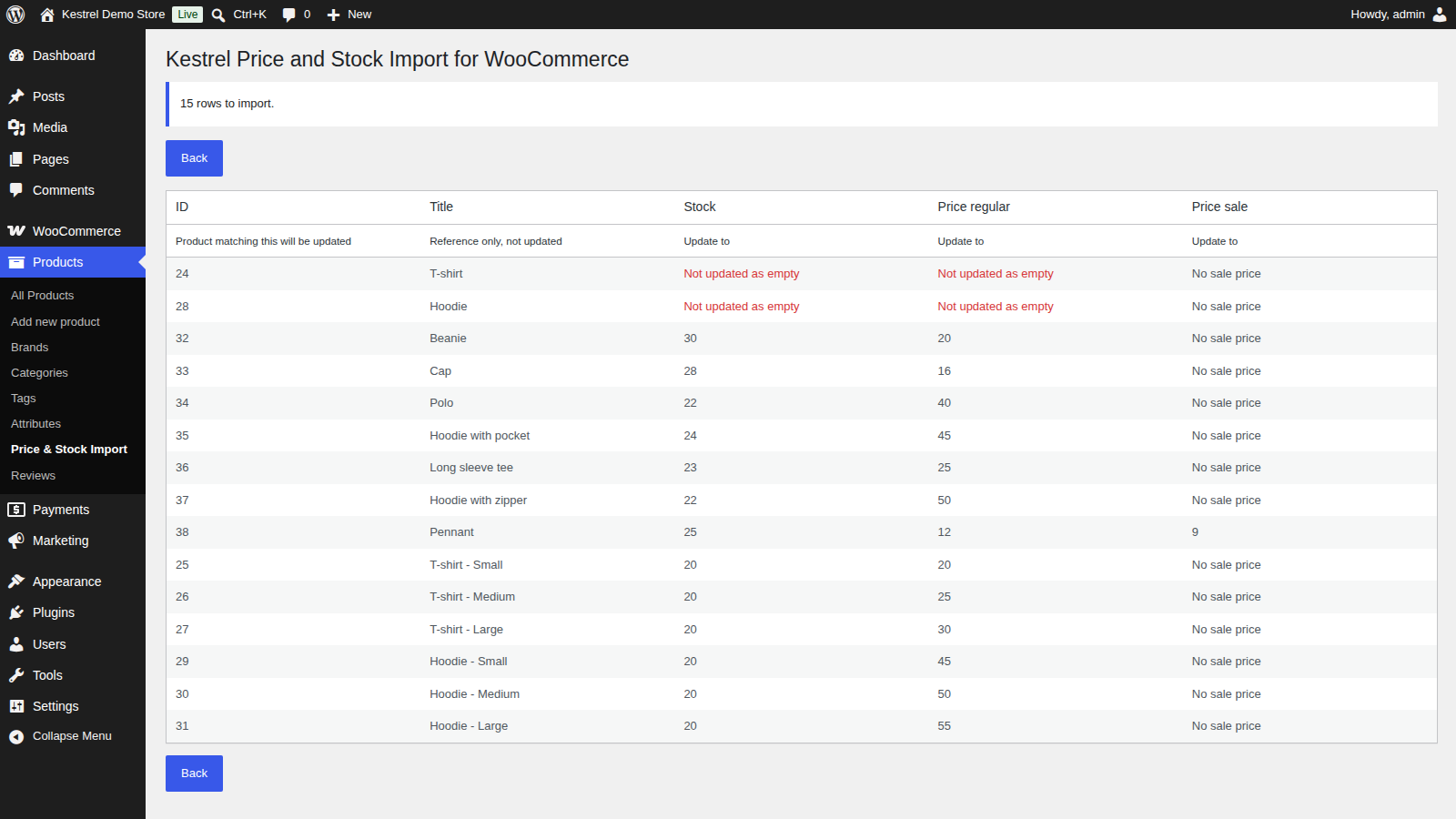
In the Import card, choose your file and click Import test. Nothing is saved. The test lists every row it read ("<number> rows to import.") with what each cell will do:
- A value under Stock, Price regular or Price sale is what the product will be updated to.
- "Not updated as empty" means the cell is empty, so that value stays as it is.
- "Not updated as column missing" means the row has no cell in that column.
- "No sale price" means the sale price cell is empty, so the product’s sale price will be removed.
The test shows each cell exactly as it is in your file, so check that every stock and price cell is a plain number before you import.
5. Import the file
Click Back to return to the import screen. Your browser usually keeps the file chosen; if it doesn’t, choose it again. Then click Import and confirm. Take a backup of your store first, as the screen recommends.
The import runs in batches and shows its progress. Keep the browser tab open until it finishes: closing it stops the import. To stop it yourself, click Cancel import. Rows already processed keep their changes.
6. Check the results
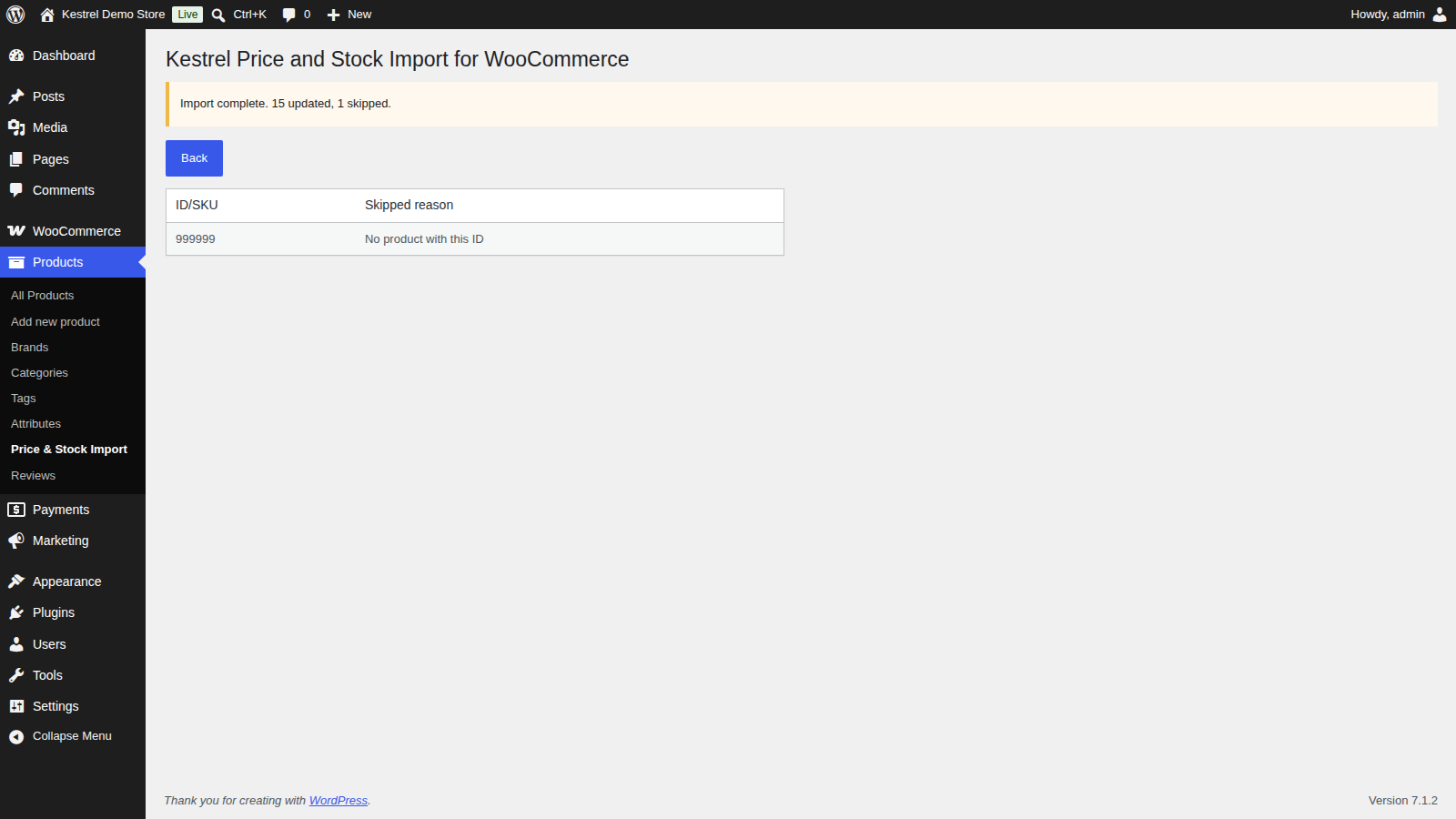
When it’s done, the screen shows "Import complete." with the number of rows updated and skipped. Skipped rows are listed with their ID/SKU and Skipped reason:
- No ID/SKU in row: the first cell is empty.
- No product with this ID or No product with this SKU: nothing in your store matches the first cell in the current mode.
Open one or two of the products you changed to confirm their stock and prices.
How each column is imported
The importer reads columns by their position, not by their headings, and it always skips the first row as the heading row. The columns are:
- ID or SKU: matches the row to a product or variation, depending on the mode.
- Title: for your reference only. It’s never imported.
- Stock: a number sets the stock quantity and turns on stock management for that product or variation. An empty cell leaves stock as it is. Stock is saved as a whole number.
- Price regular: a number sets the regular price. An empty cell leaves it as it is. On WooCommerce Subscriptions products (simple and variable subscriptions), the subscription price is set to match.
- Price sale: always applied when the column is there, so an empty cell removes the product’s sale price. To leave every sale price alone, delete this whole column (it’s the last one) before you import.
A 0 is a real value: it sets stock or a price to zero.
Enter stock and prices as plain numbers, the way the export shows them, without currency symbols or other text. A stock cell holding text is saved as 0, and a price cell with no digits in it empties that price, so check the import test before you import.
WooCommerce only shows a product as on sale when its sale price is lower than its regular price. A sale price at or above the regular price is saved, but the product sells at its regular price.
Stock management turns on for the whole store
Every import turns on WooCommerce’s Manage stock setting (WooCommerce » Settings » Products » Inventory), even when the file has no stock values. Stock management on each product is only turned on for rows with a stock value.
Variable products
Variable products have a row of their own plus a row for each variation. Change prices on the variation rows: shoppers pay the variation’s price. A stock value on the variable product’s own row turns on stock management for the product as a whole, which WooCommerce then applies to any variation that doesn’t manage its own stock.
What’s in the export
The export has one row for every product and variation in your store, whatever its status: published, draft, private, pending, and in the trash. Rows you import update those products too, so delete the rows you don’t want to touch.
Values are exported exactly as WooCommerce stores them. A product with no stock quantity or no sale price has an empty cell.
In SKU mode, a product or variation without a SKU of its own has an empty first cell. Variations that show their parent product’s SKU don’t have one of their own, so their rows are skipped on import as "No ID/SKU in row". Use ID mode for those.
Common issues
"Kestrel Price and Stock Import for WooCommerce cannot be used while Query Monitor is activated"
The full message continues: "as it causes issues with exported CSV data, to use this extension please deactivate Query Monitor temporarily." Deactivate Query Monitor under Plugins while you export and import, then activate it again.
"Please upload a valid .csv file (maximum 10 MB)."
The file isn’t a .csv file, or it’s larger than 10 MB. Save it from your spreadsheet app as CSV. For a large catalog, delete the rows you haven’t changed, or split the file and import each part.
"There was an error importing, check data within CSV. Error returned:"
The import stopped before changing any products. This happens when a cell in any column, including Title, holds a line break, a tab or a backslash (\). Remove those characters, or clear the Title cells (they’re never imported, but keep the column so the others stay in position), and import again.
If the error appears partway through a long import, the rows before it were already saved. Check the products, then import the remaining rows.
The first product in my file wasn’t updated
The first row is always treated as the heading row. If you deleted the headings, your first product is skipped. Put a heading row back at the top.
Sale prices disappeared after an import
An empty Price sale cell removes the sale price. Put the sale prices back in the file and import again. Next time, delete the Price sale column if you don’t want to change sale prices.
Stock went to 0 or a regular price is empty
The cell held text, such as "ten" or "N/A", instead of a number. Correct the cell and import that row again. The import test shows these cells as they are in the file, so check it before importing.
Rows are skipped with "No product with this ID" or "No product with this SKU"
The file was exported in a different mode from the one set now, a column was moved so the ID or SKU is no longer first, or the product was deleted. Check Select mode, then export a fresh file.
Manage stock turned on in my WooCommerce settings
Every import turns on Manage stock under WooCommerce » Settings » Products » Inventory. Products without stock values in the file aren’t changed. If you don’t track stock, turn the setting off again after importing.
The import stopped partway
The browser tab was closed or lost its connection. Rows already processed were saved. Delete them from the file and import the rest.
I can’t open my file in the importer
The importer reads CSV files only. In Excel, Numbers or Google Sheets, save or download the sheet as CSV (comma-separated values).
Keep learning
- How to install and update WooCommerce extensions (installing, updating and fixing upload errors)
- Using sites against your activation limit (how license activations count)