


Sale Flash Pro replaces WooCommerce’s plain "Sale!" badge with the size of the discount: a percentage such as "25% off!" or an amount such as "$10.00 off!". Variable and grouped products can show their biggest discount as "up to 25% off!", and you can choose percent or amount for each product.


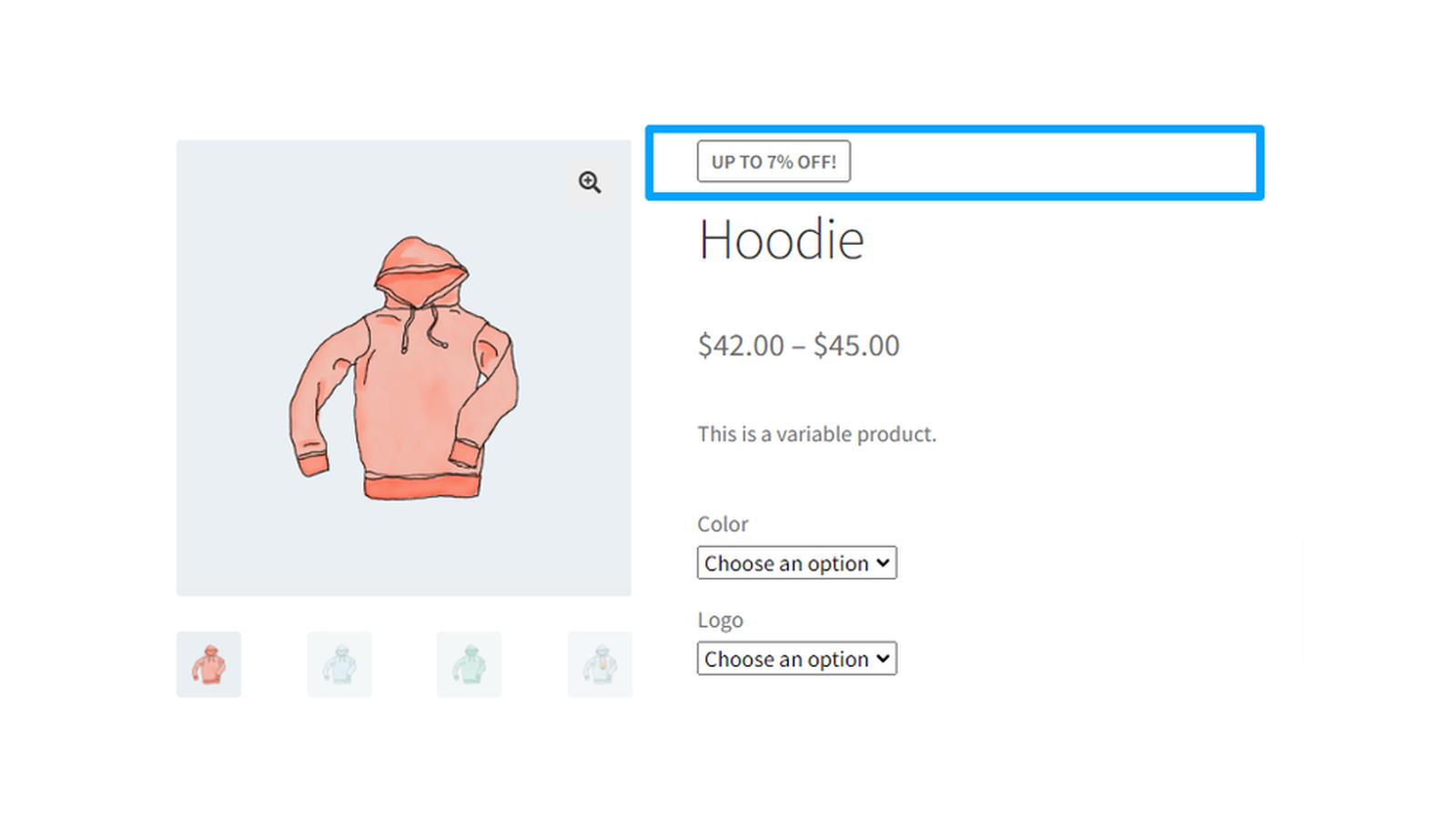
Sale Flash Pro rewrites the text of WooCommerce’s own sale badge. It doesn’t design badges or add color and text settings: the badge keeps your theme’s sale badge styling, and you change its wording with a translation plugin. For badges you design yourself, see Product Badges.
When you’d use this
- Show shoppers how much they save instead of a plain "Sale!".
- Show the best discount on a variable product, such as "up to 40% off!".
- Show an amount off on low-priced products and a percentage on the rest.
Requirements
- WordPress 6.3 or later, WooCommerce 8.2 or later, and PHP 7.4 or later.
- Compatible with WooCommerce’s cart and checkout blocks and High-Performance Order Storage.
- Your shop, category and product pages show WooCommerce’s standard sale badge, as classic themes and WooCommerce’s product shortcodes do. Listings built with WooCommerce’s product blocks, such as Product Collection, show the blocks’ own "Sale" badge, which Sale Flash Pro doesn’t change.
Install and activate
- Bought on kestrelwp.com: install the plugin by following how to install and update WooCommerce extensions.
- Bought on WooCommerce.com: install the plugin from your WooCommerce.com account. Updates come through your WooCommerce.com connection, with no license key to enter.
Set up Sale Flash Pro
1. Choose the badge style
Go to WooCommerce » Settings » General and scroll to the end of the Currency options section. Choose a Sale flash type. If you sell variable or grouped products, tick Enable for variations. Click Save changes.

2. Override it on a product (optional)
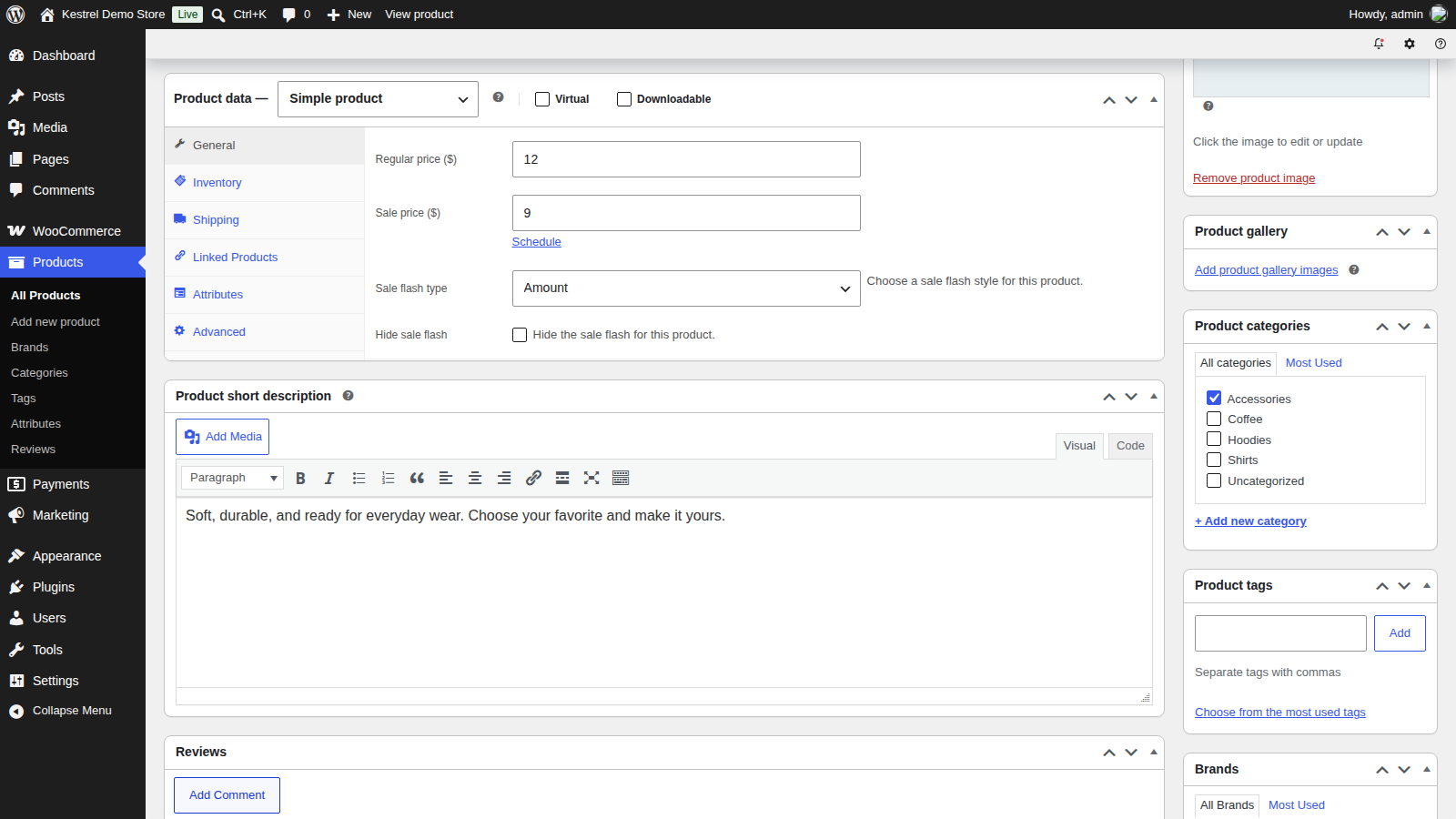
Edit a simple or external/affiliate product. In the Product data box, on the General tab, below the sale price, choose this product’s Sale flash type and click Update.
3. Check it
Open your shop page in a private browser window. A product with a regular and a sale price shows its discount in the sale badge, such as "25% off!".
How the badge is worked out
The badge compares each product’s regular price with its sale price:
- Percent divides the difference by the regular price and rounds to the nearest whole number: a $40.00 product on sale for $30.00 shows "25% off!".
- Amount shows the difference in your store’s currency format: the same product shows "$10.00 off!".
- A simple product needs both a regular and a sale price. Without a regular price it keeps WooCommerce’s "Sale!".
- With Enable for variations on, a variable product checks its in stock variations that have a sale price and shows the biggest discount, such as "up to 25% off!". Grouped products work the same way with their child products. Out of stock variations are skipped.
The badge keeps WooCommerce’s onsale class, so your theme styles it like any sale badge. It appears wherever WooCommerce’s standard sale badge does: shop and category pages, product pages, related products and product shortcodes.
Store-wide settings
On WooCommerce » Settings » General, at the end of the Currency options section. Updating from version 1.4.0 or earlier keeps your settings.
Sale flash type
Percent (e.g. "25% off!"), the default, or Amount, whose label shows an example in your store’s currency. Each product can override it.
Sale flash price
A checkbox labeled Show original price?, off by default. Ticking or unticking it doesn’t change how prices display: WooCommerce shows the regular price crossed out beside the sale price on shop, category and product pages either way. To hide the crossed out price in classic shop and category listings, add this custom CSS (see how to add custom CSS to your site):
ul.products li.product .price del {
  display: none;
}
Enable for variations
Off by default. Turn it on to show "up to" badges on variable and grouped products. While it’s off, those products keep WooCommerce’s "Sale!" badge.
Product settings
Simple and external/affiliate products have two extra fields in Product data » General, below the sale price. Variable and grouped products don’t show them and use the store-wide settings.
- Sale flash type: Default uses the store-wide setting; Percent or Amount sets this product’s badge.
- Hide sale flash: turns off Sale Flash Pro’s discount badge for this product, which then shows WooCommerce’s standard "Sale!" badge while it’s on sale. To hide the badge completely, add custom CSS with the product’s ID, which you’ll find by hovering over the product in Products » All Products. For product ID 123, replace 123 with your product’s ID:
li.post-123 .onsale,
.post-123 > .onsale,
.postid-123 .wp-block-woocommerce-product-image-gallery .onsale {
  display: none;
}
This CSS hasn’t been tested on every theme, so check the product page after adding it.
Change the wording or style
There’s no setting for the badge text. To change it, translate Sale Flash Pro’s strings with a plugin such as Loco Translate (see changing text in a plugin). The text domain is woocommerce-sale-flash-pro, and the badge strings are:
%s%% off!for percent badges%s off!for amount badgesup to %s%% off!andup to %s off!for variable and grouped products
Keep %s where the number goes, and %% where the percent sign goes.
To restyle the badge, target the .onsale class with custom CSS. Use your browser’s inspector to check which selectors your theme uses. For example:
.onsale {
  font-size: 15px;
  border-radius: 30px;
}
Common issues
The badge still says "Sale!"
Check these in order:
- The product has both a regular and a sale price.
- For a variable or grouped product, Enable for variations is on, and at least one in stock variation or child product has a sale price.
- Hide sale flash isn’t ticked on the product.
- With Amount, the sale price is lower than the regular price.
- Your theme or page builder shows WooCommerce’s standard sale badge. Some themes draw their own sale label, which Sale Flash Pro can’t change.
Shop pages show "Sale" without the discount
Listings built with WooCommerce’s product blocks, such as Product Collection, show the blocks’ own "Sale" badge. Product pages and classic shop templates show Sale Flash Pro’s badge.
The regular price still shows crossed out
Sale flash price doesn’t change how prices display. Use the CSS under Sale flash price to hide the crossed out price in shop and category listings.
Hide sale flash shows "Sale!" instead of hiding the badge
Ticking Hide sale flash brings back WooCommerce’s standard badge. Use the CSS under Product settings to hide it.
The badge disappeared after installing Product Badges
Product Badges hides WooCommerce’s sale badge, including Sale Flash Pro’s text, unless its Keep WooCommerce sale badge setting is on. Turn that on (see Keep WooCommerce sale badge), or create a sale badge in Product Badges instead.
A variable product has no Sale flash type field
The per-product fields only appear on simple and external/affiliate products. Variable and grouped products use the store-wide settings.
Keep learning
- How to install and update WooCommerce extensions (installing, updating and fixing upload errors)
- Changing text in a plugin (rewording the badge)
- How to add custom CSS to your site (styling or hiding the badge)
- Get started with Product Badges (designed badges, countdowns and stock labels)