


Currency Converter adds a currency switcher to your store, so shoppers can see your prices in the currency they know. When a shopper picks a currency, the prices on the page change to estimates in that currency, using regularly refreshed exchange rates.
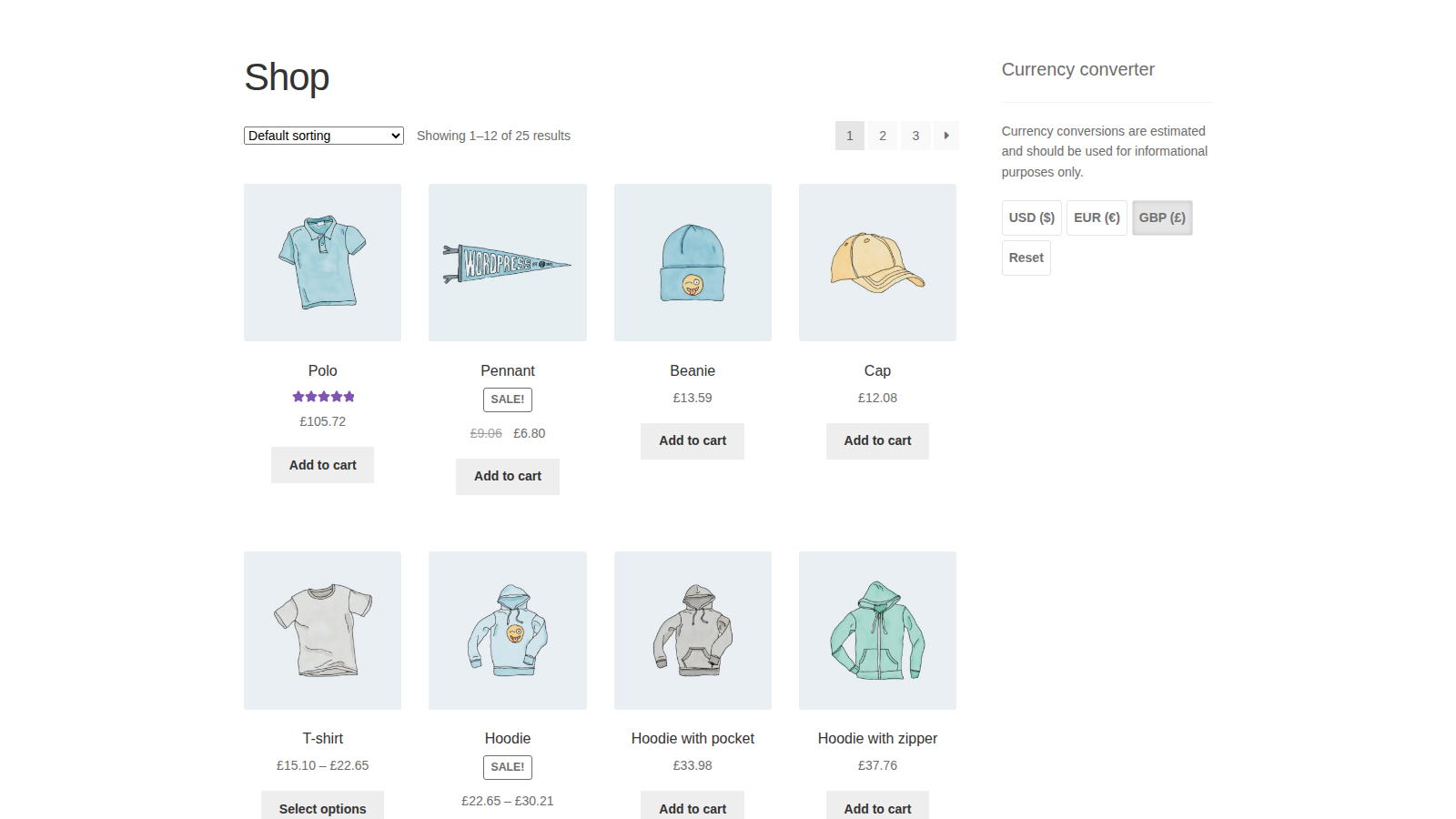
The conversion is for display only. Customers always pay in your store’s currency, and orders are placed in it.
When you’d use this
- Sell internationally and want visitors to see roughly what a product costs in their own currency.
- Show cart and checkout totals as estimates in the shopper’s currency before they pay.
- Start visitors in their local currency, based on where they are, when it’s one you offer.
Requirements
- WordPress 5.6 or later, WooCommerce 7.0 or later, and PHP 7.4 or later.
- Compatible with High-Performance Order Storage.
- The plugin doesn’t declare compatibility with WooCommerce’s cart and checkout blocks, but it converts the prices those blocks show.
- Your server must be able to reach the exchange rates service by hostname (see Exchange rates).
- Location detection uses WooCommerce’s geolocation, so set up WooCommerce » Settings » Integration » MaxMind Geolocation if you want it.
Install and activate
- Bought on kestrelwp.com: install the plugin by following how to install and update WooCommerce extensions.
- Bought on WooCommerce.com: install the plugin from your WooCommerce.com account. Updates come through your WooCommerce.com connection, with no license key to enter.
Currency Converter works as soon as it’s active: exchange rates come from Kestrel’s rates service by default, with no account or key needed.
Set up Currency Converter
1. Add the switcher
Use the widget if your theme has widget areas, or the shortcode anywhere else:
- Widget: go to Appearance » Widgets, add the WooCommerce Currency Converter widget to a widget area, and click Save or Update.
- Shortcode: add
[woocommerce_currency_converter currency_codes="USD, EUR, GBP"]to a page, a post, or a block theme template part such as the header. Block themes usually have no widget areas, so use the shortcode there.

2. Choose your currencies
In the widget’s Currency codes, enter the three-letter codes you want to offer, one per line. With the shortcode, list them in currency_codes, separated by commas.
Include your store’s own currency in the shortcode list. If you leave currency_codes out, the switcher offers only USD and EUR, and on a store that uses any other currency the converted prices come out wrong.
3. Put the switcher on your cart and checkout pages
Prices convert only on pages that show the switcher. If your widget area doesn’t appear on the cart and checkout pages, add the shortcode to those pages too, with the same currencies.
4. Check it
Open your shop in a private browser window, pick another currency in the switcher, and check that product prices change. Then add a product to the cart and check the cart and checkout totals.
How conversion works
When a shopper picks a currency, the switcher rewrites the prices on the page in their browser, without reloading it. It converts every price WooCommerce prints in its standard price format, including product and sale prices, shipping costs, and cart and checkout totals, on both the classic pages and the cart and checkout blocks. It converts again when the cart or checkout updates, such as after a coupon is applied.
- The shopper’s choice is saved in a cookie for seven days, so prices stay converted as they browse.
- Hovering over a converted price shows the original amount.
- Prices that a theme or another plugin prints in its own format, outside WooCommerce’s price markup, stay in your store currency.
- A currency WooCommerce has no symbol for shows its code after the amount, such as "12.50 XYZ".
Unless location detection is turned off, the switcher tries to start a first-time visitor in the currency of their country when that currency is in your list. Otherwise visitors start in your store currency. A currency the shopper picked themselves always takes priority.
Widget settings
Open the widget in Appearance » Widgets to change these.
Title
The heading above the switcher. Default "Currency converter".
Currency codes
The currencies the switcher offers, one code per line, USD and EUR by default. Your store currency is added to the front of the list if you leave it out.
By default, each converted price puts the symbol where your store’s Currency position setting puts it. Add * to a code to choose its position: SEK* shows 999kr, SEK * shows 999 kr, *SEK puts the symbol before the amount, and * SEK before it with a space.
Currency Display Mode
Buttons (the default) shows a row of currency buttons. Select Box shows a dropdown labeled "Choose a Currency".
Widget message
Text shown above the switcher. Default "Currency conversions are estimated and should be used for informational purposes only."
Show currency symbols
Shows each currency’s symbol next to its code, such as "EUR (€)". Off by default.
Show reset link
Adds a Reset link that puts prices back in your store currency and clears the shopper’s choice. Off by default.
Disable location detection and default to the store’s currency
Starts every new visitor in your store currency instead of trying their local currency. Off by default.
Shortcode attributes
[woocommerce_currency_converter] shows the same switcher as the widget and takes the same options:
currency_codes: the currencies to offer, separated by commas. Defaults to USD and EUR, so always set it, with your store currency included.currency_display: leave it out for buttons, or useselectfor a dropdown.message: text shown above the switcher. Empty by default.show_symbols:1shows symbols next to the codes. Default0.show_reset:1adds a Reset link. Default0.disable_location:1starts new visitors in your store currency. Default0.
For example:
[woocommerce_currency_converter currency_codes="AUD, USD, GBP, EUR" message="Prefer to see prices in another currency?" currency_display="select" show_symbols="1" show_reset="1"]In a theme template file, use <?php echo do_shortcode( '[woocommerce_currency_converter currency_codes="USD, EUR"]' ); ?>.
Exchange rates
By default, rates come from Kestrel’s exchange rates service and refresh every 12 hours, with nothing to set up. To use your own Open Exchange Rates account instead, go to WooCommerce » Settings » Integration » Open Exchange Rates.

App ID
Your Open Exchange Rates App ID. Currency Converter checks it when you click Save changes, and shows "Invalid App ID." if Open Exchange Rates doesn’t accept it. Clear the field and save to go back to Kestrel’s service.
Rates refresh period
How often rates are refreshed, in hours, from 1 to 24. Default 12. It appears once you’ve saved an App ID.
Rates are fetched in U.S. dollars and cached for the refresh period. Your server needs to reach ccw-rates.kestrelwp.io, or openexchangerates.org when you use an App ID. Allow them by hostname, not by IP address.
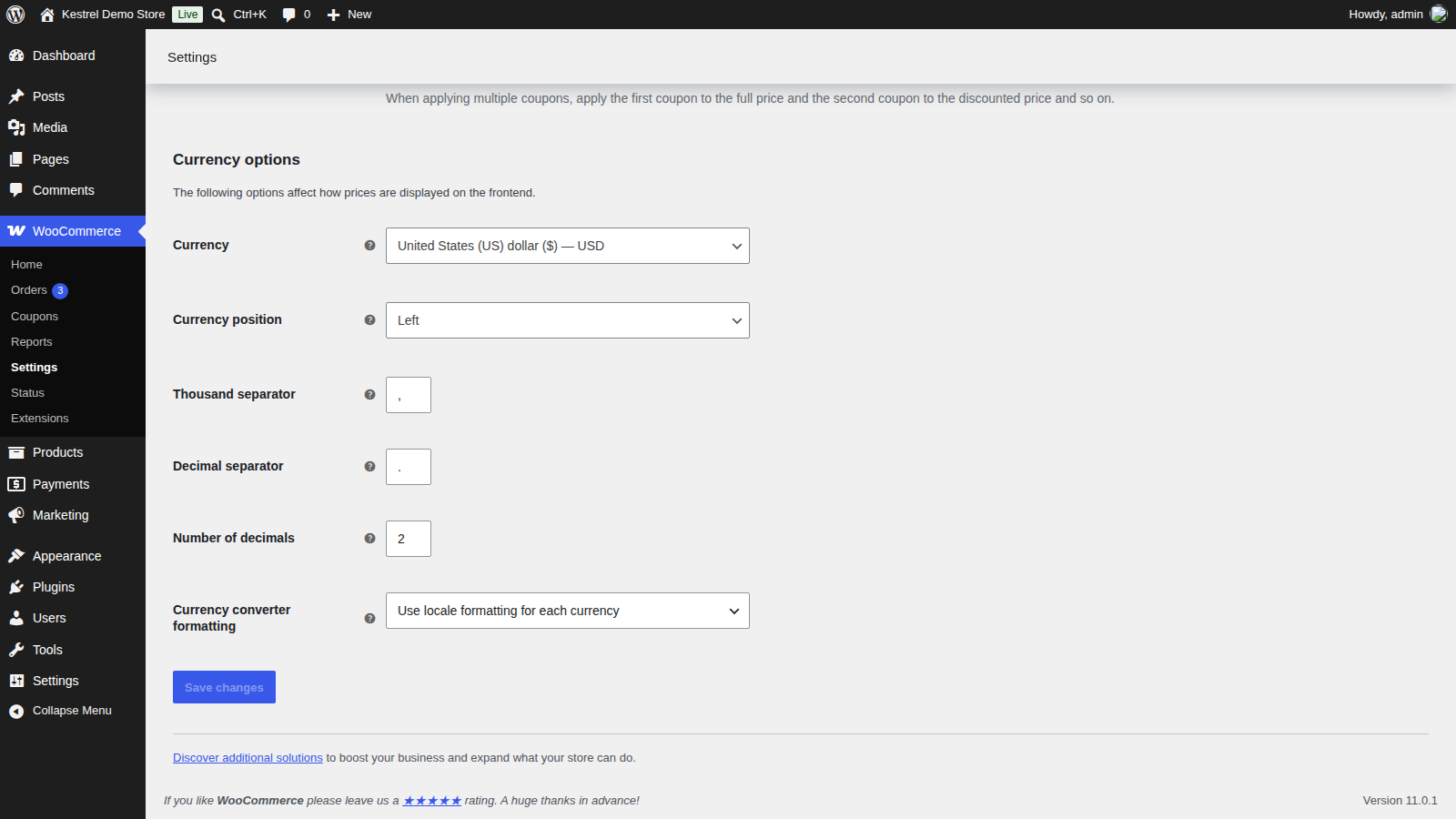
Currency converter formatting
Go to WooCommerce » Settings » General. The Currency converter formatting setting is the last field in the Currency options section:
- Use locale formatting for each currency (the default): each currency uses its own thousand and decimal separators, such as 1.234,56 for euros.
- Use store formatting for all currencies: every currency uses the separators set in your store’s Currency options.
Your store currency always uses your store’s formatting.
What customers see
Shoppers see the switcher as buttons or a dropdown, with your message above it. Picking a currency changes the prices on the page straight away, and the choice follows them to other pages that show the switcher. The Reset link, if you show it, puts everything back in your store currency.
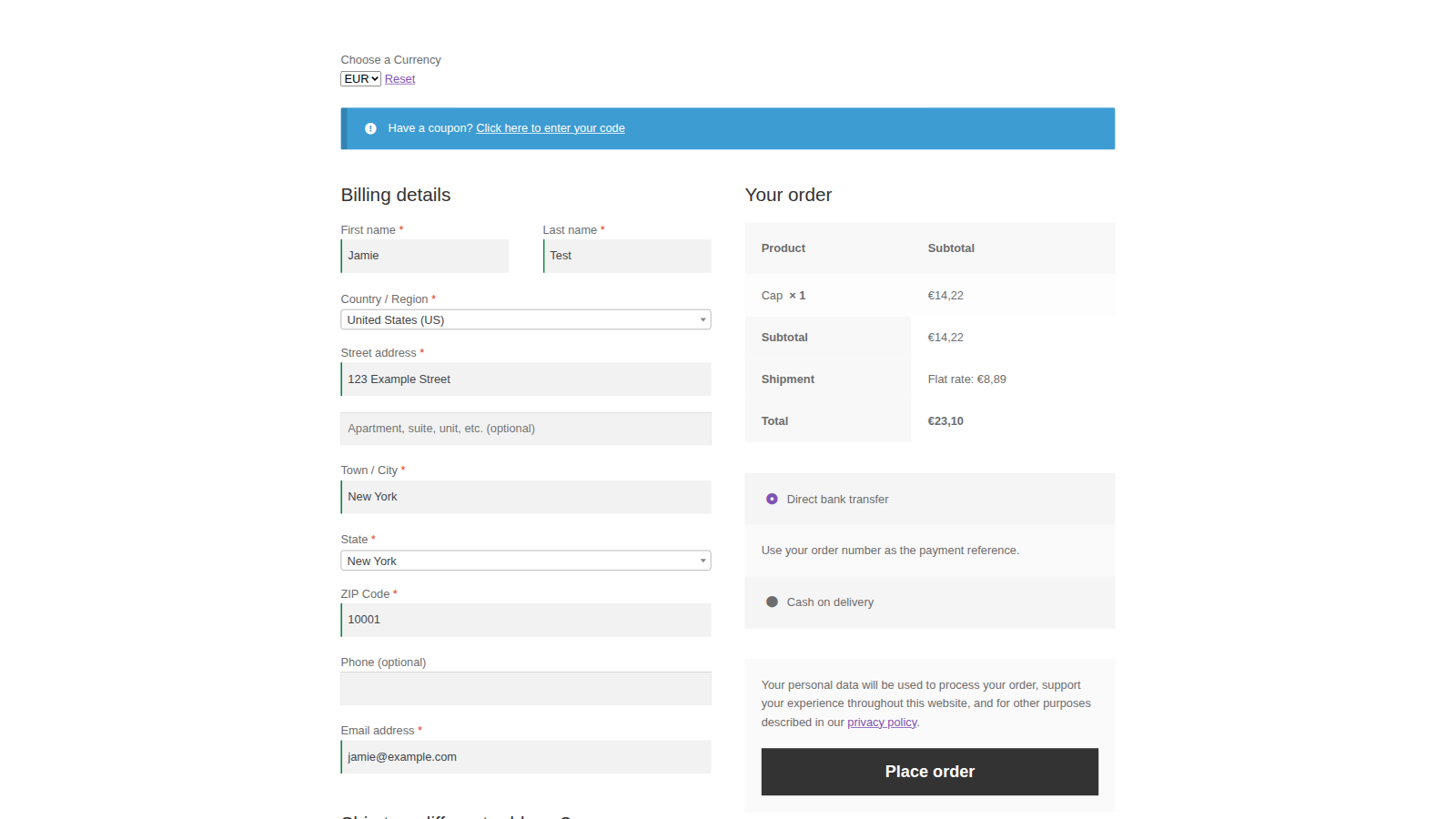
At checkout, they pay the amount in your store currency.
Orders placed in another currency
When a shopper places an order through the classic checkout while viewing another currency, the order records two custom fields: Viewed Currency (the currency they picked) and Converted Order Total (the estimated total in that currency, such as "112.45 EUR"). Find them under Custom Fields on the order screen. Orders placed through the checkout block don’t get these fields.
Privacy
Currency Converter stores the shopper’s currency choice in a cookie named woocommerce_current_currency. Apart from the two order fields above, it stores nothing about your customers. Your store, not the shopper’s browser, fetches exchange rates from the rates service. Suggested text for your privacy policy is under Settings » Privacy » Policy Guide.
When you delete the plugin, it removes your Open Exchange Rates App ID. Its other saved data is removed only if your site sets WooCommerce’s WC_REMOVE_ALL_DATA constant.
Common issues
Prices don’t change on the cart or checkout page
The switcher isn’t on that page, and prices only convert where it’s shown. Add the shortcode to your cart and checkout pages with the same currency_codes as your widget.
Converted prices are wrong for every currency
The shortcode doesn’t list your store currency, or has no currency_codes at all. Set currency_codes and include your store currency.
Prices don’t change for one currency
Check the code. It has to be a three-letter ISO currency code that the rates service supports, such as JPY. A code with no exchange rate keeps the original amount, shown with that currency’s symbol.
Prices show another currency’s symbol but the same amounts, or pages load slowly
Your server can’t reach the exchange rates service. Rates are cached only for the refresh period. Once that runs out, a failed fetch leaves no rates, so every currency converts at a rate of 1 and shoppers see your store amounts with the other currency’s symbol. Nothing is cached after a failure, so each page load tries again and can wait up to 60 seconds for the service.
To fix it, ask your host to allow outgoing requests to ccw-rates.kestrelwp.io, or openexchangerates.org if you’ve set an App ID, by hostname rather than IP address. If you use an App ID, check that it’s still active in your Open Exchange Rates account. Errors from the service are logged under WooCommerce » Status » Logs.
"Invalid App ID." when saving the settings
Open Exchange Rates didn’t accept the App ID. Check it for typos and that it’s active in your Open Exchange Rates account.
Visitors start in the store currency instead of their own
Check these in order:
- Disable location detection and default to the store’s currency is off in the widget, or
disable_locationisn’t1on the shortcode. - WooCommerce geolocation is set up under WooCommerce » Settings » Integration » MaxMind Geolocation. It doesn’t work on local development sites.
- The visitor’s currency is in your list.
- In the widget, each currency code is on its own line.
- The visitor hasn’t already picked a currency in the last seven days.
Shoppers can always pick their currency from the switcher.
A currency shows its code instead of a symbol
WooCommerce has no symbol for that currency. Add one with WooCommerce’s custom currency symbol snippet.
A price from another plugin doesn’t convert
The switcher only converts prices in WooCommerce’s standard price format. Prices another plugin or theme prints its own way stay in your store currency.
Customers were charged in my store currency
That’s expected: Currency Converter only changes how prices are displayed. Your payment gateway charges the order total in your store currency.
Keep learning
- How to install and update WooCommerce extensions (installing, updating and fixing upload errors)
- How to add custom CSS to your site (styling the switcher)
- Changing text in a plugin (editing the switcher’s labels)