


Freshdesk for WooCommerce sends support tickets from your store to your Freshdesk help desk. Customers open a ticket about an order from their account, you can open tickets from an order, a blog comment or a product review, and each order ticket carries the order’s details.
It works one way: tickets go from WooCommerce to Freshdesk. It doesn’t add order details inside Freshdesk’s agent view, and changes you make to a ticket in Freshdesk don’t come back to WooCommerce.
When you’d use this
- Let customers ask about an order from My Account without writing an email.
- Open a ticket about an odd order straight from the order screen.
- Turn a blog comment or a product review that’s really a support request into a ticket.
- Give each product its own category in your Freshdesk knowledge base.
Requirements
- WordPress 5.6 or later, WooCommerce 7.0 or later, and PHP 7.4 or later.
- Compatible with WooCommerce’s cart and checkout blocks and High-Performance Order Storage.
- A Freshdesk account and its API key.
Install and activate
- Bought on kestrelwp.com: install the plugin by following how to install and update WooCommerce extensions.
- Bought on WooCommerce.com: install the plugin from your WooCommerce.com account. Updates come through your WooCommerce.com connection, with no license key to enter.
Set up Freshdesk
1. Find your API key
In Freshdesk, open your profile from the top-right corner, go to Profile Settings, and copy your API key.
2. Enter your Freshdesk details
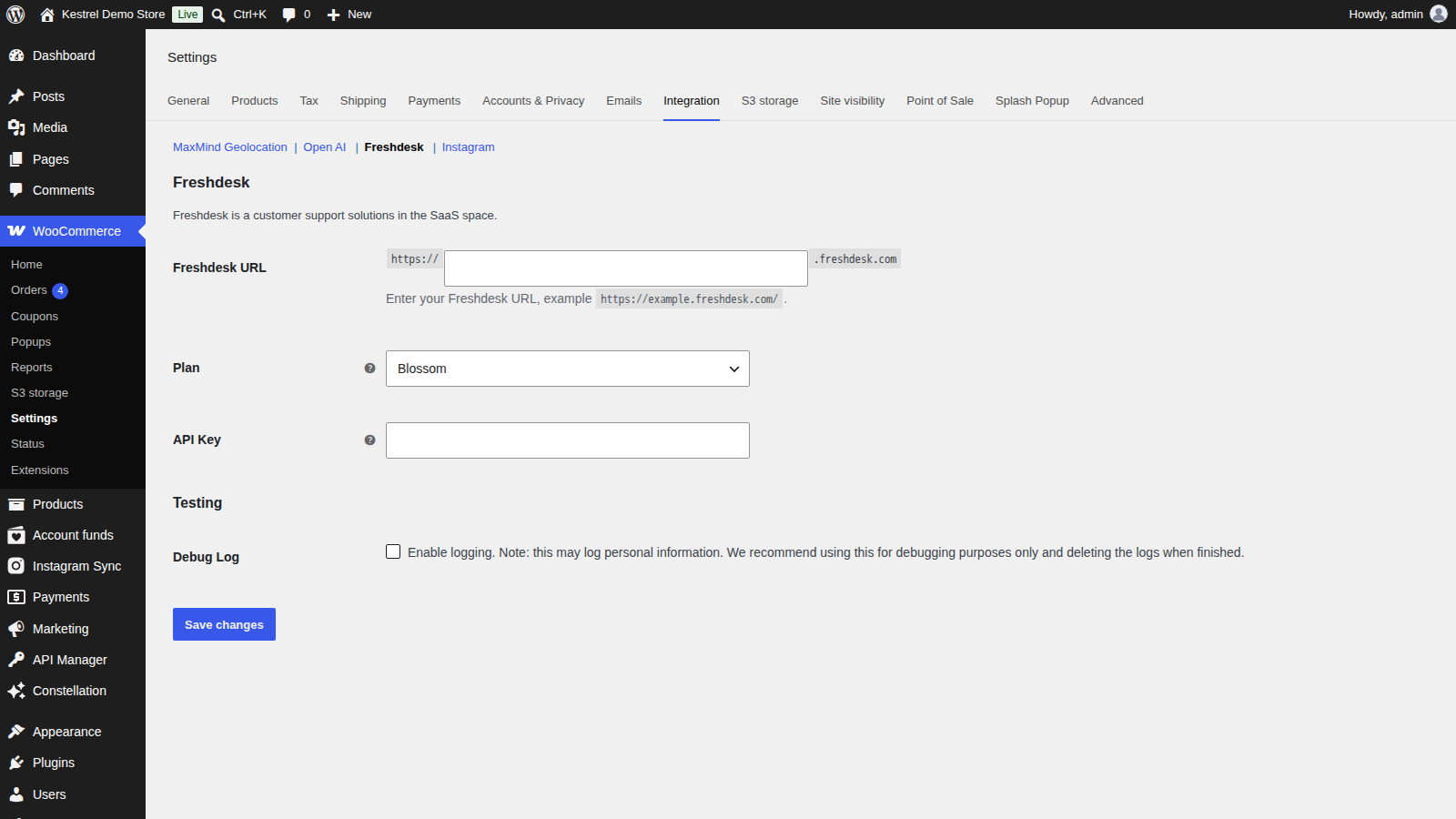
Go to WooCommerce » Settings » Integration » Freshdesk. In Freshdesk URL, enter only your help desk’s subdomain: for https://example.freshdesk.com, enter example. Choose your Plan, paste the API Key, and click Save changes.
3. Check it
Log in to your store as a customer with an order, open the order from My Account » Orders, and send a test request with the Need Help? form. The ticket should appear in Freshdesk with the order’s details under your message.
Settings
All on WooCommerce » Settings » Integration » Freshdesk.
Freshdesk URL
Your help desk’s subdomain, the part before .freshdesk.com. The field already shows https:// and .freshdesk.com around it, so don’t paste the full address.
Plan
Sprout (Free), Blossom, Garden, Estate or Forest, Sprout by default. Choose the plan your Freshdesk account is on. On Sprout (Free), the product tab hides the forum category option; everything else works the same on every choice.
API Key
The API key from your Freshdesk profile settings.
Debug Log
Writes Freshdesk requests and errors to WooCommerce » Status » Logs, under the freshdesk source. The log can contain customers’ personal details, so turn it off and delete the logs once you’re done troubleshooting.
Tickets from customers
The Need Help? form
Each order in My Account » Orders gets a Get Help button. It opens the order’s page, where a Need Help? form asks for a Subject and a Description. When the customer clicks Send, they see "Thank you for your contact, we will respond as soon as possible."

The ticket is created under the customer’s account email, with the subject "[their subject] – Order [number]". Below their message, the description lists the order number, date, items and totals.
My Support Tickets
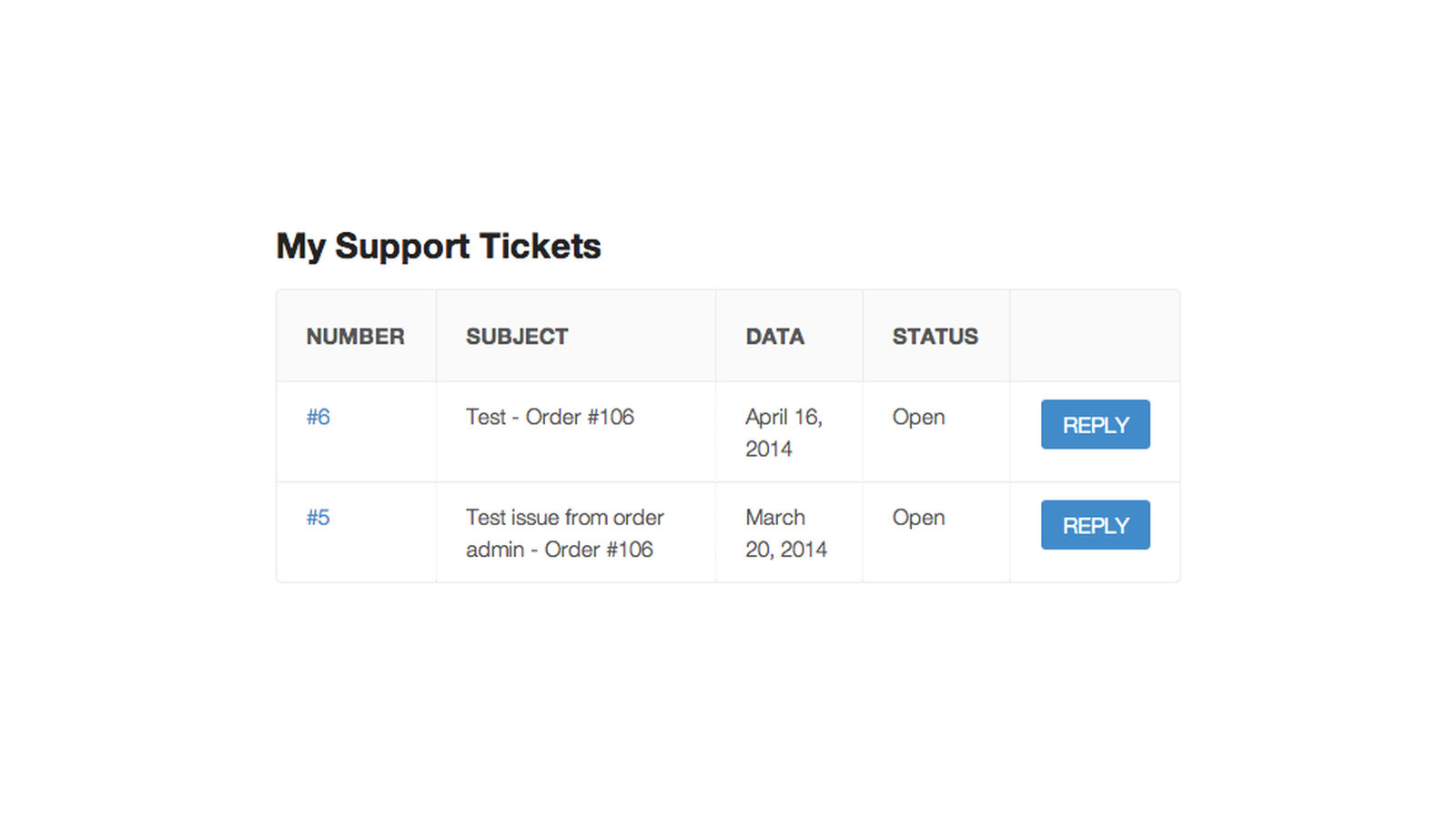
The My Account dashboard shows a My Support Tickets table of the customer’s Freshdesk tickets, found by their account email. It lists each ticket’s number, subject, last update and status (Open, Pending, Resolved or Closed), 30 to a page. Reply takes the customer to the ticket in Freshdesk. Customers with no tickets see "You have no support tickets."
Tickets from orders, comments and reviews
From an order
Edit the order and find the Report an issue box in the sidebar. Enter a Subject and Description and click Open ticket. The box shows "Ticket created successfully." with a View ticket. link, without reloading the page.

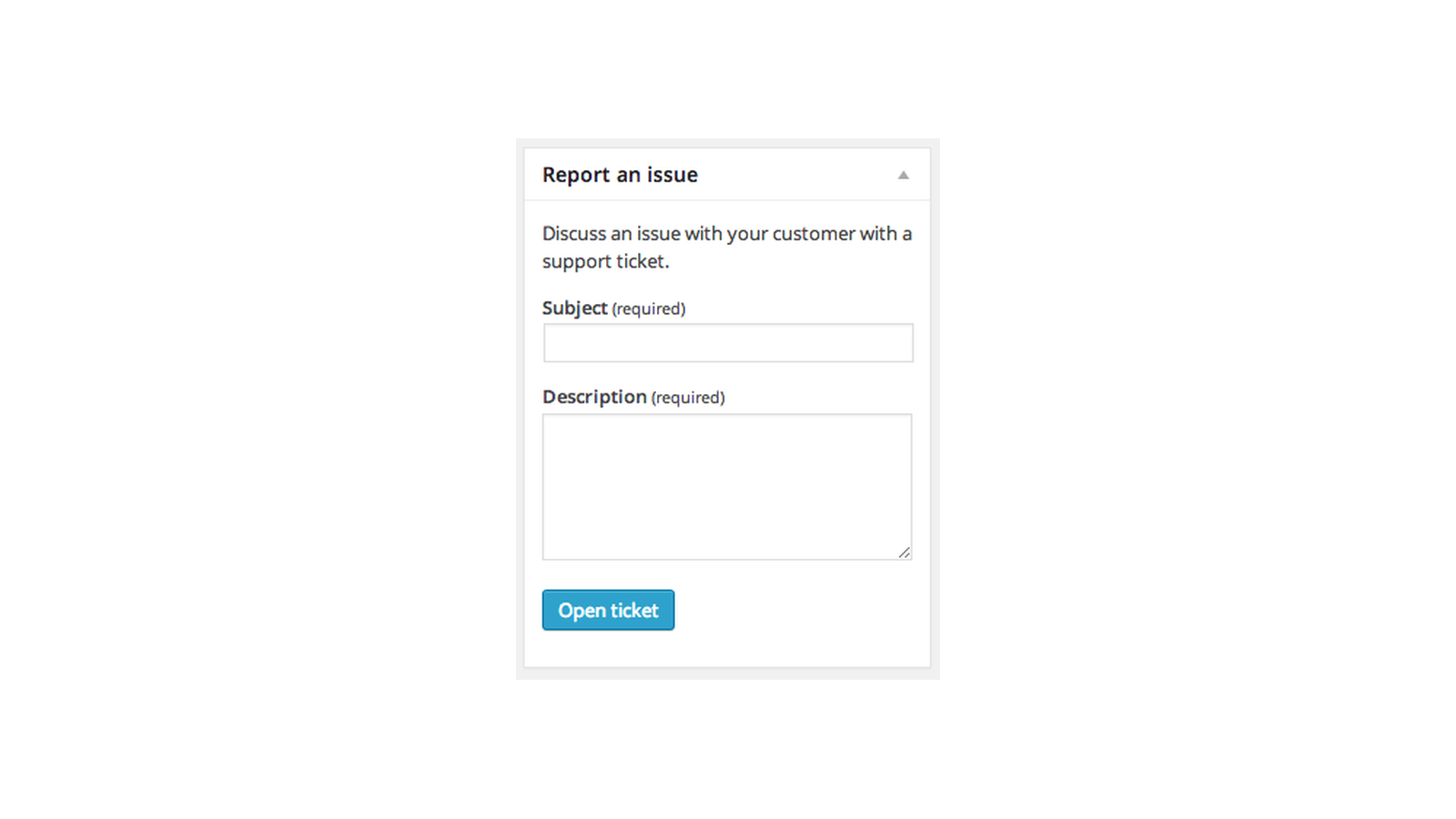
The ticket is created under your own email address (the account you’re logged in with), not the customer’s, with the order’s number, date, items and totals in its description. To reach the customer, copy the billing email from the WooCommerce order and add the customer to the ticket in Freshdesk.
From a comment or a review
On the Comments screen, or Products » Reviews for product reviews, click Convert to Ticket in the Actions column. The ticket is created under the commenter’s email, with the subject "Comment in [post or product] at [date]" and the comment as its description.
For a product review, if the reviewer has an order that includes that product, the ticket also gets the most recent such order’s number and details.
The comment needs an email address and some text. Otherwise you’ll see "This comment has not a valid email address." or "This review/comment is empty, needs some content to create the ticket!"
Ticket priority and status
Every ticket the plugin creates starts as Medium priority and Open status. These can’t be changed in the plugin, so change them in Freshdesk, by hand or with a Freshdesk automation.
Link products to Freshdesk categories
Edit a product and open the Freshdesk tab in Product data. It has a Solution Category section and, unless your Plan is Sprout (Free), a Forum Category section. Each works the same way.

- Create a category: in Add/get Category, choose Create. Check the Category Title (your product’s name by default) and Category Description, then click Update. The plugin creates the category in Freshdesk and shows its ID.
- Link an existing category: choose Synchronize, enter the Freshdesk category’s Category ID, and click Update. The plugin links it and copies its title and description into the tab.
- Change a linked category: edit Category Title or Category Description and click Update. The plugin updates the category in Freshdesk. Renaming the product doesn’t rename the category.
- Unlink it: tick Remove Relationship? and click Update. The category stays in Freshdesk.
Feedback form shortcode
[wc_freshdesk_form] embeds Freshdesk’s feedback form on any page, inside a frame. It needs Freshdesk URL to be set. These attributes are optional:
height: the form’s height,500pxby default.title: the form’s heading. Leave it out for Freshdesk’s own heading.submit_message: the message after the form is sent. Leave it out for Freshdesk’s own message.attach_file:no(the default) hides the file attachment field;yesleaves it to the form’s default.search_area:no(the default) hides the article search;yesleaves it to the form’s default.
[wc_freshdesk_form title="Contact support" submit_message="Thanks, we'll be in touch." attach_file="yes" search_area="yes"]The plugin doesn’t add Freshdesk’s floating help widget. To use it, add Freshdesk’s own embed code to your site alongside the plugin.
Common issues
Tickets aren’t created
The customer sees "There was an error in the request, please try again or contact us for assistance.", or the order screen shows "Failed to create the ticket, please try again." Check that Freshdesk URL holds only the subdomain, not https:// or .freshdesk.com, and that the API Key is current. Then turn on Debug Log, try again, and read the freshdesk log under WooCommerce » Status » Logs for Freshdesk’s response.
The order screen ticket went to me instead of the customer
Tickets from the Report an issue box are created under the email of the person logged in. To reach the customer, copy the billing email from the WooCommerce order and add the customer to the ticket in Freshdesk.
A product category wasn’t created or linked
The product screen doesn’t show Freshdesk errors. Make sure Category Title isn’t empty, and for Synchronize that you entered a Category ID that exists in Freshdesk. For the exact error, turn on Debug Log, click Update again, and check the freshdesk log.
The Forum Category section is missing
Plan is set to Sprout (Free). Choose the plan your Freshdesk account is on.
Convert to Ticket shows an error
"This comment has not a valid email address." means the commenter left no valid email, and "This review/comment is empty, needs some content to create the ticket!" means it has no text. Reply to those in WordPress instead.
The feedback form shows "You must set the Freshdesk URL in the integration settings!"
Enter your subdomain in Freshdesk URL and save.
A customer’s tickets don’t show in My Support Tickets
The table finds tickets by the email on the customer’s store account. Tickets opened in Freshdesk under a different email don’t appear.
Order details don’t show in Freshdesk’s ticket view
The plugin only writes the order’s details into the ticket’s description when it’s created. It doesn’t add an order panel to Freshdesk or update tickets later.
Single sign-on isn’t in the settings
Single sign-on isn’t available for new setups. Stores that set it up in older versions keep using it.
Keep learning
- How to install and update WooCommerce extensions (installing, updating and fixing upload errors)
- Changing text in a plugin (editing the form’s labels and messages)
- How to add custom CSS to your site (styling the tickets table and form)