


Product Price Before and After Text adds short text next to your product prices, such as "From" before the price or "incl. VAT" and "per kg" after it. Set the text once for your whole store, for a product category, or on a single product, and the most specific text wins.
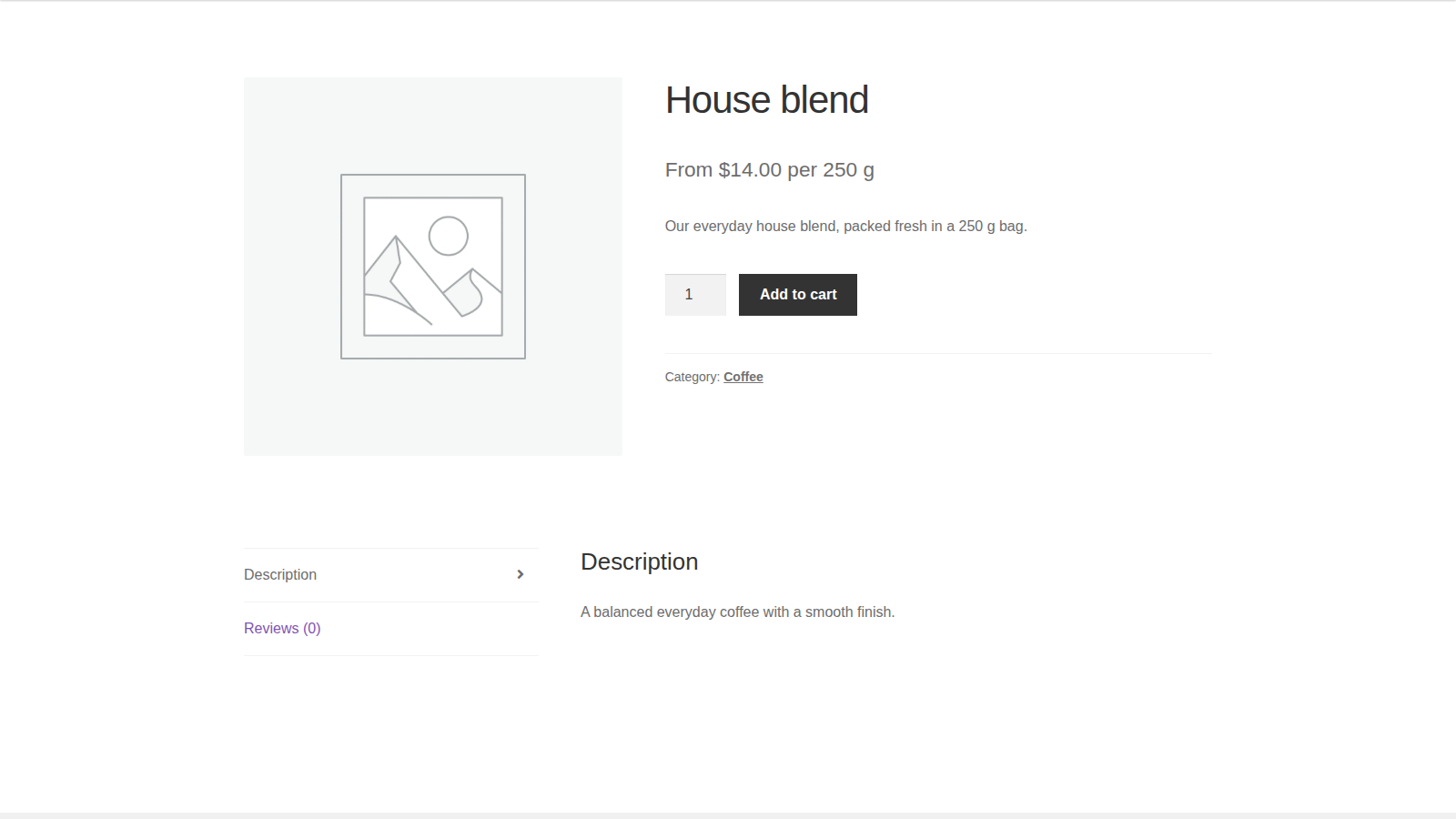
The text sits beside the price WooCommerce shows. It doesn’t change any price or total, it’s the same for every shopper, and it doesn’t appear in the cart, at checkout or in order emails.
When you’d use this
- Add tax wording such as "incl. VAT" or "plus tax" to every price in your store.
- Show a unit such as "per kg" or "per meter" for one category.
- Put "Starting at" or "From" before the price of a product that’s made to order.
- Add a note such as "+ delivery" to bulky products.
Requirements
- WordPress 6.3 or later, WooCommerce 8.5 or later, and PHP 7.4 or later.
- Compatible with WooCommerce’s cart and checkout blocks and High-Performance Order Storage.
Install and activate
How you get updates depends on where you bought Product Price Before and After Text:
- Bought on kestrelwp.com: download the plugin from the Licensed downloads tab of your kestrelwp.com account and install it. Then go to Settings » Product Price Before and After Text activation, enter the license key from your License keys tab and activate it to receive updates. See using sites against your activation limit for how activations count.
- Bought on WooCommerce.com: install the plugin from your WooCommerce.com account. Updates come through your WooCommerce.com connection, with no license key to enter.
For upload, FTP and update steps, follow how to install and update WooCommerce extensions.
Set up your price text
Use whichever of the first three steps you need. Each one is optional.
1. Set text for the whole store
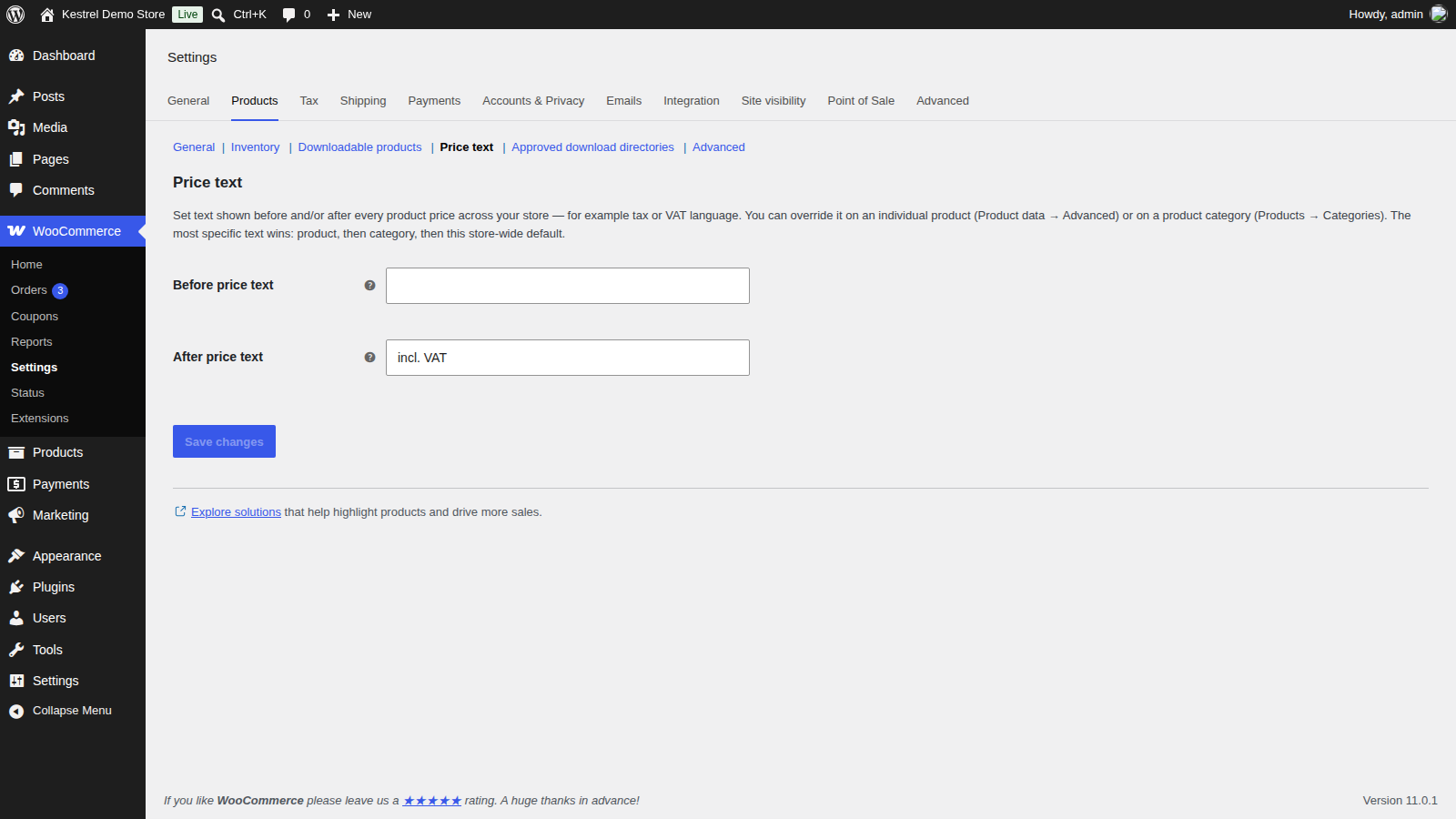
Go to WooCommerce » Settings » Products » Price text. Fill in Before price text, After price text or both, and click Save changes. Every product price shows this text unless a category or product has its own.
2. Set text for a category
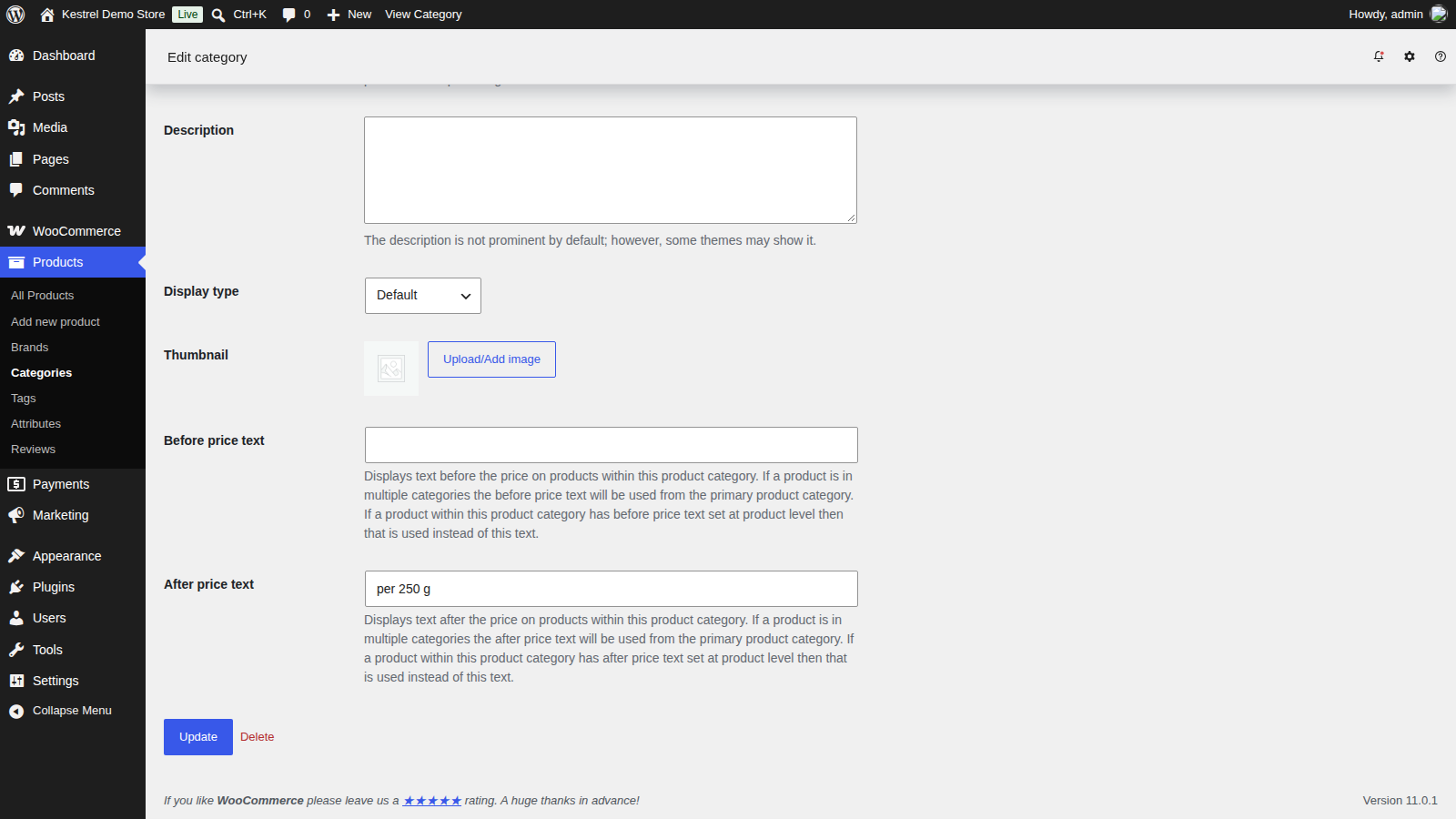
Go to Products » Categories and edit a category, or add a new one. Fill in Before price text and After price text, then click Update (or Add new category). The text applies to every product in the category that has no text of its own.
3. Set text for one product
Edit the product and open the Advanced tab in the Product data box. Fill in Before price text and After price text, then click Update.

4. Check it
Open the product’s page and your shop page in a private browser window. The text appears before and after the product’s price.
How the text is chosen
The before text and the after text are chosen separately, so a product can take its before text from one level and its after text from another. For each one, the most specific text wins:
- The product’s own text.
- Its category’s text.
- The store-wide text.
An empty field means "use the next level", so there’s no way to blank out category or store-wide text on a single product.
When a product is in more than one category, the plugin first checks the primary category you set with Yoast SEO’s Make primary option on the product. If there’s no primary category, or it has no text, it uses the first of the product’s other categories that has text. To control the text on a product in several categories, give it a primary category or its own text.
Where the text appears
The text is added wherever your store shows a product’s price through WooCommerce’s standard price display: shop, category and search pages, product pages, related products, and WooCommerce blocks that show product prices. It isn’t added:
- In your WordPress admin, such as the product list.
- In the cart, at checkout, or in orders and emails, which show line prices and totals rather than the product’s price display.
- To a product that shows no price, such as a variable product with no variations for sale.
- Where a theme or plugin prints a price its own way instead of using WooCommerce’s price display.
Settings
The same two fields appear in three places: WooCommerce » Settings » Products » Price text (store-wide), the category add and edit screens (one category), and the Advanced tab of Product data (one product).
Before price text
Text shown before the price, separated from it by a space. Plain text only: any HTML is removed when you save.
After price text
Text shown after the price, separated from it by a space. Plain text only, like the before text.
Style the text
The text is wrapped in its own elements, so you can style it with custom CSS:
.wcppbat-product-price-before-after-text-before,
.wcppbat-product-price-before-after-text-after {
	font-size: 0.8em;
	color: #6b6b6b;
}
The before text uses wcppbat-product-price-before-after-text-before and the after text uses wcppbat-product-price-before-after-text-after. See how to add custom CSS to your site.
Edit product text in bulk
Product text is saved as product custom fields, _wcppbat_product_price_before_after_text_before and _wcppbat_product_price_before_after_text_after. In Products » All Products, click Export, tick Export custom meta, and edit those columns in the CSV. Then bring the file back in with Import, choosing to update existing products.
What Product Price Before and After Text stores
- Product text, as the two custom fields above on each product.
- Category and store-wide text, in your site’s settings.
- Nothing about your customers.
Deleting the plugin leaves this text in your database, so it comes back if you reinstall.
Newsletter sign-up (optional): if you click Sign up on the plugin’s newsletter prompt in your admin, your name, email address, site name and address, language, and plugin, WordPress, WooCommerce and PHP versions are sent to Kestrel’s email provider, Klaviyo. Nothing is sent unless you sign up.
Common issues
The text doesn’t show
- Check which level has text: product text on the Advanced tab overrides category text, which overrides the store-wide text. If none of the three has text, nothing shows.
- Check that the product shows a price. A product with no price gets no text.
- The text doesn’t show in your admin, the cart, checkout or emails (see Where the text appears).
- If your theme or a page builder prints prices its own way, the text won’t appear there. Switch to WooCommerce’s standard price element or block, or ask the theme’s developer.
- If your site uses a caching plugin or your host caches pages, clear the cache after you change the text. Cached pages keep showing the old text until then.
A product shows the wrong category’s text
The product is in more than one category. Set its primary category with Yoast SEO, or give the product its own text.
The text appears twice
Another plugin or your theme is adding to the price display, too. On a staging site, deactivate your other plugins one at a time to find it, then ask that plugin’s developer about compatibility with other price display changes.
HTML or a link disappeared from the text
The fields accept plain text only, so any HTML is removed when you save.
The text changes after a shopper chooses options
On a variable product, the price that appears after a shopper chooses options shows only the store-wide text, not the product’s or its category’s. The price range above the options keeps the product’s text.